Mastering how to drive work helps professionals and teams complete projects on schedule while maintaining quality. Whether you lead a small group or handle multiple initiatives alone, the ability to push tasks forward consistently makes a measurable difference in results. This article explains the exact actions that turn stalled efforts into steady progress.
Why Driving Work Matters in Modern Workplaces
Projects stall when responsibilities are unclear or when follow-up is missing. Driving work means actively removing blockers, assigning next actions, and checking progress at regular intervals. Teams that practice this approach finish deliverables faster and experience fewer last-minute scrambles. The methods below apply to office, hybrid, and fully remote settings without requiring special software beyond standard collaboration tools.
Before you begin, confirm the scope of the work. List every major deliverable, note the deadline for each, and identify who currently owns each piece. This inventory becomes your baseline for all later decisions.
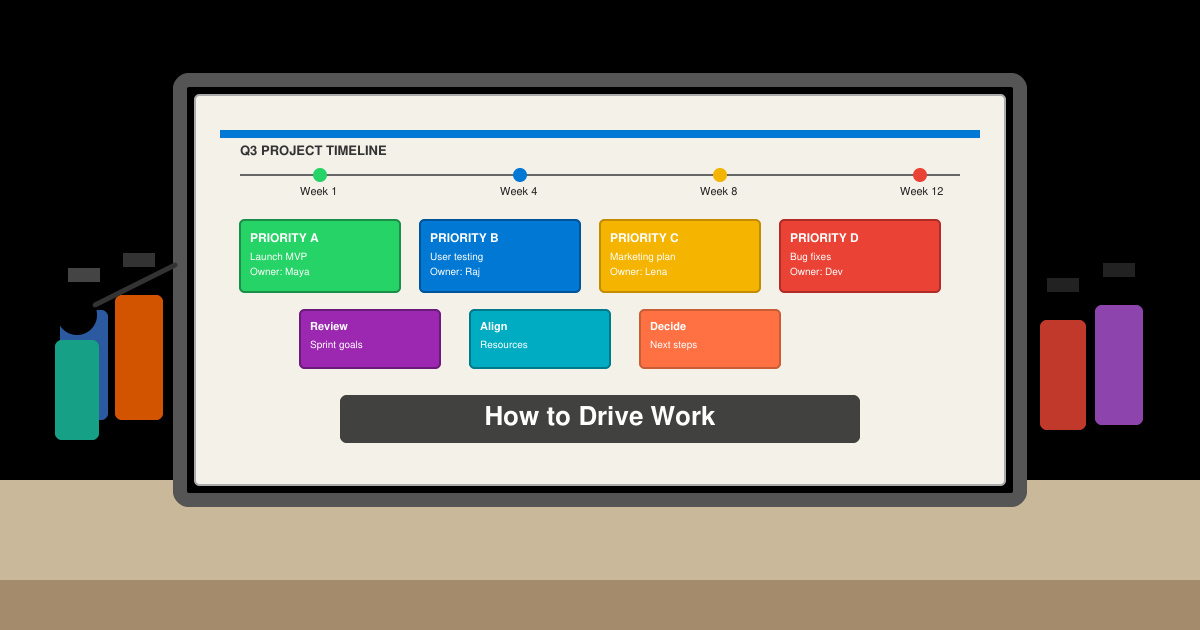
Step-by-Step Process to Drive Work Forward
-
Set measurable daily targets
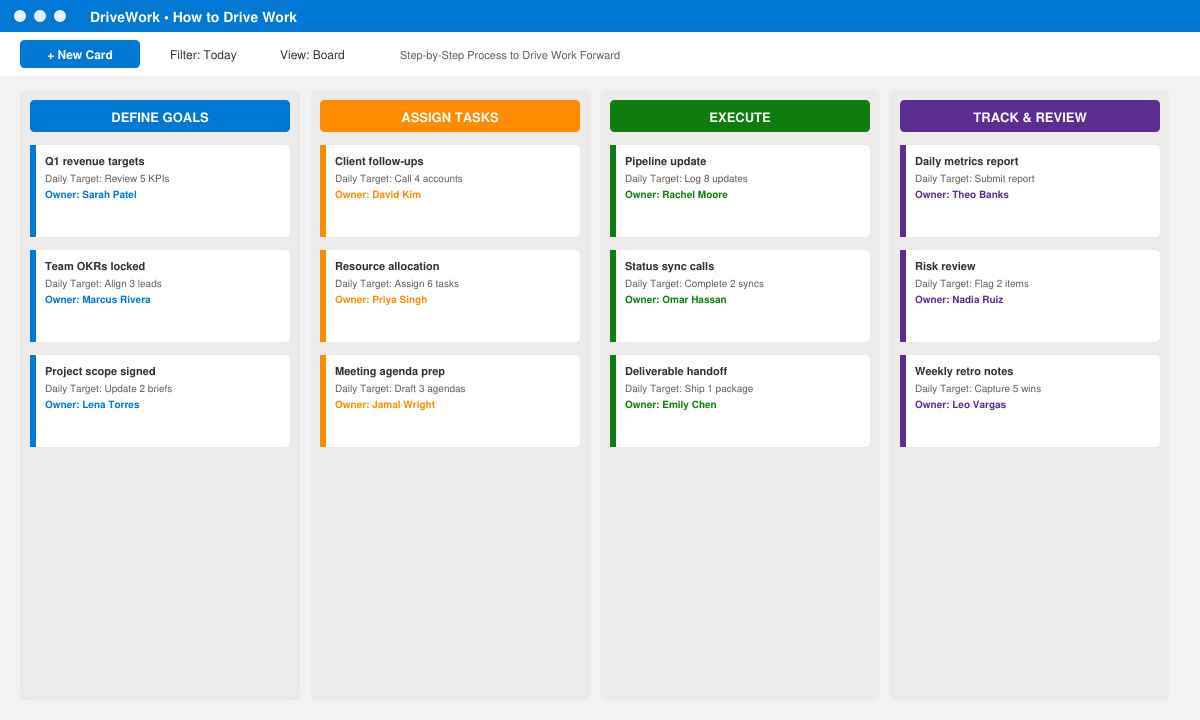
Break each deliverable into tasks that can be completed in four hours or less. Write the target on a shared document visible to everyone involved. For example, instead of noting “finish report,” specify “draft sections one through three and send for review by 3 p.m.” This level of detail removes ambiguity and creates immediate accountability.
-
Hold a 10-minute stand-up at the start of each day
Gather the team either in person or on a quick video call. Each person states the one task they will finish that day and any blocker they need removed. Record the blockers in a visible list and assign a single owner to resolve each one before the next stand-up. This ritual keeps momentum visible and surfaces issues early.
-
Update status in one central location every afternoon
Require every contributor to change the status of their tasks to “in progress,” “blocked,” or “done” by 4 p.m. Use a simple shared spreadsheet or project board so anyone can see the current state without sending extra messages. Consistent updates prevent surprises at the end of the week.
-
Remove one blocker before the end of the day
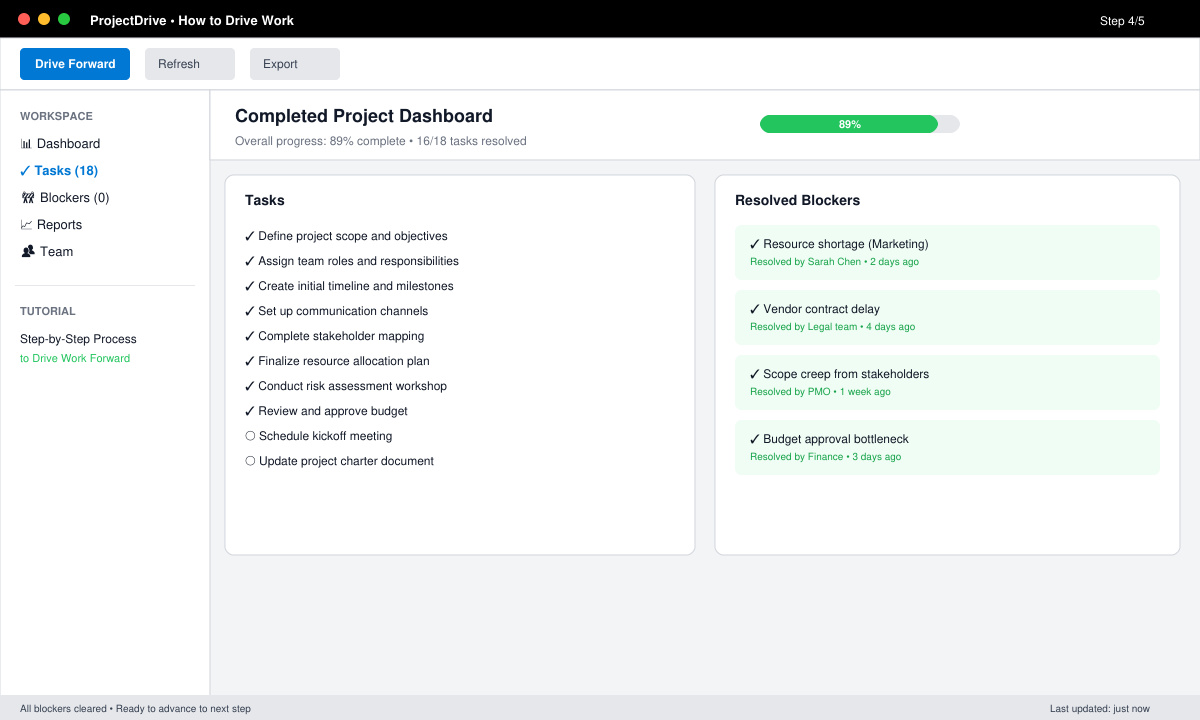
Review the blocker list and pick the item that affects the most people. Spend 30 minutes resolving it yourself or connecting the right colleagues. Document the solution so the same problem does not reappear later in the project.
Common Mistakes That Slow Work Progress
- Assigning tasks without a clear owner leads to duplicated effort or dropped items. Always name one person responsible.
- Holding long status meetings instead of quick daily check-ins wastes time that could be spent on actual work.
- Ignoring small blockers until they become large delays. Address issues the same day they appear.
- Changing priorities mid-week without updating the entire team. Post any priority shift in the central document immediately.
Frequently Asked Questions
How often should progress be reviewed when learning how to drive work?
Review progress at least once daily through the stand-up and once more through the central status board. Weekly reviews are useful for bigger adjustments but are not enough on their own to keep work moving.
Does driving work require special project management software?
No. A shared document or simple board works for most teams. The key is consistent use rather than the specific tool.
What if a team member consistently misses targets?
Discuss the pattern in a private conversation and reduce the size of their daily targets until they regain momentum. Provide additional support or reassign tasks if the pattern continues.
Conclusion
Consistent application of these steps turns vague intentions into completed work. Start with one project and refine the process as you see what works best for your team.









