Need to match your brand fonts inside Canva designs? This guide shows you precisely how to add font to Canva using the platform's built-in upload tools. The process works for Canva Pro users and takes only a few minutes once you have your font files ready.
Requirements Before You Upload Fonts
Canva restricts custom font uploads to Pro, Team, and Enterprise accounts. You must have the actual font files in .ttf or .otf format saved on your computer. Free accounts cannot upload fonts, though they can still access Canva's built-in library. Make sure your fonts are licensed for commercial use if you plan to publish designs publicly.
Prepare your files in advance. Canva accepts up to 100 custom fonts per Brand Kit, so organize them by style (regular, bold, italic) before starting.
How to Add Font to Canva Step by Step
-
Open Canva and access Brand Kit
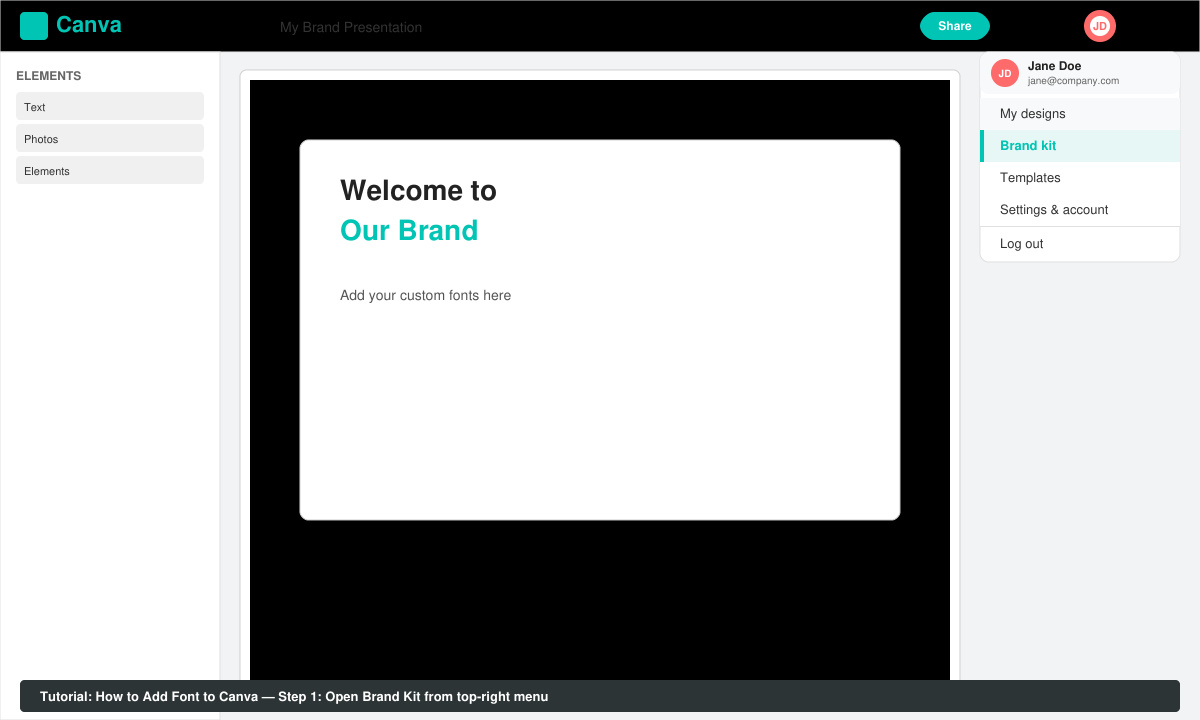
Log into your Canva account at canva.com. Click the three-dot menu in the top-right corner, then select "Brand Kit" from the dropdown. If you manage multiple brands, choose the correct Brand Kit first.
-
Locate the Fonts section
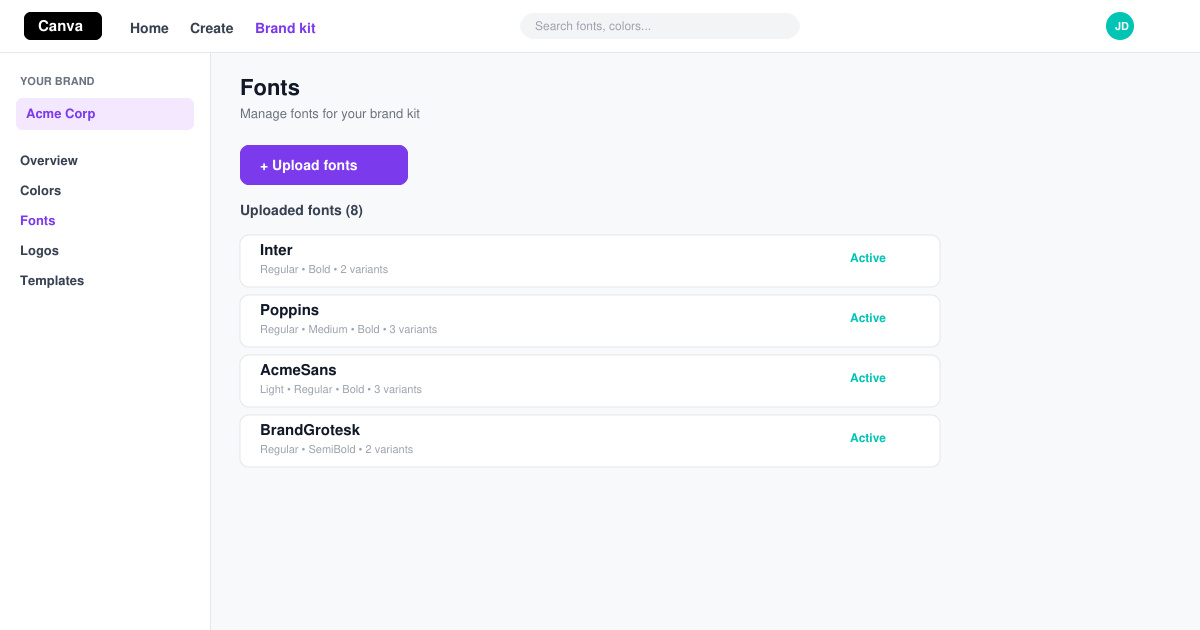
Scroll down inside Brand Kit until you reach the "Fonts" heading. Click the purple "Upload fonts" button directly beneath it. A file selection window will appear on your screen.
-
Select and upload your font files
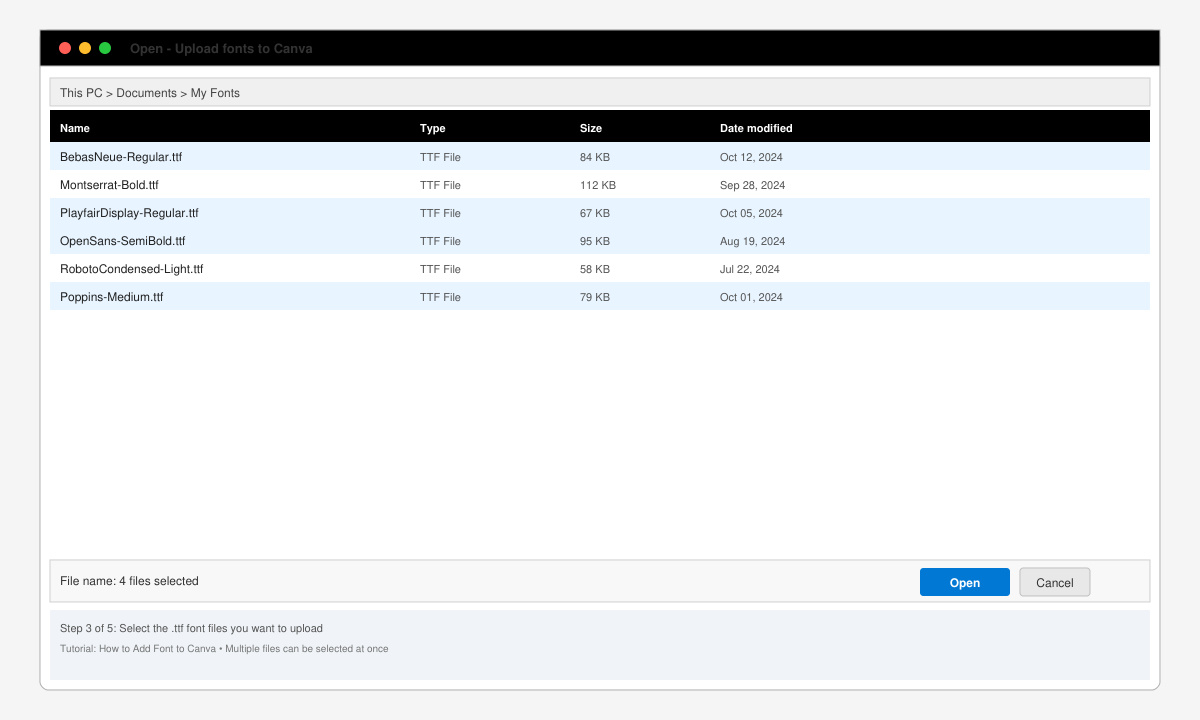
Navigate to the folder containing your .ttf or .otf files. Select one or multiple fonts at once, then click Open. Canva processes each file and adds it to your Brand Kit within seconds.
-
Apply the new fonts in your design
Open any existing or new design. Click on a text element, then open the font dropdown in the top toolbar. Your uploaded fonts now appear at the top of the list under "Brand fonts". Select the desired weight to update the text instantly.
Fixing Common Font Upload Problems
- If a font fails to upload, confirm it is not a variable font or web-only format. Convert it to standard .ttf using a free tool like Font Squirrel before retrying.
- Fonts sometimes appear pixelated after upload. Download the design at the highest resolution or switch to PDF Print format to preserve sharpness.
- Team members cannot see uploaded fonts until the Brand Kit owner grants them edit access through the sharing settings.
- Canva occasionally caches old font lists. Refresh the page or log out and back in to force the updated list to load.
Frequently Asked Questions
Can I add fonts on the Canva mobile app?
No. Font uploads are only available through the desktop or web version of Canva. Use a computer browser for this task.
Do uploaded fonts count toward my storage limit?
Custom fonts do not use your design storage quota. They remain available as long as your subscription stays active.
What happens if I cancel my Canva Pro subscription?
Uploaded fonts disappear from Brand Kit once the account reverts to free. Re-subscribe and re-upload the files to restore access.
Conclusion
Following these exact steps lets you add font to Canva and maintain consistent branding across every project. Keep your font files organized and test them in a sample design before using them in client work.









