Struggling to read small text on websites? Knowing how to zoom on Chrome helps you enlarge pages instantly without changing system settings. This guide covers every built-in method so you can adjust zoom levels on desktop and mobile versions of the browser.
Understanding Zoom Controls in Chrome
Chrome offers multiple zoom tools that work on individual tabs or across all sites. Keyboard shortcuts provide the fastest route, while the menu gives precise percentage control. Mobile users rely on pinch gestures or accessibility settings. Before starting, make sure Chrome is updated to the latest version through the three-dot menu under Help > About Google Chrome.
Zoom changes apply only to the current tab unless you set a default level for all sites. This keeps flexibility high when switching between different types of content.
How to Zoom on Chrome Using Built-in Tools
-
Open the target webpage in Chrome
Launch Chrome and navigate to the site where you need better visibility. Click the address bar or use a bookmark so the page loads fully before adjusting zoom.
-
Use keyboard shortcuts for instant changes
Press Ctrl and the plus (+) key to zoom in. Each press increases magnification by 10 percent. Press Ctrl and the minus (-) key to zoom out. Reset to 100 percent with Ctrl + 0. These shortcuts work on Windows, Mac (use Command instead of Ctrl), and Linux.
-
Access the zoom menu for exact percentages
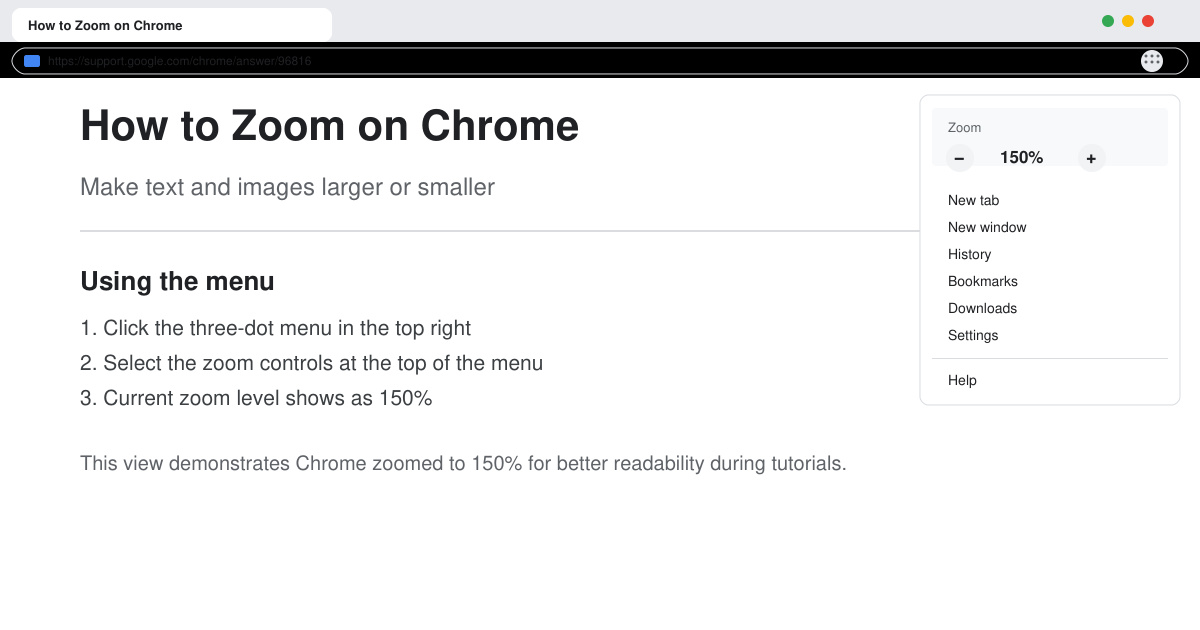
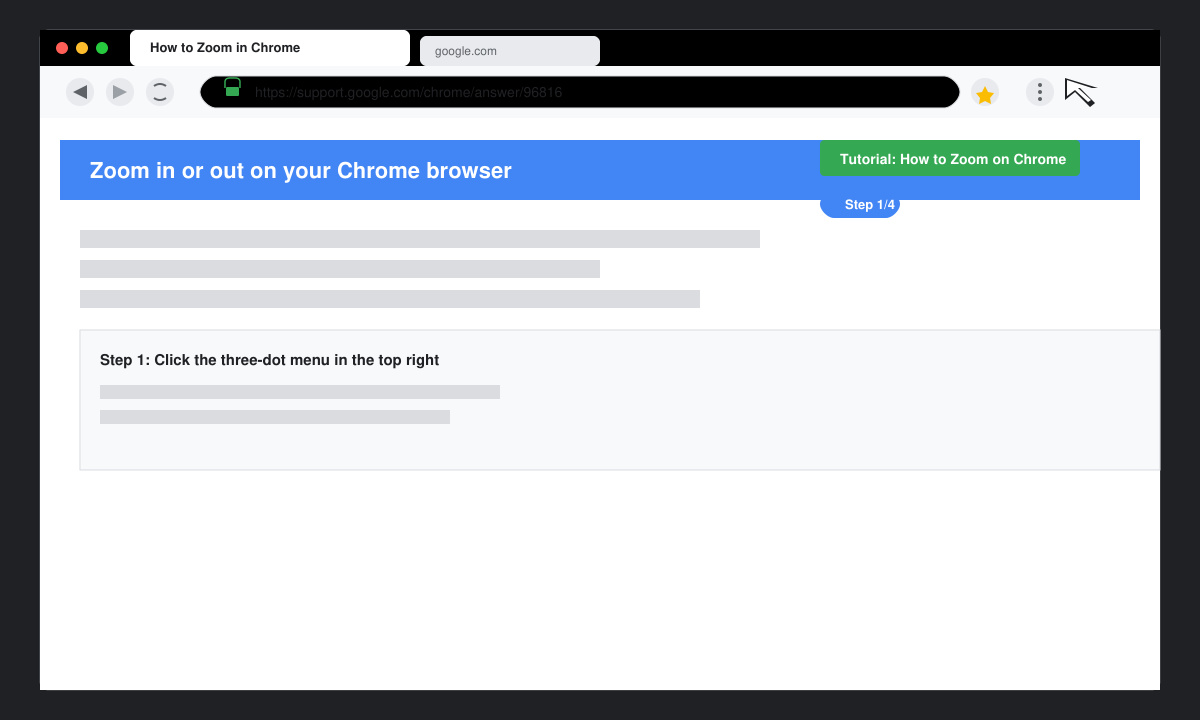
Click the three-dot menu in the top right corner. Locate the Zoom section and click the plus or minus icons to change the level. The current percentage appears between the icons. Select the reset arrow to return to default size.
-
Set a permanent default zoom level
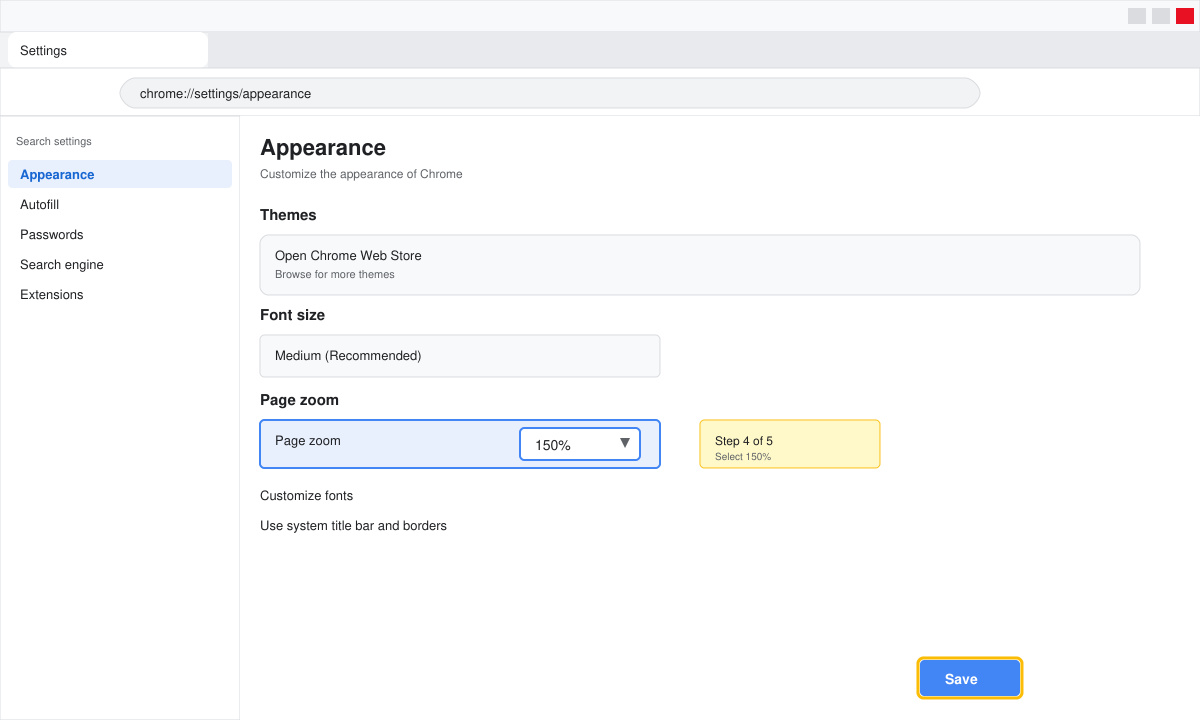
Return to the three-dot menu and choose Settings. Scroll to Appearance and click the arrow next to Page zoom. Pick your preferred percentage from the dropdown. This setting applies to new tabs and future browsing sessions.
-
Apply site-specific zoom exceptions
While on a page, open the three-dot menu and click the zoom percentage. Choose the plus icon with a lock symbol to save the zoom only for that domain. Manage exceptions later in Settings > Privacy and security > Site Settings > View permissions and data stored across sites.
Fixing Common Zoom Problems in Chrome
- If keyboard shortcuts stop working, check whether an extension is overriding them by visiting chrome://extensions and disabling recent additions one by one.
- Zoomed text that looks blurry usually means the page uses fixed pixel sizes; try enabling "Use hardware acceleration when available" in Settings > System and relaunching the browser.
- On touchscreens, pinch-to-zoom may be disabled. Go to chrome://flags, search for "pinch", and ensure the relevant flag is set to Default or Enabled.
- Zoom resets after closing Chrome when sync is active. Sign out of your Google account temporarily to test whether sync is overwriting local settings.
Frequently Asked Questions
Can I zoom only images or videos in Chrome?
No, Chrome applies zoom to the entire page. For isolated media, right-click the element and select Open image in new tab, then zoom the new tab independently.
Does how to zoom on Chrome work the same on Android and iOS?
Android supports both pinch gestures and the three-dot menu. iOS relies on pinch gestures and the built-in accessibility zoom feature accessed via Settings > Accessibility > Zoom.
Will zooming affect printing or PDF viewing?
Page zoom changes do not carry over to print previews. For PDFs, use the dedicated zoom controls in the PDF viewer toolbar instead of browser shortcuts.
Conclusion
Mastering how to zoom on Chrome takes only a few minutes and immediately improves comfort when reading dense content. Combine shortcuts with saved defaults to handle most situations efficiently.









