Learning how to use Discord gives you access to organized text channels, real-time voice rooms, and large community servers in one place. The platform works on desktop, browser, and mobile, making it simple to stay connected whether you game casually or manage active groups. This walkthrough covers account creation through advanced server navigation so you can start chatting without confusion.
Setting Up Your Discord Account
Before exploring servers you need a verified account. Discord requires only an email address and a username. Download the app from the official site or app stores to avoid third-party versions that may contain malware. Once installed, the first screen prompts you to either log in or create a new account by entering your email, choosing a username, and setting a password.
After verification through the email link, you can add a profile picture and customize your status. This step takes less than two minutes and unlocks the full feature set including friend requests and server creation.
How to Use Discord Servers and Channels
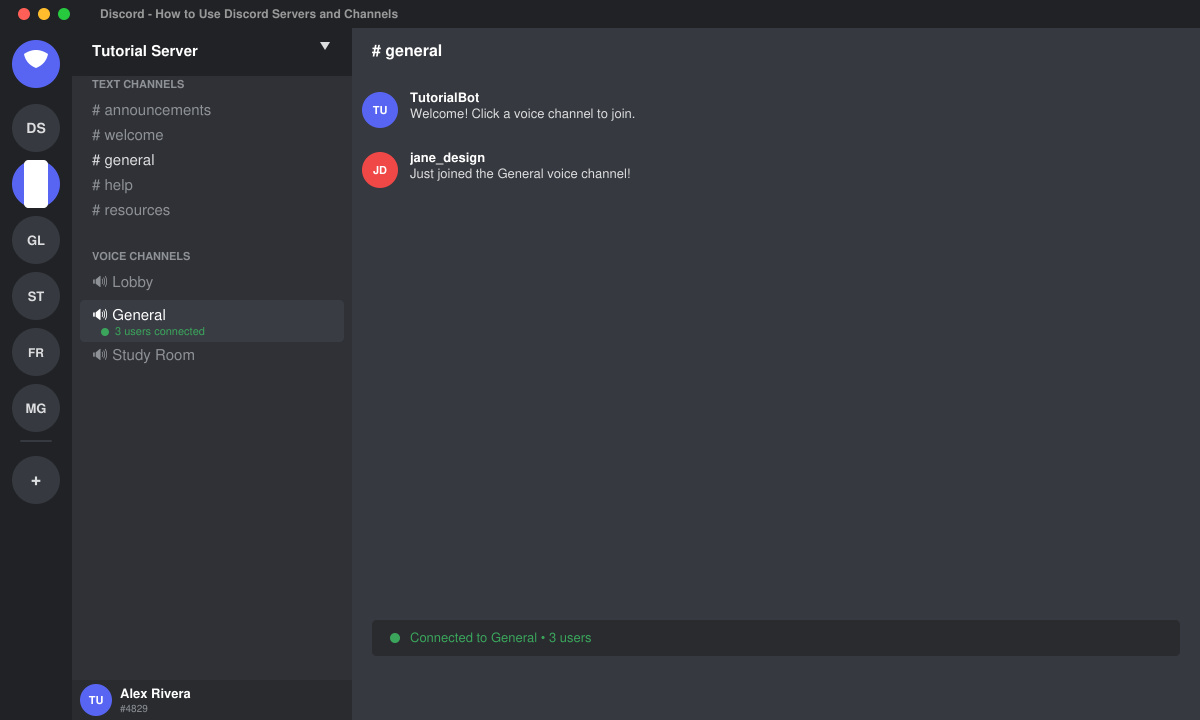
Servers act as the main hubs in Discord. Each server contains multiple text and voice channels organized by topic. To join one, click the plus icon at the bottom of the left sidebar and paste an invite link, or browse public servers through the Discovery tab in the desktop app. Once inside, the channel list appears on the left; text channels show message history while voice channels display current participants.
Navigating between servers uses the vertical bar on the far left. Hovering over a server icon reveals its name. Right-clicking a channel lets you mute notifications or mark it as read. These controls help keep conversations organized across multiple communities.
Voice and Video Communication Basics
-
Connect to a voice channel
Click any voice channel name in the server list. Discord automatically joins you to the room and shows a green speaker icon next to your username. Adjust input and output devices in User Settings under Voice & Video before speaking.
-
Share your screen during a call
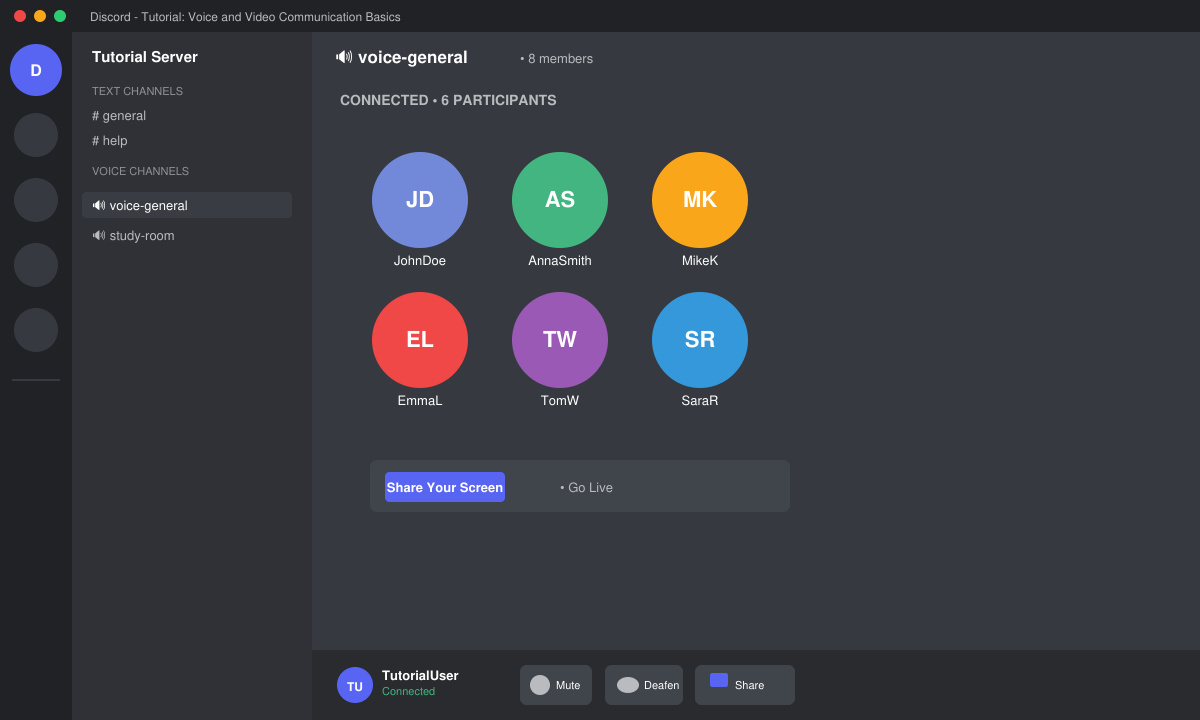
While in a voice channel, click the screen share button at the bottom. Choose an open application window or your entire monitor, then select Go Live. Other members can watch without leaving the channel.
-
Send direct messages to friends
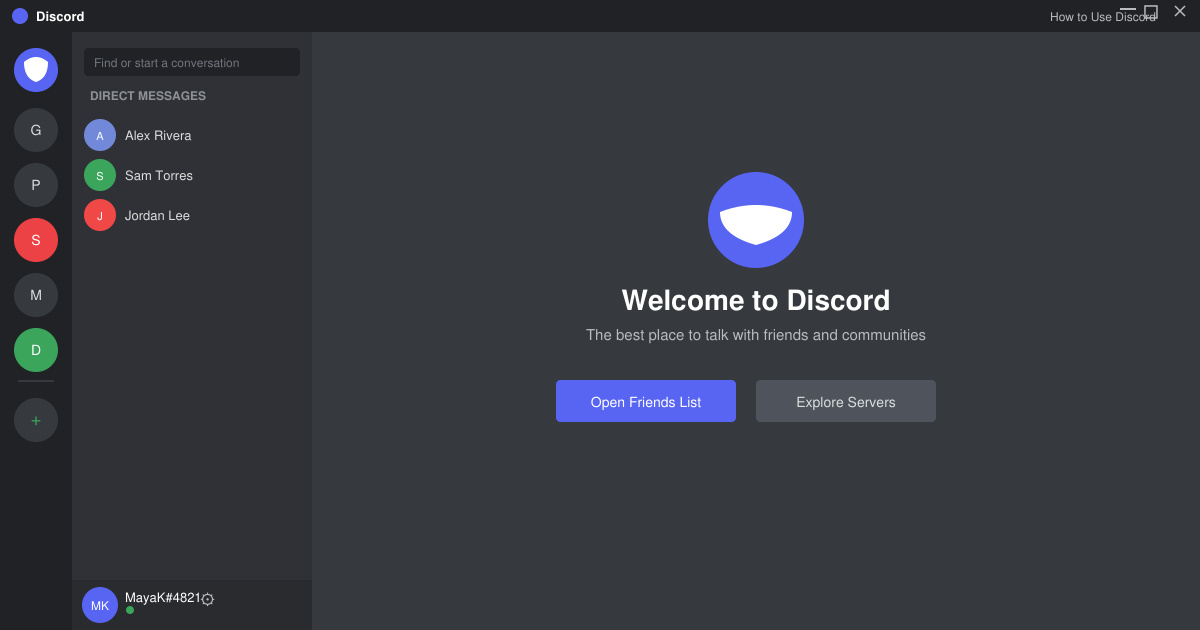
Click the friends icon at the top of the left sidebar, select a contact, and type in the message box. You can also start a private voice call from the same window by clicking the phone icon.
-
Manage notifications and roles
Open Server Settings by right-clicking the server name. Under Roles you can assign permissions such as sending messages or moving members. Notification settings let you choose mentions only or mute the entire server.
Common Issues and Quick Fixes
- If voice chat cuts out, check that Discord has microphone permission in your operating system settings and that no other app is using the input device exclusively.
- Invite links that fail usually mean the server has reached its member cap or the link expired; ask the server owner for a fresh invite.
- Mobile battery drain during long voice sessions improves by lowering screen brightness and disabling background app refresh for Discord in phone settings.
- Text formatting works with markdown: surround words with ** for bold, * for italics, or use the formatting bar that appears when you highlight text.
Frequently Asked Questions
Can I use Discord without downloading the app?
Yes, the browser version at discord.com works in Chrome, Firefox, and Edge with nearly all features except certain hardware acceleration options for screen sharing.
How do I create my own server?
Click the plus icon at the bottom of the server list, choose Create My Own, name the server, and optionally upload an icon. You receive instant admin rights and can invite others using a generated link.
Is Discord free to use for voice calls?
Basic voice, video, and text features remain free indefinitely. Nitro subscriptions add higher quality streaming, larger file uploads, and custom emojis but are not required for standard use.
Conclusion
Mastering how to use Discord centers on understanding servers, channels, and voice tools. With the steps above you can join conversations, share screens, and manage notifications efficiently across desktop and mobile.









