How to Use Skype effectively starts with a quick installation and account setup, then moves straight into making calls and managing contacts. The app works smoothly across desktop, mobile, and web, letting you connect with anyone who has a Microsoft account.
Getting Started with Skype
Before diving into calls, make sure you have a stable internet connection and a working microphone or headset. Skype requires a free Microsoft account, which you can create during signup if you do not already have one. The desktop version offers the most complete feature set, while the mobile apps focus on quick calls on the go.
How to Use Skype Step by Step
-
Download and install Skype
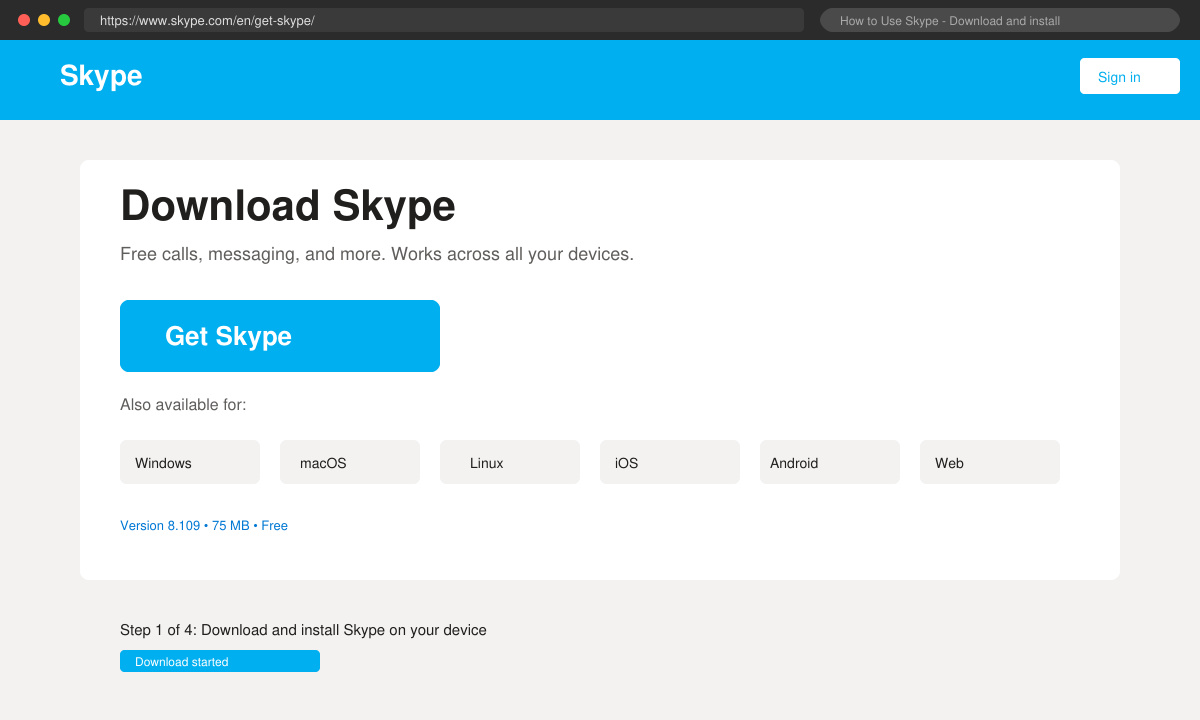
Visit skype.com or open your device app store. Search for “Skype” by Microsoft, then click Get or Install. On Windows, run the downloaded .exe file and follow the on-screen prompts. On macOS, drag the app into your Applications folder after opening the .dmg file.
-
Create or sign in to your account
Launch Skype and click “Create account” if prompted. Enter your email address or phone number, create a password, and verify the account with the code sent to you. Existing Microsoft users can simply sign in with their existing credentials.
-
Add contacts and start a conversation
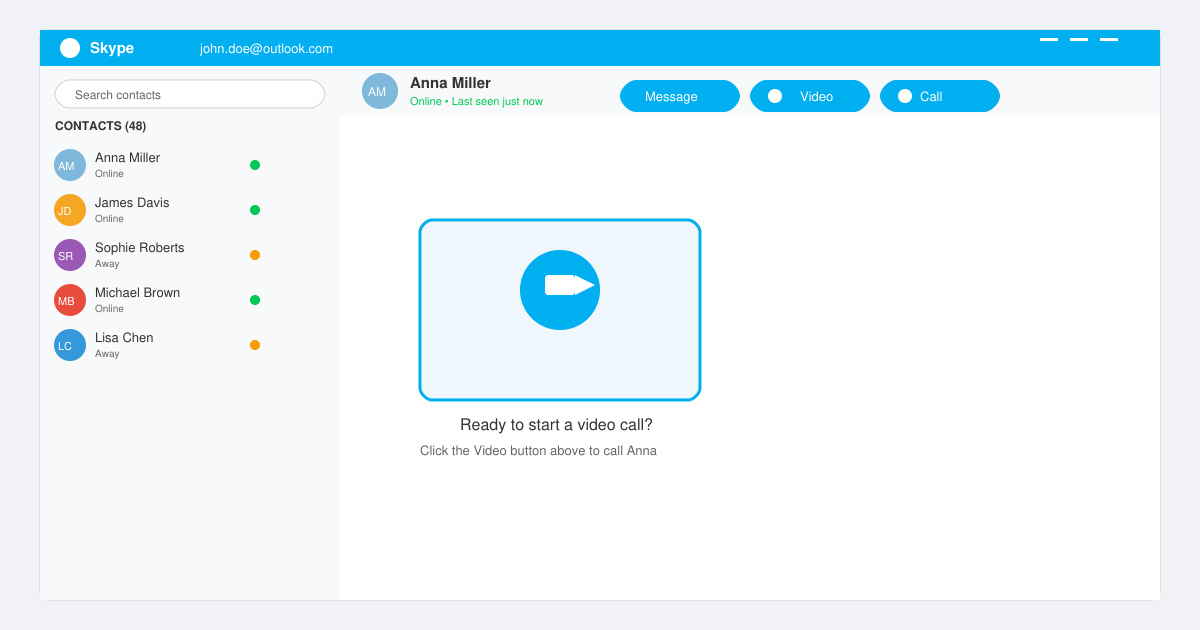
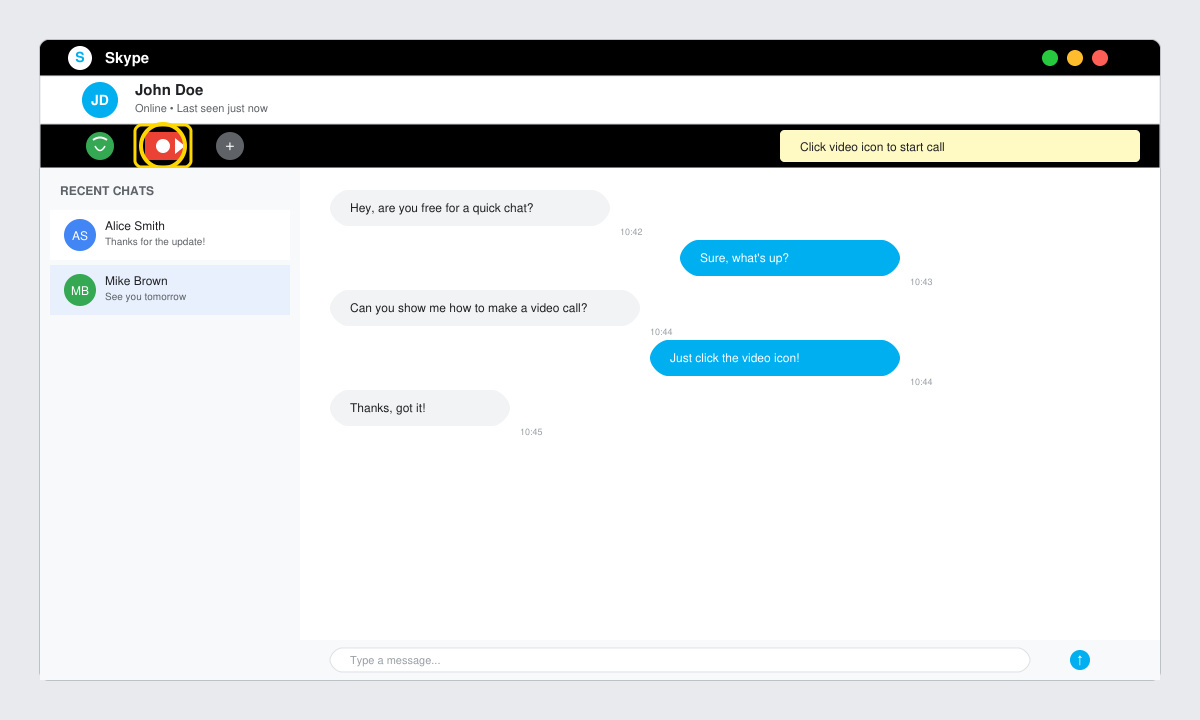
Click the search bar at the top, type the Skype name, email, or phone number of the person you want to reach, then select Add to contacts. Once they accept, open the chat and click the video or audio call icon in the top right corner of the chat window.
-
Share your screen during a call
While in an active call, click the three-dot menu in the call controls and choose “Share screen.” Select the specific window or entire desktop you want to display, then click Start sharing. The other participant will see your screen immediately.
Useful Tips and Common Mistakes
Always test your camera and microphone in Settings > Audio & Video before important calls. If your call quality drops, switch from Wi-Fi to a wired connection or close background apps using bandwidth. A frequent mistake is forgetting to grant microphone permission in your device settings, which blocks all outgoing audio. Another common issue occurs when users try to call phone numbers without Skype Credit or a subscription; check your balance first in the account section.
FAQ
Is Skype completely free?
Yes for calls between Skype users. Calls to landlines or mobiles require paid credit or a subscription.
Can I use Skype without installing the app?
Yes. Go to web.skype.com in any modern browser and sign in with your Microsoft account to make calls directly from the web.
How do I change my profile picture?
Click your avatar in the top left, select the camera icon, and upload a new photo from your device or take one with your webcam.
Conclusion
Once you complete the initial setup, How to Use Skype becomes straightforward for daily communication. Practice a test call with a friend to get comfortable with the controls before using it for work or important conversations.









