Zooming precisely is a core skill in Adobe Photoshop for retouching images or creating detailed designs. This article explains exactly how to zoom in on Photoshop using built-in tools and shortcuts. You will finish with reliable techniques that work in Photoshop 2024 and later versions.
Overview of Zoom Features Before You Start
Photoshop offers multiple zoom methods because different tasks require different levels of control. The Zoom tool provides visual selection, while keyboard shortcuts speed up repetitive actions. Before learning how to zoom in on Photoshop, make sure your document is open and the Layers panel shows the image layer you intend to edit.
The Navigator panel gives an overview thumbnail for large files. These options work whether you use a mouse, trackpad, or tablet. Knowing the differences prevents accidental view changes during complex edits.
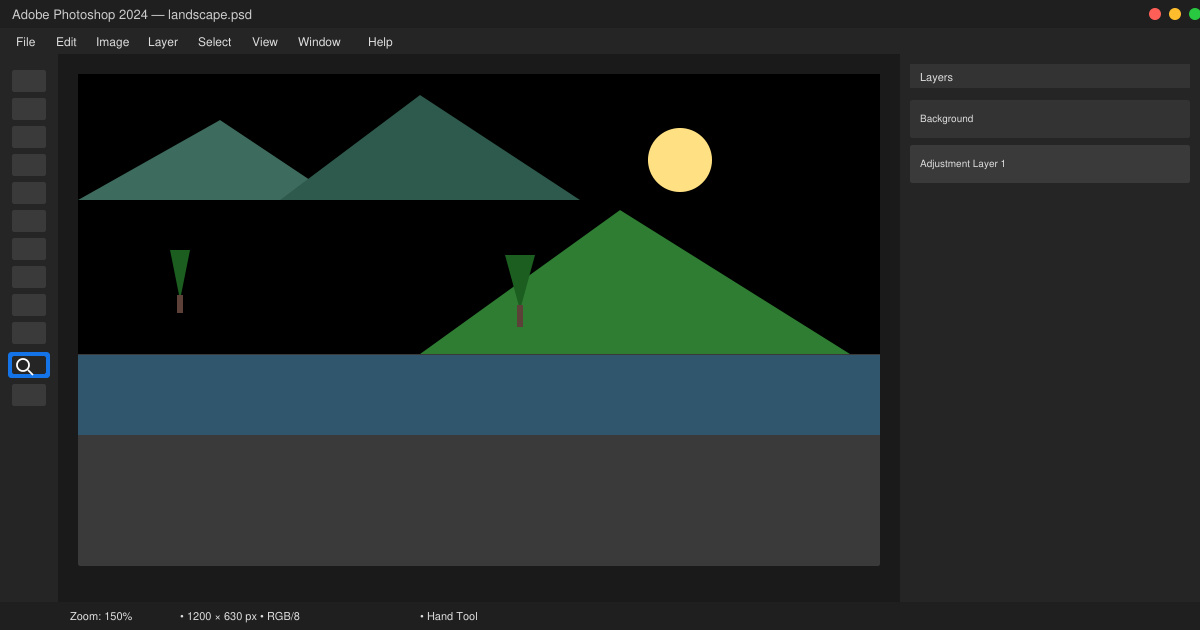
How to Zoom in on Photoshop Using the Zoom Tool
-
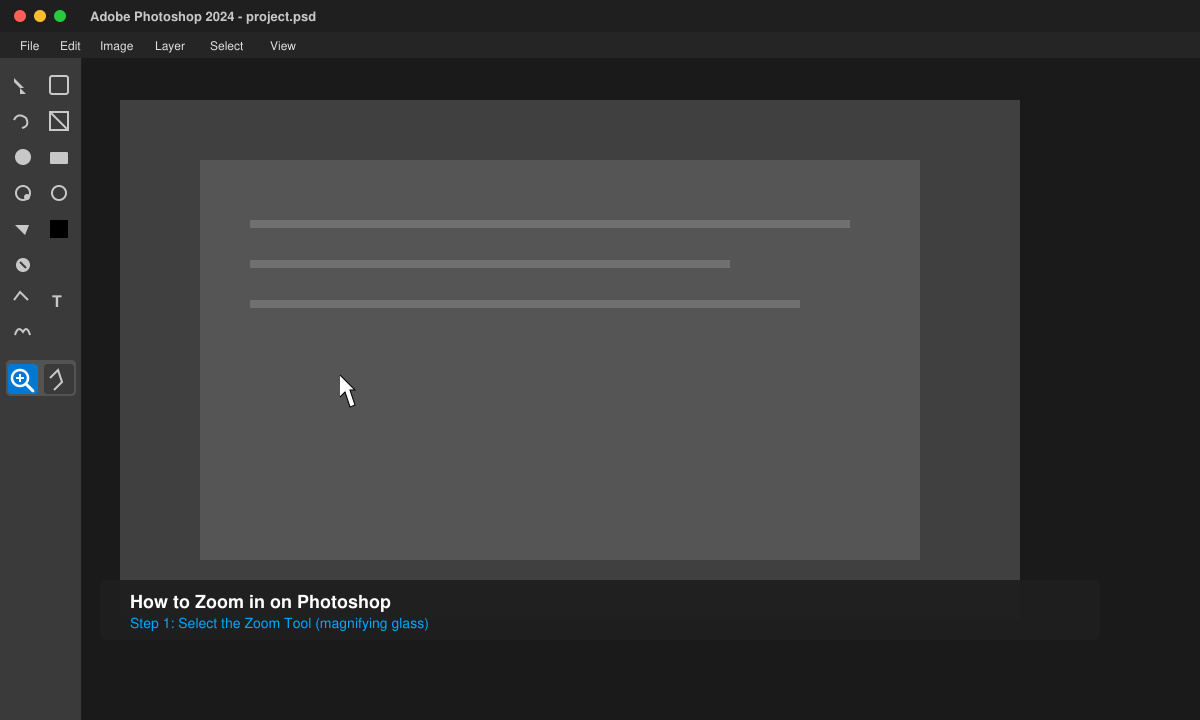
Select the Zoom tool from the toolbar
Click the magnifying glass icon in the left toolbar or press Z on your keyboard. The cursor changes to a magnifying glass with a plus sign inside. This activates the primary method for how to zoom in on Photoshop.
-
Click or drag on the image area
Click once on the area you want to enlarge. Hold the mouse button and drag a rectangle around a specific region to zoom directly to that section. Release to see the magnified view centered on your selection.
-
Adjust zoom level with options bar controls
Look at the options bar at the top. Enter a percentage value such as 200% or 400% in the zoom field and press Enter. Toggle the Scrubby Zoom checkbox to enable click-and-drag zooming without switching tools.
-
Switch to zoom out mode when needed
Hold the Alt key (Windows) or Option key (macOS) while using the Zoom tool. The plus sign changes to a minus sign, allowing you to reduce magnification without changing tools.
How to Zoom in on Photoshop with Keyboard Shortcuts
Keyboard shortcuts provide the fastest way to zoom in on Photoshop during editing sessions. Press Ctrl + + (Windows) or Cmd + + (macOS) to zoom in incrementally. Use Ctrl + - or Cmd + - to zoom out. To fit the entire image on screen, press Ctrl + 0 or Cmd + 0. These commands keep your hands on the keyboard and maintain workflow speed.
For temporary zoom, hold the spacebar and right mouse button, then drag up or down. Release the keys to return to the previous view. This method works alongside any active tool and is especially useful on high-resolution files.
Tips and Common Issues When Zooming
- If the image appears pixelated at high zoom levels, switch to 100% view by pressing Ctrl + 1 or Cmd + 1 to check actual pixels before final export.
- Zooming too far can slow performance on large files. Reduce zoom or close unnecessary panels to restore responsiveness.
- Trackpad users should enable the Scroll Wheel Zoom option in Edit > Preferences > Performance for smooth pinch-to-zoom gestures.
- The Navigator panel thumbnail can be dragged to move the visible area without changing zoom percentage.
Frequently Asked Questions
Can I zoom while using another tool like the Brush?
Yes. Hold the Alt key (Windows) or Option key (macOS) and scroll the mouse wheel or use the keyboard shortcuts without switching away from the Brush tool.
Does zooming affect the actual image resolution?
No. Zooming only changes your on-screen view. The image pixels and file size remain unchanged until you apply edits or resize the document.
Why does my zoom shortcut not work?
Check that the document window is active and no dialog boxes are open. Also confirm your keyboard layout settings in Photoshop Preferences match your physical keyboard.
Conclusion
Once you practice these methods, how to zoom in on Photoshop becomes second nature and greatly improves editing precision.









