10 Great Windows Features That Many People Dont Use

Even if you've been a Windows user for a long time, there are probably features you've never noticed. From killing apps that hang in the taskbar to automatically locking your computer when you walk away, there are plenty of tools you'll wish you'd discovered sooner.

10. Voice input

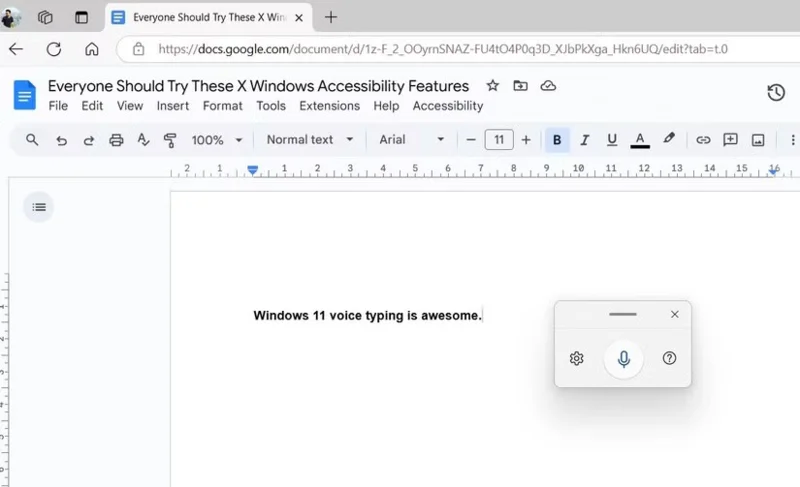
If your job requires you to type a lot throughout the day, whether it's emails, documents, reports, or anything else, you'll definitely appreciate a break from the keyboard. Voice typing can give you exactly that.

This feature instantly converts your speech to text, almost like magic. All you have to do is press Windows + H to activate it and start speaking.

10 Great Windows Features That Many People Don't Use
Windows 11 voice typing menu in Google Docs

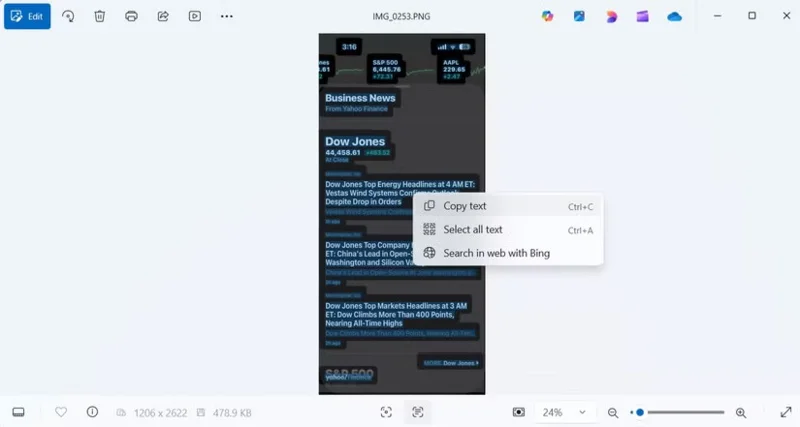
9. Extract text from images

Occasionally, you may need to copy text from an image for a variety of reasons. It could be a screenshot, a whiteboard, or a scanned document. However, unlike before, you don't need a third-party tool for this; the built-in Photos app can handle it for you.

Snipping Tool also has a similar OCR feature, allowing you to capture anything on the screen and extract text instantly.

10 Great Windows Features That Many People Don't Use
Windows Photos app scans text from screenshots

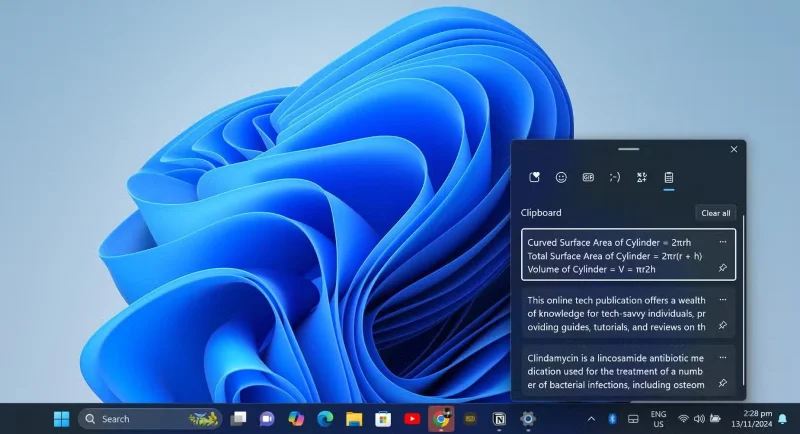
8. Clipboard History

Clipboard History is easily one of the best features of Windows, but it's not turned on by default. It keeps track of everything you copy, from text to images, so you can access it at any time.

To enable this feature, press Windows + V and turn on Clipboard History. Then, every time you copy something, it will be saved in a list that you can quickly open with the same shortcut.

10 Great Windows Features That Many People Don't Use
View Clipboard History in Windows

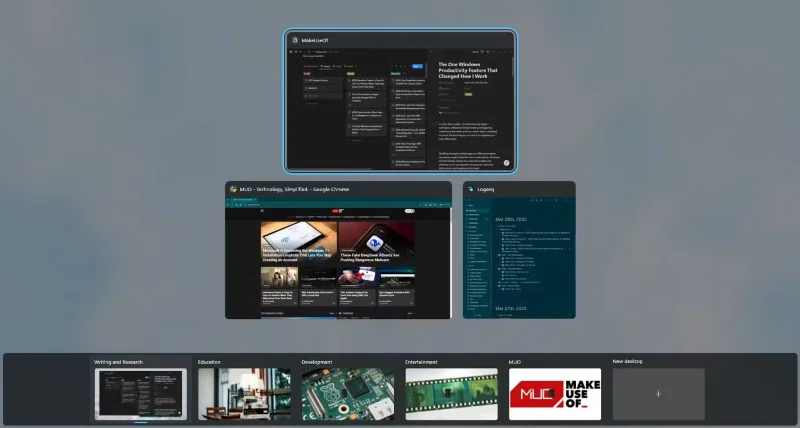
7. Virtual Desktop

When you're juggling multiple projects and personal tasks, your desktop can quickly become cluttered. And with dozens of windows open, switching between them can be difficult.

With Virtual Desktops, you can create a separate workspace for each project or task. Press Windows + Tab to access Task View, then click New Desktop to start a new workspace. Switching between desktops is simple with Windows + Ctrl + Left/Right Arrow .

10 Great Windows Features That Many People Don't Use
Windows Virtual Desktop displays multiple custom displays

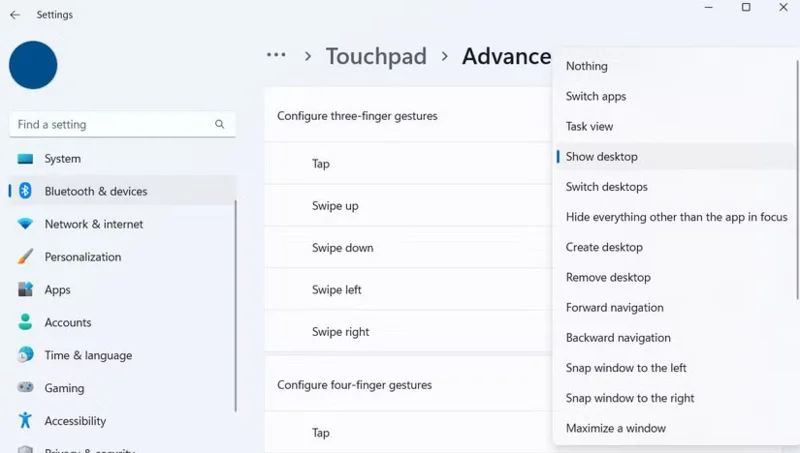
6. Touchpad gestures

Laptop touchpads are a lot more powerful than you might think. They may not be as precise as a mouse, but they make up for it with powerful gestures that can speed up your workflow.

10 Great Windows Features That Many People Don't Use
Advanced Touchpad Gesture Settings in Windows 11

And the best part is that Windows lets you customize these gestures to your liking. Go to Settings > Bluetooth & devices > Touchpad > Advanced gestures , and you'll be able to customize each gesture.

5. Dynamic Lock

Dynamic Lock is a handy Windows feature that helps keep your computer secure. It automatically locks your device when you walk away from it, ensuring no one can snoop on it.

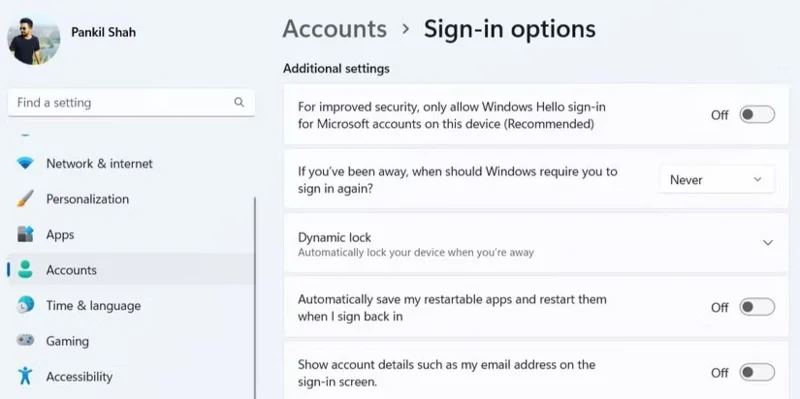
To enable this feature, go to Settings > Accounts > Sign-in options > Dynamic Lock , then check the box to let Windows detect your device. This ensures your PC stays secure, even if you forget to press Windows + L before leaving your desk.

10 Great Windows Features That Many People Don't Use
Sign in options on Windows 11

4. Secret Start Menu

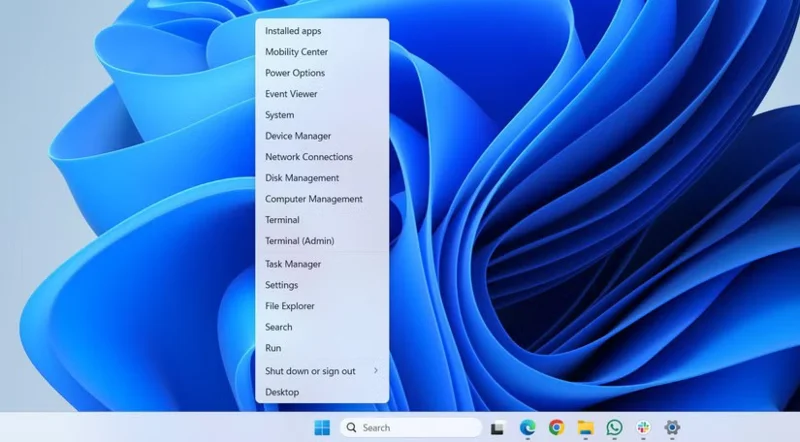
The Start menu is something you use every day, but did you know it hides an incredibly powerful menu? Right-click the Start button or press Windows + X , a "secret" menu will appear with tools like Device Manager , Disk Management , Task Manager , Power Options , etc.

10 Great Windows Features That Many People Don't Use
Windows 11 Advanced User Menu

3. Nearby Sharing

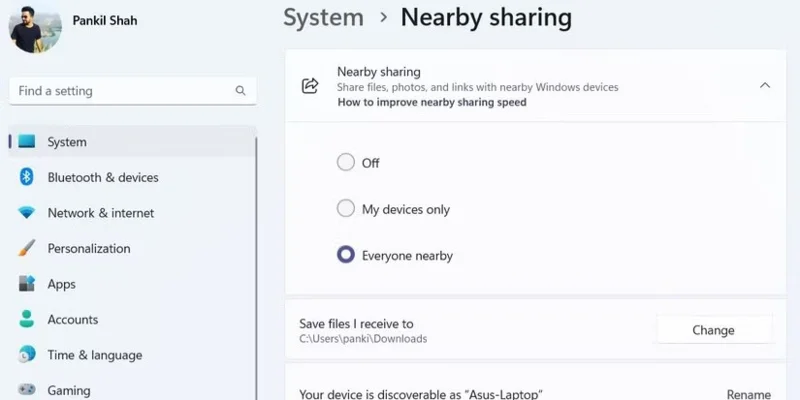
To use this feature, find the file you want to share and right-click it. Then, select Share > Nearby sharing  and select a nearby device. Both devices need to have Nearby Sharing turned on for this feature to work. You can enable it in Settings > System > Nearby sharing .

10 Great Windows Features That Many People Don't Use
Enable Nearby Sharing in Windows 11

While Nearby Sharing isn't ideal for very large files, it's perfect for quickly sending documents or images across rooms. It's fast, convenient, and eliminates the need for third-party file sharing apps.

2. End unresponsive applications from the taskbar

No matter how powerful your computer is, sometimes applications and programs can freeze. When that happens, force-quitting the application is often the only solution.

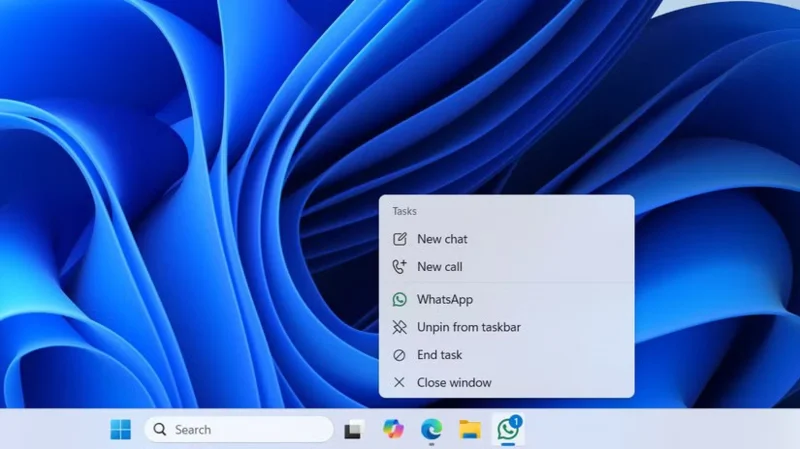
You don’t need to open Task Manager to do that, though . You can force close a frozen app directly from the taskbar. To do this, go to Settings > System > For developers and turn on the End task button. Now, whenever you want to close an unresponsive app, just right-click its taskbar icon and select End task .

10 Great Windows Features That Many People Don't Use
Windows 11 taskbar shows end task option for WhatsApp

1. Adjust volume with mouse wheel

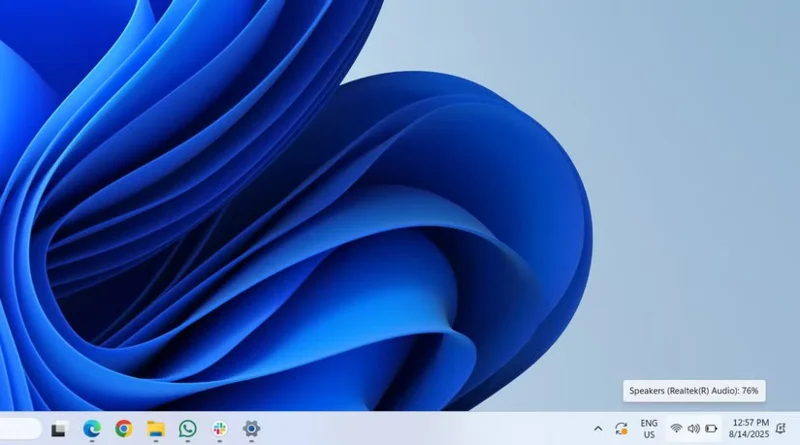
There are many ways to adjust the volume on your computer, from using the function keys to the Quick Settings panel. All of these are convenient, but there's an even faster way.

Just hover over the speaker icon on the taskbar and scroll up or down. The volume will change instantly. It's a small feature, but it makes it easy to change the volume when listening to music, watching videos, or making video calls.

10 Great Windows Features That Many People Don't Use
The speaker icon on the Windows taskbar displays the volume level.
Tags: #System
Sign up and earn $1000 a day ⋙

Leave a Comment

Fix Windows Error Code 0xc0000098: Backup ACPI.sys to Prevent Boot Failure

Fix Windows Error Code 0xc0000098: Backup ACPI.sys to Prevent Boot Failure

Error code 0xc0000098 in Windows causes a blue screen error on startup. The ACPI.sys driver is often to blame, especially on unsupported versions of Windows 11 like 23H2 or 22H2 or Windows 10.

Quickly fix Windows 10/8/7 computer error that freezes and cannot exit Safe Mode

Quickly fix Windows 10/8/7 computer error that freezes and cannot exit Safe Mode

In some cases, sometimes you start your computer in Safe Mode and the computer freezes. So how to fix the error in this case, please refer to the article below of WebTech360.

How to fix Snipping Tool keeps showing error

How to fix Snipping Tool keeps showing error

Snipping Tool is a powerful photo and video capture tool on Windows. However, this tool sometimes has some errors, such as constantly displaying on the screen.

How to get the fastest internet connection from your router

How to get the fastest internet connection from your router

Every network has a router to access the Internet, but not everyone knows how to make the router work better. In this article, we will introduce some router tips to help speed up the wireless connection in the network.

Common Mistakes When Performing Internet Speed ​​Tests

Common Mistakes When Performing Internet Speed ​​Tests

If the results seem slower than expected, don't be too quick to blame your ISP - mistakes when performing the test can skew your numbers.

What is QoS? How to use QoS for faster Internet speeds when you need it most

What is QoS? How to use QoS for faster Internet speeds when you need it most

In the article below, we will introduce and guide you to learn about the concept of QoS - Quality of Service on router devices.

Why cant this built-in Credential Manager feature in Windows replace a password manager?

Why cant this built-in Credential Manager feature in Windows replace a password manager?

Windows has a built-in Credential Manager, but it's not what you think it is—and certainly not a replacement for a password manager.

How to install free HEVC codecs on Windows 10 (for H.265 video)

How to install free HEVC codecs on Windows 10 (for H.265 video)

Microsoft charges for its official codecs and doesn't include them in Windows 10. However, you can get them for free without pulling out your credit card and spending $0.99.

Instructions to fix Access Denied error when accessing files or folders on Windows

Instructions to fix Access Denied error when accessing files or folders on Windows

While having trouble accessing files and folders can be frustrating, don't panic—with a few simple tweaks, you can regain access to your system.

How to check if USB Boot has been created successfully?

How to check if USB Boot has been created successfully?

After creating a USB boot to install Windows, users should check the USB boot's performance to see if it was created successfully or not.

4 Types of Windows Data That Are Growing in Size: How to Control Them?

4 Types of Windows Data That Are Growing in Size: How to Control Them?

Although Windows Storage Sense efficiently deletes temporary files, some types of data are permanent and continue to accumulate.

How to turn off background apps in Windows 11, reduce RAM consumption on Win 11

How to turn off background apps in Windows 11, reduce RAM consumption on Win 11

You can turn off Windows 11 background apps to optimize performance, save battery and reduce RAM consumption.

Instructions to fix the error “Network path was not found” in Windows

Instructions to fix the error “Network path was not found” in Windows

When a computer, mobile device, or printer tries to connect to a Microsoft Windows computer over a network, for example, the error message network path was not found — Error 0x80070035 may appear.

How to block Internet connection of Windows 10 software and applications

How to block Internet connection of Windows 10 software and applications

We can block Internet access for any application or software on the computer, while other programs can still access the network. The following article will guide readers on how to disable Internet access for software and applications on Windows.

How to Stay Safe on Windows 10 Until 2030

How to Stay Safe on Windows 10 Until 2030

Instead of paying $30 for a year of security updates, keep Windows 10 safe until 2030 with this simple solution.

Fix Windows Error Code 0xc0000098: Backup ACPI.sys to Prevent Boot Failure

Fix Windows Error Code 0xc0000098: Backup ACPI.sys to Prevent Boot Failure

Error code 0xc0000098 in Windows causes a blue screen error on startup. The ACPI.sys driver is often to blame, especially on unsupported versions of Windows 11 like 23H2 or 22H2 or Windows 10.

Quickly fix Windows 10/8/7 computer error that freezes and cannot exit Safe Mode

Quickly fix Windows 10/8/7 computer error that freezes and cannot exit Safe Mode

In some cases, sometimes you start your computer in Safe Mode and the computer freezes. So how to fix the error in this case, please refer to the article below of WebTech360.

How to fix Snipping Tool keeps showing error

How to fix Snipping Tool keeps showing error

Snipping Tool is a powerful photo and video capture tool on Windows. However, this tool sometimes has some errors, such as constantly displaying on the screen.

How to get the fastest internet connection from your router

How to get the fastest internet connection from your router

Every network has a router to access the Internet, but not everyone knows how to make the router work better. In this article, we will introduce some router tips to help speed up the wireless connection in the network.

Common Mistakes When Performing Internet Speed ​​Tests

Common Mistakes When Performing Internet Speed ​​Tests

If the results seem slower than expected, don't be too quick to blame your ISP - mistakes when performing the test can skew your numbers.

What is QoS? How to use QoS for faster Internet speeds when you need it most

What is QoS? How to use QoS for faster Internet speeds when you need it most

In the article below, we will introduce and guide you to learn about the concept of QoS - Quality of Service on router devices.

Why cant this built-in Credential Manager feature in Windows replace a password manager?

Why cant this built-in Credential Manager feature in Windows replace a password manager?

Windows has a built-in Credential Manager, but it's not what you think it is—and certainly not a replacement for a password manager.

How to install free HEVC codecs on Windows 10 (for H.265 video)

How to install free HEVC codecs on Windows 10 (for H.265 video)

Microsoft charges for its official codecs and doesn't include them in Windows 10. However, you can get them for free without pulling out your credit card and spending $0.99.

Instructions to fix Access Denied error when accessing files or folders on Windows

Instructions to fix Access Denied error when accessing files or folders on Windows

While having trouble accessing files and folders can be frustrating, don't panic—with a few simple tweaks, you can regain access to your system.

How to check if USB Boot has been created successfully?

How to check if USB Boot has been created successfully?

After creating a USB boot to install Windows, users should check the USB boot's performance to see if it was created successfully or not.

4 Types of Windows Data That Are Growing in Size: How to Control Them?

4 Types of Windows Data That Are Growing in Size: How to Control Them?

Although Windows Storage Sense efficiently deletes temporary files, some types of data are permanent and continue to accumulate.

How to turn off background apps in Windows 11, reduce RAM consumption on Win 11

How to turn off background apps in Windows 11, reduce RAM consumption on Win 11

You can turn off Windows 11 background apps to optimize performance, save battery and reduce RAM consumption.

Instructions to fix the error “Network path was not found” in Windows

Instructions to fix the error “Network path was not found” in Windows

When a computer, mobile device, or printer tries to connect to a Microsoft Windows computer over a network, for example, the error message network path was not found — Error 0x80070035 may appear.

How to block Internet connection of Windows 10 software and applications

How to block Internet connection of Windows 10 software and applications

We can block Internet access for any application or software on the computer, while other programs can still access the network. The following article will guide readers on how to disable Internet access for software and applications on Windows.

How to Stay Safe on Windows 10 Until 2030

How to Stay Safe on Windows 10 Until 2030

Instead of paying $30 for a year of security updates, keep Windows 10 safe until 2030 with this simple solution.