Keep Writer Revisions Visible When Exporting to DOCX
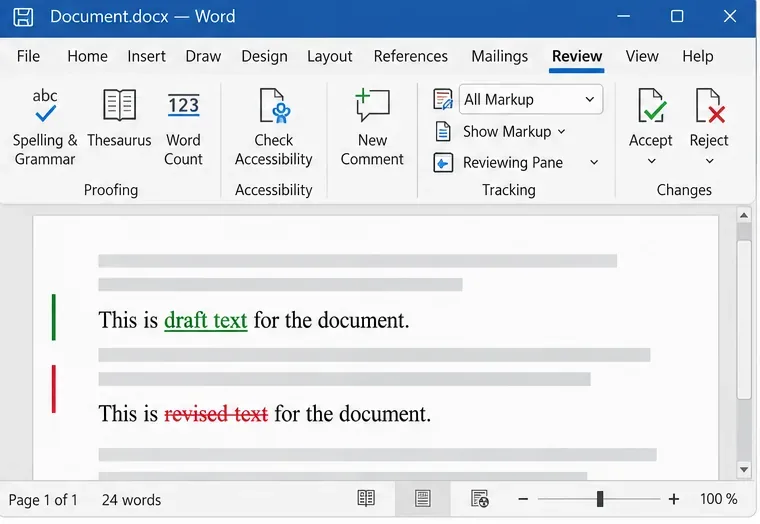
Track edits in Writer, preserve an editable ODT source, and check the exported DOCX in Word before sharing it.
Did you plug an external hard drive into your Windows 10 computer, and you want to remove it safely, so that the data on it doesn’t get corrupted? Do you work with USB flash drives and need to eject them safely? In that case, you are in the right place, as this guide shows five ways to eject external storage devices from Windows 10:
Contents
1. How to eject storage devices using the Safely Remove Hardware and Eject Media icon
The most popular method is also one of the simplest and fastest. The gist is to find the Safely Remove Hardware and Eject Media icon in the system tray. By default, in Windows 10, this icon is hidden and not shown alongside the clock and the network icon. However, you can click the arrow pointing upwards to show hidden icons and then find the icon that looks like a USB stick, highlighted below.

Finding the Safely Remove Hardware and Eject Media icon
You can move the Safely Remove Hardware and Eject Media icon to make it visible in the system tray. Read this guide on how to show or hide system tray icons.

Click on Safely Remove Hardware and Eject Media
After finding the USB icon, click on it to see a list of all the removable storage devices connected to your Windows 10 computer. The list includes USB memory sticks, external hard drives, and other types of USB devices. In the list of removable devices, click on the one that you want to remove. If you can’t tell them apart, look at their drive letter.

Choose the drive you want to eject
Then, a notification should be shown in the bottom right corner, telling you that it is Safe To Remove Hardware. Now, you can unplug the storage device that you no longer want to use on your computer.

It is safe to remove hardware
If the storage device you want to unplug is actively used by Windows 10 or an app you are running, you receive a prompt saying that “This device is currently in use.” It is not a good idea to unplug the storage device because the data on it might get corrupted.

This device is currently in use
If this error message is shown, close all open apps and try again. If you still receive the same error, shut down Windows 10, and unplug the storage device. Then, start your computer again and use it normally.
2. How to eject an external hard drive or USB drive from File Explorer
Another simple method is to open File Explorer, go to This PC, and then to the Devices and drives section, where you see all the partitions and drives from your PC, including external ones.

Find the device you want to eject in File Explorer
Right-click or press and hold on the drive that you want to remove and, in the menu that opens, choose Eject.

Right-click and choose Eject
If everything went well, you see a notification that it is Safe To Remove Hardware. Unplug the device that you no longer want to use on your Windows 10 PC, and you are done.

Now it is safe to remove hardware
TIP: If you want to know more about working and managing Windows 10 notifications, read how to use Windows 10's Action Center notifications.
3. How to safely remove external storage devices from Settings
Another method that is less known than the others shared so far is from the Settings app. In Windows 10, open Settings (press Windows + I) and go to Devices.

In Windows 10 Settings, go to Devices
In the column on the left, go to “Bluetooth & other devices.” You see a long list of devices on the right side of the window.

Go to Bluetooth & other devices
Scroll down to the Other devices section, where you should see the external devices connected to your Windows 10 PC. Find the external hard drive or USB stick you want to remove, click or tap on its name, and then on Remove device. A confirmation dialog appears. In it, press Yes.

Select the drive you want to eject in Other Devices
The external storage device can now be unplugged.
4. How to eject USB memory sticks from Disk Management
This method applies to USB memory sticks, but not to external hard drives. It starts with opening Disk Management. Then, scroll down the list of disks at the bottom.

Find the USB flash drive in Disk Management
The disks that can be removed from Disk Management have the label Removable. Find the one you want, right-click on it, and choose Eject.

Right-click on the USB flash drive and choose Eject
Now you can safely unplug the USB drive from your computer or device.
5. How to use the Safely Remove Hardware wizard to eject USB storage devices
This section covers an old method that worked very well in Windows 7. It still exists, and it partially works in Windows 10, but Microsoft considers it retired. At some point, it will either stop working or be removed entirely from Windows 10. For now, you can only use it to eject external hard drives, but not USB memory sticks. Here’s how it works:
Open the Run window (Windows + R), and then copy and paste the following: a

Use the Run window to access the Safely Remove Hardware window
You can also download the shortcut we created for it, extract it to your desktop, and run it from there.

Download our Safely Remove Hardware shortcut
Now, you see the Safely Remove Hardware window, with the list of removable devices that Windows detects. Choose the one you want to eject and press Stop.

Choose the device you want to eject
You are asked to confirm the device to be “stopped.” Choose the entry with the drive label, and press OK.

Select the drive label and press OK
Now, you see a notification that it is Safe To Remove Hardware, and you can unplug the device.

It is safe to remove hardware
If you try the same steps for a USB memory stick, you get an error message like the one below, saying that the device is not removable and cannot be ejected or unplugged. That is untrue, and you will see other methods working just fine.

You can't eject USB memory sticks with this method
Did you successfully eject the storage drive you wanted?
We did our best to create a complete guide for ejecting external hard drives or USB drives from your Windows 10 computer or device. At least one of the methods we described should work for you. However, if Windows 10 insists that the storage device is currently in use, simply shut down your computer and unplug the device you want. That is guaranteed to work. 🙂
Track edits in Writer, preserve an editable ODT source, and check the exported DOCX in Word before sharing it.
Follow SUSE’s SP7 procedure to enable FIPS mode, reboot safely, verify the active policy, and check whether your compliance requirement calls for validated modules.
Compare YaST and cryptsetup for a new encrypted SLES data volume, choose LUKS1 or LUKS2, and verify unlock and mount behavior safely.
Create, refine, and verify a least-privilege AppArmor profile on SLES 15 SP7, with a clear note on SLES 16’s SELinux default.
Set up RMT on SLES 15, mirror entitled repositories, and verify HTTPS registration and package access from a test client.
Connect SLES 15 to AD with YaST’s SSSD-based logon management, then verify directory lookup, domain login, and Kerberos tickets.
Set up the right Live Patching path for SLES 16.0 or 15 SP7, apply eligible kernel fixes, and confirm what is active without confusing it with a reboot-required kernel update.
Load a custom SLES 15 kernel module without disabling Secure Boot. Match the running kernel, sign the .ko file, enroll a MOK key, and verify loading.
SLES 15 SP5 can migrate online to SP6, but each node must reboot. Use a tested rolling upgrade or blue-green cutover to keep workloads reachable.
Use SUSE’s supported STIG profile to scan SLES 15, test remediation, review remaining findings, and retain assessment evidence.








