How to Zoom in on Photoshop
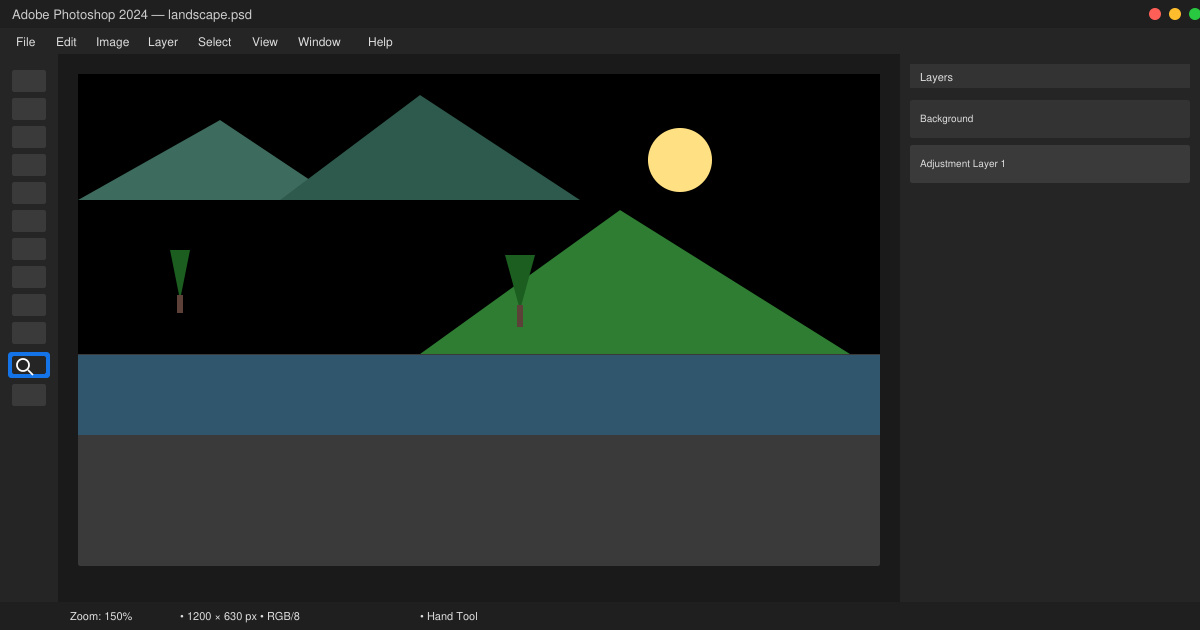
Learn how to zoom in on Photoshop with precise methods for detailed photo editing and design work. Follow these steps to master zooming quickly in Adobe Photoshop.
The Desktop is the home base for many users in Windows 10, and there are several ways to access it. Even if you don't store files and folders on it, you can switch to the Windows Desktop to quickly hide your screen's contents. When you do that, all your app windows get minimized, and the Desktop is shown instead. This tutorial illustrates six ways to show the Windows 10 Desktop and all you need to know about them:
Contents
1. Use the Show Desktop keyboard shortcut in Windows 10
The easiest way to reach the Desktop is by using the keyboard shortcut Windows + D. While this is not the only shortcut in this tutorial, we find it the most comfortable, as you only need one hand to use it on a regular keyboard. The shortcut immediately takes you to the Desktop, minimizing every app window on your screen.

Press the Windows and D keys simultaneously to show the Windows Desktop
This method can also help you if the app you are using freezes on you. Press the shortcut again to restore the windows you just minimized and get back to what you were doing.
TIP: If you're using virtual desktops, there are other keyboard shortcuts you can use to switch between them and access the one you want. To learn more, read How to use multiple desktops in Windows 10: All you need to know.
2. Show the Windows Desktop by using the Minimize All keyboard shortcut
You can minimize the open windows one by one to see the Windows 10 Desktop. However, if you're a multitasker, that can take a long time, so why not use the Minimize All shortcut? Press Windows + M on your keyboard, and all the app windows are minimized to the taskbar at once, revealing the Desktop.

Pressing the Windows and M keys simultaneously shows the Desktop
To reverse the effect and bring back the minimized app windows to your Desktop, use the keyboard shortcut Windows + Shift + M.

Simultaneously press the Windows, Shift, and M keys to restore the apps
3. Use the Show desktop button on the taskbar in Windows 10
If you're not a fan of keyboard shortcuts, there's the Show desktop button. All it takes is one click or tap on this thin button, and you can instantly access your Desktop. If you're using a horizontal taskbar, the Show desktop button is found on the right edge of the taskbar, as seen below.

Press the button on the right of a horizontal taskbar to Show desktop
If your taskbar is vertical, the Show desktop sliver is located on its bottom edge.

Click or tap the thin button at the base of a vertical taskbar to reveal the Windows 10 Desktop
Pressing the same area at the end of the taskbar a second time brings back all the windows you had open, immediately.
Alternatively, you can also right-click on the Show desktop button to reveal a contextual menu. Press on Show desktop for the same result.

Press Show desktop in the contextual menu
Bringing up the menu and pressing Show desktop again reverses the effect.
4. Show the Windows 10 Desktop from the taskbar menu
The taskbar offers one more way to switch to Desktop. First, right-click or press-and-hold an unused area of the taskbar to open the contextual menu. Then, click or tap on "Show the desktop."

Right-click a blank area, then press Show the desktop in Windows 10
All open windows are minimized, and you can see the Desktop background. To restore the app windows you were using, open the taskbar menu again by right-clicking or pressing-and-holding on it. Then, press on the "Show open windows" option.

Click or tap on Show open windows to restore them
TIP: Except for the Minimize All keyboard shortcuts in the second section, all the other methods illustrated can be combined to quickly switch between the desktop and your open windows. For instance, feel free to click the Show Desktop button on the far right of the taskbar to show the Windows 10 Desktop, and then use the Windows + D keyboard shortcut to bring your active app windows back on the screen.
5. How to Peek at the Desktop in Windows 10
If you just want to check something on the desktop without minimizing all your open windows, you can use "Peek at the Desktop." This option allows you to hide the contents of your screen without pressing anything. The easiest way to activate it is to right-click on the Show desktop button at the end of the taskbar. Pressing on "Peek at desktop" enables the option, adding a checkmark next to it.

Check the Peek At Desktop option to activate it
Once the option is enabled, you can hover the mouse cursor over the Show desktop button at the end of the taskbar to reveal the Desktop. Moving the cursor away from the area gets you back to your open windows to resume your activity.

Hover over the Show desktop button to Peek at desktop
Alternatively, you can also enable "Peek at the Desktop" from the Settings app. Right-click or press and hold on the taskbar to access its menu, and then click or tap on Taskbar settings.

Access Taskbar settings
Then, turn On the switch under the "Use Peek to preview the desktop when you move your mouse to the Show desktop button at the end of the taskbar" option.

Click or tap on the switch to use Peek
To disable the option, uncheck "Peek at desktop" from the Show desktop button's menu, or turn Off the switch from Taskbar settings.
6. Create a Show Desktop shortcut and pin it where you want
You can also create a Show Desktop shortcut manually. Start creating a shortcut and, in the target field, insert the following:
C:Windowsexplorer.exe shell:::{3080F90D-D7AD-11D9-BD98-0000947B0257}
Then, click or tap on Next.

Creating a Show Desktop shortcut manually
On the next screen, you can name the shortcut Show Desktop, and then press Finish.

Name the shortcut to remember what it's for
To further personalize it, change the shortcut's icon, and, if you're nostalgic for the classic Show Desktop shortcut, you can even pin your shortcut to the Windows 10 taskbar.

Create a classic Show Desktop shortcut
How often do you access the Windows 10 Desktop?
We've always used the Windows Desktop to access what we need on our operating system, and even added some of the classic desktop shortcuts to it because of that. What about you? How often do you access the Windows 10 Desktop? What shortcuts and files do you keep on it? Let us know in the comments below.
Learn how to zoom in on Photoshop with precise methods for detailed photo editing and design work. Follow these steps to master zooming quickly in Adobe Photoshop.
How to Use Discord starts with creating an account and joining servers. This guide shows exactly how to set up voice chats, manage channels, and connect with communities quickly.
Master how to boil broccoli perfectly every time with this step-by-step guide. Learn exact timing and techniques for tender, vibrant, nutrient-rich results.
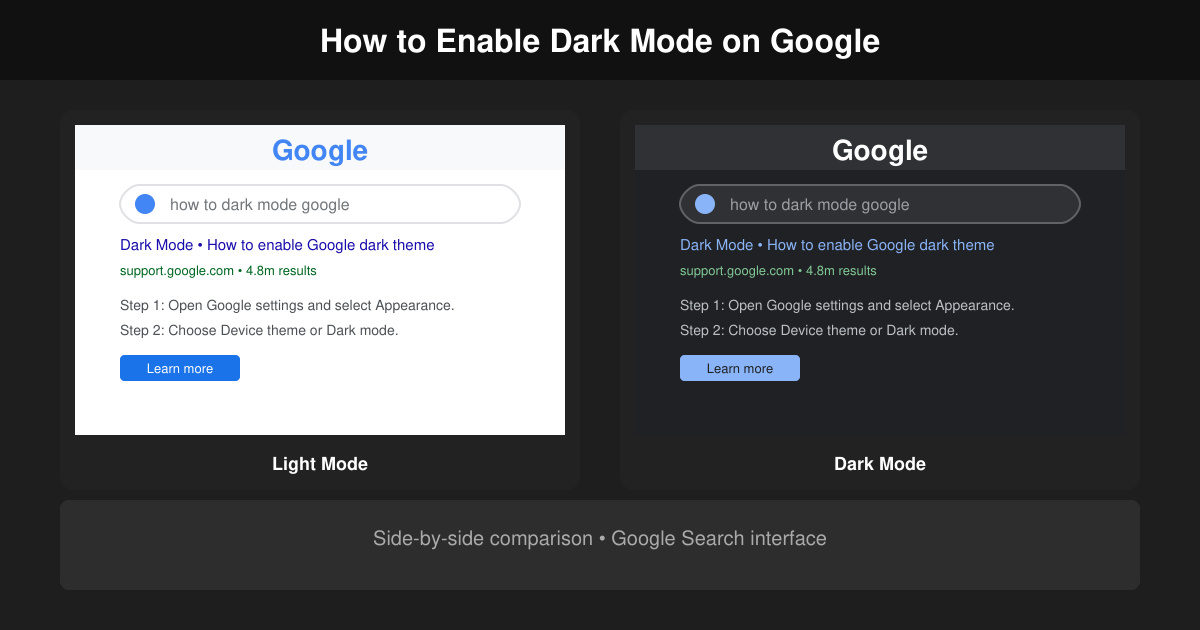
Learn how to dark mode on Google across Search, Chrome and apps to cut eye strain at night. This guide shows the exact settings to enable Google dark theme in under a minute.
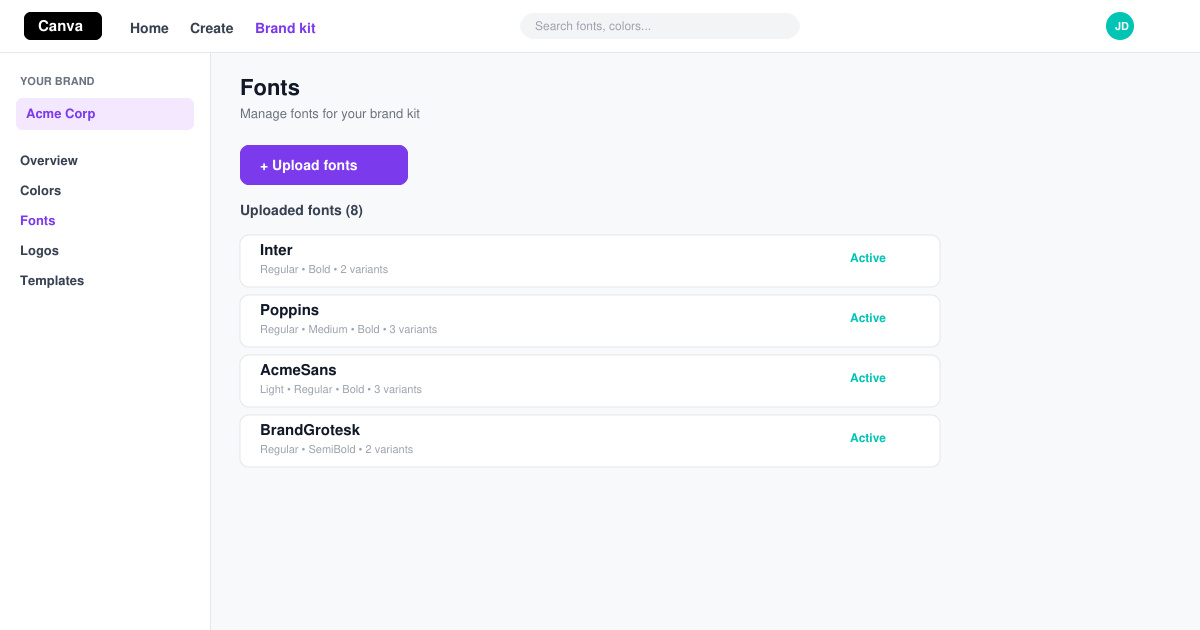
Learn exactly how to add font to Canva with this step-by-step guide. Upload custom fonts through Brand Kit to use them across all your designs in minutes.
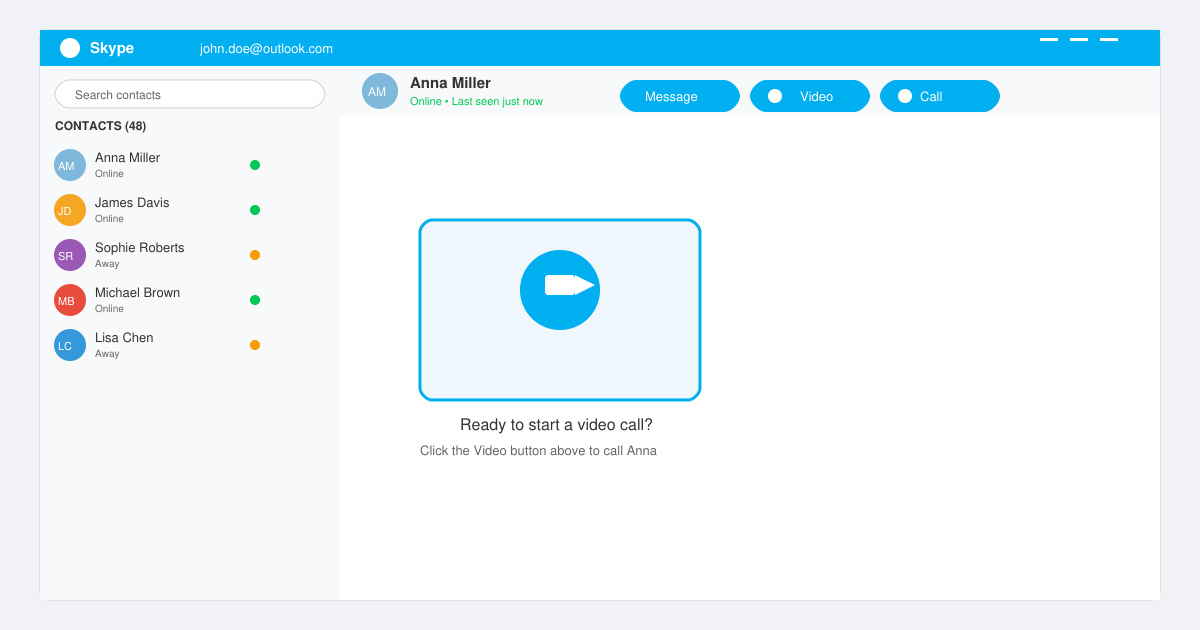
How to Use Skype for free video calls, messaging, and screen sharing. Follow this complete guide to install the app, set up your account, and start communicating in minutes.
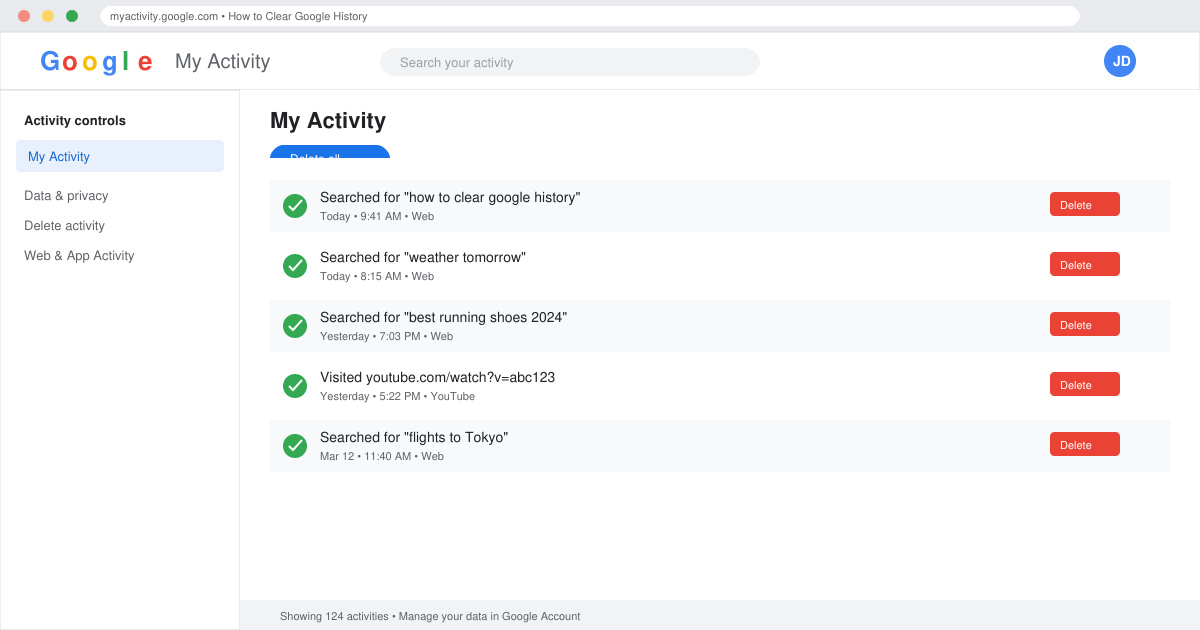
Learn how to clear Google history quickly to protect your privacy. This step-by-step guide shows you how to delete search activity from your Google account on any device.
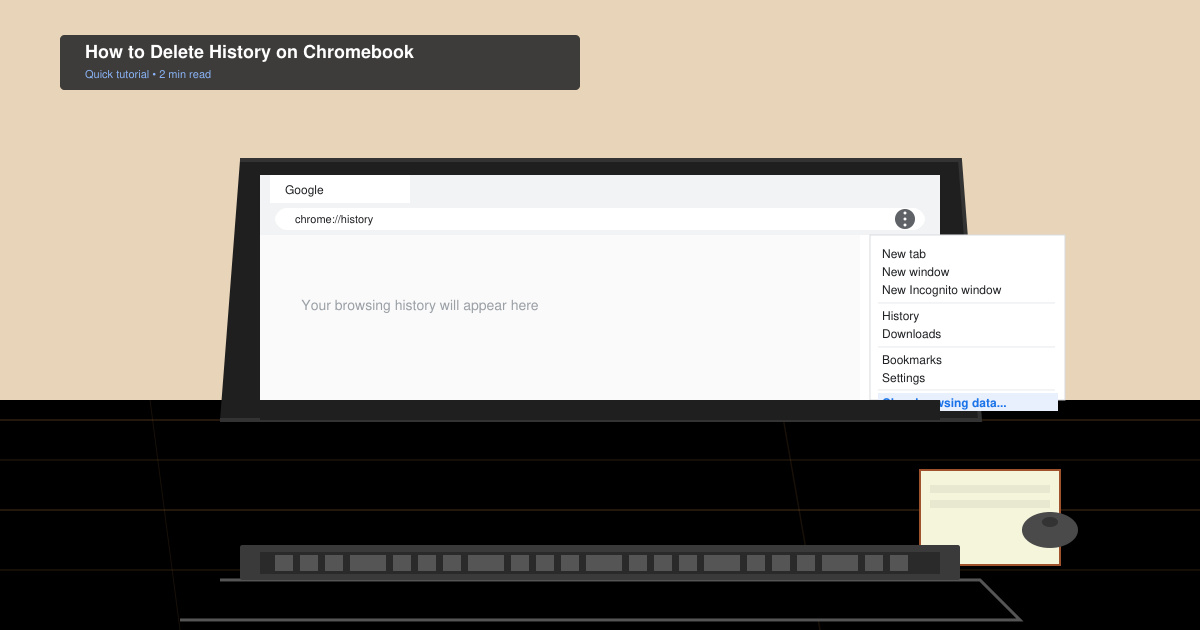
Learn exactly how to delete history on Chromebook to protect your privacy. Follow these precise steps to clear browsing data, cookies, and cached files on your device.
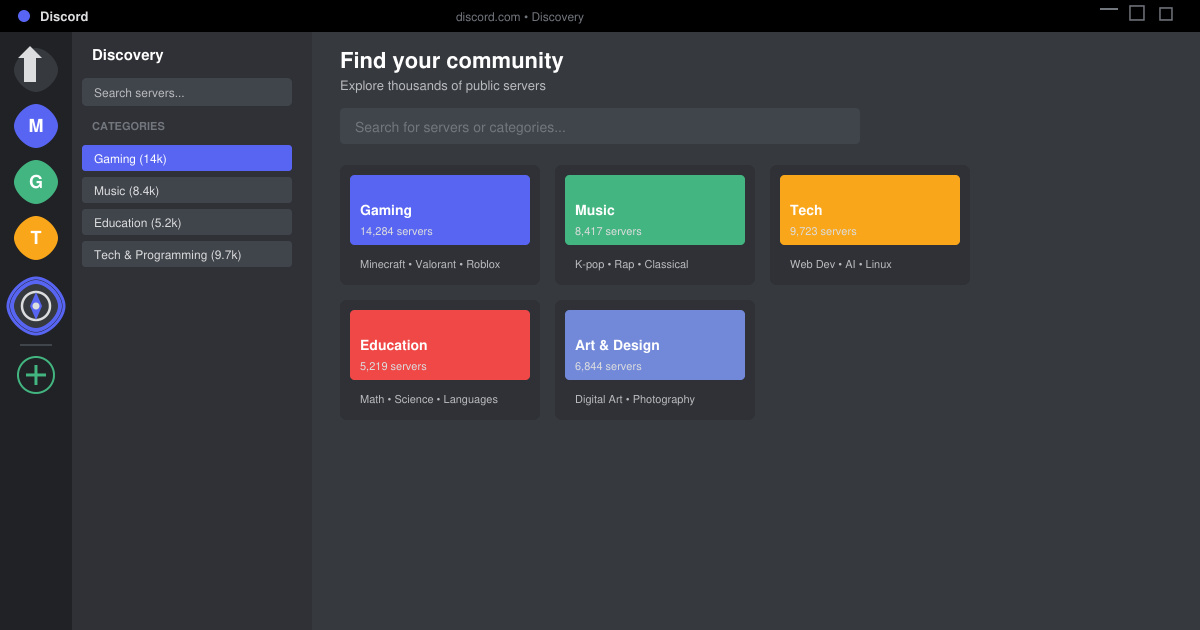
Learn how to find a server on Discord with this clear walkthrough of the built-in Discovery tool and other reliable methods. Join active communities fast.
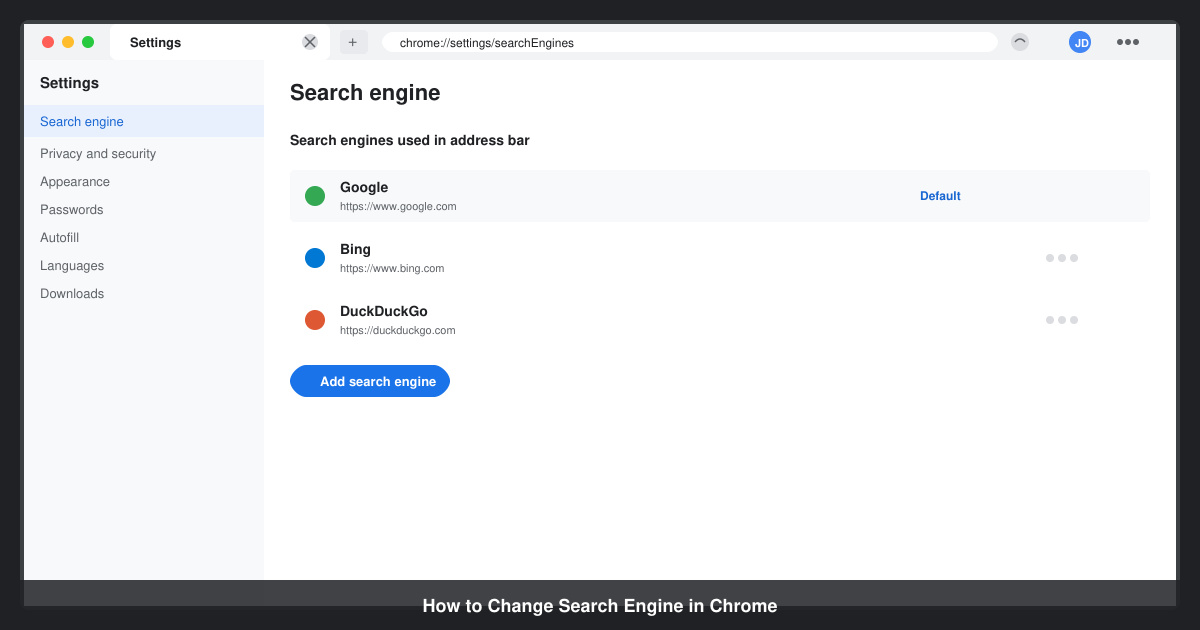
How to Change Search Engine in Chrome takes just a few clicks in Settings. Switch your default provider to Google, Bing, DuckDuckGo or another option and improve search results instantly.