How to Change Search Engine in Chrome is a quick process that gives you full control over your search results. Whether you want faster answers, better privacy, or a different provider, Chrome lets you switch the default engine in under a minute. This guide walks through the exact steps using the current version of Chrome on desktop.
Why You Might Want to Change the Default Search Engine in Chrome
Chrome ships with Google as the default, but many users prefer alternatives for privacy reasons, regional results, or specialized features. Changing the search engine affects the address bar, the New Tab page, and any search shortcuts you use daily. Before you begin, make sure Chrome is updated to the latest version so all menu options appear correctly.
Steps to Change Search Engine in Chrome
-
Open Chrome Settings
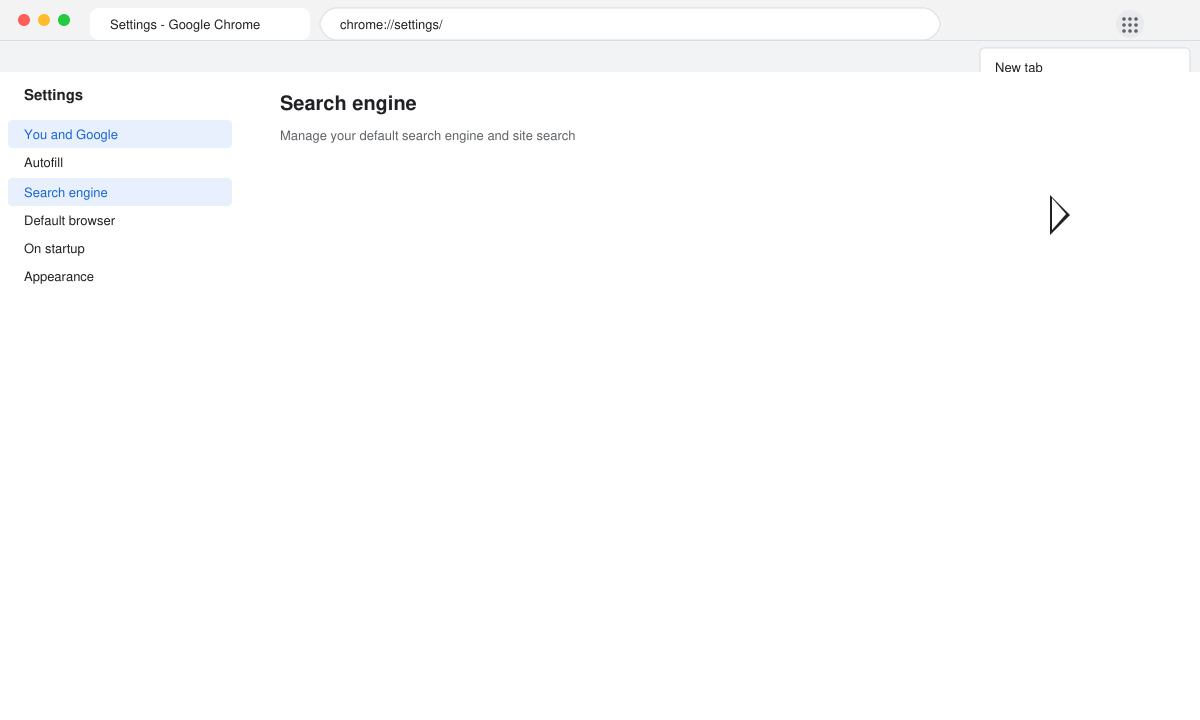
Click the three-dot menu in the top-right corner of Chrome and select Settings. In the left sidebar, click Search engine. This page shows your current default and all available options.
-
Select a new default provider
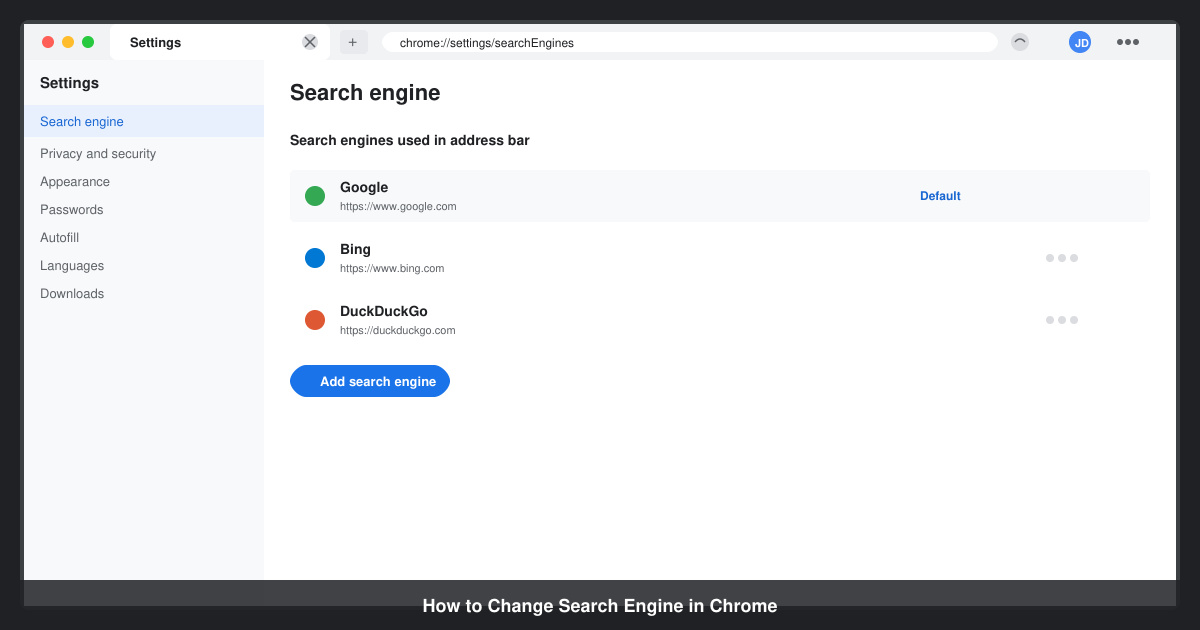
Click the dropdown menu labeled “Search engine used in the address bar.” Choose from the built-in list that includes Google, Bing, Yahoo, DuckDuckGo, and Ecosia. The change applies immediately to the address bar.
-
Add a custom search engine if needed
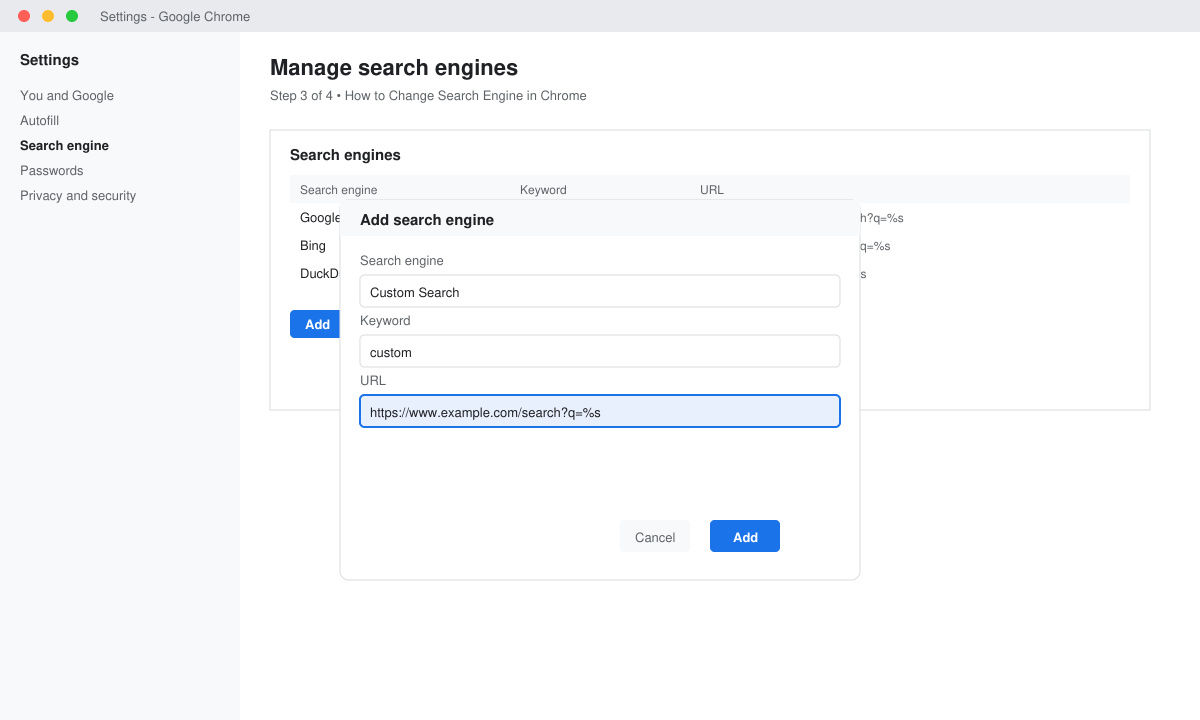
If your preferred provider does not appear, scroll down and click “Manage search engines and site search.” Click the Add button next to “Search engines,” enter the name, keyword, and the search URL with %s in place of the query term, then save. Return to the main dropdown and select your newly added engine.
-
Test the new search engine
Open a new tab, type a test query in the address bar, and press Enter. Confirm that results load from your chosen provider rather than the previous default.
Troubleshooting Common Issues When Changing Search Engine in Chrome
If the desired provider does not appear in the dropdown, it may be blocked by an extension or enterprise policy. Disable extensions one by one or check chrome://policy for any search-related restrictions. On managed devices, contact your administrator to request the change. Some extensions can override your choice; review the “Search engines” list and remove any entries you did not add yourself.
- Clear browsing data if old suggestions still appear.
- Restart Chrome after adding a custom engine to ensure it shows in the address bar.
- On ChromeOS, the same Settings path works, but some managed accounts may lock the option.
Frequently Asked Questions
Does changing the search engine affect saved passwords or bookmarks?
No. The setting only changes which service processes your address-bar searches. All other Chrome data remains untouched.
Can I set a different search engine for Incognito mode?
Chrome uses the same default search engine in both regular and Incognito windows. There is no separate setting for private browsing.
Will the change sync across my other devices?
Yes, if you are signed in with a Google account and sync is enabled, the new search engine preference will apply to other signed-in Chrome installations.
Conclusion
Following these steps lets you set any search provider you prefer as the default in Chrome within seconds.









