SLES Boot Module Load Failure: Find the Driver and Fix It
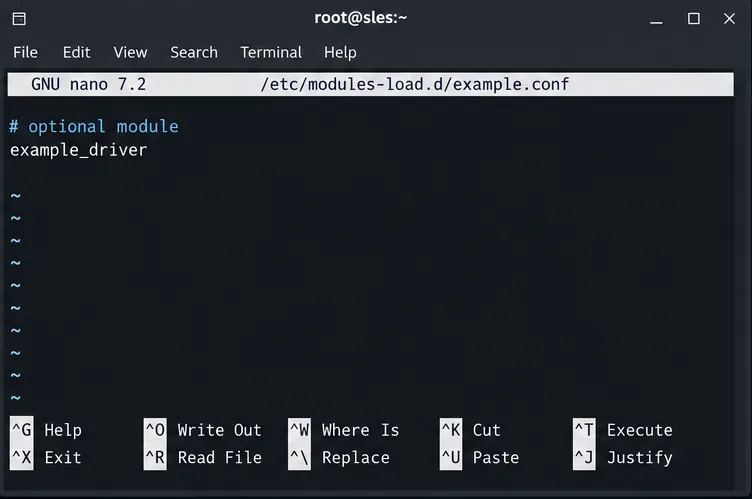
Trace a failed kernel module at SLES startup, correct an obsolete boot entry or repair the required driver, and verify the next boot.
Whether you’re looking for a game to play with your friends or a program to help you with your job, Microsoft Store is a great place to download or buy apps for your Windows PC or your Xbox. In this article, we show you nine ways to access Microsoft Store in Windows 11 and Windows 10. Let’s start with the easiest method:
Contents
1. Start the Microsoft Store app by using Windows Search
The first way to access the Microsoft Store app is by using Windows Search. In Windows 11, start by clicking or tapping the Search button on the taskbar (the one looking like a magnifier). In Windows 10, click or tap on the search field in the taskbar. In both operating systems, pressing Windows + S will also open Search. Next, type store, then click or tap the Microsoft Store app in the search results. Here is how it should look in Windows 11:

Open Microsoft Store using Search in Windows 11
In Windows 10, the layout is different:

Open Microsoft Store using Search in Windows 10
TIP: You can also initiate a search from the Start Menu. Simply open it by pressing the Windows key on your keyboard or the Start button on the taskbar, then start typing, and the results show up immediately.
2. Open the Microsoft Store from the taskbar
In both Windows 11 and Windows 10, by default, the app is already pinned to the taskbar, so you can start it by tapping or clicking on the Microsoft Store icon there. In Windows 11, it looks like a blue shopping bag with the Microsoft logo on it:

The Microsoft Store icon on the taskbar in Windows 11
In Windows 10, the Microsoft Store icon on the taskbar is similar but white.

The Microsoft Store icon on the taskbar in Windows 10
3. Open the Microsoft Store from the Start Menu pinned items
The Microsoft Store app is also pinned to the Start Menu by default. In Windows 11, just open the Start Menu, and the app should be there.

A shortcut to the Microsoft Store is pinned to the Start Menu in Windows 11
In Windows 10, look for a tile on the right side of the Start Menu.

Click or tap the tile to access Microsoft Store
If you can’t find the app in the taskbar or in the Start Menu pinned items, don’t worry, we have you covered with the next method.
4. Pin the Microsoft Store to Start or the taskbar
If for whatever reason the Microsoft Store app is not pinned to the Start Menu or the taskbar, pinning it is a good idea if you want easy access. Search for the Microsoft Store app (as described in the first method), then right-click the result. In the contextual menu, choose the option you want.

Pin the Microsoft Store app to the taskbar or the Start Menu
This method applies to both Windows 11 and Windows 10.
NOTE: For more tips and tricks about pinning items to the Windows 11 Start Menu, read this guide: How to pin to Start Menu in Windows 11.
5. Open Microsoft Store from the Start Menu
Even if you didn’t pin the app, another easy way of opening Microsoft Store is from its shortcut in the Start Menu apps list. In Windows 11, open the Start Menu, then click or tap on All Apps.

Access All apps in Windows 11
Next, scroll down to M (the items are sorted alphabetically) and click or tap on Microsoft Store.

Locate and click on the Microsoft Store shortcut
In Windows 10, the app list is accessible directly in the Start Menu, so press Start, scroll down and click/tap on the Microsoft Store shortcut.

Access Microsoft Store from the Start Menu in Windows 10
6. Create a shortcut to the Microsoft Store on your desktop
If you plan on accessing the Microsoft Store frequently, you can create a shortcut to it. Use the method above to get to the app in the Start Menu, then drag the icon to the desktop to create a link to it.

Drag and drop the app icon on the desktop to create a shortcut
TIP: For more ways of creating shortcuts, read: How to create shortcuts for files, folders, apps, and web pages in Windows.
7. Access the Microsoft Store app using the Run window
You can also start the Microsoft Store app using the Run window. First, open the Run window (one way to do it is by pressing Windows + R on your keyboard), then type in ms-windows-store: and press OK or Enter.

Enter the ms-windows-store: command, then press OK
8. Start the Microsoft Store app using Windows Terminal, PowerShell, or the Command Prompt
If you prefer command-line interfaces, this one is for you: open Command Prompt, PowerShell, or Windows Terminal, then type in the following command, followed by Enter.
start ms-windows-store:
You can now close the command window and start browsing the Microsoft Store to look for apps, games, browser extensions, and more.

Open the Microsoft Store using a command-line interface
9. Open Microsoft Store from a browser
A different way to access the Microsoft Store is by opening its webpage. Head over to the Microsoft Store page using your favorite browser, then start browsing for apps or games. Just like with the app, you will need a Microsoft account for purchases. After deciding what you want to download and install, click on Get or Buy.

Choose the app that you want to install
The first time you do this, you are presented with a dialog box. Tick the box and then press OK.

This dialog box only shows up the first time you try to download an app using the web store
This opens the Microsoft Store app on your device and shows you the app details, so you can complete the download. If you need further assistance with downloading games or apps from the Microsoft Store, read this article: How do I download PC games from the Microsoft Store?
TIP: If you don’t have a Microsoft account, you can still use many of its features. This article explains how to use the Microsoft Store in Windows without a Microsoft account.
How often do you use the Microsoft Store?
Now you know several ways to open the Microsoft Store. Which one is your favorite? Also, we’re curious to know how often you access the Microsoft Store. Is it your go-to place for games and apps or do you prefer other sources? Write us a comment and let’s discuss.
Trace a failed kernel module at SLES startup, correct an obsolete boot entry or repair the required driver, and verify the next boot.
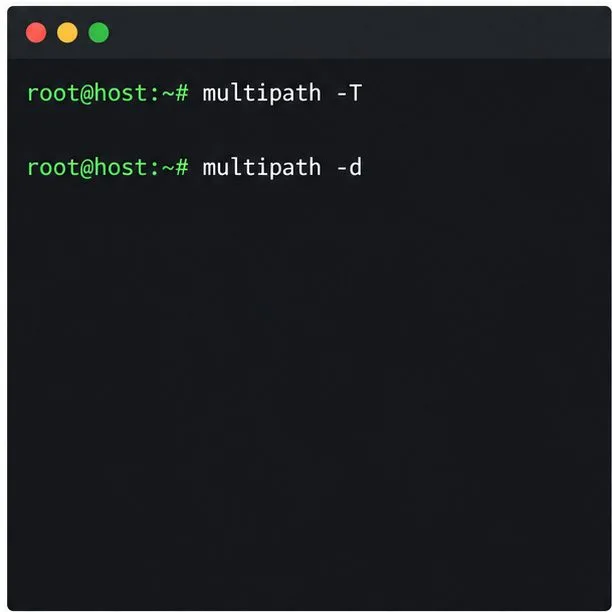
Prepare SCSI SAN paths, enable multipathd, inspect SUSE’s hardware defaults, and verify stable device maps without guessing array settings.
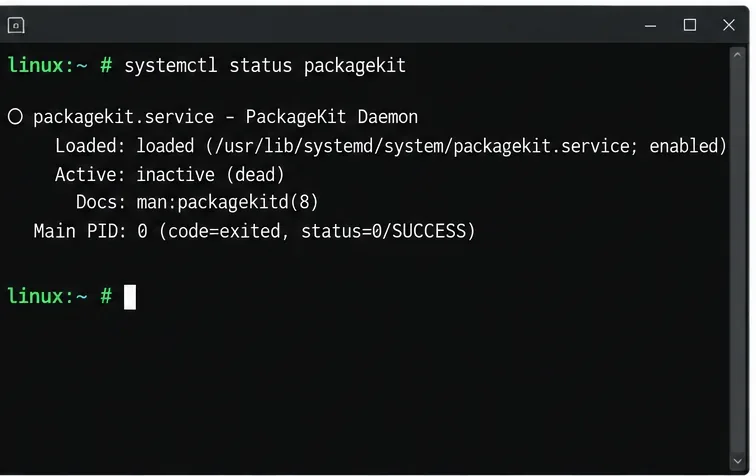
Find the process holding Zypper’s package lock, distinguish process conflicts from package locks, and retry updates without deleting lock files blindly.
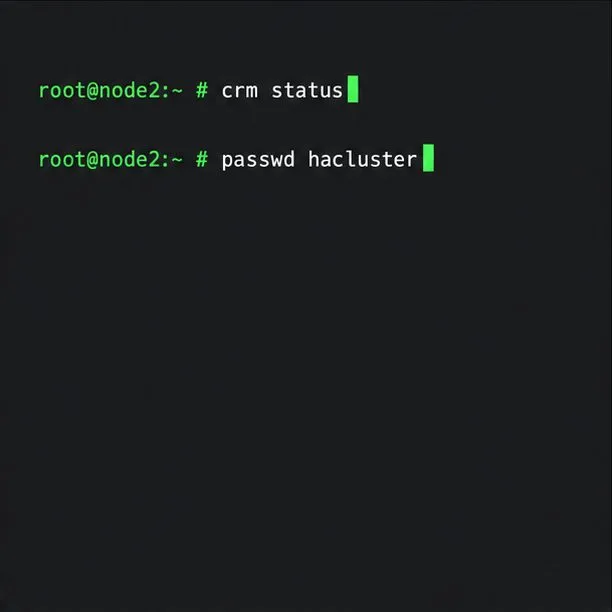
Register SLE HA, bootstrap SLES 15 nodes, then add fencing, quorum, and tested service resources before relying on failover.
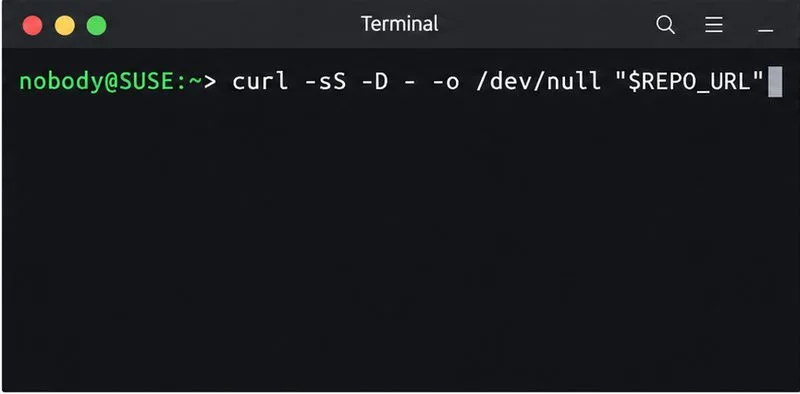
Trace a Zypper refresh error to SUSE, RMT, or a third-party endpoint, then apply the right server-side or cache fix without disabling essential updates.
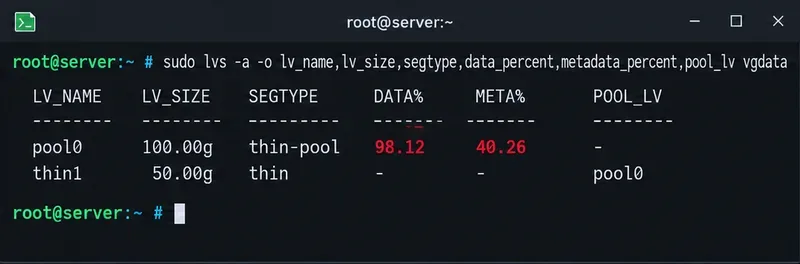
Resolve SUSE LVM thin-pool space errors by checking data and metadata usage, expanding the pool safely, and preventing repeat outages.
Identify whether Btrfs is intentionally read-only, short on space, or protecting data after errors, then choose a recovery path that fits the cause.
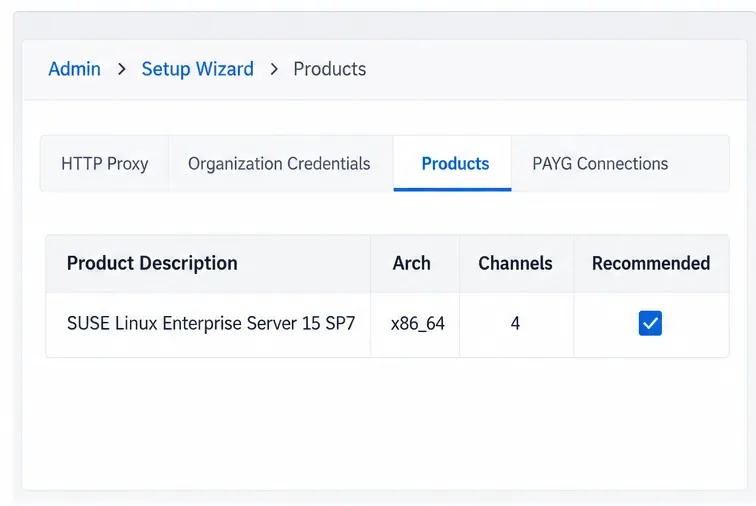
Prepare mirrored channels, create an activation key, and bootstrap an SLES 15 client without direct internet access while preserving the connection needed for Manager check-ins.
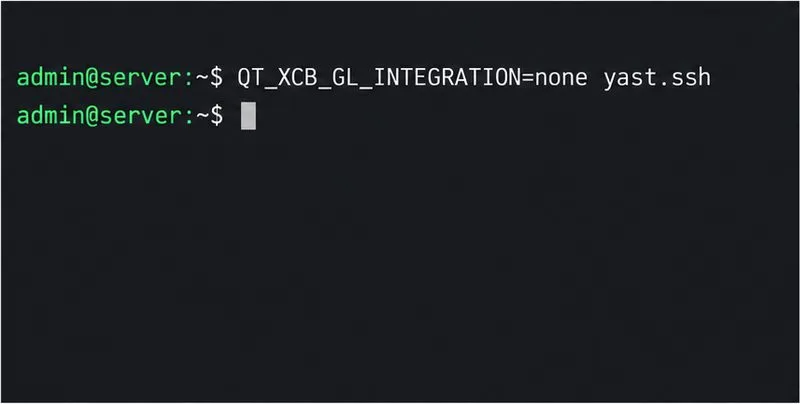
Fix YaST’s XIO launch error over SSH, verify X11 forwarding and xauth, and switch to the ncurses interface when a remote window is unnecessary.
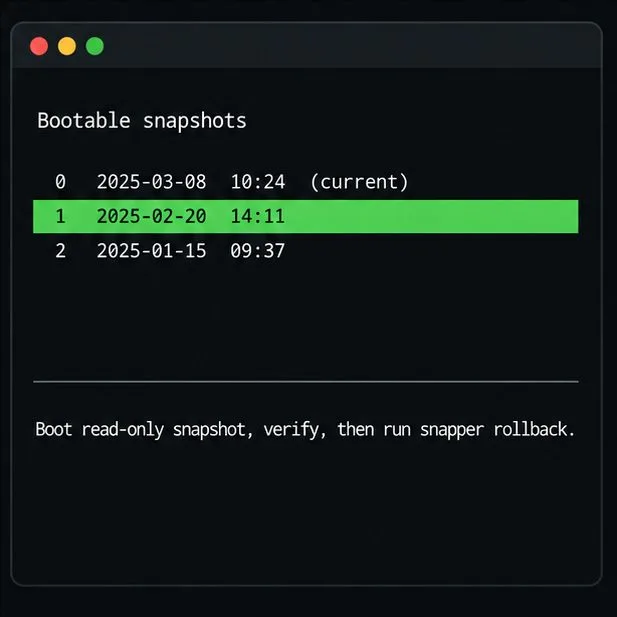
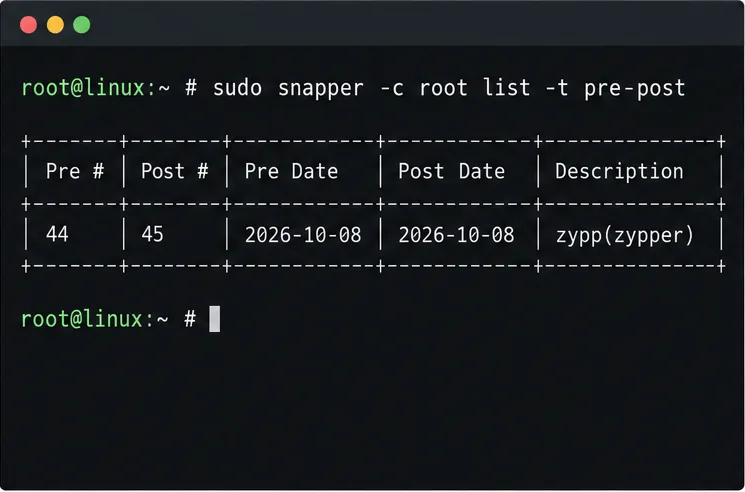
Find the pre-update Btrfs snapshot, test it read-only, and make recovery permanent with Snapper while understanding which data stays outside the root rollback.