Get RTL8821CE Wi-Fi Working on Pardus with the Right Firmware

Identify the RTL8821CE, install Pardus-supported Realtek firmware, and verify the driver, Wi-Fi scan, and next troubleshooting step.
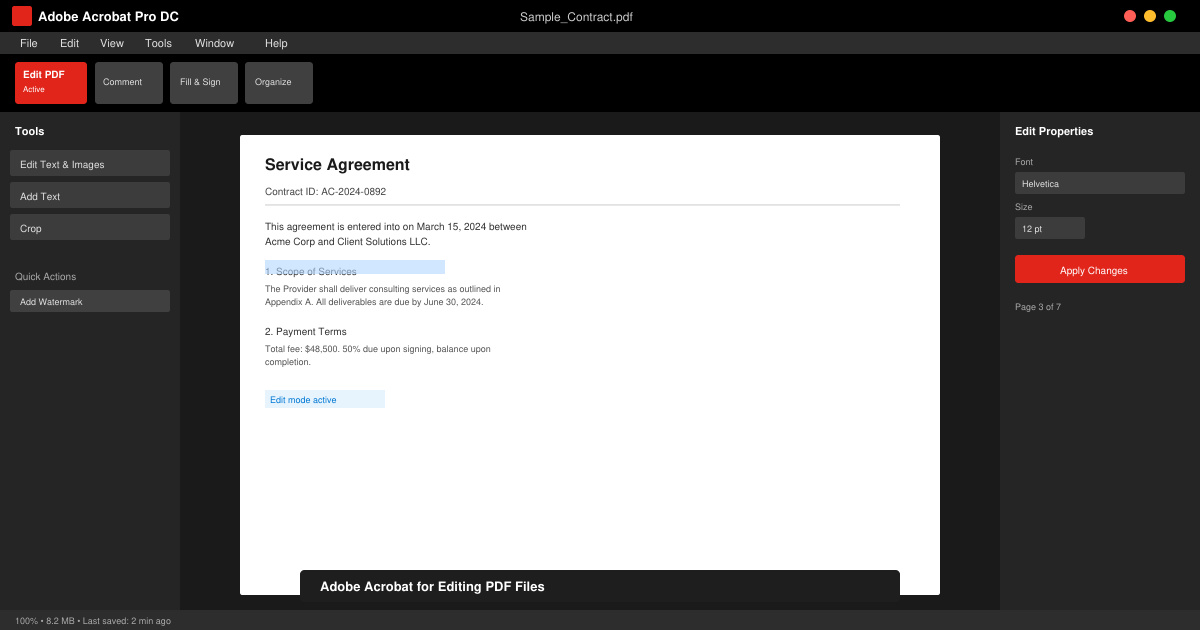
Launch Adobe Acrobat Pro. Click File in the top menu, select Open, and navigate to your PDF. Once the document appears, click the Edit PDF tool in the right-hand pane. If the pane is hidden, choose Tools from the top menu, locate Edit PDF, and add it to your quick tools.
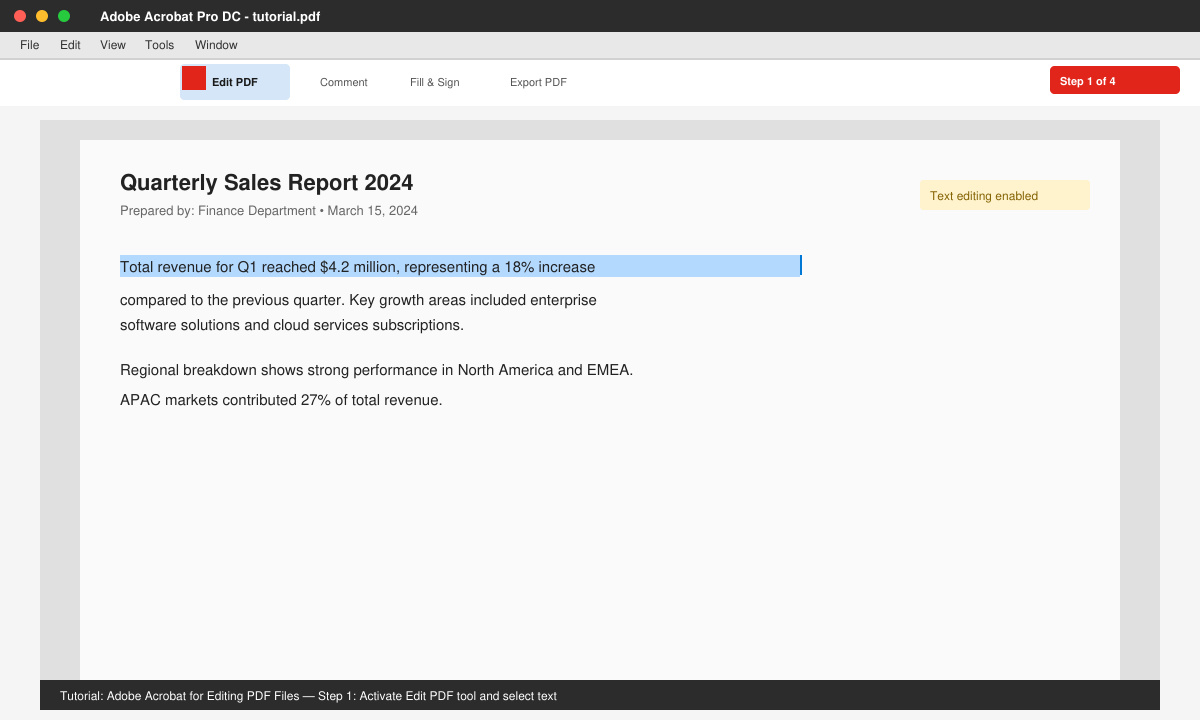
Click any block of text. A bounding box appears around the paragraph. Type directly to replace words or adjust spacing. Use the formatting toolbar that appears above the text to change font, size, or alignment. For linked text that reflows across pages, Acrobat automatically adjusts the layout when you press Enter.
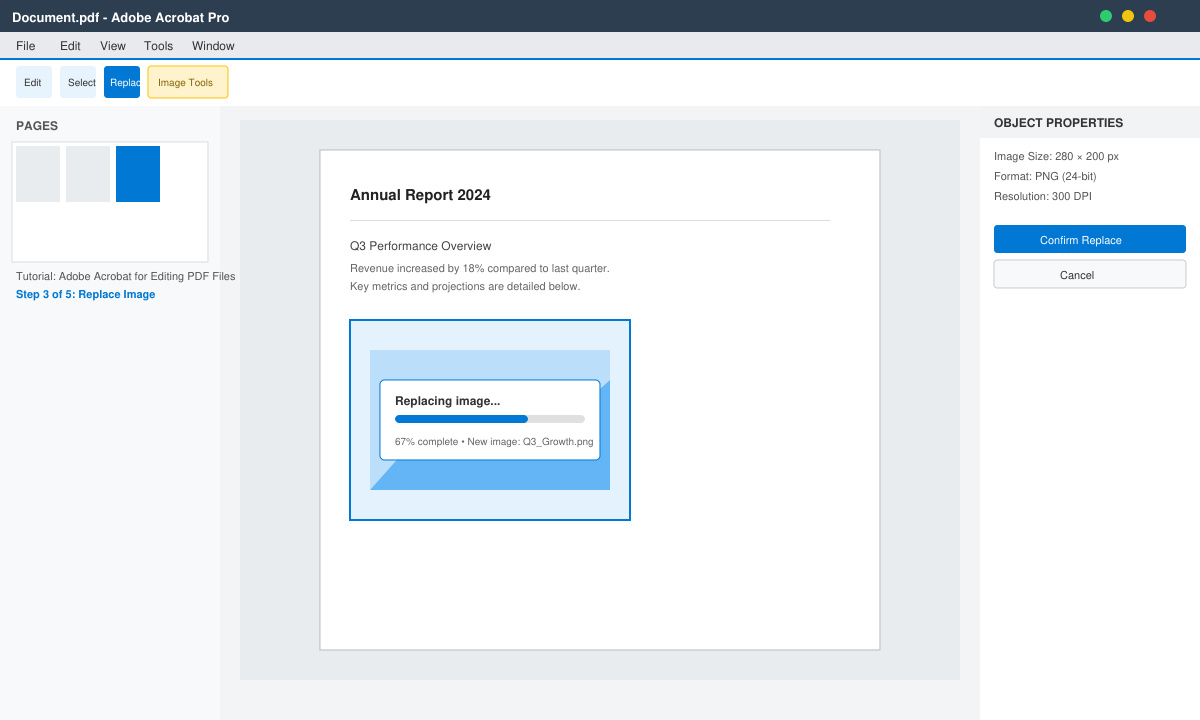
Select the image you want to change. Right-click and choose Replace Image, then browse to the new file on your computer. To insert a new image, click Add Image from the Edit PDF toolbar and position it with the cursor. Resize by dragging the corner handles while holding Shift to maintain proportions.
Open the Page Thumbnails panel on the left. Drag pages to reorder them or right-click to rotate and delete. To create a clickable link, select Link from the toolbar, draw a rectangle over the target area, and choose the destination file or web address.
Press Ctrl+S (Windows) or Command+S (Mac) to save. For a separate copy, use File > Save As and name the new file. Run the Preflight tool under Print Production to check for hidden issues such as low-resolution images before final distribution.
Adobe Acrobat for Editing PDF Files requires Acrobat Pro or Standard. Free Acrobat Reader only supports viewing and basic commenting.
Yes, but you must first apply the Recognize Text feature under the Scan & OCR tool to make the content editable.
Acrobat maintains an undo history accessible via Edit > Undo or Ctrl+Z. The history resets when you close the file.
Identify the RTL8821CE, install Pardus-supported Realtek firmware, and verify the driver, Wi-Fi scan, and next troubleshooting step.
Use Pardus’s hardware-aware installer to enable the right NVIDIA driver, reboot safely, and verify the active kernel module.
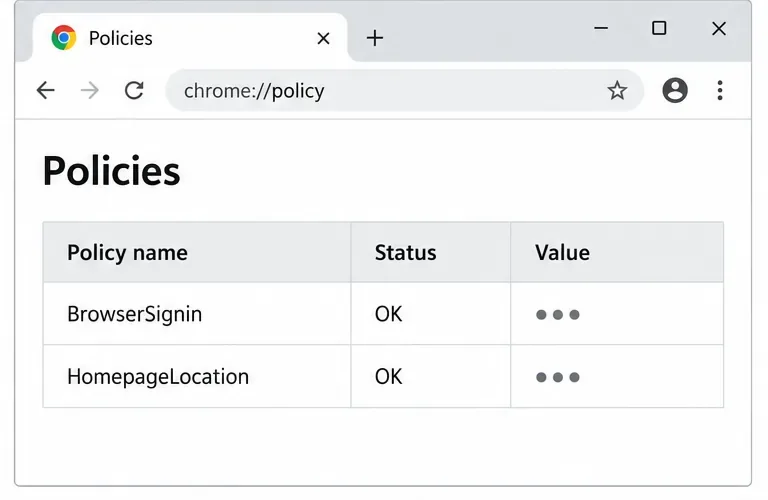
Install the official Chrome package safely on Gooroom OS, check compatibility, preserve device controls, and verify browser policies before use.
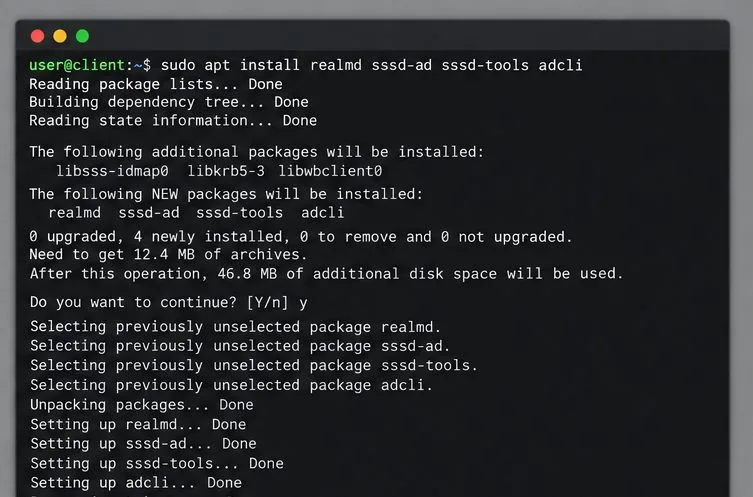
Prepare DNS and time, enroll Pardus with realmd and SSSD, and verify domain membership and user lookup before relying on AD sign-in.
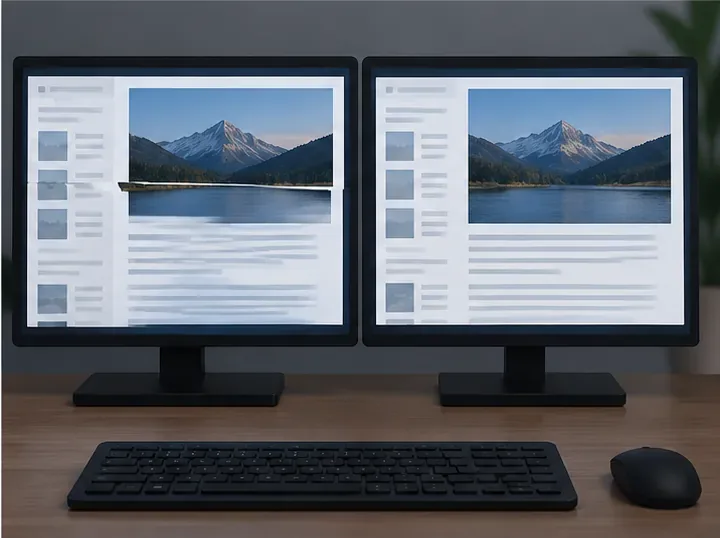
Reduce horizontal tearing in Pardus XFCE by checking your display session, enabling compositor synchronization, and applying Intel’s Xorg TearFree option only when the active driver supports it.
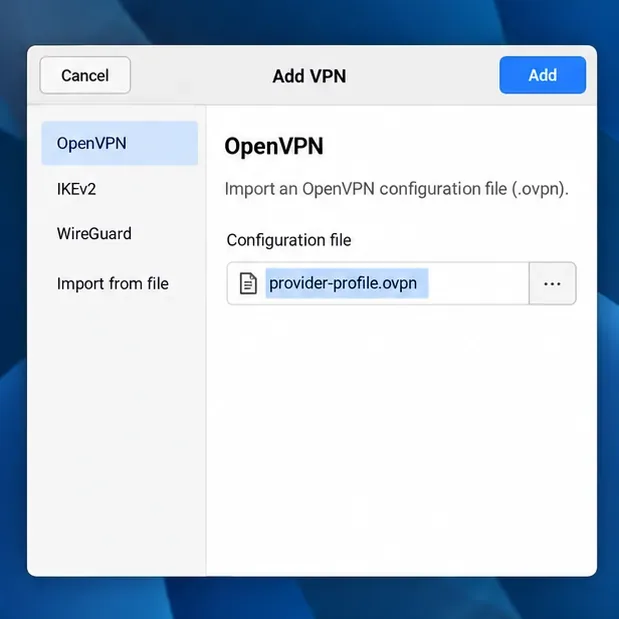
Add an OpenVPN profile to NetworkManager on Pardus, install the right plugin, protect credentials, and verify the VPN is active.
Prepare a bootable USB, check 64-bit hardware compatibility, and install Pardus 23 XFCE while protecting existing files and avoiding common legacy BIOS pitfalls.
Distribute a custom wallpaper to Pardus clients, configure Xfce or GNOME desktops, and apply Lider Ahenk user policies with safe pilot checks.
Fix a 1024 × 768 ceiling by checking SPICE, virtual video, the guest channel, and spice-vdagent—with safe checks when Pardus lacks a package candidate.
Set up the Lider server, configure its installer safely, register Ahenk endpoints, and verify a pilot before expanding central management.