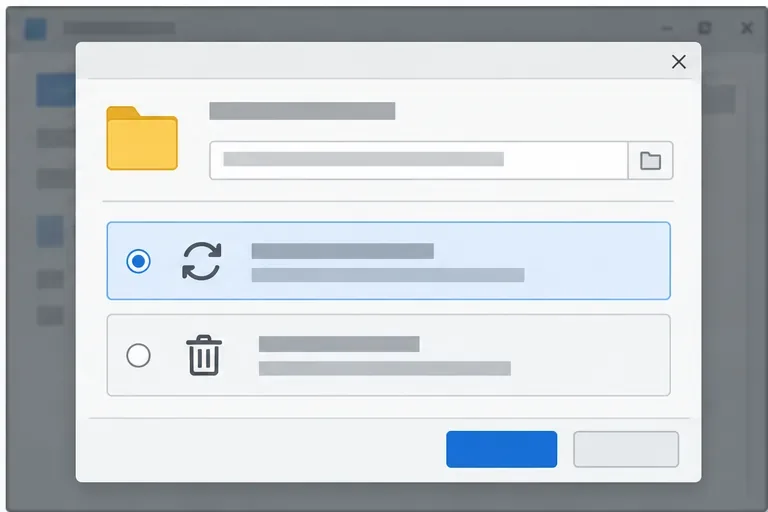
LibreOffice Document Locked by Unknown User: A Safe Fix
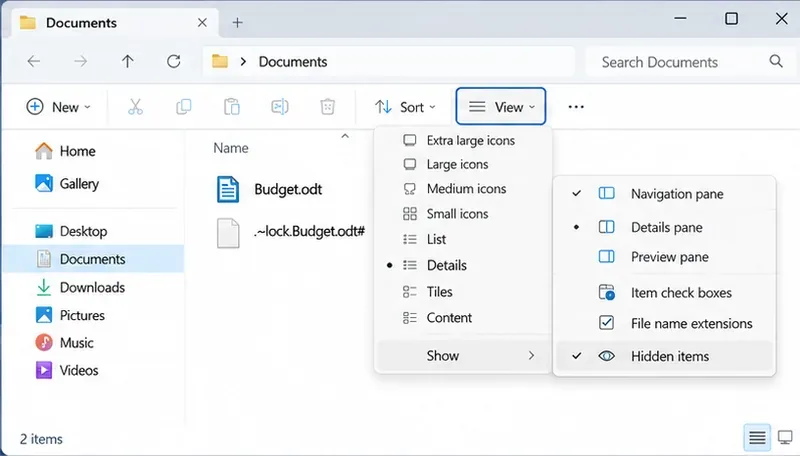
Find the cause of a LibreOffice document lock, safely clear a stale lock file, and confirm that you can edit and save without losing changes.
The Adobe Acrobat Free Online Editor lets you open, modify, and save PDF documents without installing desktop software. It works directly in Chrome, Edge, or Firefox after a quick sign-in. This article shows exactly how to use its main features for text edits, page management, and form filling.
Before editing, you need a free Adobe account. This gives access to the web tools for up to two PDFs per month on the basic plan. Prepare your file on your computer or cloud storage so you can upload it in one click. The interface shows a toolbar on the left with icons for text, images, pages, and comments.
Supported file types include standard PDFs created from Word, scanned documents, and forms. Files larger than 100 MB may need compression first using any free online compressor before upload.
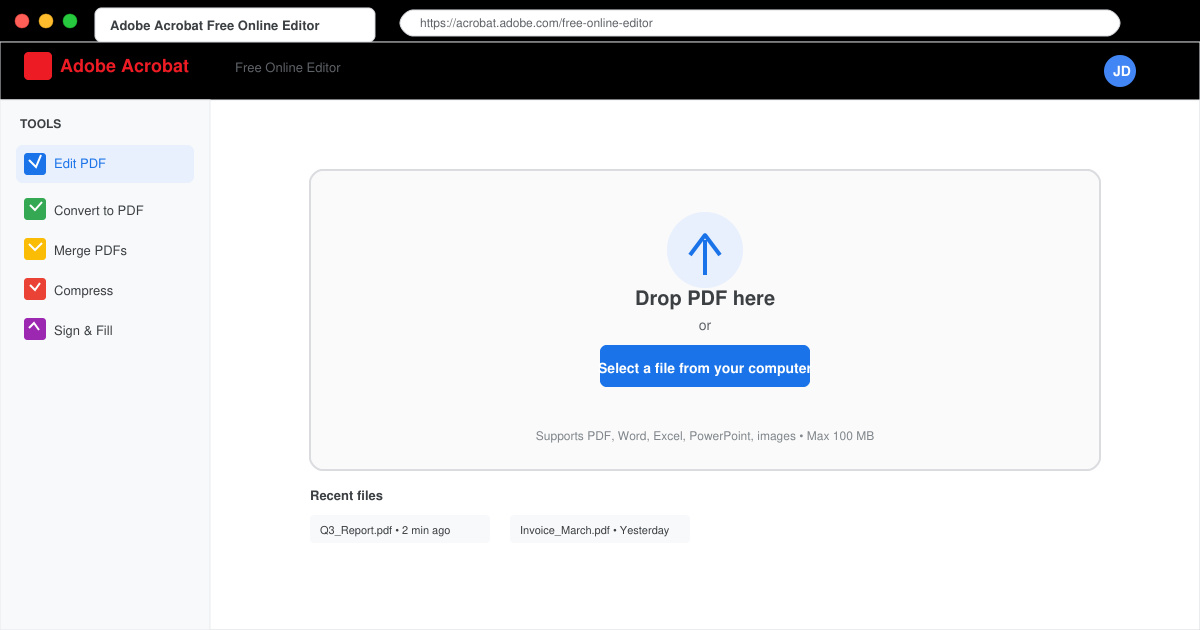
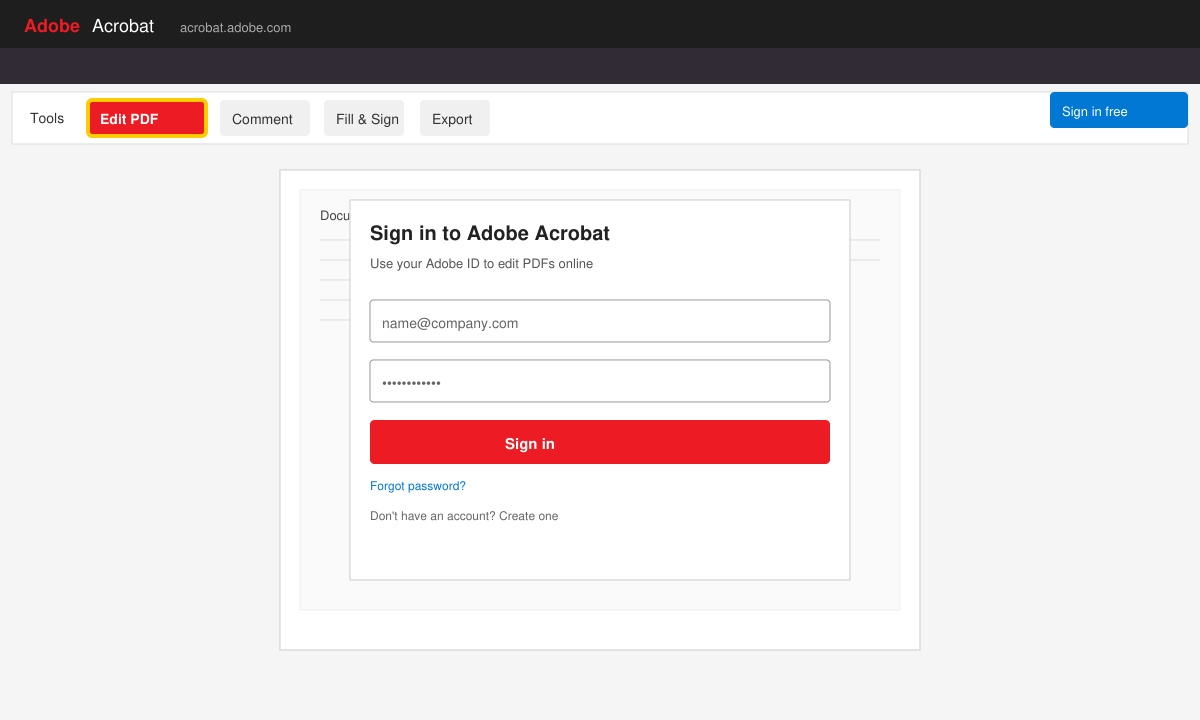
Go to the Adobe Acrobat online tools page and click the blue Sign in button. Use your Adobe ID or create one with an email address. Once inside, select Edit a PDF from the main menu to launch the Adobe Acrobat Free Online Editor workspace.
Drag your PDF file onto the upload area or click Select a File. Wait for the progress bar to finish; the document then opens in the editing view with page thumbnails on the right side.
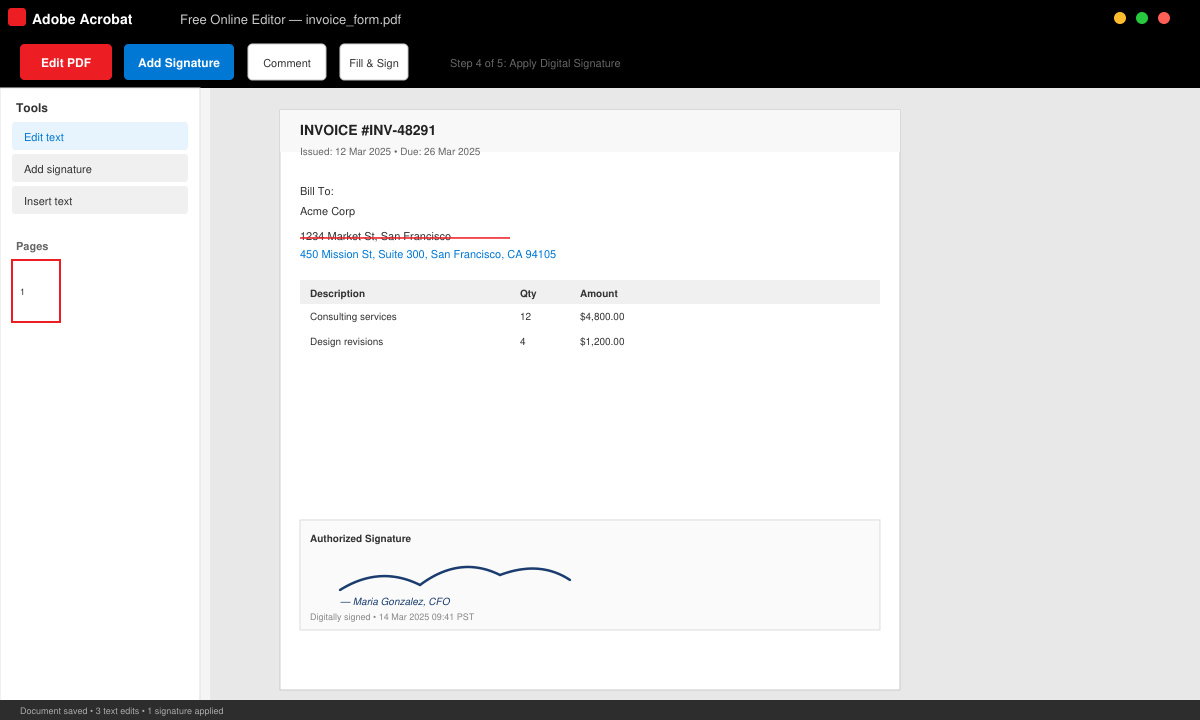
Click the Edit Text icon on the left toolbar. Select any paragraph or heading and start typing. The tool automatically adjusts spacing. To change font style, highlight the text and use the small formatting bar that appears above it.
Click the Organize Pages icon. Choose Insert to add a new blank page or Delete to remove unwanted ones. You can also rotate pages by selecting them and using the rotate buttons in the toolbar.
If the PDF contains form fields, click Fill & Sign. Type directly into text boxes or use the signature tool to draw your name with the mouse. Save the completed form using the Download button at the top right.
No payment is needed for basic edits on up to two documents per month. Additional documents require a paid subscription.
Yes. Use the built-in OCR feature to convert scanned pages into editable text before making changes.
Files are deleted automatically after 24 hours unless you save them to Adobe Document Cloud or download them first.
The Adobe Acrobat Free Online Editor provides fast PDF changes for occasional users who prefer not to install full software. Follow the steps above to complete most edits in just a few minutes.
Find the cause of a LibreOffice document lock, safely clear a stale lock file, and confirm that you can edit and save without losing changes.
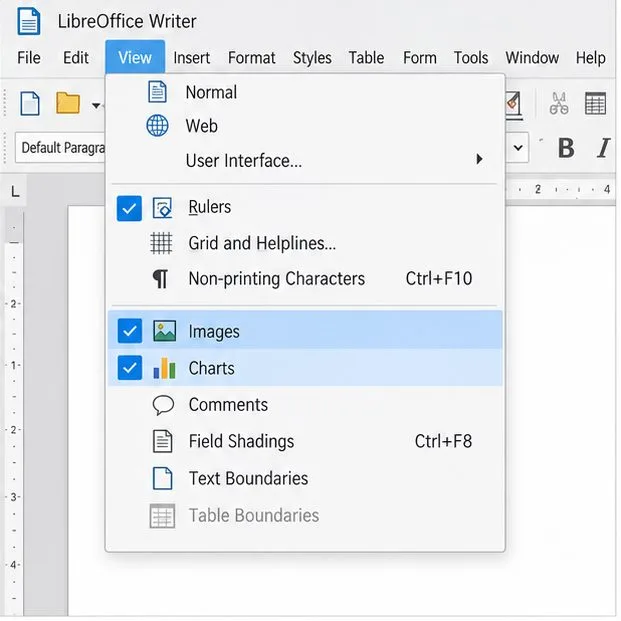
Make image-heavy Writer files easier to edit: test a reversible display setting, compress oversized pictures in a copy, and verify the saved layout.
Find out whether a slow launch comes from extensions, profile settings, or the system, then test the safest fix without losing LibreOffice data.
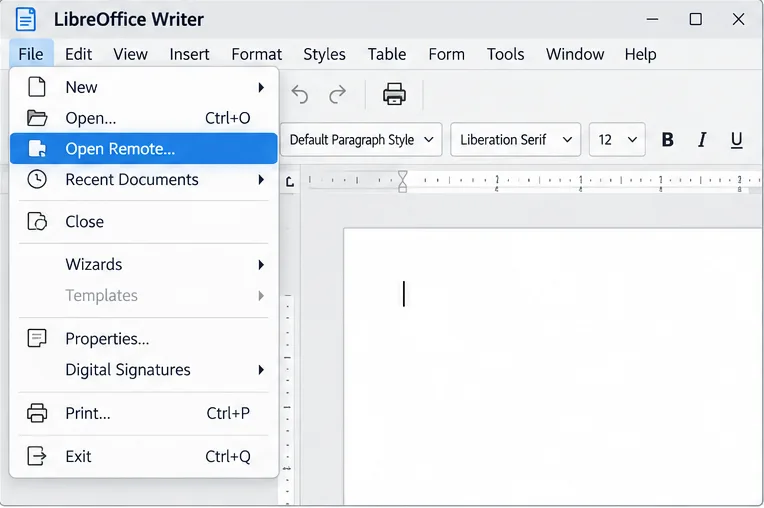
Connect LibreOffice to Nextcloud over WebDAV, save the server copy with Ctrl+S, and understand how AutoRecovery differs from cloud syncing.
Find out whether Pardus 23 is blocking Bluetooth, missing BlueZ, or failing to detect adapter firmware, then confirm the controller works.
Learn how Gooroom separates trusted and untrusted browsing, what users can change, and how an administrator can safely update site policies.
Diagnose rotated, offset, or inconsistent touch input on a Harmonica OS tablet and choose a Linux calibration method that fits its session and driver.
Switch Gooroom’s desktop session to English, verify the locale, and identify when untranslated Korean labels need an app update instead.
Arrange Pardus XFCE as a familiar bottom taskbar with an app menu, pinned launchers, open-window buttons, and a system tray.
Check your Gooroom release and administrator rules, then follow the official Debian-based setup path for Flatpak or Snap without bypassing system controls.