Configure USB and Network Printers with CUPS on Harmonica OS

Configure printers on Harmonica OS using CUPS, compare driverless IPP with legacy drivers, and verify USB or network printing with a test page.
Creating an Adobe Reader Digital Signature gives you the ability to sign PDF documents electronically without printing or scanning. The feature works inside Adobe Acrobat Reader and produces signatures that meet common legal standards when properly configured. This guide walks through the precise steps to create, apply, and manage your signature.
Adobe Reader Digital Signature relies on a digital ID that contains your certificate and private key. The ID can be self-signed for internal use or obtained from a trusted certificate authority for wider legal acceptance. Before you begin, make sure you have Adobe Acrobat Reader DC or a newer version installed on your computer.
You will also need a PDF file ready for signing and, optionally, a scanned image of your handwritten signature if you want it to appear alongside the digital certificate.
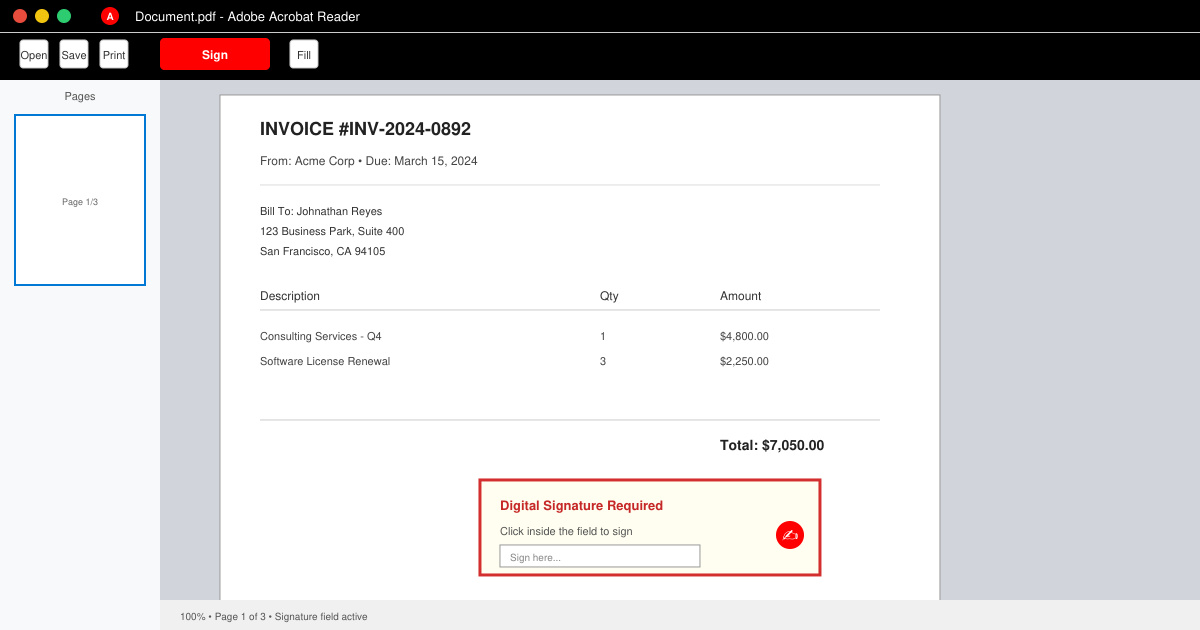
Launch Adobe Acrobat Reader, click the Edit menu, then choose Preferences. In the left sidebar select Signatures, click More next to Identities & Trusted Certificates, and finally select Digital IDs on the left.
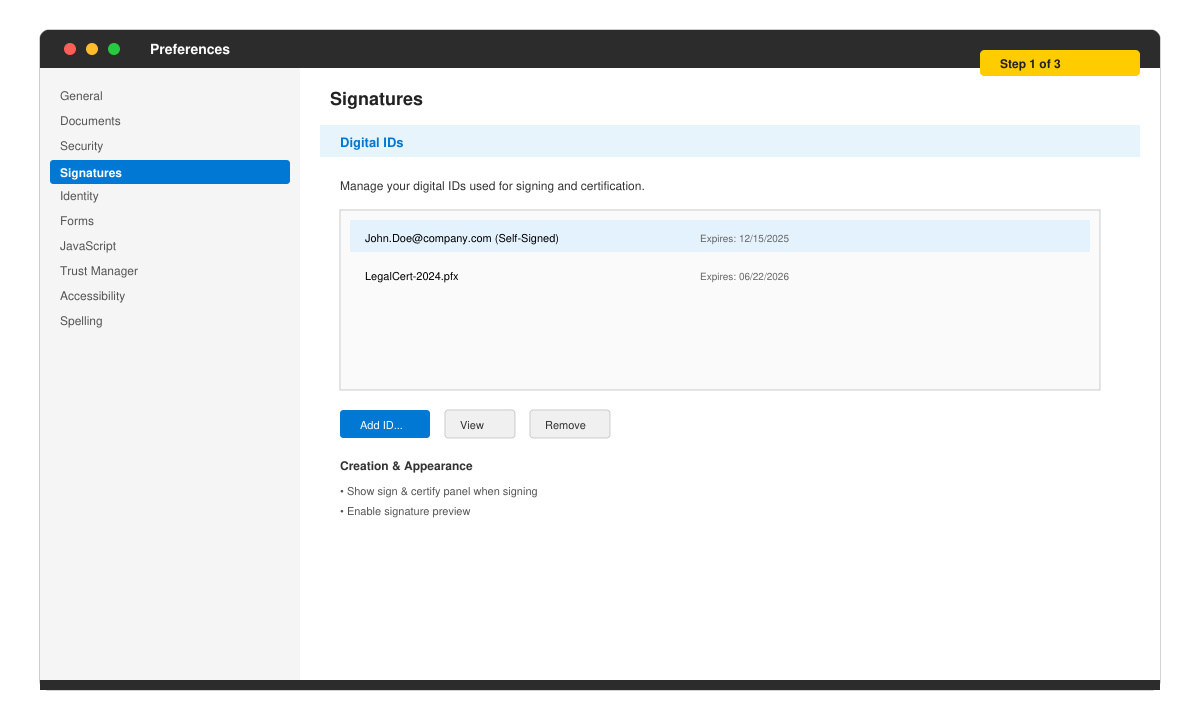
Click the Add ID button, select A new digital ID I want to create now, and choose where to store it. Select New PKCS#12 digital ID file, enter your name, email address, and organization details, then set a strong password to protect the file.
Open the PDF you want to sign. Click Tools in the right pane, select Certificates, then click Sign. Draw a rectangle where the signature should appear, select your newly created digital ID, and confirm the password when prompted.
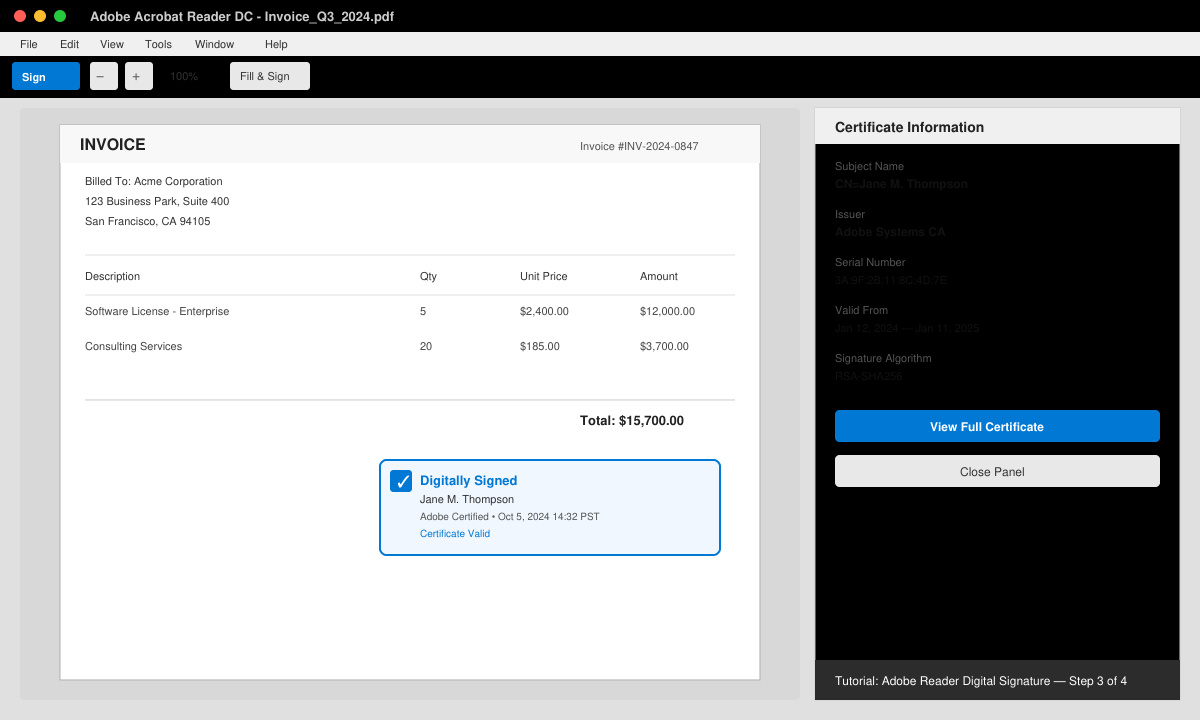
After signing, click the signature to open the Signature Properties panel. Verify that the status shows a green checkmark and that the certificate chain is trusted. Save the file to lock the signature in place.
One frequent problem occurs when the signature shows as invalid because the system date is incorrect. Always ensure your computer clock is set to the correct date and time zone. Another issue arises when recipients cannot verify the signature; export your public certificate and send it along with the signed PDF so they can add it to their trusted identities list.
If you receive an error about a revoked certificate, re-create the digital ID with a longer validity period or obtain one from a commercial certificate authority such as GlobalSign or DigiCert. Never reuse the same password across multiple IDs.
The full certificate-based signing feature is available only in the desktop versions of Adobe Acrobat Reader. Mobile apps support simpler signature stamps but do not create the same cryptographically secure digital signatures.
Self-signed signatures are legally valid in many jurisdictions for private agreements, but regulated industries often require certificates issued by a trusted third-party authority.
The validity period depends on the certificate you created or purchased. Self-signed IDs typically last one to three years; commercial certificates can be valid for one to five years before renewal.
Once configured, an Adobe Reader Digital Signature lets you sign and verify PDFs quickly while maintaining document integrity. Follow the steps above exactly to avoid common configuration errors.
Configure printers on Harmonica OS using CUPS, compare driverless IPP with legacy drivers, and verify USB or network printing with a test page.
Use a recovery shell to set a new Harmonica OS root password, with checks for encrypted disks, read-only filesystems, and accounts that use sudo.
Trace whether clipping, ALSA format conversion, or HDA power saving is causing Ubuntu 24.04 audio distortion, then apply the matching reversible fix.
Switch Debian audio between named PipeWire outputs with a pactl script that updates the default sink and reroutes streams already playing.
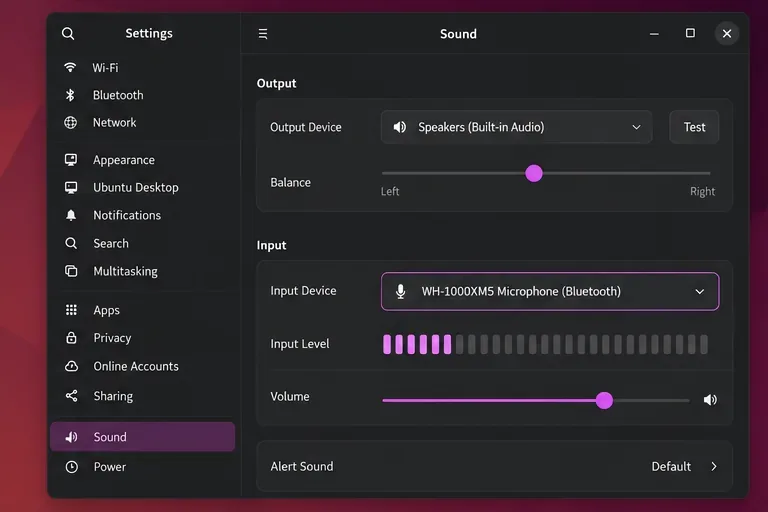
Get your Bluetooth headset mic working by selecting the right input, using a hands-free audio profile, and checking Ubuntu’s PipeWire route.
Learn why Flatpak apps may ignore Ubuntu 24.04 GTK themes and follow safe steps to check theme extensions, refresh Flatpak apps, and diagnose portal issues.
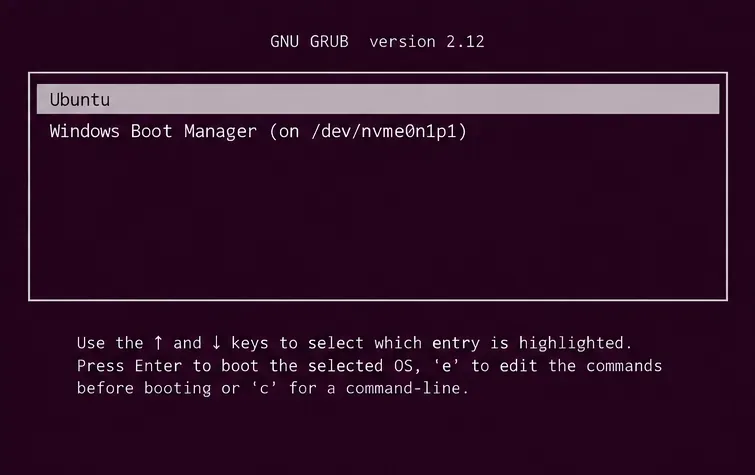
Install Ubuntu 24.04 alongside Windows 11 with BitLocker safely. Compare separate-drive and shared-drive paths, recovery keys, partitioning, and boot checks.
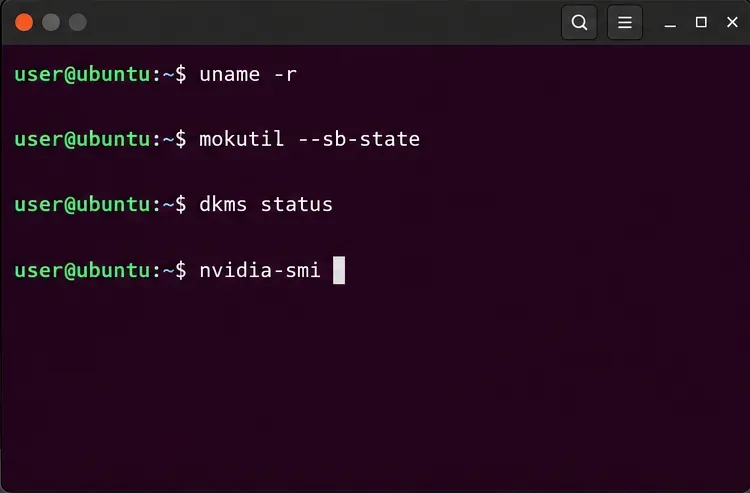
Diagnose NVIDIA driver failures after an Ubuntu kernel update. Check DKMS and Secure Boot, rebuild the matching module, enroll a MOK, and verify the fix.
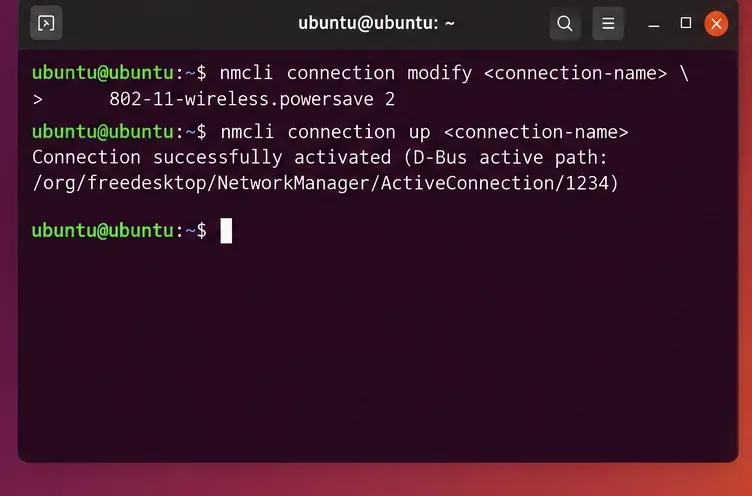
Fix Ubuntu 24.04 Wi-Fi drops after suspend with checks for NetworkManager, radio blocks, updates, power saving, and drivers—then verify each resume.
Learn why tracker-miner-fs-3 uses high CPU in Ubuntu GNOME and how to check indexing, exclude folders, update Ubuntu, or safely rebuild the search index.