Deploy Shared Pardus Wallpapers and Policies with Lider Ahenk

Distribute a custom wallpaper to Pardus clients, configure Xfce or GNOME desktops, and apply Lider Ahenk user policies with safe pilot checks.
Need to install Adobe Acrobat Reader on a machine that cannot stay connected to the internet during installation? The Adobe Reader Offline Setup uses a complete standalone installer that contains every required file. This guide walks through the exact download and installation process so the setup completes successfully even on isolated networks.
Before starting, confirm your system meets the minimum specifications listed on the official Adobe site. You need a Windows or macOS computer with at least 2 GB of RAM and 1 GB of free disk space. Administrator rights are required on the target machine. Prepare a USB drive or external storage device if you must transfer the installer from another computer that has internet access.
The offline installer is larger than the online version because it bundles language packs and components that would otherwise download during setup. Plan for roughly 400 MB of storage for the Windows version.
From any internet-connected computer, open a browser and navigate to the Adobe Acrobat Reader download page. Scroll past the standard online installer button and locate the link labeled “Adobe Acrobat Reader DC offline installer”. Select your operating system and language, then click the download button to save the .exe file.
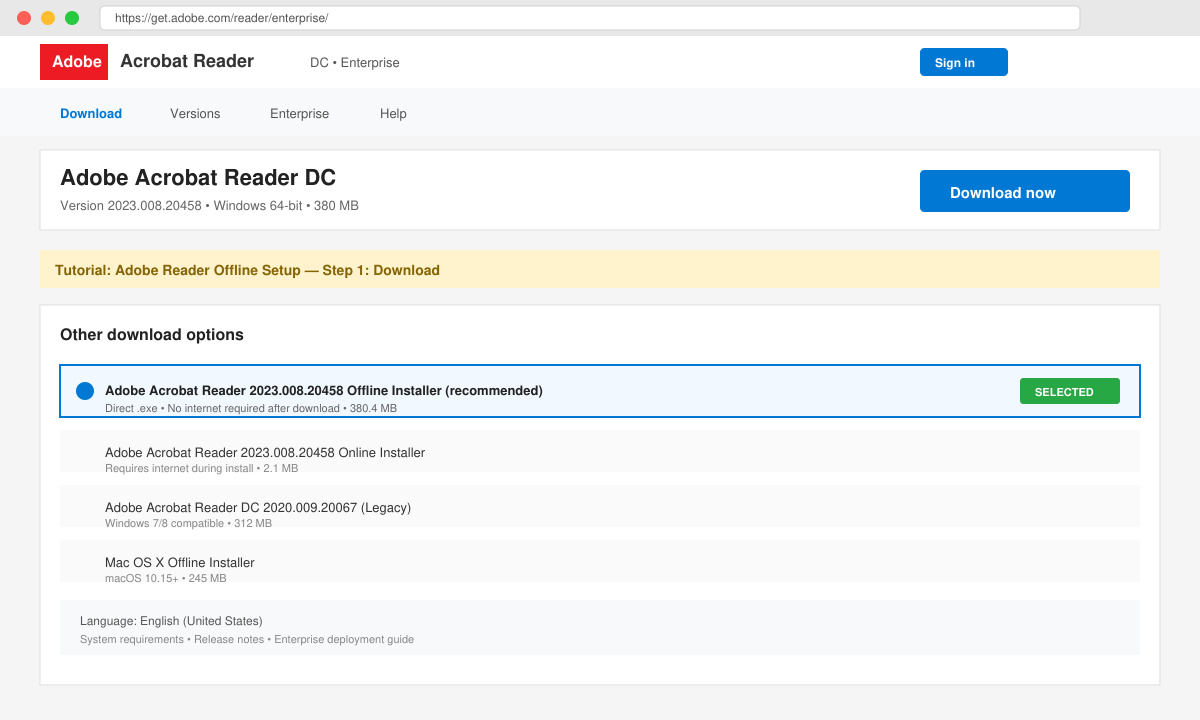
Copy the downloaded file to a USB drive or shared network location. Move the file to the offline computer. Verify the file size matches the value shown on the Adobe page to confirm it transferred completely.
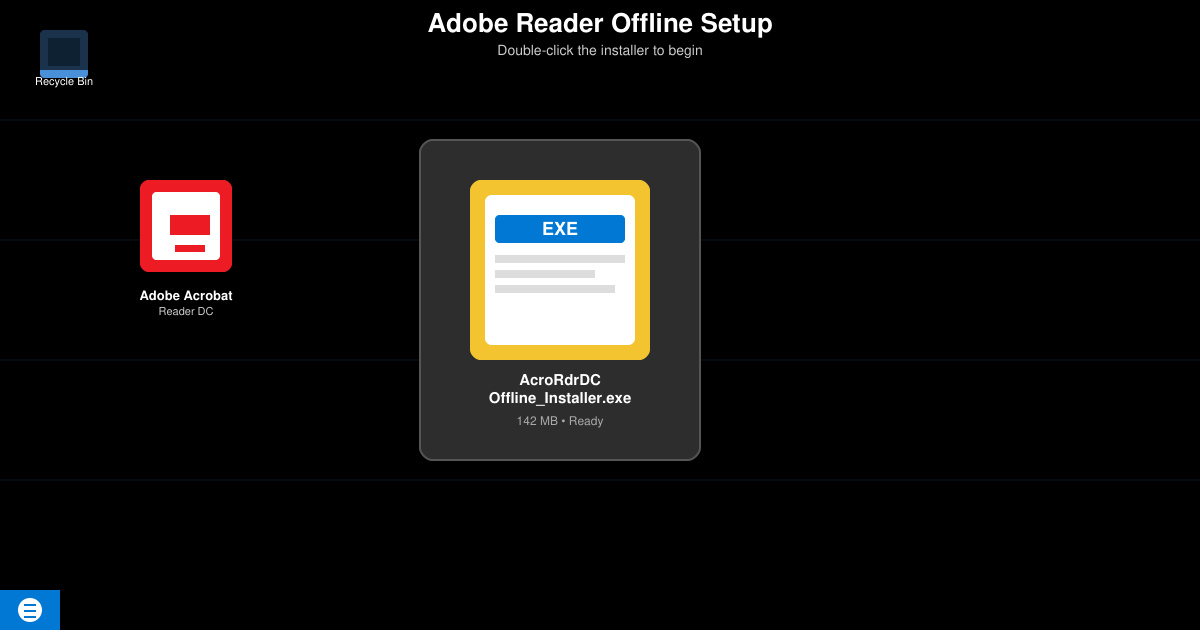
Right-click the installer file and choose “Run as administrator”. Accept the User Account Control prompt. The installation wizard opens immediately because all necessary files are already included. Follow the on-screen prompts to choose the installation directory and accept the license terms.
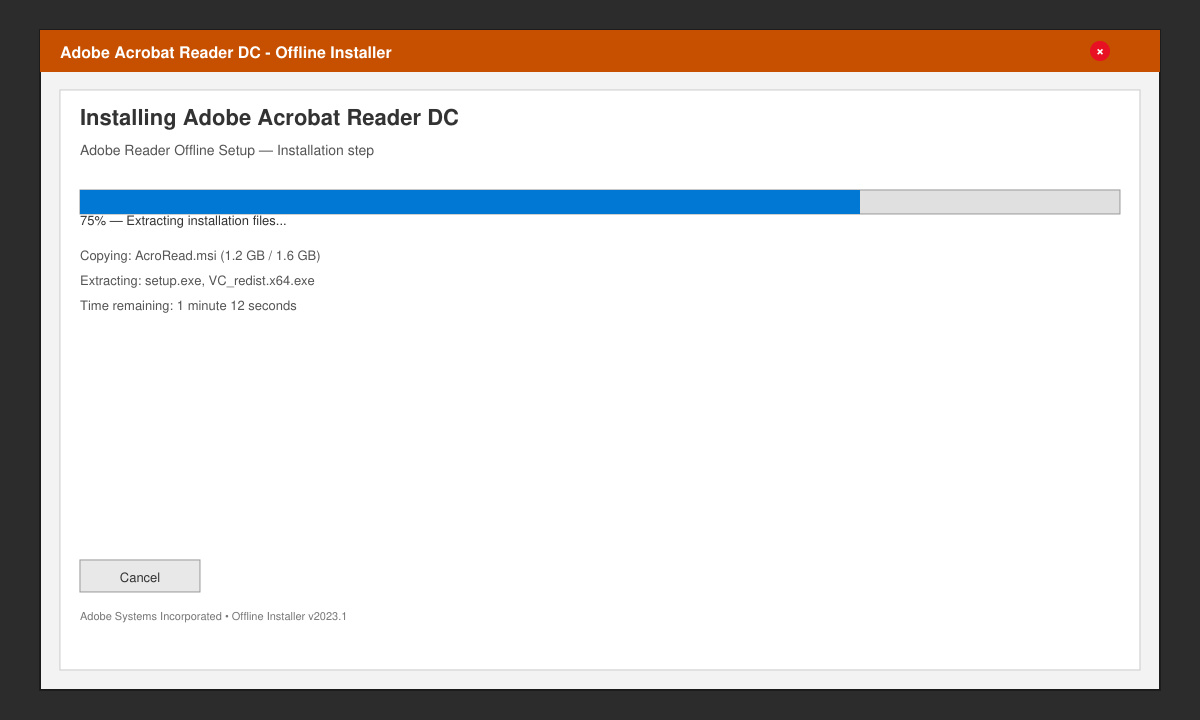
Click Finish when the progress bar reaches 100 %. Launch Adobe Acrobat Reader from the Start menu. Open the Help menu and select “About Adobe Acrobat Reader” to confirm the version number matches the offline installer you downloaded.
Yes. The Adobe Reader Offline Setup file can be copied and run on as many machines as needed, provided each computer meets the system requirements.
The offline package contains the version available at the time of download. Once the machine regains internet access, enable automatic updates inside the application to receive the newest patches.
Yes. Choose the 64-bit version for modern Windows systems to take advantage of improved memory handling. The 32-bit version remains available for older hardware or specific compatibility needs.
Following the steps above gives you a reliable Adobe Reader Offline Setup that works without any internet connection during installation. Keep the downloaded file stored safely for future deployments on other offline systems.
Distribute a custom wallpaper to Pardus clients, configure Xfce or GNOME desktops, and apply Lider Ahenk user policies with safe pilot checks.
Fix a 1024 × 768 ceiling by checking SPICE, virtual video, the guest channel, and spice-vdagent—with safe checks when Pardus lacks a package candidate.
Set up the Lider server, configure its installer safely, register Ahenk endpoints, and verify a pilot before expanding central management.
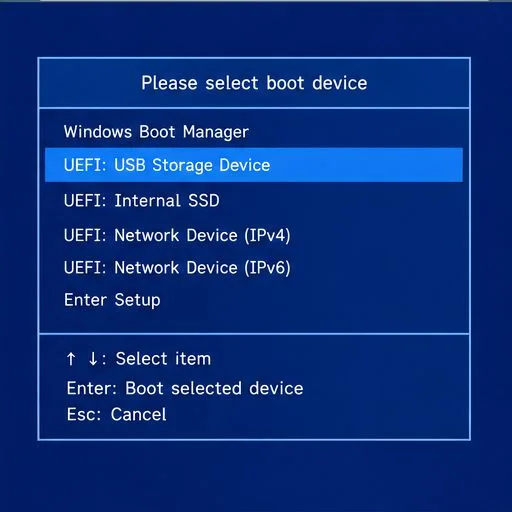
Download the official Pardus 23 desktop ISO, write it safely with Rufus, and boot a Windows PC into a temporary Live session.
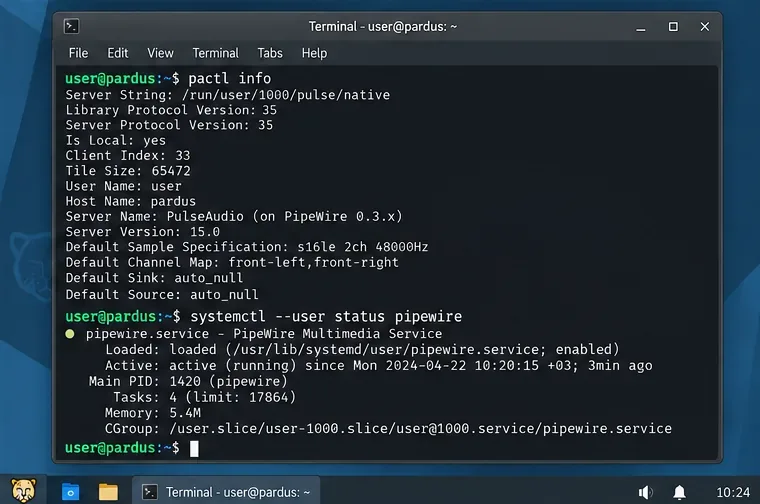
Find out why Pardus 23 cannot detect your sound card, then use targeted ALSA, firmware, and PipeWire or PulseAudio checks to restore playback.
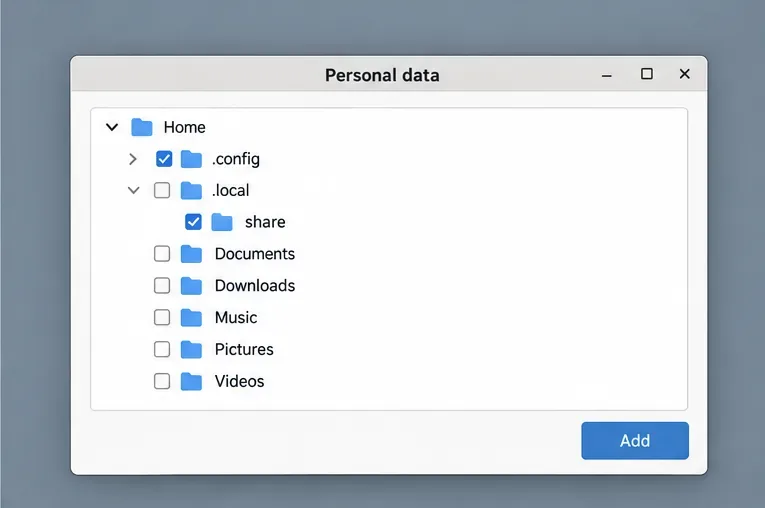
Save HamoniKR preferences to external storage, include hidden home folders, and choose a safe restore mode when moving to a fresh installation.
Install and configure xrdp on Pardus, choose the right Xfce session, restrict network access, and verify that remote login works.
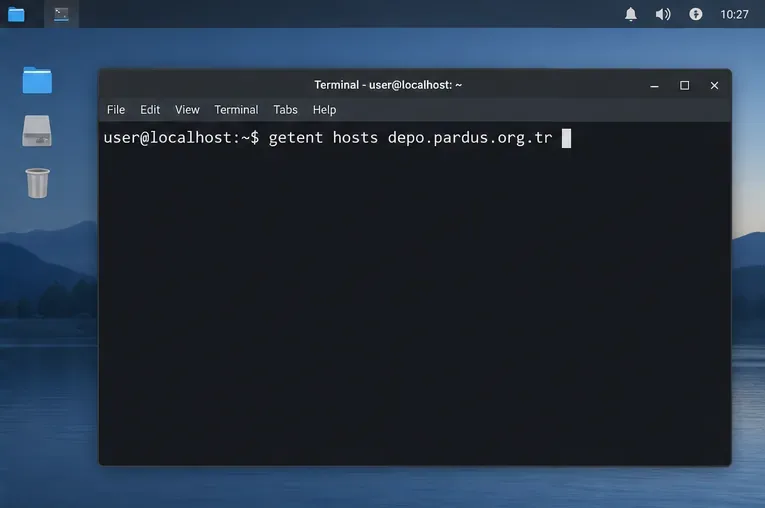
Diagnose Pardus 23 APT connection failures, confirm the official yirmiuc sources, and restore apt update without bypassing package signature checks.
Configure printers on Harmonica OS using CUPS, compare driverless IPP with legacy drivers, and verify USB or network printing with a test page.
Use a recovery shell to set a new Harmonica OS root password, with checks for encrypted disks, read-only filesystems, and accounts that use sudo.