For the first time in football history, the U23 team of Vietnam has reached the U23 Asian Final, the match taking place at 3pm today January 27. Surely there will be many people who want Live Stream matches to YouTube right?
Open Broadcaster Software (OBS for short) is completely free and open source software and is used as the most popular tool to help users report directly or record a computer screen and share with others. . In the previous article, Download.com.vn showed you how to use OBS to stream games to Twitch , today, we will see how this tool supports us to stream videos to Youtube?
Advantages of Open Broadcaster Software :
- Ability to stream fast, without lag, jerky.
- Support multi-platform.
- Suitable for many computers with average configuration.
- The video after streaming can be saved for later use (this is my personal favorite).
- Can be taken from a variety of image and sound sources to use together.
In this article, we will do only the most basic thing, which is streaming videos to Youtube.
How to use OBS to stream video
Step 1: Download and install the OBS software (this should simply be ignored).
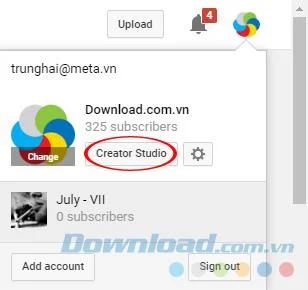
Step 2: You go to Youtube and login to your Google account. Select avatar / Creator Studio .
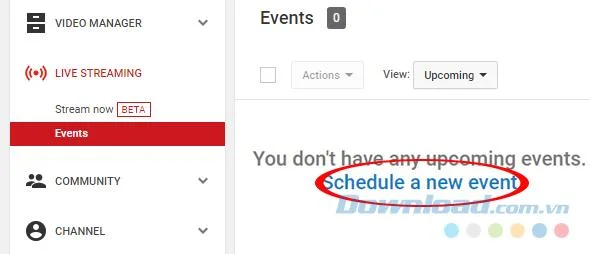
Step 3: In the left menu, left click on Live Streaming / Events . Then click Scheduler a new event - Schedule a new event.

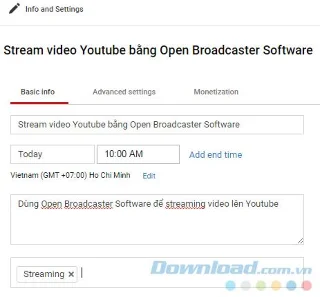
Step 4: In the Info and Settings section, select the tab Basic info - Basic information and fill in the fields below as when we perform the normal video upload on Youtube. Name, appointment date, start time ... (no need to select the Add end time).

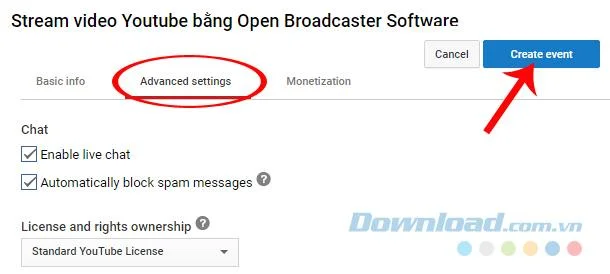
Step 5: Select next to Advanced settings - Advanced settings, click on Create event .

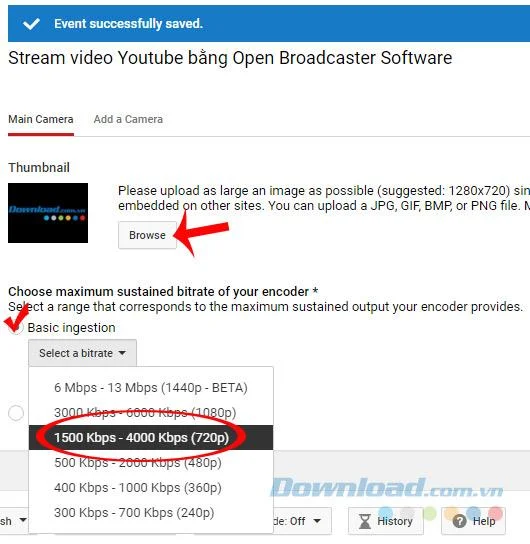
Step 6: At Main Camera - Main camera , pay attention from this step:
- Go to Browse to select the image to display.
- Tick the box Basic ingestion - Enter basic .
- In Select a bitrate - Select the bit rate , depending on the quality of the Internet connection we choose differently (the higher the picture is clearer), here, we take 720p.

Select a bitrate is the basis for setting video in OBS
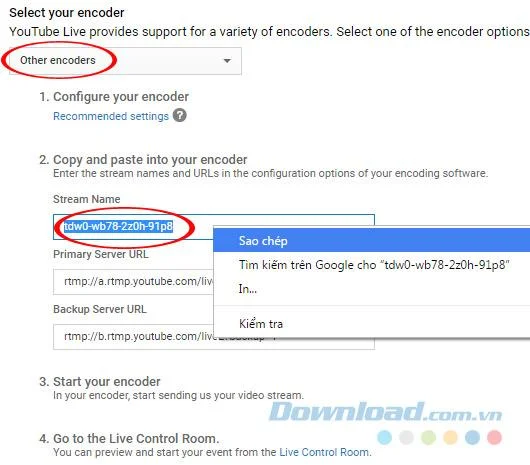
Scroll down, in the Select your encoder section - Select the encoder , click the arrow icon and select Other encoders - Other encoders . Then find and copy the Stream Name again - Stream Name .

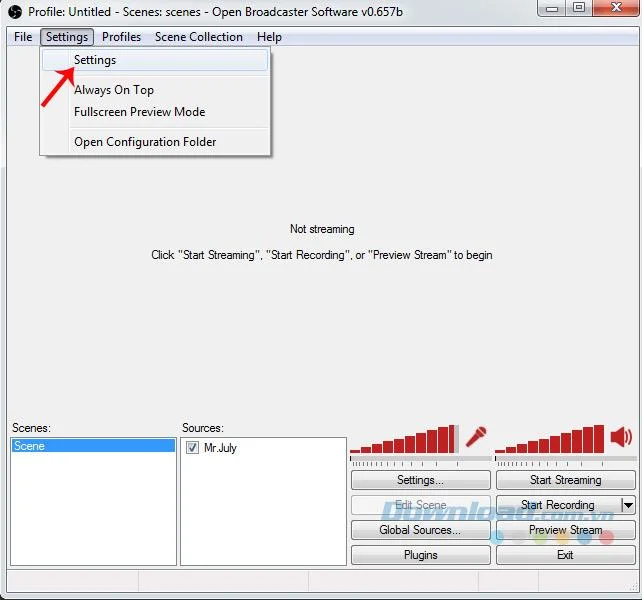
Step 7: At this point we will launch the OBS software, left click on Settings / Settings.

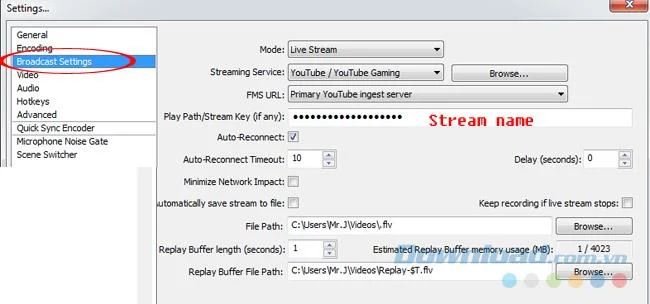
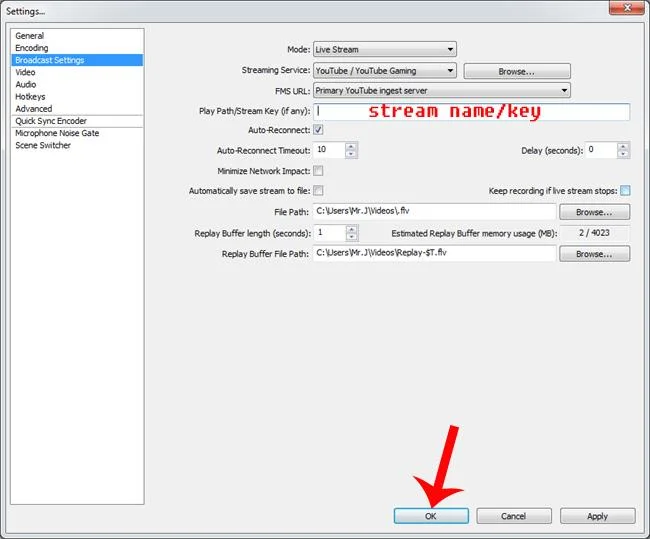
Step 8: Turn the settings for this software as follows, in Broadcast Settings:
- Mode : Live Stream.
- Streaming Service: Youtube / Youtube Gaming.
- FMS URL: Primary Youtube ingest server (required).
- Play Path / Stream Key: Enter the Stream Name just copied from Youtube.

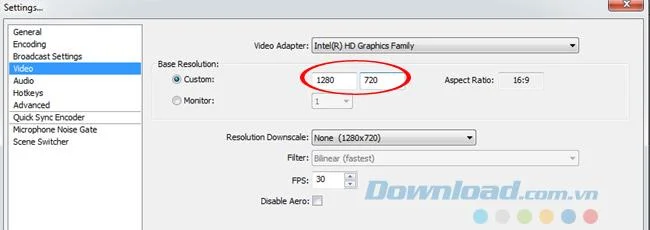
Continue with Video , you choose according to your computer screen size or any size, leaving FPS at the default 30.

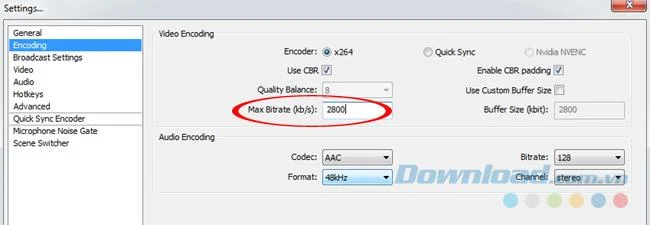
In Encoding , leave Max Bitrate (kb / s) between 1500 - 4000 (because we selected this bitrate in step 6 already). Select Code as AAC, Bitrate 128.

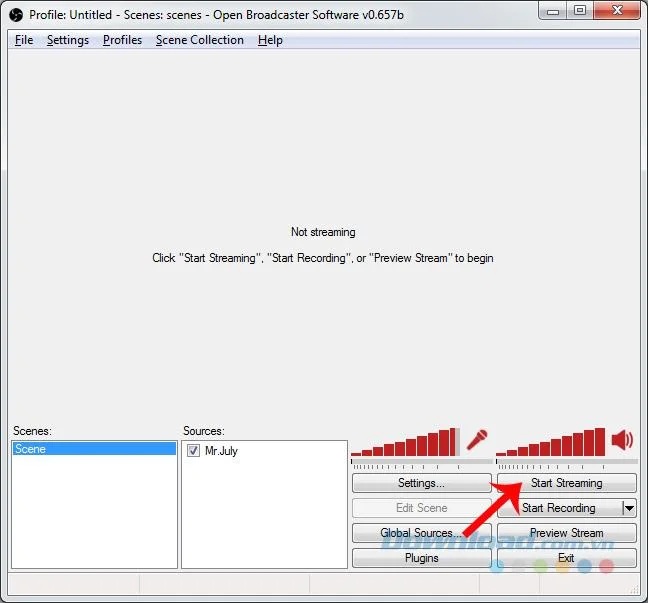
Finish setup, click Start Streaming to start execution.

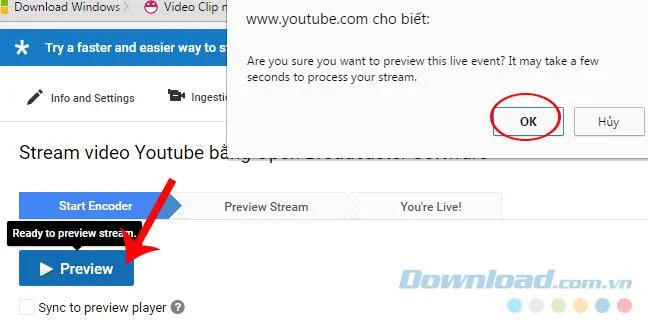
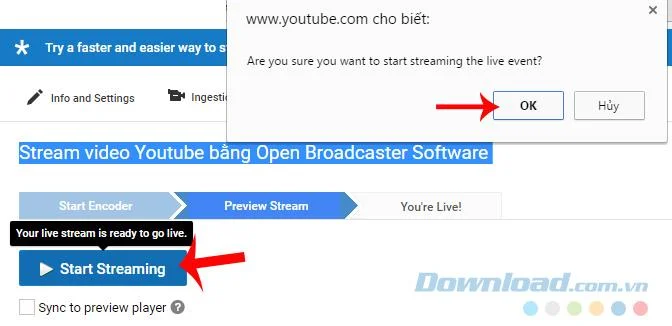
Step 9: Go back to the YouTube page, click Preview to review.

Click on OK to agree
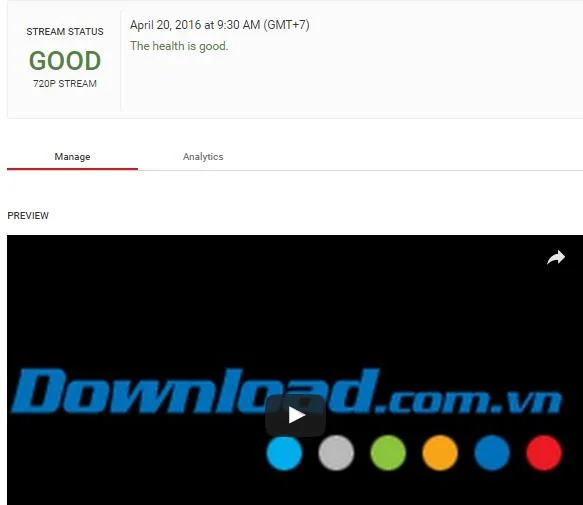
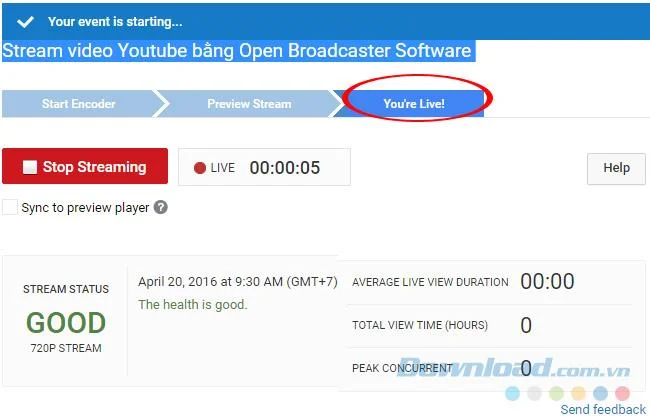
The interface appears as below with Stream Status - Stream status is high quality.

Step 10: Wait a bit for Youtube to connect with OBS when the blue Start Streaming text appears as shown below, we click on it to stream directly to Youtube.

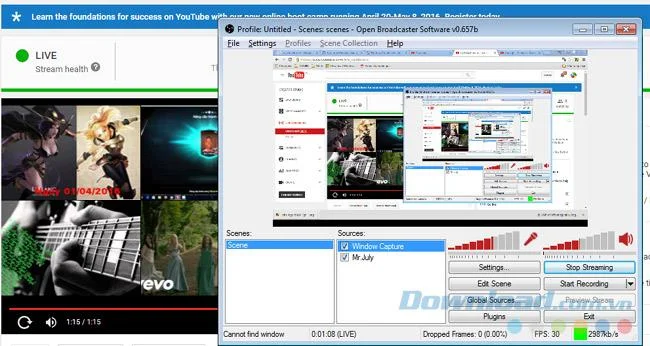
When the process is done, You're Live - You will be live will appear, also showing the running time below. To finish, left click on Stop Streaming.

Scroll to the bottom (Public View) to review the video you just finished streaming. So the end of the process of streaming videos to Youtube.

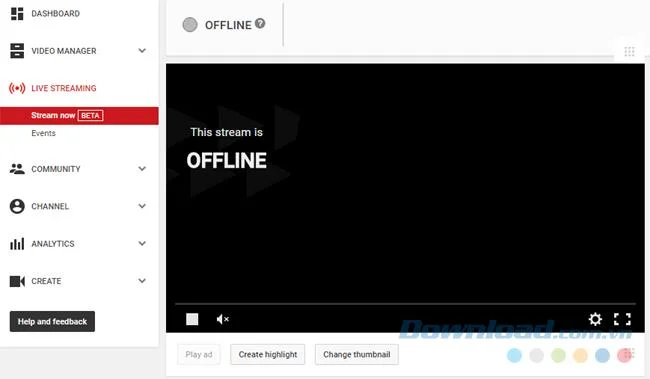
In addition, if you are using the new version of YouTube on Chrome, we can also choose to Live Streaming / Stream now.

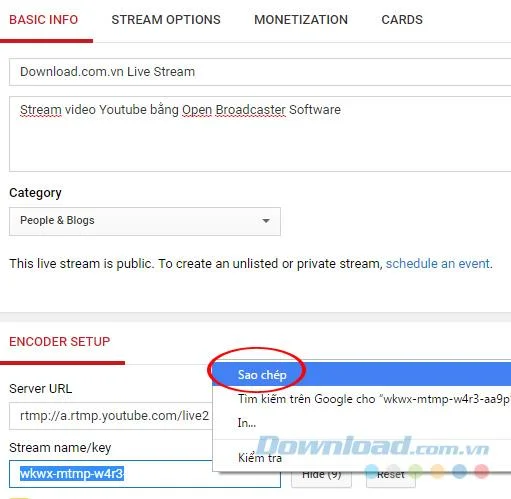
Enter the same information, then scroll to the bottom, find Encoder setup section . In Stream name / key , left-click on Reveal - Show to display content, then Copy and Paste into OBS .

In OBS, select Settings / Settings / Broadcast Settings and enter stream name / key into Play Path / Stream Key .

Enter Stream name / Key and OK
Click Start Streaming to get started.

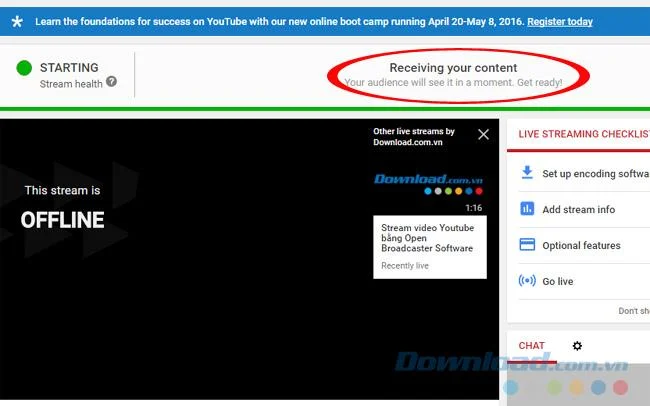
Depending on the speed and quality of the connection, the YouTube signal will receive longer or slower.

Once done, we can see the result as shown below.

That is the entire operation of streaming YouTube videos with OBS software that Download.com.vn would like to recommend to you.