NoxPlayer is acclaimed as one of the best Android emulators available today. It allows users to not only run Android applications on a computer but also operate it as a virtual mobile device, enhancing functionality and convenience.
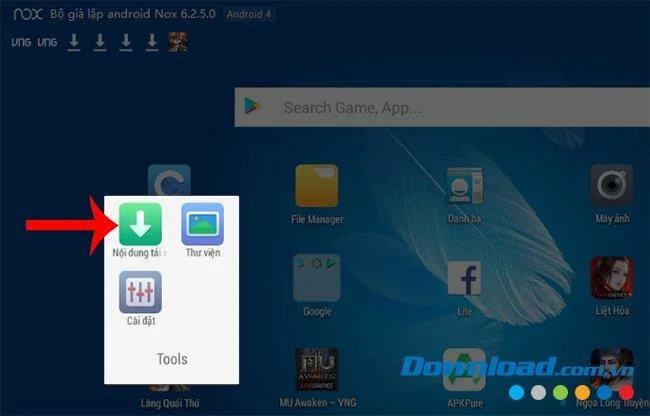
Step 1: Launch the NoxPlayer emulator on your computer. From the main screen, select Tools / Downloads.
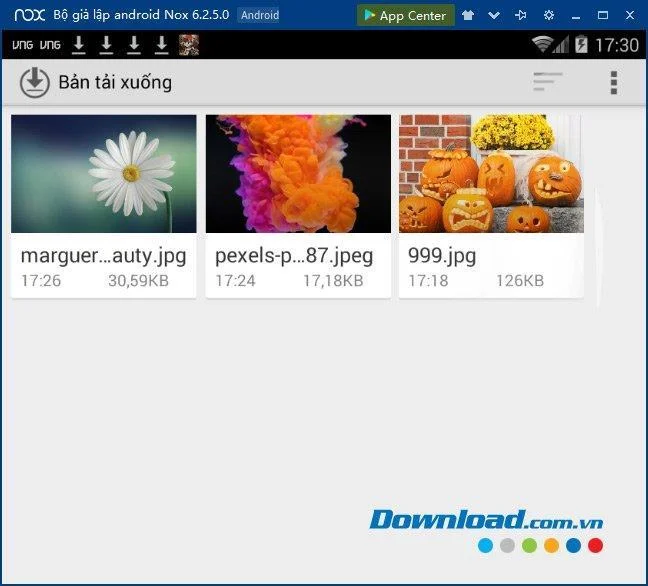
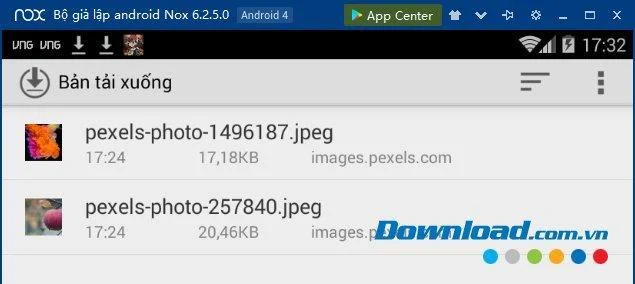
Step 2: In this interface, you will see all the data downloaded from the web on the simulator. For instance, to delete images in NoxPlayer, left-click on the image, hold to select it, and then click on the trash icon to proceed.
To delete multiple photos, simply select them— the count of selected images will display above.
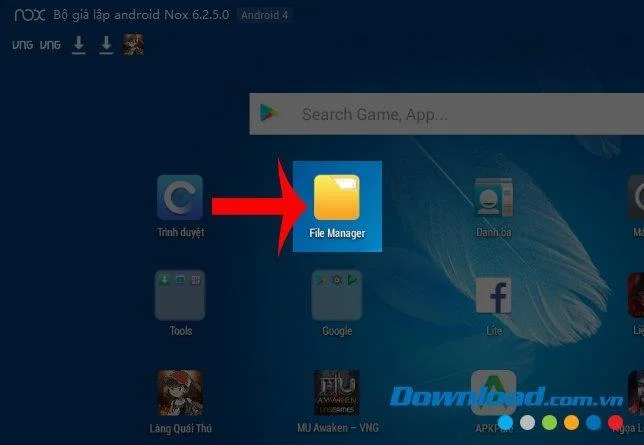
Alternatively, to delete data directly from the emulator's main interface, click on File Manager.
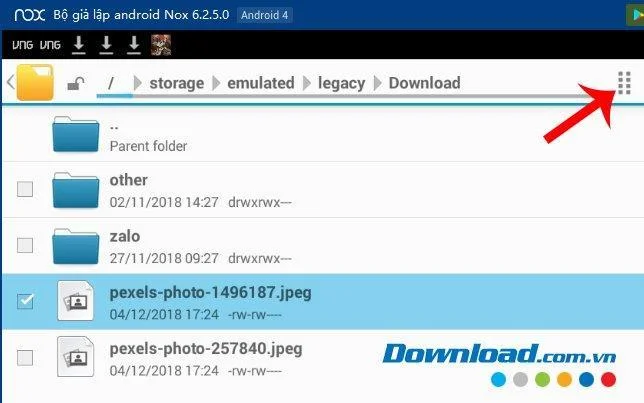
You can navigate through the following path to locate saved downloaded data or transfer files from your computer to Nox:
Storage / emulator / legacy / Download
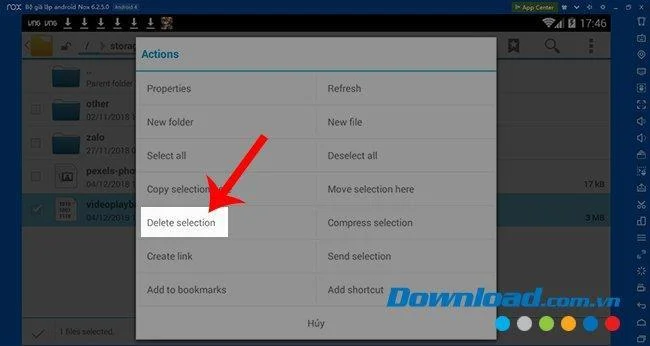
To delete any data, check the corresponding box and click the option icon above ( 8 dots ).
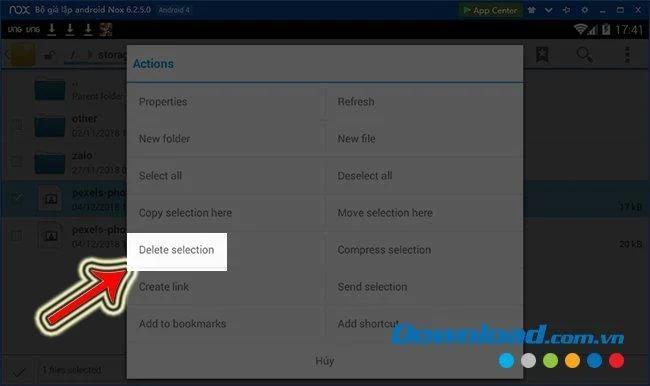
The Actions window will appear; click Delete selection to remove the highlighted items.
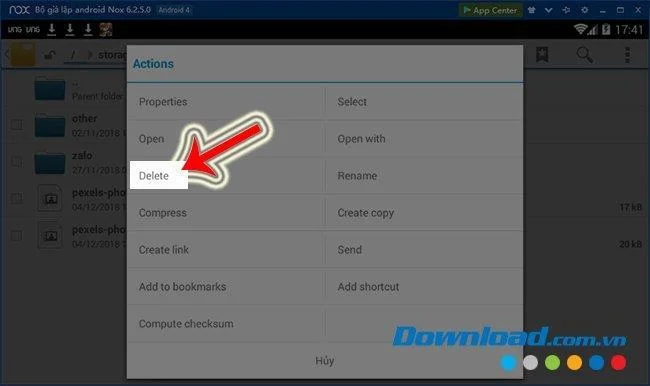
Alternatively, you can long press on an item to display the Action window, from where you can select Delete.
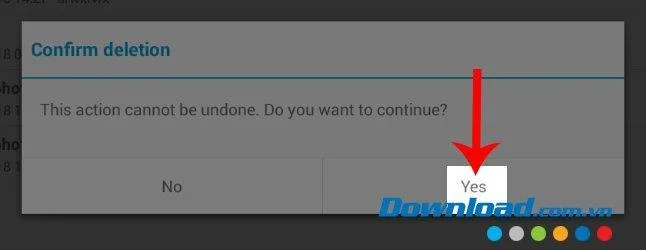
When the Confirm deletion prompt appears, click Yes to confirm, or No to cancel.
For other data types such as videos and music, follow the same deletion procedure as for photos to execute.
Erasing data on NoxPlayer not only enhances the emulator's performance but also helps reclaim storage space for better data management.
2. Updated Cleaning Method (2023)
NoxPlayer is a robust and stable Android Emulator designed to bring mobile gaming experiences to PC. Over time, you may find it beneficial to clear cached data to maximize its performance. Here’s a step-by-step guide:
Step
Action
Image
1.
Go to Settings
2.
Click Apps
3.
Swipe to ALL, scroll down and find Media Storage and click it
4.
Click Clear data
5.
Confirm by clicking OK in the dialog box
This process will help clean up cache data, improving NoxPlayer's speed and performance. Alternatively, you may utilize other system management tools to maintain optimization.
(30) Comments
Scarlett J. -
Very useful post! I didn’t even realize how much extra data I had. Now I’m back to smooth gaming.
Katy FunTime -
Can anyone suggest more tips for optimizing NoxPlayer? I’d love to know if there’s more I can do!
Charlie Lees -
Saved me so much trouble! Cleaning up my NoxPlayer has streamlined my gaming experience significantly
Oliver Go -
Honestly, I thought I was going to break my computer trying to figure this out. Thank you for making it so easy to delete data on NoxPlayer
Daisy Love -
Yay! Finally got rid of all that extra junk! Thanks for your clear explanations, they made it so easy!
Hannah G. -
Are you planning to write more tips on NoxPlayer? I'd love to learn some advanced hacks
Angela L. -
I really appreciate this post! It’s so straightforward; I didn’t realize deleting files could be so easy
Shay H. -
This was exactly what I was looking for! Now my NoxPlayer isn't hogging all my disk space. Brilliant job
Hank KT -
Is it normal for NoxPlayer to store so much data? I thought I was just using a few apps! This really opened my eyes
Sammy 999 -
If I follow these steps, can I recover the data in case I delete something by mistake? Just being cautious!
Lucy Q. -
Cheers for this great guide! NoxPlayer is now working like a breeze. I appreciate the effort you put into this
Ben A. -
I've been looking for a solution to this problem for ages! So grateful for your clear instructions
Finn C. -
Great to see a guide that doesn’t complicate things. I love how you simplified the process of deleting data in NoxPlayer
Ava B. -
I wonder if there are any tools specifically designed to optimize NoxPlayer? It would be great to have something automated
Riley P. -
I used to feel lost looking at those menus. Now, with this guide, I’m deleting like a pro
Max Fun -
LOL, I felt like a tech wizard after deleting all that data! Thanks for the guide, now NoxPlayer runs like a dream
Tom Gamer007 -
Haha, I didn't think cleaning would feel this good! My NoxPlayer is finally responsive. Thanks!
John Doe -
I love using NoxPlayer, but I always struggled with those junk files taking up space. This article saved me a lot of time!
Olivia Joy -
Big thumbs up for the clarity in this article! Sometimes tech guides can be overwhelming, but this was spot on!
Tommy D. -
This is a lifesaver! If only I had known about this sooner, my computer would have been running like new. Thanks a lot!
Chris GameOn -
I deleted everything and started fresh! It was satisfying to see everything go. Cheers for the insights
Quinn VN -
Wow, I'm so glad I found this! My NoxPlayer was starting to lag, and I couldn't figure out why. Deleting unused data has helped tons!
Jason F. -
Thanks for this helpful info. I wasn't aware of the hidden files in NoxPlayer. Deleting them made a huge difference
Leo M. -
This blog post rocked! I never thought deleting data could be this easy in NoxPlayer. I feel so accomplished
Sophia 777 -
Great article! I’m sharing this with my friends who also use NoxPlayer. We all face this issue
Jessica 89 -
Thanks for the tips! I just followed your steps and cleared out so much data. NoxPlayer is running smoother now
Laurel IT -
I had no clue about the cache files! I cleared them out following your advice. Great post, very informative!
Mike The Gamer -
Quick question: Is there a way to delete specific games' data without affecting others? I'm cautious about losing progress
Emily M. -
This guide was really helpful! I had no idea how to delete unnecessary data in NoxPlayer until now. Thanks for sharing!
David Q. -
Does this process also work for deleting data in Android emulators in general or just NoxPlayer? Asking for a friend










Scarlett J. -
Very useful post! I didn’t even realize how much extra data I had. Now I’m back to smooth gaming.
Katy FunTime -
Can anyone suggest more tips for optimizing NoxPlayer? I’d love to know if there’s more I can do!
Charlie Lees -
Saved me so much trouble! Cleaning up my NoxPlayer has streamlined my gaming experience significantly
Oliver Go -
Honestly, I thought I was going to break my computer trying to figure this out. Thank you for making it so easy to delete data on NoxPlayer
Daisy Love -
Yay! Finally got rid of all that extra junk! Thanks for your clear explanations, they made it so easy!
Hannah G. -
Are you planning to write more tips on NoxPlayer? I'd love to learn some advanced hacks
Angela L. -
I really appreciate this post! It’s so straightforward; I didn’t realize deleting files could be so easy
Shay H. -
This was exactly what I was looking for! Now my NoxPlayer isn't hogging all my disk space. Brilliant job
Hank KT -
Is it normal for NoxPlayer to store so much data? I thought I was just using a few apps! This really opened my eyes
Sammy 999 -
If I follow these steps, can I recover the data in case I delete something by mistake? Just being cautious!
Lucy Q. -
Cheers for this great guide! NoxPlayer is now working like a breeze. I appreciate the effort you put into this
Ben A. -
I've been looking for a solution to this problem for ages! So grateful for your clear instructions
Finn C. -
Great to see a guide that doesn’t complicate things. I love how you simplified the process of deleting data in NoxPlayer
Ava B. -
I wonder if there are any tools specifically designed to optimize NoxPlayer? It would be great to have something automated
Riley P. -
I used to feel lost looking at those menus. Now, with this guide, I’m deleting like a pro
Max Fun -
LOL, I felt like a tech wizard after deleting all that data! Thanks for the guide, now NoxPlayer runs like a dream
Tom Gamer007 -
Haha, I didn't think cleaning would feel this good! My NoxPlayer is finally responsive. Thanks!
John Doe -
I love using NoxPlayer, but I always struggled with those junk files taking up space. This article saved me a lot of time!
Olivia Joy -
Big thumbs up for the clarity in this article! Sometimes tech guides can be overwhelming, but this was spot on!
Tommy D. -
This is a lifesaver! If only I had known about this sooner, my computer would have been running like new. Thanks a lot!
Chris GameOn -
I deleted everything and started fresh! It was satisfying to see everything go. Cheers for the insights
Quinn VN -
Wow, I'm so glad I found this! My NoxPlayer was starting to lag, and I couldn't figure out why. Deleting unused data has helped tons!
Jason F. -
Thanks for this helpful info. I wasn't aware of the hidden files in NoxPlayer. Deleting them made a huge difference
Leo M. -
This blog post rocked! I never thought deleting data could be this easy in NoxPlayer. I feel so accomplished
Sophia 777 -
Great article! I’m sharing this with my friends who also use NoxPlayer. We all face this issue
Jessica 89 -
Thanks for the tips! I just followed your steps and cleared out so much data. NoxPlayer is running smoother now
Laurel IT -
I had no clue about the cache files! I cleared them out following your advice. Great post, very informative!
Mike The Gamer -
Quick question: Is there a way to delete specific games' data without affecting others? I'm cautious about losing progress
Emily M. -
This guide was really helpful! I had no idea how to delete unnecessary data in NoxPlayer until now. Thanks for sharing!
David Q. -
Does this process also work for deleting data in Android emulators in general or just NoxPlayer? Asking for a friend