Home
» How to
»
Instructions for using Zalo Web right in the browser
Instructions for using Zalo Web right in the browser
Following the success of Zalo versions for Windows, Mac OSX, Android, Windows Phone, and iOS, the publisher has launched the Zalo web version. This allows users to chat on the browser without needing to install any software.
Getting Started with Zalo Web
Do you know how to use Zalo Web? Or how to log in to Zalo Web? Follow the article below to learn how to access Zalo and some basic settings for more effective usage:
1. Instructions for Scanning QR Codes to Access Zalo Web
Before you begin, ensure that your phone has the corresponding version of Zalo installed:
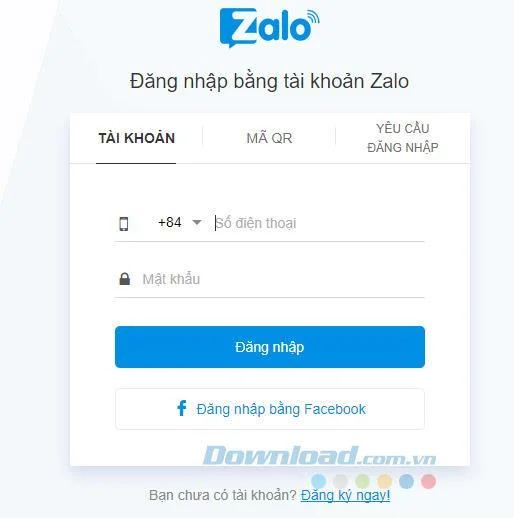
Go to Zalo Web, where you'll find the Zalo Login interface with three options:
Account: Login with your phone number and Zalo account password.
QR Code: Use your Zalo app to scan the QR code.
Login Request: Send a login request to your Zalo app on your device.
We'll choose to log in with the QR Code.
Step 2: Scan the QR Code
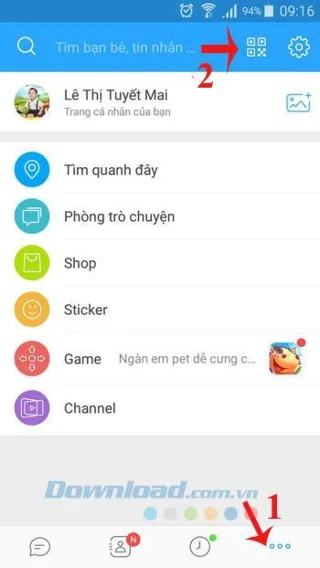
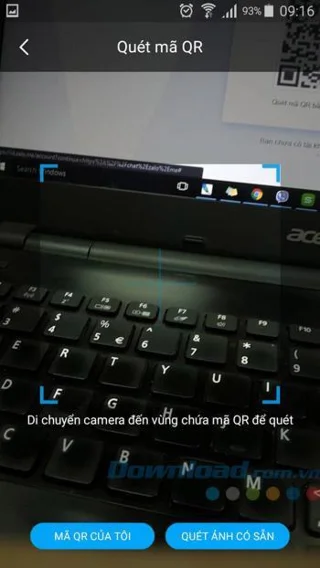
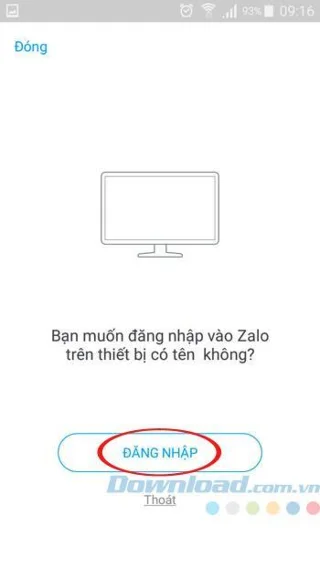
Open the Zalo application on your mobile, tap on the three horizontal dots icon, then click on the QR code icon next to the search box. Point your phone camera at the QR code displayed in the web browser and tap Sign in to log in to Zalo Web.
Step 3: Start Using Zalo Web
Now you can use Zalo online to chat, make calls, and send text messages for free. Your contacts and messages will be synchronized seamlessly for your convenience. Enjoy sending attachments and images, and using emoticons as you wish.
2. Setting Notifications on Zalo Web (Chrome, Firefox, Coc Coc, etc.)
1. New Message Alert
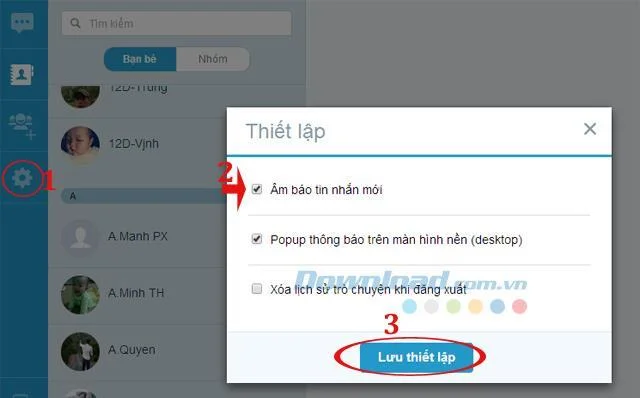
To enable sound notifications for new messages, access the Setup (gear icon) on the left column, then select New Message Notification and click Save Settings to apply changes.
2. Set Up Popup Notifications on Desktop
Step 1: To enable popup notifications for new messages, the method will vary by browser. For Chrome, click Click here after logging into Zalo to enable notifications, then click Allow.
For Firefox, enable notifications by clicking Click here and then selecting Always Show Notifications.
3. Clear Chat History on Logout
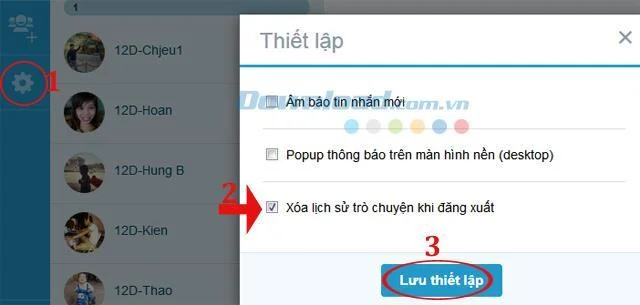
If you want to clear all chat history each time you log out, access the Settings tab and select Clear chat history on logout. Remember to click Save Settings to apply changes.
How to Log In and Use Zalo on Your Phone Web Browser
1. Log in Using Your Phone Number
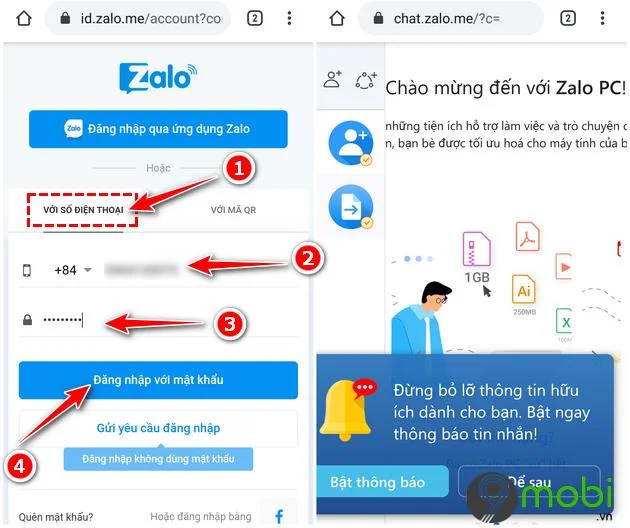
In your web browser, go to the Zalo website and select the option to log in using your phone number. Enter your registered phone number and password, then click Log In.
2. Log in Using QR Code
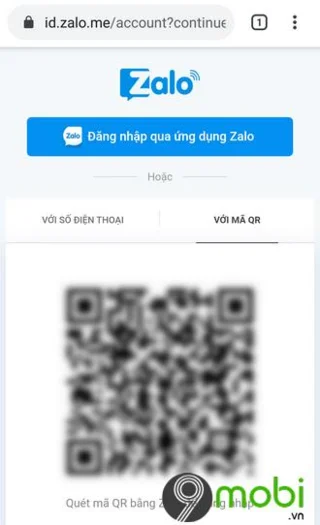
Step 1: On the web browser, go to the Zalo Web site.
Step 2: Open Zalo on another device to scan the QR code shown on the web browser.
3. Functions of Zalo Web
After successfully logging in, you can use several features available such as:
Friend Finder: Search for friends on Zalo using the human-shaped icon with a +.
Group Chats: Create group chats for discussing and sharing files.
Friend Requests: Manage incoming friend requests using the blue circle icon.
File Transfers: Share files easily using the circular file icon.
We hope this article helps you to successfully use Zalo on your mobile web browser. If you do not have a Zalo account, check out our registration guide. Happy chatting!
Video Tutorial on Using Zalo Web
(42) Comments
Anna Nguyen -
This is super helpful! I've been using the app but was looking for a browser option. Thanks for sharing
Kevin R. -
This article really struck a chord with me! Can't wait to see the benefits of using Zalo on my browser
FUNNY CAT -
That's awesome! Can’t believe I’m all this time using the app only. Thanks for the heads up
Emily T. -
Really appreciate this! I've been looking for more ways to use Zalo effectively!
Sunny Day -
Who knew that using Zalo could be so simple? Your post made everything clear!
Văn Nghĩa -
I think I’ll share this with my coworkers. They will definitely find this useful
Hương H. -
This is exactly what I needed! Thank you for putting this together. Very helpful
Hương KT -
This is such a useful tip! I can't believe I was missing out on Zalo Web all this time
Nina B -
Just tried Zalo Web based on your suggestion—it's smooth and efficient! Appreciate the recommendation
John Smith -
Great article! I had no idea you could use Zalo right in the browser. Can't wait to try it out!
Fun Guy -
Just found out about Zalo Web. This is going to be my new favorite tool
Hải Dương -
This has truly made my day! Can’t wait to share this with my friends
Huyền Lizzie -
I love Zalo! Using it in the browser is going to make my life so much easier!
Hương Đà Nẵng -
I feel so relieved to find this! My phone battery dies so fast, now I can use Zalo on my laptop
Miki S. -
Had no idea Zalo had a web version! Thank you for enlightening me with your detailed instructions
Tùng Lâm -
Does Zalo Web have all the same features as the app, or are there some things missing?
Lisa K. -
I love the way you explain everything! Very user-friendly and easy to follow
Jordan W. -
Are there any limitations when using Zalo Web compared to the mobile app? Just curious!
Minh Anh -
I’d love to know more about the features available on Zalo Web compared to the app version
Mèo con -
Can’t believe I didn't know Zalo has a web version! Life just got a whole lot better
Daisy P. -
Oh my, this sounds incredible! I just had to leave a comment to say thank you!
Chris M. -
Thanks for sharing your tips! It’ll definitely help me use Zalo more efficiently
Charlie Pets -
Wow, this is a game changer! I’ve been struggling to get things done on my phone
Emilia G. -
Finally! A way to use Zalo without my phone! I'm so happy I found this
Sophie N. -
Would love to see an FAQ section for Zalo Web! I’m sure it would help out a lot
Max Chen -
Just tried it, and it works perfectly! Thanks for the detailed instructions
Chloe T. -
The step-by-step guide is perfect for beginners like me. Thanks a lot for this useful post!
Candy Cloud -
I love how straightforward your post is! Makes me feel confident to try using Zalo Web
Linda Joy -
Can you also make calls through Zalo Web? That would be perfect for my work-related chats
Sara KY -
Is there a way to sync the chat history when using Zalo Web? I really hope so!
Gloria Mae -
I hope they add more features to Zalo Web in the future. Would love to see video calls!
Thùy Linh -
This tutorial is amazing. It really simplifies the process of using Zalo Web
Quang vn -
Has anyone faced any issues with Zalo Web? I’m curious if it's stable enough for daily use
Duy Sinh 6789 -
It's really cool to see the steps laid out like this. I appreciate the effort you put into this post!
Phúc IT -
Really informative! This is something every user of Zalo should know about. Thanks for posting
Trâm An -
I can’t count how many times I wished for this feature. Thanks so much for this info
Lucas A. -
This is so useful! Now I can access Zalo while I’m working without my phone in hand
Jasmine A. -
This info is gold! I'm constantly switching between devices, so Zalo Web will be a lifesaver.
David P. -
What a relief! I use Zalo for work, and this will make things much smoother for me
Mark D. -
I wasn't very familiar with Zalo before, but now I’m excited to explore it more. Thanks!
Andy Lee -
Thank you for sharing these instructions! It's nice to have options and not be tied to my phone
Hà Trần -
Has anyone tried using Zalo Web on mobile? Just curious if it works well or not!










Anna Nguyen -
This is super helpful! I've been using the app but was looking for a browser option. Thanks for sharing
Kevin R. -
This article really struck a chord with me! Can't wait to see the benefits of using Zalo on my browser
FUNNY CAT -
That's awesome! Can’t believe I’m all this time using the app only. Thanks for the heads up
Emily T. -
Really appreciate this! I've been looking for more ways to use Zalo effectively!
Sunny Day -
Who knew that using Zalo could be so simple? Your post made everything clear!
Văn Nghĩa -
I think I’ll share this with my coworkers. They will definitely find this useful
Hương H. -
This is exactly what I needed! Thank you for putting this together. Very helpful
Hương KT -
This is such a useful tip! I can't believe I was missing out on Zalo Web all this time
Nina B -
Just tried Zalo Web based on your suggestion—it's smooth and efficient! Appreciate the recommendation
John Smith -
Great article! I had no idea you could use Zalo right in the browser. Can't wait to try it out!
Fun Guy -
Just found out about Zalo Web. This is going to be my new favorite tool
Hải Dương -
This has truly made my day! Can’t wait to share this with my friends
Huyền Lizzie -
I love Zalo! Using it in the browser is going to make my life so much easier!
Hương Đà Nẵng -
I feel so relieved to find this! My phone battery dies so fast, now I can use Zalo on my laptop
Miki S. -
Had no idea Zalo had a web version! Thank you for enlightening me with your detailed instructions
Tùng Lâm -
Does Zalo Web have all the same features as the app, or are there some things missing?
Lisa K. -
I love the way you explain everything! Very user-friendly and easy to follow
Jordan W. -
Are there any limitations when using Zalo Web compared to the mobile app? Just curious!
Minh Anh -
I’d love to know more about the features available on Zalo Web compared to the app version
Mèo con -
Can’t believe I didn't know Zalo has a web version! Life just got a whole lot better
Daisy P. -
Oh my, this sounds incredible! I just had to leave a comment to say thank you!
Chris M. -
Thanks for sharing your tips! It’ll definitely help me use Zalo more efficiently
Charlie Pets -
Wow, this is a game changer! I’ve been struggling to get things done on my phone
Emilia G. -
Finally! A way to use Zalo without my phone! I'm so happy I found this
Sophie N. -
Would love to see an FAQ section for Zalo Web! I’m sure it would help out a lot
Max Chen -
Just tried it, and it works perfectly! Thanks for the detailed instructions
Chloe T. -
The step-by-step guide is perfect for beginners like me. Thanks a lot for this useful post!
Candy Cloud -
I love how straightforward your post is! Makes me feel confident to try using Zalo Web
Linda Joy -
Can you also make calls through Zalo Web? That would be perfect for my work-related chats
Sara KY -
Is there a way to sync the chat history when using Zalo Web? I really hope so!
Gloria Mae -
I hope they add more features to Zalo Web in the future. Would love to see video calls!
Thùy Linh -
This tutorial is amazing. It really simplifies the process of using Zalo Web
Quang vn -
Has anyone faced any issues with Zalo Web? I’m curious if it's stable enough for daily use
Duy Sinh 6789 -
It's really cool to see the steps laid out like this. I appreciate the effort you put into this post!
Phúc IT -
Really informative! This is something every user of Zalo should know about. Thanks for posting
Trâm An -
I can’t count how many times I wished for this feature. Thanks so much for this info
Lucas A. -
This is so useful! Now I can access Zalo while I’m working without my phone in hand
Jasmine A. -
This info is gold! I'm constantly switching between devices, so Zalo Web will be a lifesaver.
David P. -
What a relief! I use Zalo for work, and this will make things much smoother for me
Mark D. -
I wasn't very familiar with Zalo before, but now I’m excited to explore it more. Thanks!
Andy Lee -
Thank you for sharing these instructions! It's nice to have options and not be tied to my phone
Hà Trần -
Has anyone tried using Zalo Web on mobile? Just curious if it works well or not!