Videos are much more entertaining with a soundtrack. Whether adding mood music to engage the audience or putting sound effects on top of a video, Canva makes the process simple.
If you want to add a little extra to your videos with some music and sound bites, this article is for you. We’ll explain what you need to know to add music to a video in Canva.
How to Add Stock Music to a Video in Canva
Adding music starts with a Canva project. After you have made all the modifications to the video, you can add music to it as a finishing touch. You are also free to use Canva’s large inventory of available audio. Before starting, learn the best Canva keyboard shortcuts to speed up your workflow.
From the Web
If you’re working on a computer, begin by starting a project on Canva and uploading videos to it. You can add your own videos or use Canva’s database of millions of free videos. After that, add music by following the below steps.
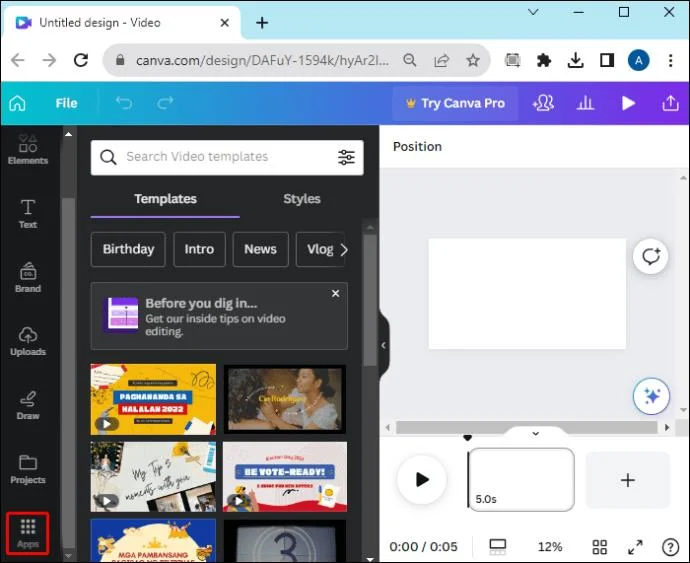
- Click the Apps tab on the left-hand side of the screen in Canva.

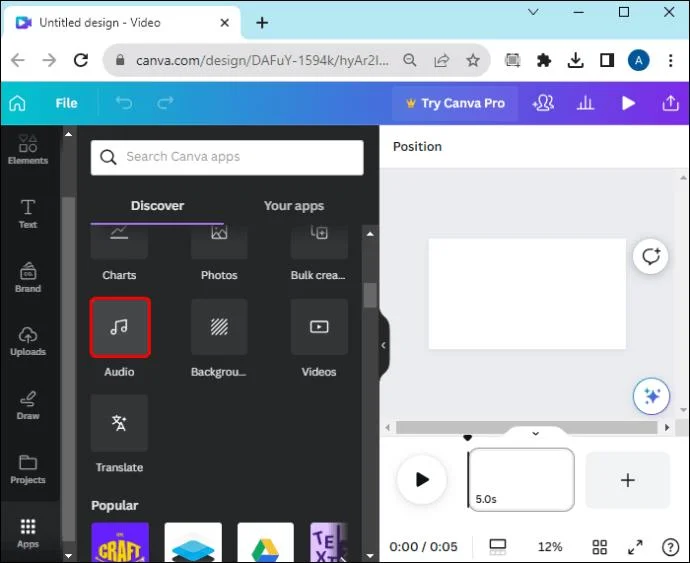
- Select the Audio category.

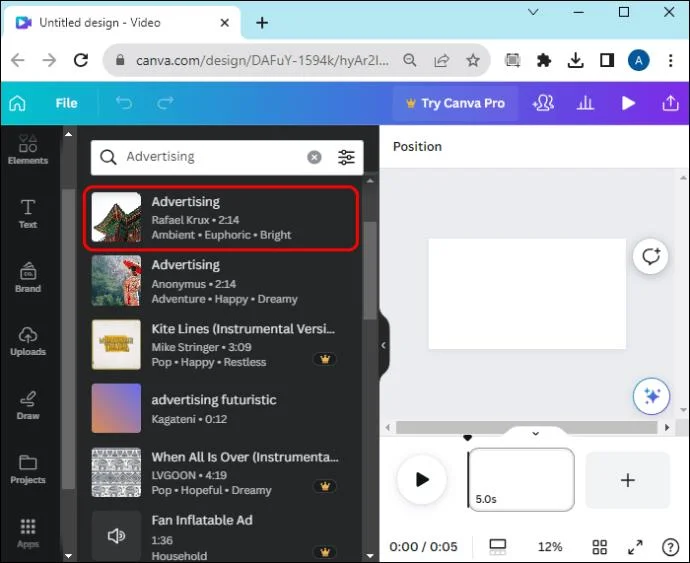
- Browse the track list and click on one you like. A crown icon marks audio tracks that require a premium subscription. You can click on any audio track to hear a preview before adding it.

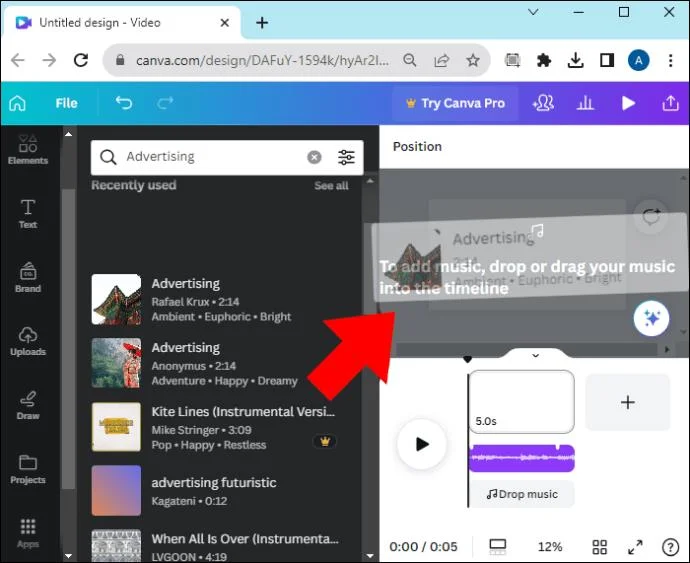
- Once you’ve chosen a sound bite to add, drag and drop it into your project.

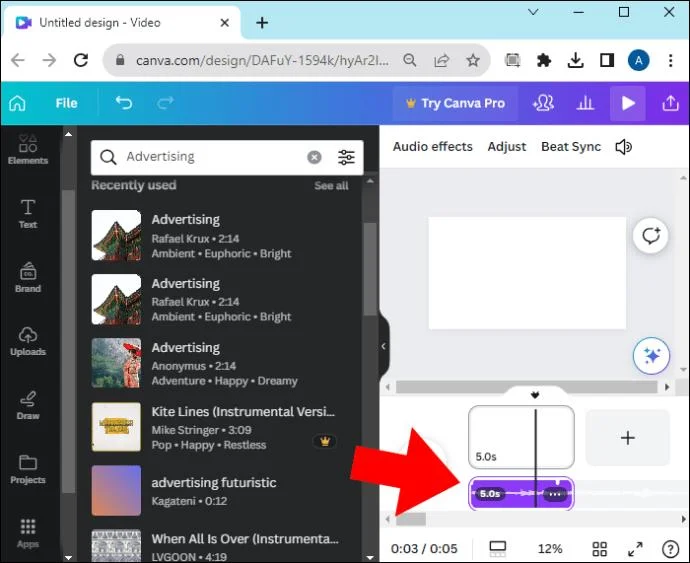
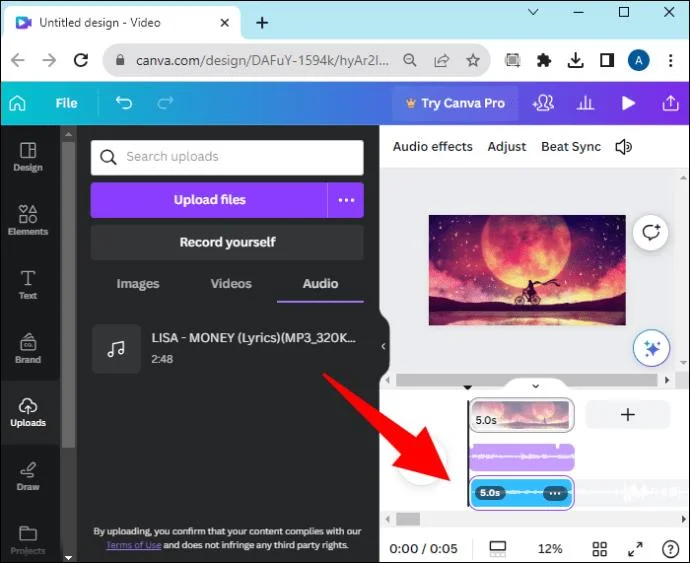
- Your video timeline and the audio will appear parallel to each other. The audio will be added at the point in the video where your timestamp or playhead is currently located.

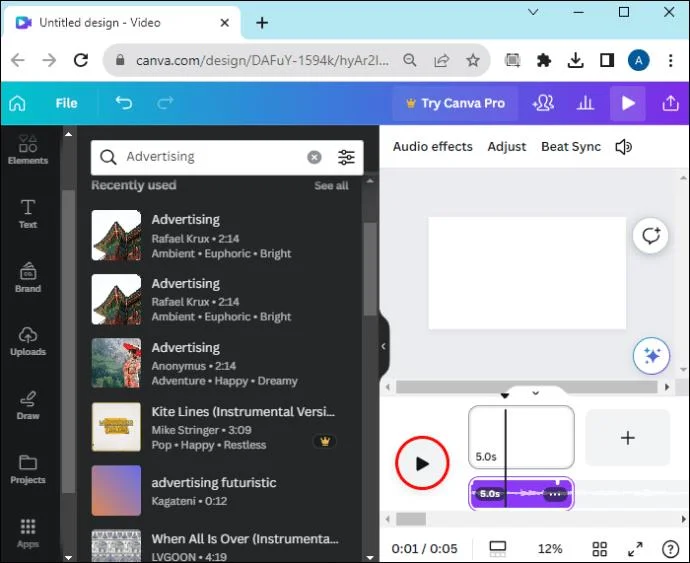
- Click the Play button to see what the video and music look and sound like together.

- You can move the music to different places in the video or use Canva editing tools to adjust it to your preferences.
From Canva’s Mobile App
The steps to add music to a video in Canva is slightly different if you’re working from your Android or iPhone.
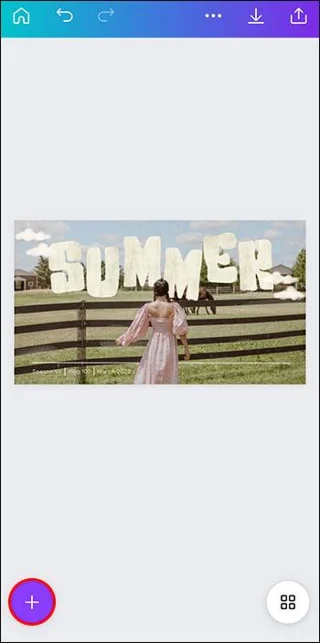
- Tap the plus sign in the bottom left corner of your project screen to add an element.

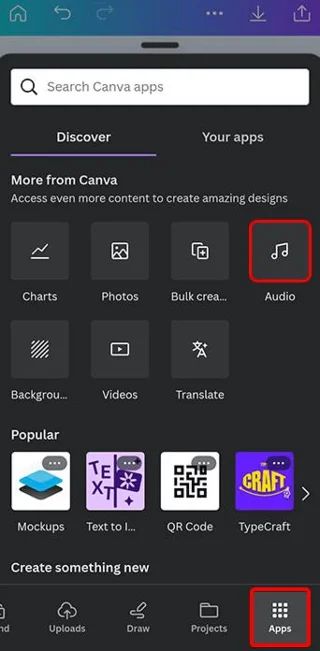
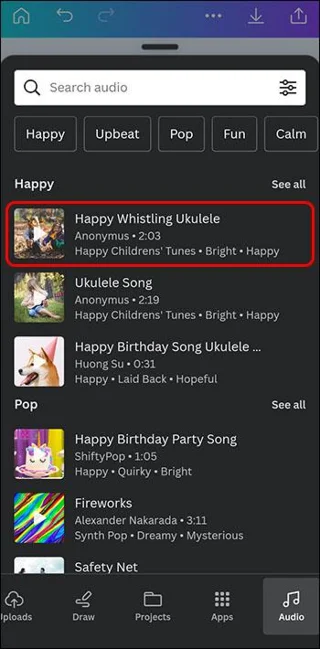
- Tap Apps, then tap Audio to specify what type of element you’re adding.

- Scroll through the database of Canva music and audio files and select any. Alternatively, search for specific audio tracks using the search bar at the top.

The audio will be placed wherever your cursor is in your video’s timeline. Usually, this is at the beginning of the video, but you can place the audio in any location in the video timeline.
How to Add Your Own Music to a Video in Canva
If you’ve got your own music or sound clips to include in your Canva design, that’s okay, too. Access the device storing your audio, link it to your Canva project, and you’re on your way.
From the Web
It isn’t hard to add music from your computer to a Canva video.
- Open your current Canva project.
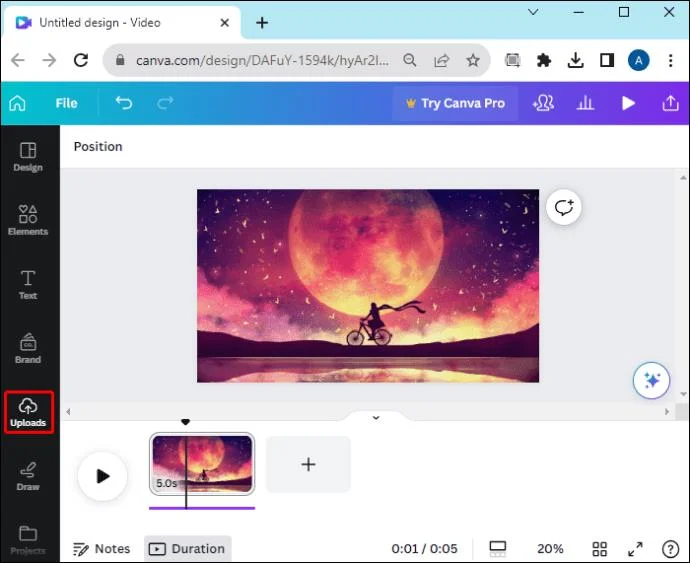
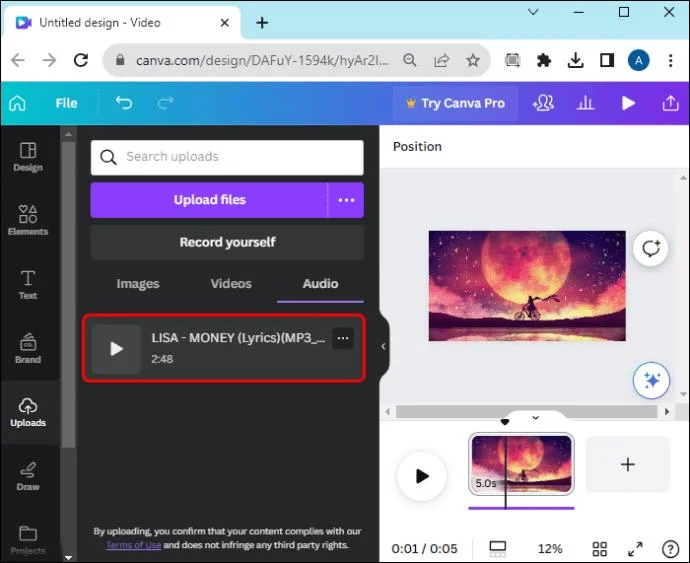
- Click the Uploads tab on the left panel.

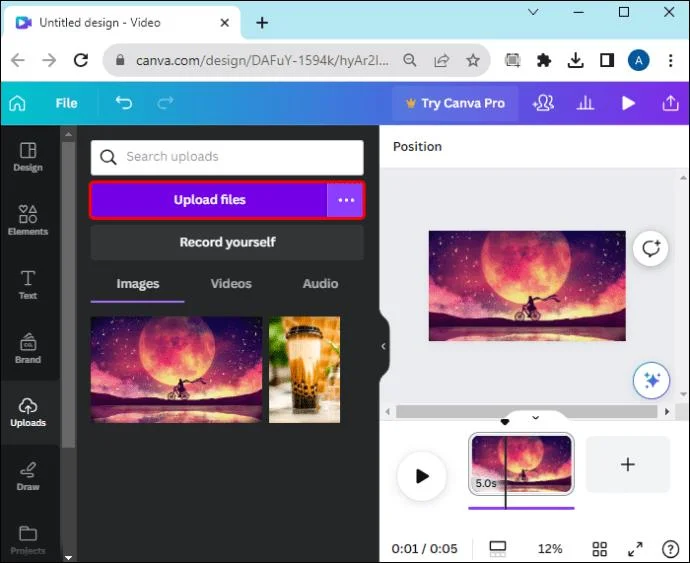
- Choose Upload files.

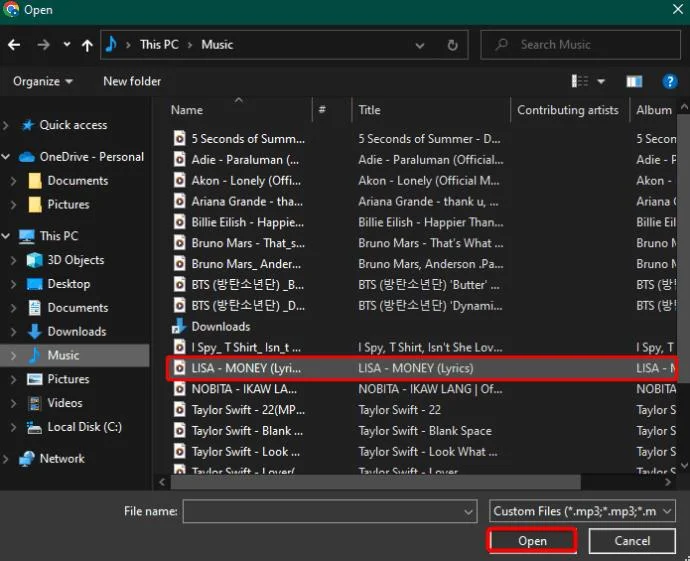
- Navigate to the audio file or files you want for the project, select them, and click Open.

- The audio files will be uploaded to your Canva dashboard.

- Select the uploaded file to add it to your project.

From the Canva Mobile App
Many Canva users work on mobile devices. You can also add music to your videos this way.
- Open the Canva project you’re working on.
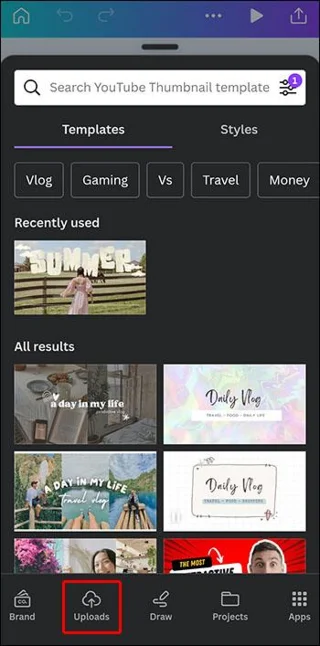
- Tap the plus sign to add an element.
- Choose the Uploads tab.

- Select Upload files.
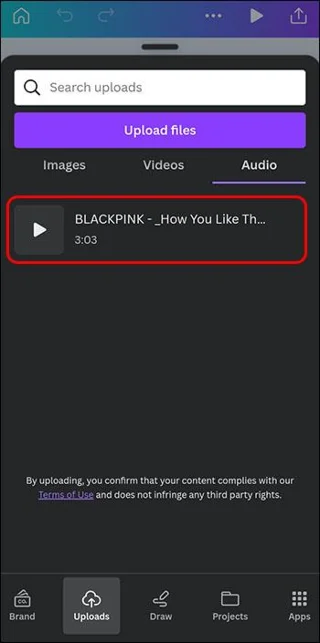
- Navigate to and choose the file you want to add from your mobile device.
- The file will appear in your Uploads tab, where you can tap it to add it to your project.

Any audio files you upload to Canva will be available in the Uploads section of the Your Projects menu. This makes it easy to find them and use them again in the future.
Extra Canva Audio Features
Adding music to videos isn’t all you can do with Canva. You can also edit your music tracks to give them a professional flare. Editing lets you:
- Layer audio tracks for a deeper sound.
- Position the music at any point in the video.
- Add fading in and out effects for a more sophisticated sound.
- Splice audio tracks together.
- Increase or decrease the volume of the soundtracks on your videos.
The creative possibilities are endless with Canva’s audio tools. Combining audio and video is a seamless operation because you can make all the upgrades and changes right in Canva
How to Add Voice-Over to Canva Videos
Adding voice-over tracks to your videos is possible using Canva on a PC; the feature is not available on mobile yet. Here’s how to add a voice-over using the Canva Presentation option:
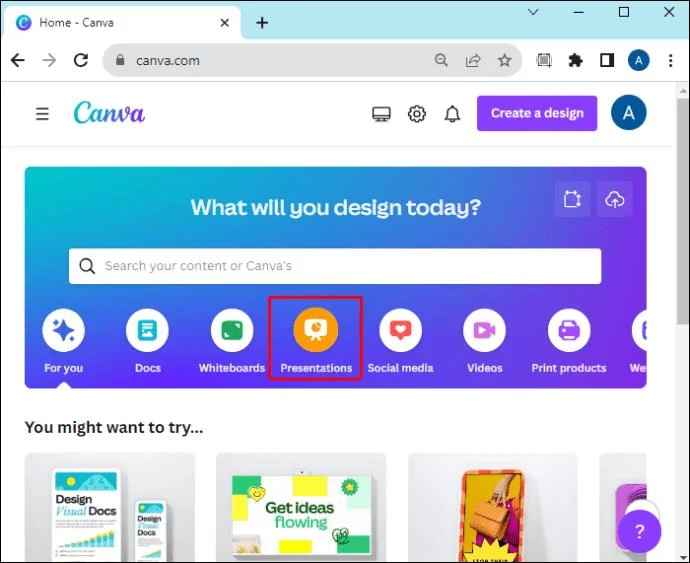
- Create a new Presentations project in Canva.

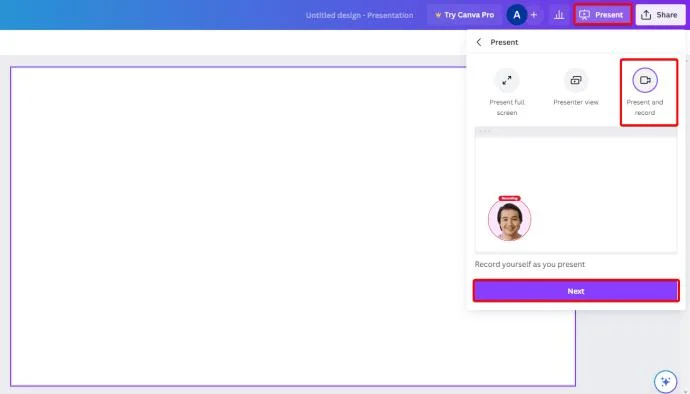
- Select the Present tab at the top right corner, click Present and record, then click Next.

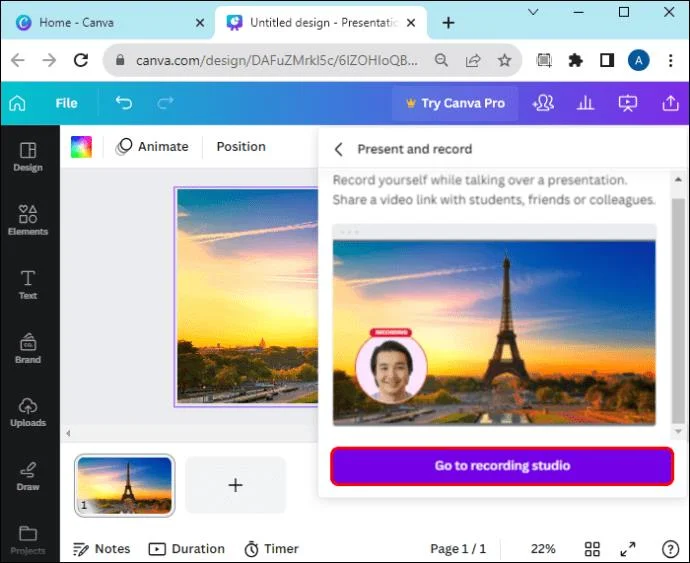
- Click Go to recording studio.

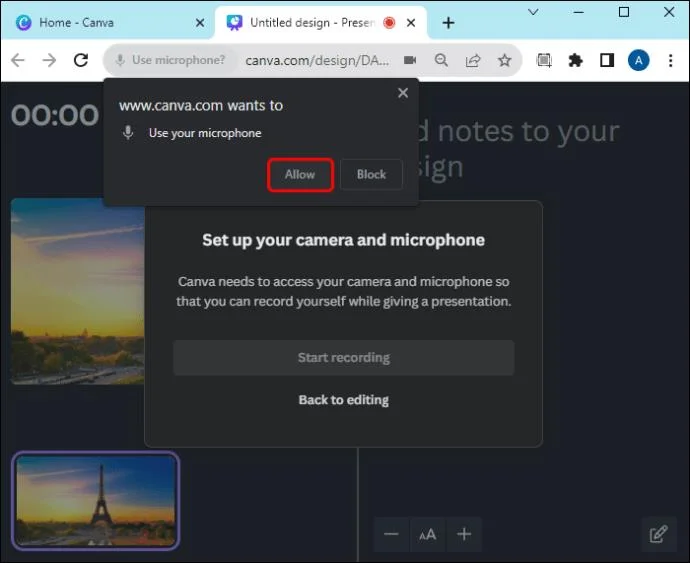
- Give Canva permission to access your microphone by clicking the Allow button.

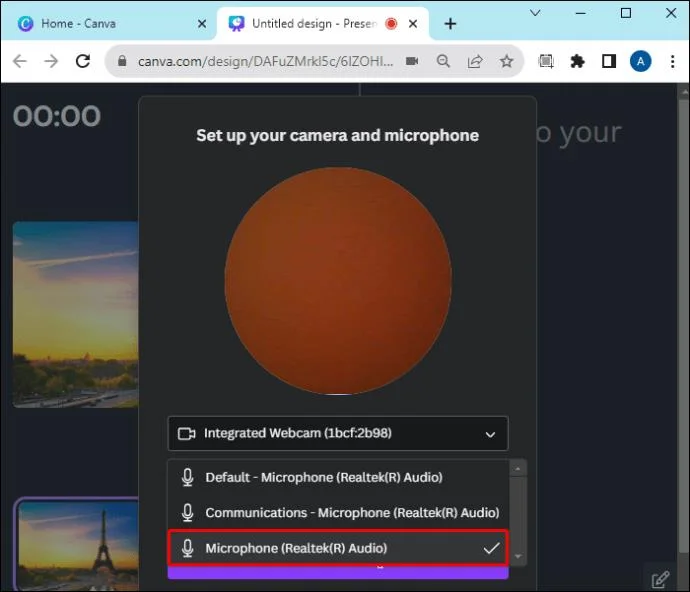
- Select your preferred microphone source.

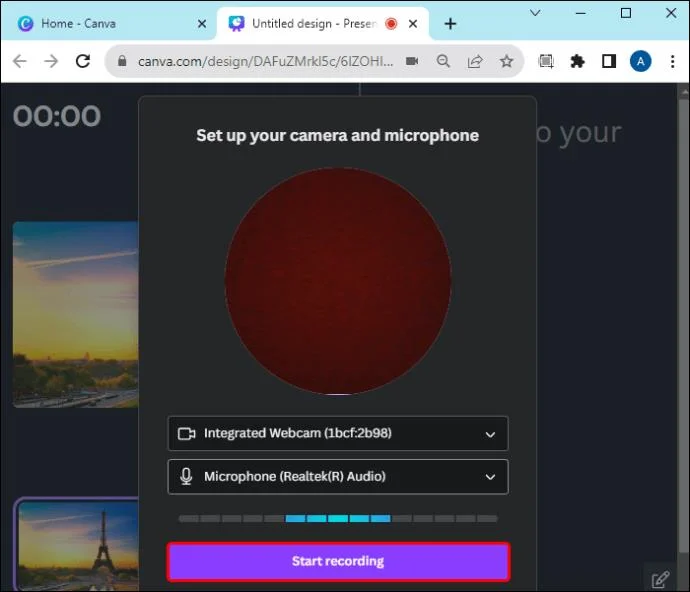
- Choose Start recording.

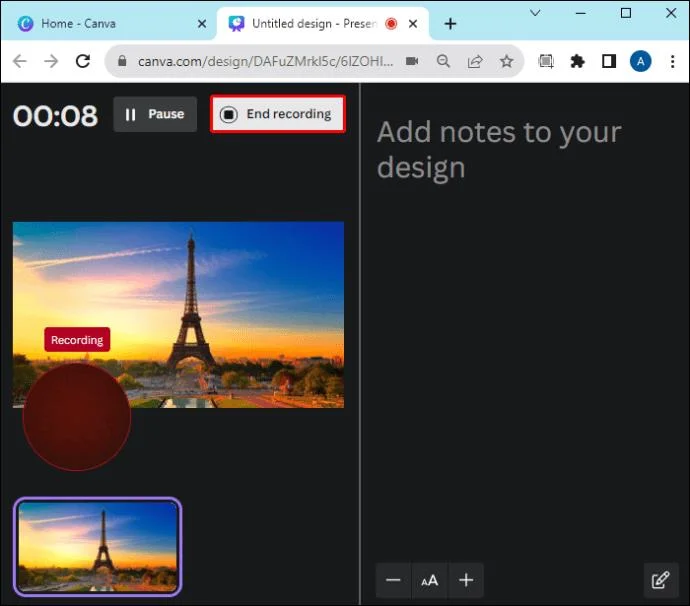
- Begin speaking. Click through your presentation if you have one.
- When you are finished, click End Recording.

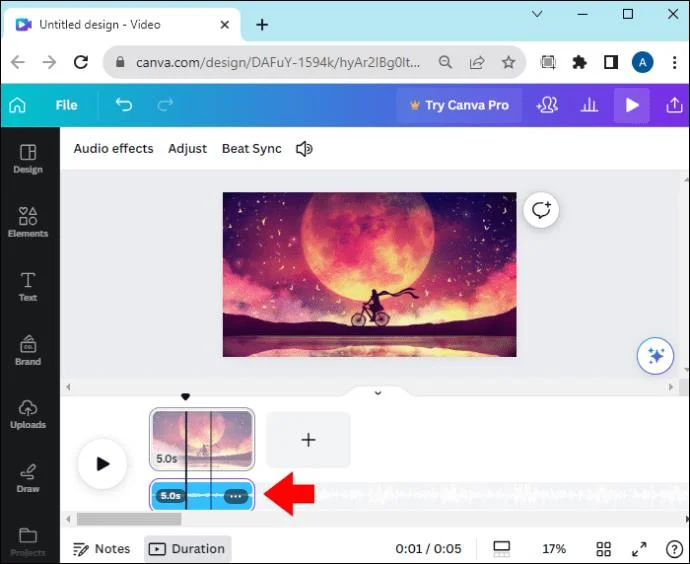
The recording will take a few seconds to process and be uploaded to your presentation. Once it’s complete, you can download or share the link to your new project.
How to Remove Music From a Video in Canva
Removing music from a video in a Canva project is easy.
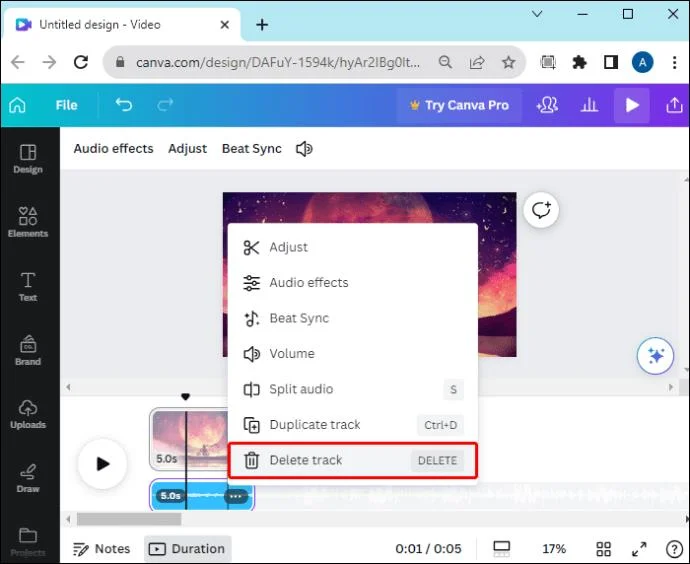
- With the Canva project open, tap on the audio you wish to remove.

- Click the Delete track icon, which looks like a trash can.

Your audio will be removed from the project. If you want to silence a track instead of deleting it altogether, you can tap the speaker icon instead of the trash can for volume options.
Adding Music to Canva Videos
Music can set the mood, evoke feelings, and engage the audience. Videos attract more viewers and hold their attention longer if they contain music tracks or sound effects. Adding music to your Canva videos is so easy that it only takes a few minutes to turn a normal video into an attention-catching TikTok viral video.
Note that you will get similar features using Canva alternatives. Have you added music to your Canva videos? Tell us in the comments about your experience with it.
FAQs
How many audio tracks can I add to a Canva project?
You can add up to 50 audio tracks to one design.
Do I need to do anything special if I’m sharing my video on social media?
Be aware of any copyright claims on the music that you add to videos you will share publicly. The audio from Canva’s library is free to use with no copyright issues.