Keep Writer Revisions Visible When Exporting to DOCX
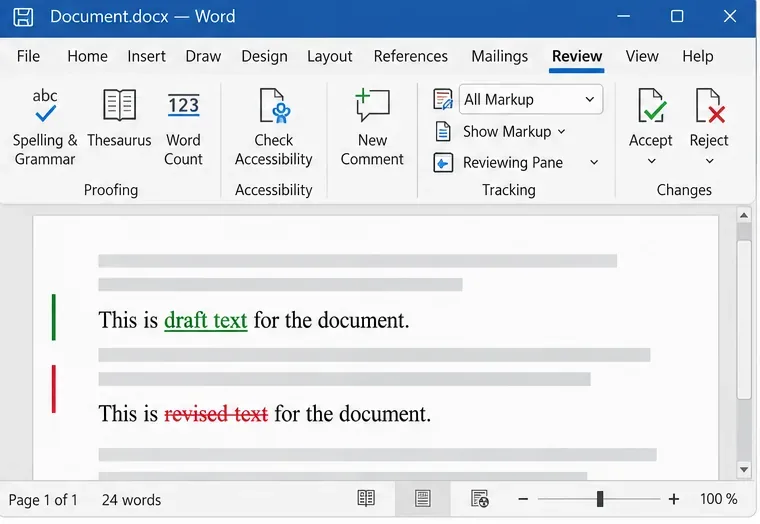
Track edits in Writer, preserve an editable ODT source, and check the exported DOCX in Word before sharing it.
Connecting to wireless networks in Windows 10 is an easy and straightforward process, involving a few simple steps. It is true that it depends on whether the wireless router broadcasts the name of the Wi-Fi network or not. However, if it does, connecting to that network is as simple as entering its password and choosing whether you want your Windows 10 PC or device to be visible to other devices in the same network. So without further ado, let's see how to connect to wireless networks on a laptop or tablet with Windows 10:
Contents
NOTE: The screenshots used in this article are from Windows 10 with May 2019 Update, which is available to all Windows 10 users, for free, starting May 2019.
How to connect your Windows 10 PC or device to WiFi
If a wireless network broadcasts its name (also known as SSID), it is automatically detected by any Windows 10 device that is close enough to the coverage area of that network. You can see that a WiFi network is in range by hovering the mouse cursor over the internet icon from your system tray: it says that "Connections are available."

Connections are available
To access the list of available wireless networks, click or tap the network icon from the Windows 10 system tray, and you should see something like this:

The networks popup from Windows 10
Locate the network to which you want to connect and click or tap on its name. If it is a network you know and you intend to connect to it regularly, you should also check the option that says: "Connect automatically." This way, whenever your Windows 10 PC or device is in that wireless network's range, it automatically connects to it. Then, click or tap Connect.

Connecting to a WiFi network in Windows 10
After you have clicked or tapped on Connect, Windows 10 runs a scan for the security settings of the wireless network. When done, it asks you for the security key. It is the password required by the network to connect to it. Enter it and press Next.

Entering the password of a WiFi network in Windows 10
If the broadcasting router supports WPS and this feature is enabled, you can also connect by pushing the WPS button on your router.

Choosing to press the WPS button on the WiFi router
NOTE: If you chose to enter the password for the wireless network, you could double check its accuracy by clicking or tapping the eye-like icon on its right side, before pressing Next.

Double-checking the password
Once your Windows 10 PC or device establishes the connection to the wireless network, it asks whether you want to set its location as private or as public.
If you choose Yes, you choose to "allow your PC to be discoverable by other PCs and devices on this network." This is what you should do if you are connecting to your home or work wireless network.

Choosing to configure the new WiFi network as a private or public network
If you are connecting to a public wireless network, choose No. If you do not choose anything and close this dialog, Windows 10 sets this new network as public, by default. To learn more about network locations in Windows, read this guide: What are network locations in Windows?.
Once the sharing part is over, your Windows 10 PC or device is connected to the wireless network you chose.

Windows 10 connected to the WiFi network
On the bottom of the network panel, there are also a few other large buttons:

Wi-Fi, Airplane mode, and Mobile hotspot buttons
How to disconnect from WiFi in Windows 10
If you no longer want to use a particular wireless network you are connected to, you can always disconnect from it.
To do that, first open the list of wireless networks, by clicking or tapping on the network icon from the system tray.
Windows 10 showing that it's connected to a WiFi network
In the list of available wireless networks, locate the one you are connected to. That should be easy because, near that WiFi network's name, you see a text like "Connected, secured." Click or tap the Disconnect button.

Disconnect from a WiFi network
Your Windows 10 PC or device immediately disconnects, and you can now choose to connect to another Wi-Fi network if that's what you want.
How to fix problems with your WiFi in Windows 10
Even if you followed the instructions provided above carefully, issues could arise. If you find yourself unable to connect to your network of choice, and you are sure the security information you entered is precisely correct, check these articles for some useful troubleshooting information:
Did you successfully connect to a wireless network?
As you can see, connecting to a network that broadcasts its name is easy. The steps we mentioned in this article allow you to search for and connect to any wireless network you have access to. However, take care when you are about to connect to an open network in a public place. Usually, such networks do not ask for a security password, and they are free but can put you at risk. Unless you are using a good firewall and antivirus solution, avoid this kind of network.
Track edits in Writer, preserve an editable ODT source, and check the exported DOCX in Word before sharing it.
Follow SUSE’s SP7 procedure to enable FIPS mode, reboot safely, verify the active policy, and check whether your compliance requirement calls for validated modules.
Compare YaST and cryptsetup for a new encrypted SLES data volume, choose LUKS1 or LUKS2, and verify unlock and mount behavior safely.
Create, refine, and verify a least-privilege AppArmor profile on SLES 15 SP7, with a clear note on SLES 16’s SELinux default.
Set up RMT on SLES 15, mirror entitled repositories, and verify HTTPS registration and package access from a test client.
Connect SLES 15 to AD with YaST’s SSSD-based logon management, then verify directory lookup, domain login, and Kerberos tickets.
Set up the right Live Patching path for SLES 16.0 or 15 SP7, apply eligible kernel fixes, and confirm what is active without confusing it with a reboot-required kernel update.
Load a custom SLES 15 kernel module without disabling Secure Boot. Match the running kernel, sign the .ko file, enroll a MOK key, and verify loading.
SLES 15 SP5 can migrate online to SP6, but each node must reboot. Use a tested rolling upgrade or blue-green cutover to keep workloads reachable.
Use SUSE’s supported STIG profile to scan SLES 15, test remediation, review remaining findings, and retain assessment evidence.








