Device Links
Kicking someone from a Discord channel doesn’t have to be permanent. Sometimes you do it just because an individual was annoying, spamming heavily, or being rude and just needed a short-term ban. These kinds of things happen on servers all the time.

It’s up to the server’s owner and admins to keep the peace and dole out punishment as needed to ensure theirs is a server worth being a member of. Though it may suck to be the guy (or girl) who has to make these decisions, they do have to be made, and I’m going to tell you how to pull it off.
PC & Mac
To remove a user from a Discord channel on PC:
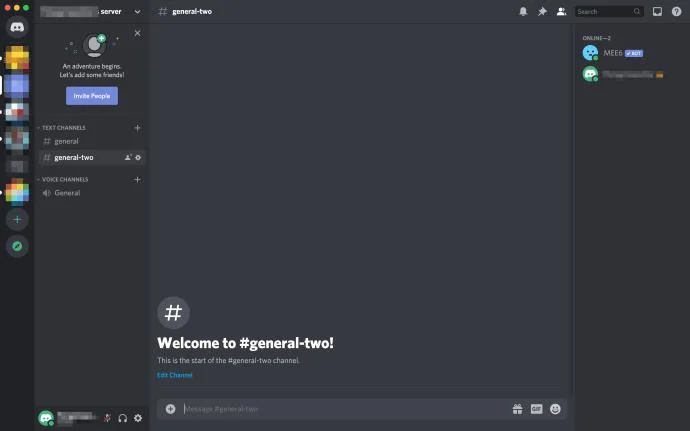
- You’ll need to be on the server so select it from the list located on the right side of the screen.
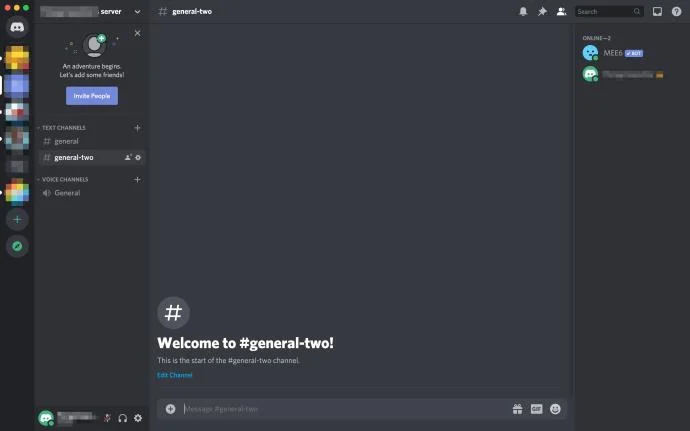
- Scroll through and select the channel from which you want the user removed. Channels are located in the main panel just below the server name. You can choose either voice or text chat channels.

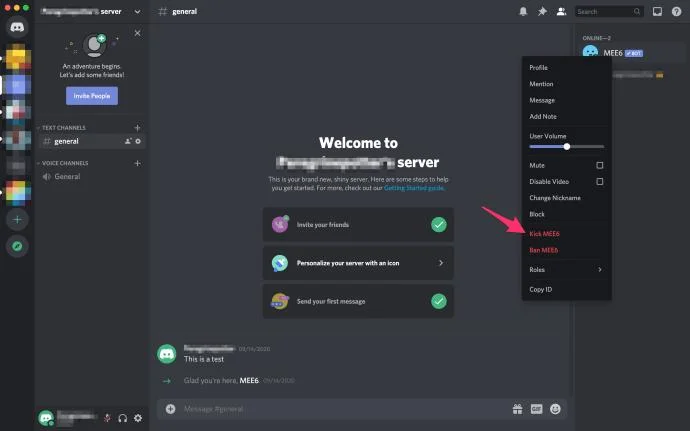
- The channel will have a list of names beside it. These are the current users of the channel. Locate the user’s name and right-click it. A pop-up menu will appear with a few different options. You can also go to the username inside the chatbox and right-click the username to get this same pop-up menu.

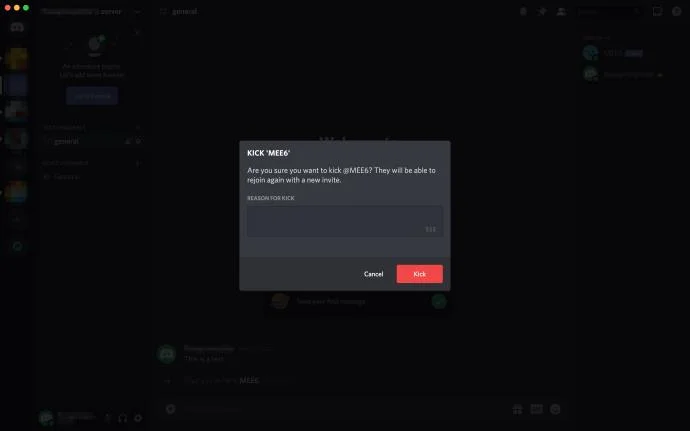
- Towards the bottom of the list, you’ll see Kick (username). Click this and another pop-up message will appear. This message is a confirmation of the action you’re about to take. Click Kick once more to confirm. The user can no longer join the channel unless being given permission by those with the appropriate roles.

Android & iOS
To remove a user from Discord on a mobile device:
- Launch the Discord app and login with your credentials.
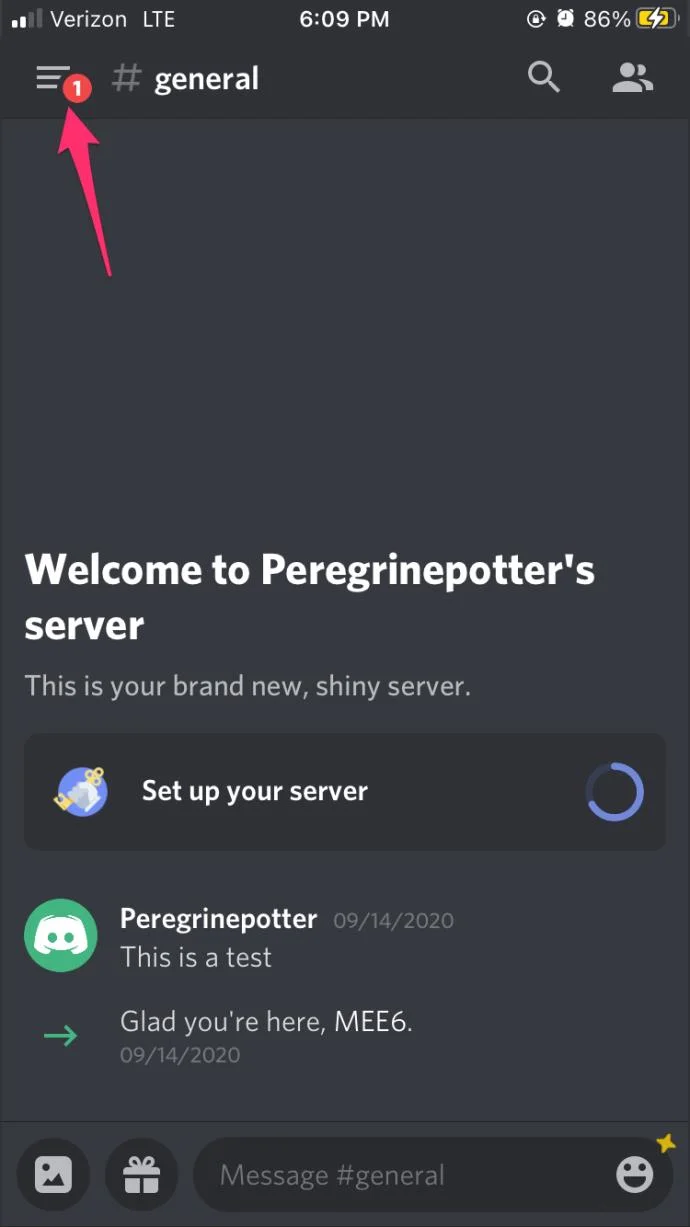
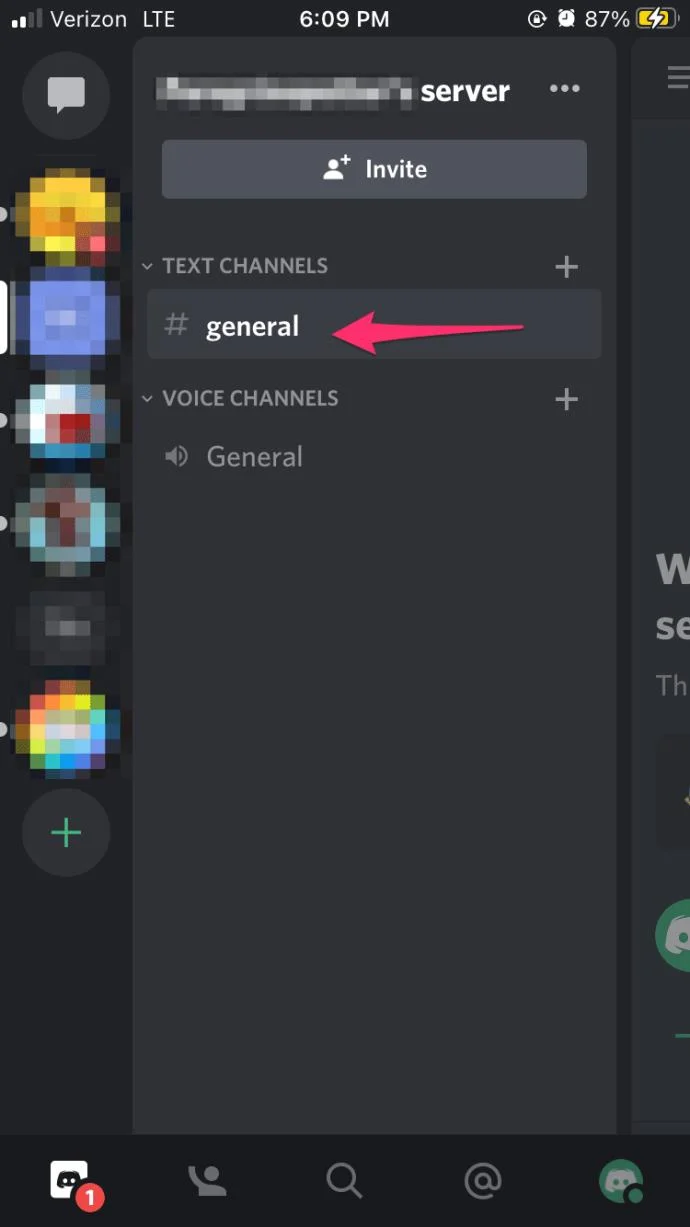
- Tap to open the menu in the top-left corner of your screen. It looks like three stacked horizontal bars. This will pull up your servers list.

- Tap on the server that the user who needs “kicking” is currently located.

- Locate the channel for which the user needs to be kicked. Text channels will be at the top of the list with voice channels just below them. Look for the channel the user is currently in and tap on it.
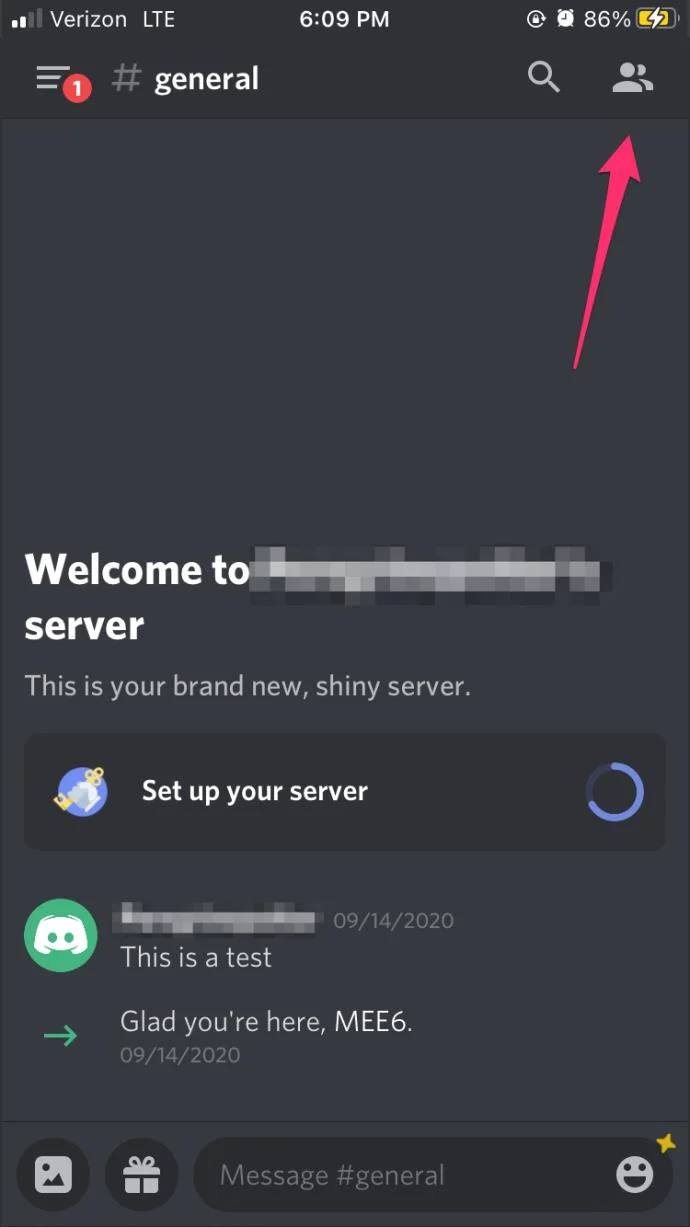
- Open the channel’s list of members by tapping on the two-people icon located at the top of your screen.

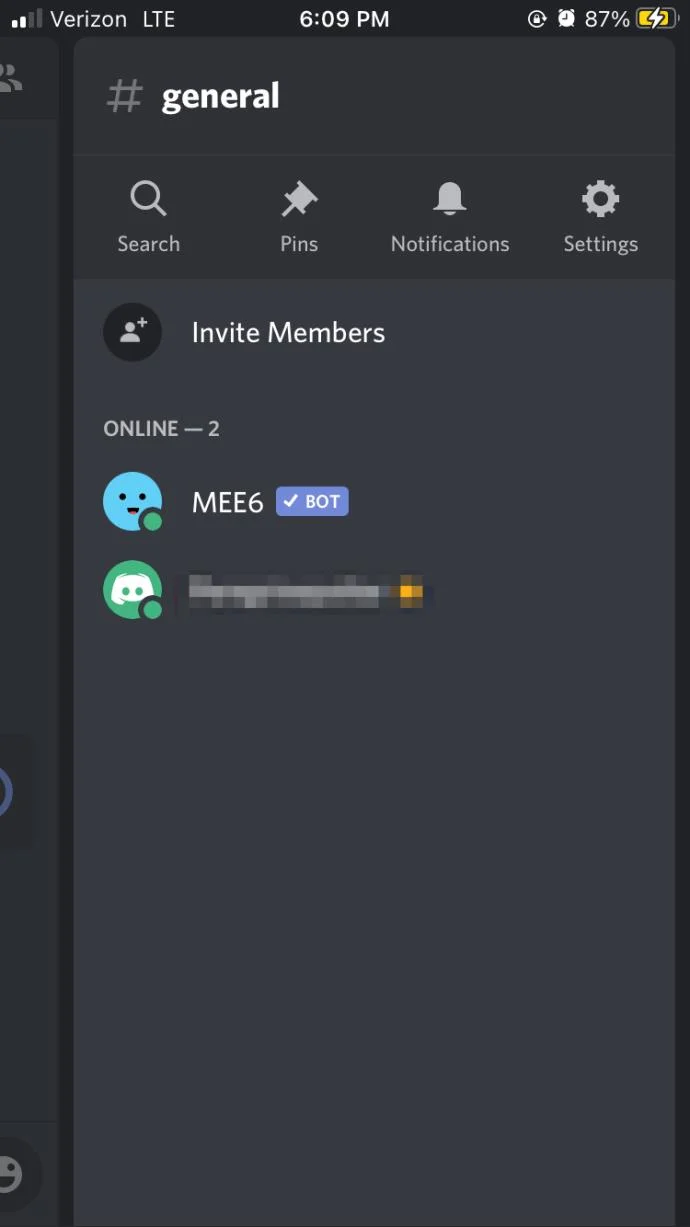
- Locate and tap on the member you want to kick from the channel. The member who is selected will have their User Settings pulled up on the screen.

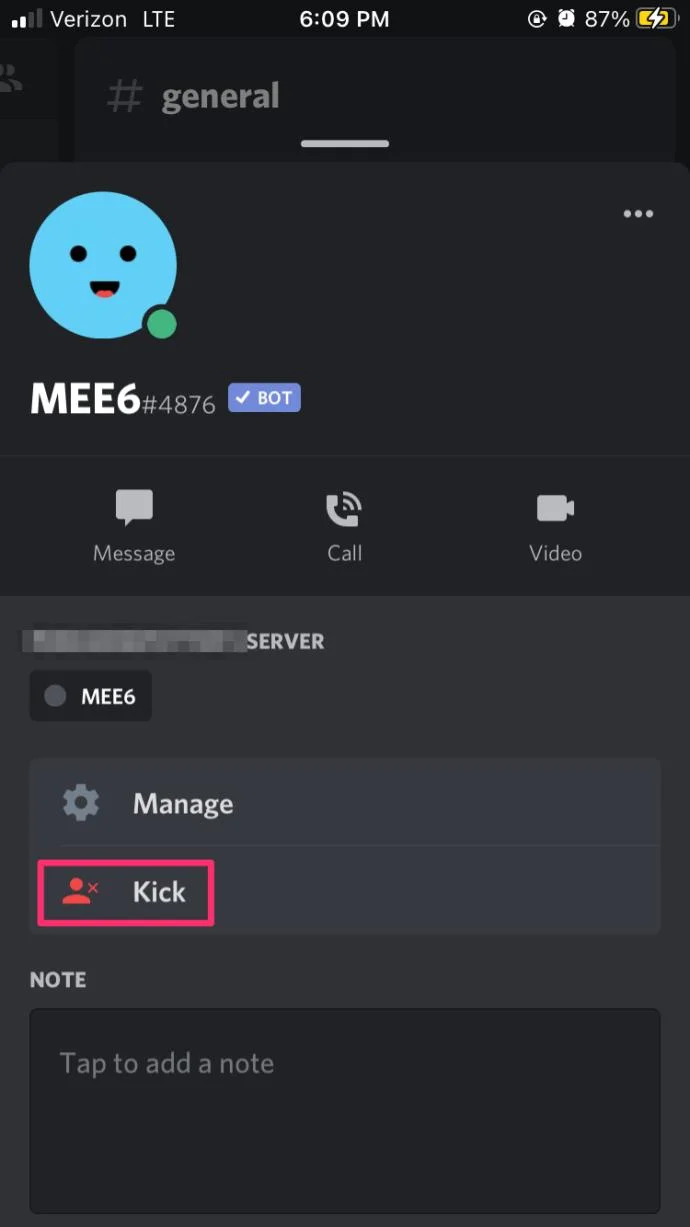
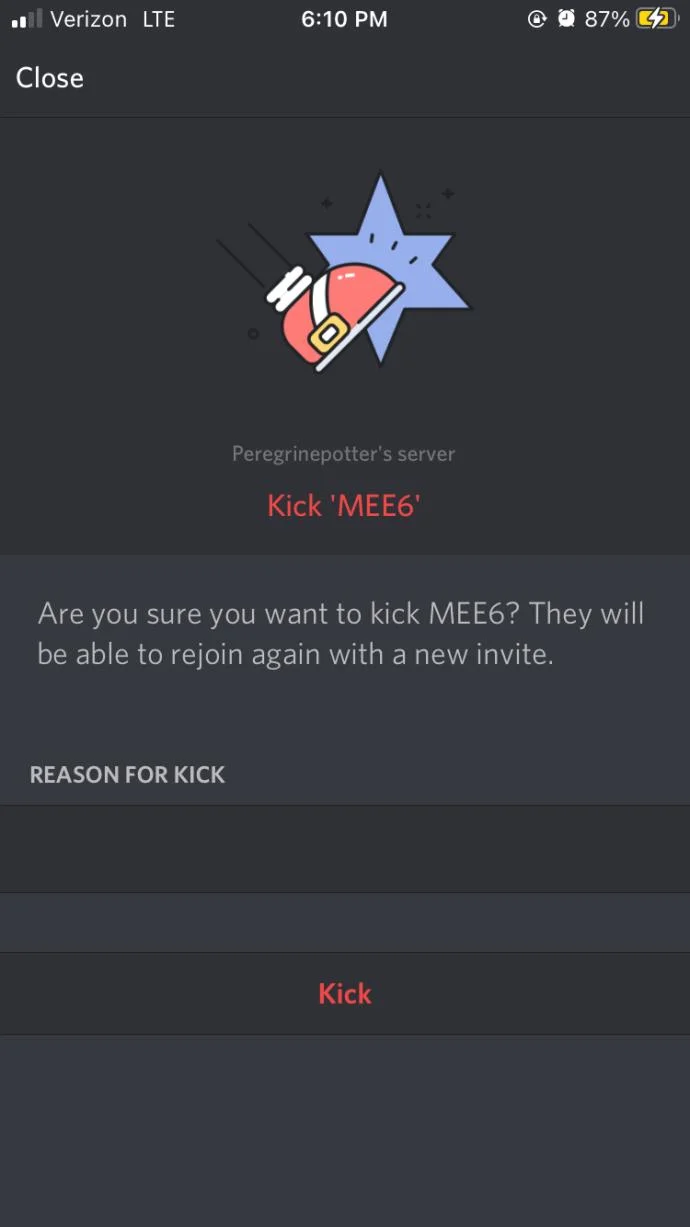
- Tap Kick, which is located just under the “Administrative” header. A confirmation window will appear.

- You’ll need to tap Kick once more to confirm. The member is now removed from the chat and will need to be invited back in order to gain access once again.

Moving A User To A Different Channel
Sometimes you may not want to kick a user from the channel, but move them to a different one. This can occur if someone has stepped away but left their microphone on and all of their background noise can be heard on the channel. This is also useful for admins conducting interviews on would-be hopefuls to join their clans or any other “business-like” proposals that take place on Discord.
You have two options to move a user from one channel to another:
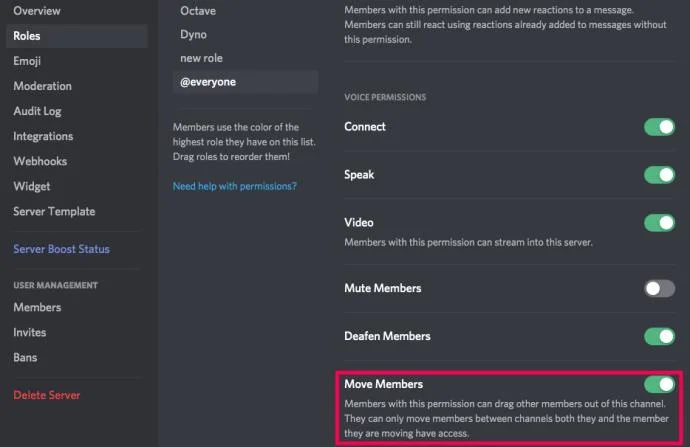
- You can drag a user’s name from the channel to another similar channel. You can only move a user from a voice channel to another voice channel, or text channel to text channel. You’ll also need to have the move-members permission enabled.
- Another way to do this is to right-click the user’s name and from the popup menu, select Move To. Then choose the channel you want that user moved.
Have a chat with the server owner if you find you’re unable to move a member but feel you should have the permissions. They can add you by visiting the server settings and click on ‘Roles’. Once the ‘Move Members’ permission is toggled on you can happily move the members you’d like between channels.

Banning A User From Channel
If you’re an admin or the server owner and you feel that moving or kicking a user from a channel simply isn’t enough, you could instead choose to ban them from the channel. This clearly has a bit more permanence to it but if you feel that there is no other alternative for the user in question, then this is how you do it:
- You’ll need to be on the server so select it from the list located on the right side of the screen.
- Scroll through and select the channel from which you want the user removed. Channels are located in the main panel just below the server name. You can choose either voice or text chat channels.

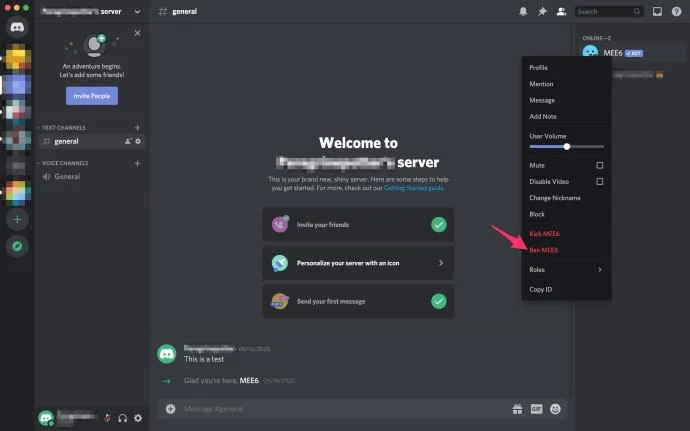
- The channel will have a list of names beside it. These are the current users of the channel. Locate the user’s name and right-click it. A pop-up menu will appear with a few different options.

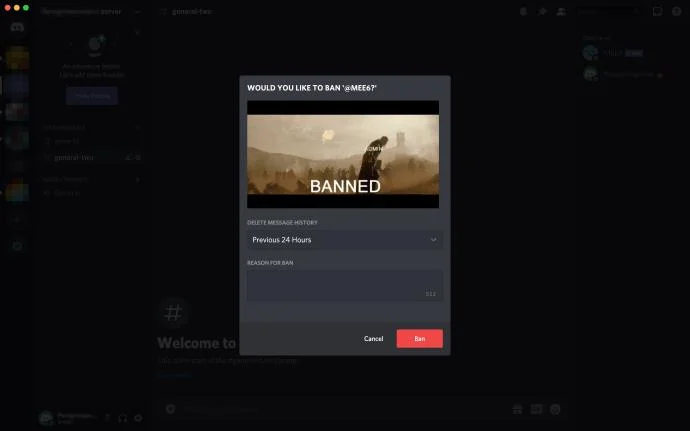
- Towards the bottom of the list, you’ll see Ban (username). Click this and another pop-up message will appear. This message is a confirmation of the action you’re about to take. Click Ban once more to confirm. The user can no longer join the channel unless being given permission by those with the appropriate roles.

Only those with the proper role and permissions can reinstate a user who has been banned. If the user violates Discord’s community guidelines you can report them resulting in a ban from the platform altogether.
Pruning You Server
For those with too many members to keep track of, there may come a time when members will simply stop coming on. This can lead to a super long list of members that are really just taking up space. If you have a need to kick stale users who haven’t logged into your server for an extended period of time, you can mass kick them all with the Prune option.
You’re able to set up an automatic kick option based on a preset period of time. Instead of policing each member individually, you can mass kick every user that has been a no-show within this period. To prune:
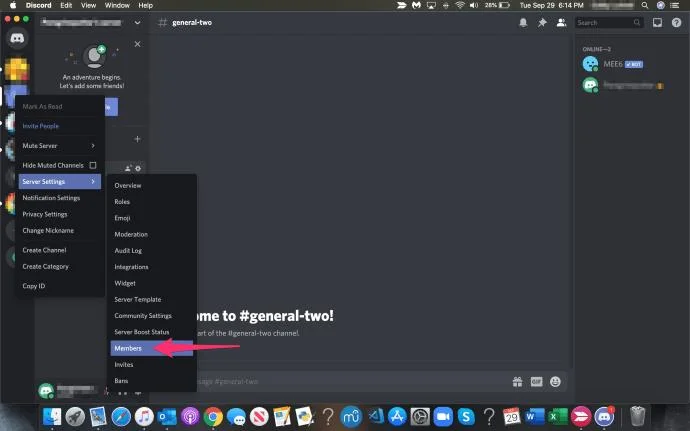
- Click on the server you’d like to prune, open up the Server Settings by clicking on the server name towards the top of the screen. Select ‘Server Settings’ from the drop-down menu provided.

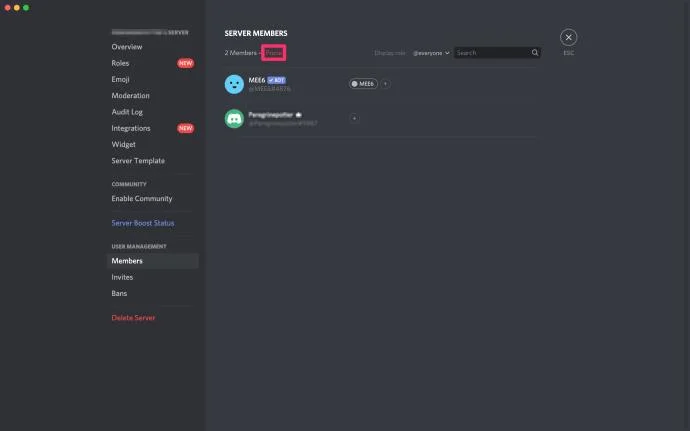
- Click on the “Members” tab on the left to find the whole list of members currently in your server and what each of their roles is. It is here that you’ll also find the Prune option.

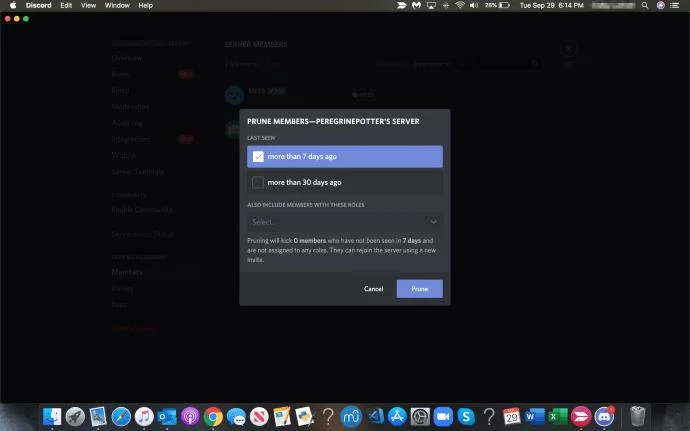
- You can select the time threshold based on the latest activity. The current options are 7 days and 30 days. So if you choose 7 days, and a member has not logged in that period of time, they will be automatically kicked from your server. Discord always does a great service in showing exactly how many members will be pruned for each option. This information can be spotted at the bottom of the prune window.

Pruning will only work on those members without a currently assigned role. You’ll need to remove the role prior to pruning if you’re trying to get rid of certain members. This is a really great tool to keep your servers clean of freeloaders, just be sure that you don’t accidentally boot your friends.
There are many ways to customize your Discord servers and improve the user experience. While scrolling through each member’s options in the pop-up menu take note of the mute option. If there’s a user you’d like to mute for a bit without kicking or banning, take advantage of this option!