Keep Track Changes On When a Document Reopens

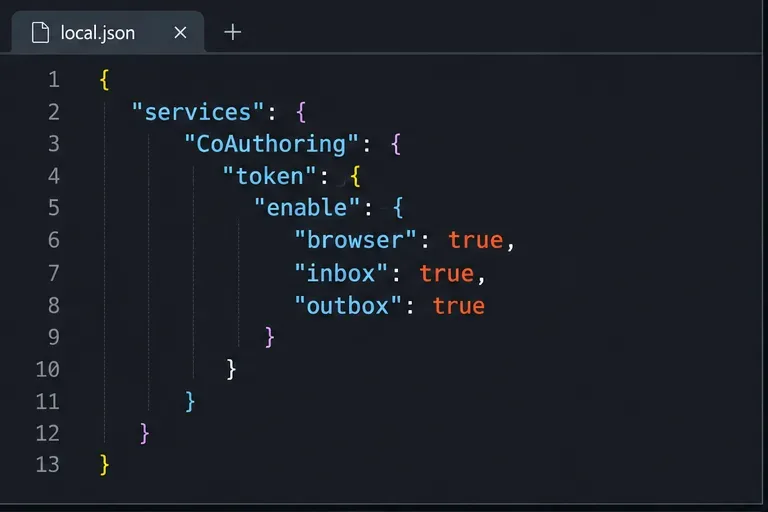
Enable persistent Track Changes for everyone in one ONLYOFFICE document, verify edits are recorded, and understand the limits of this setting.
Discord fonts are more diverse and richer than many people think. This article will guide you how to change the beautiful Discord font as desired.

How to use different fonts on Discord
Discord uses the Whitney font on its client and there is no official way to change this default setting. However, you still have ways to use other fonts on Discord.
There are several methods to customize the Discord interface and change the font style. To get started, click the cog icon on the bottom left of the screen and select Appearance from the left-hand menu. Here, you have 3 options:
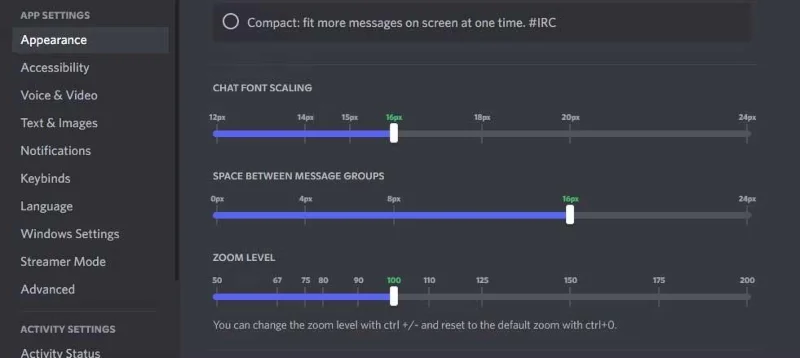
You can preview changes at the top of the screen (except zoom level, client changes are immediate). The green numbers on the slider are the default settings. All your changes will be saved automatically.
Some third-party programs offer the ability to change Discord fonts. Prominent among them is Better Discord. This is a tool that allows you to customize Discord's CSS.
However, note that when using Better Discord, you must accept some possible risks because the program breaks some terms of using Discord's services.
When typing a message, Discord does not provide any feature to change the font. However, you can use an external font generator to achieve different effects, use Markdown to format text in italics/bold, change font color using code blocks.
First, find an online font generator, such as Font Generator Guru, Fancy Text Generator, and Font Space. Enter your message on one of these pages. It will automatically convert text to many different styles. You can then copy the selection style and paste it into Discord.
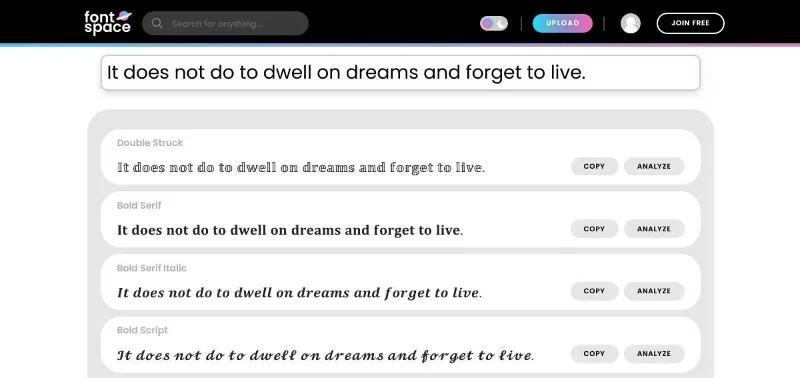
In theory, these messages do not have to be written in another font. That's why Discord supports them. Instead, the web generates fonts that combine the letters you type with an associated Unicode symbol. Your sentence becomes a series of symbols, not characters. It provides an image of the font, but it's not like you're using a real font like Arial, Times New Roman or Comic Sans.
Discord supports Markdown syntax, allowing you to italicize, bold, strikethrough, and underline text in messages. The easiest way to do this is to enter text, highlight it and select the relevant icon from the menu that appears.
Alternatively, you can write your own Markdown or use keyboard shortcuts:
| Markdown | Shortcut | Result |
|---|---|---|
| *text* | Ctrl + I | Italicized |
| **text** | Ctrl + B | Bold |
| __text__ | Ctrl + U | Underlined |
| ~~text~~ | Ctrl + Shift + S | Strikethrough |
To submit code into Discord, use the following form:
```
Your text here
```
This action will change the font in Discord messages to Consolas (used in the code block). However, the text color will not change. To do that, enter one of the code blocks with a specific font color as follows:
Orange:
```css
[Your text here]
```
Red:
```diff
- Your text here
```
Yellow:
```fix
Your text here
```
Green:
```diff
+ Your text here
```
Green:
```bash
"Your text here"
```
Blue:
```ini
[Your text here]
```
Obviously this syntax is not convenient or easy to remember. Therefore, using a tool like Discord Colored Text Generator will help you quickly get the necessary code and copy it to the clipboard.
The downside of this method of changing the Discord font is that it puts the message or message in a gray box. Although not really beautiful, it will make the content inside stand out. Also, the most annoying thing is that this code doesn't change color on mobile - only those who use Discord on desktop will find it useful.
As you can see, the way to change the Discord font above is quite simple. In addition, you can also take help from Discord's font creation tool, Markdown and code syntax to create many font styles you want to use on this platform. They will change the way your messages are displayed.
Discord is constantly evolving, so it's no surprise that you can change the Discord font . Hope the above instructions are useful to you.
Enable persistent Track Changes for everyone in one ONLYOFFICE document, verify edits are recorded, and understand the limits of this setting.
Find whether Nginx, Docker networking, or an internal ONLYOFFICE service is returning 502, then verify the corrected upstream and health check.
Diagnose failed ONLYOFFICE saves by checking the Nextcloud callback route, proxy redirects, and storage logs, then verify the edited file persists.
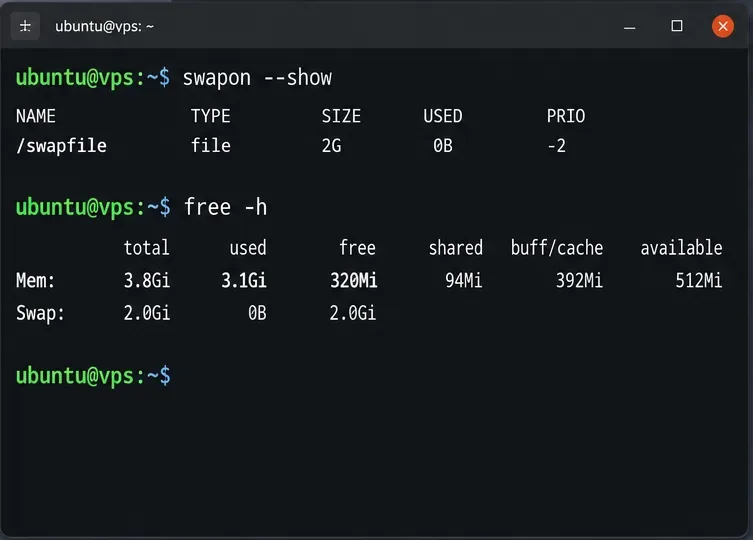
Find the cause of ONLYOFFICE memory crashes, check Docker limits, size VPS RAM correctly, add swap safely, and verify that documents open and save.
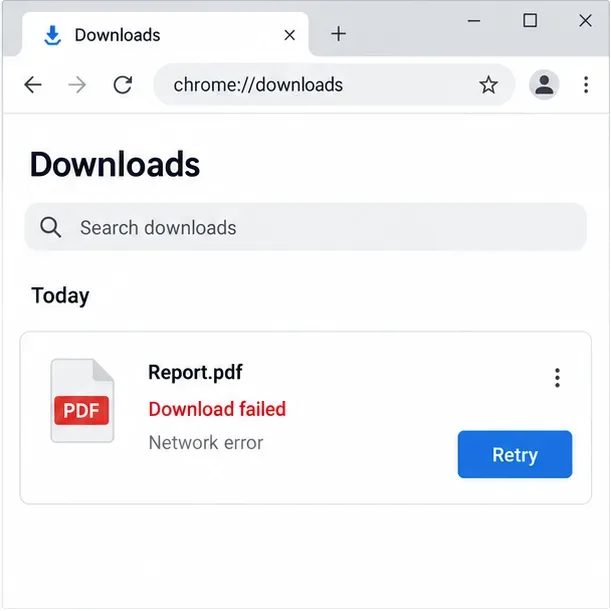
Separate browser download problems from server-side conversion errors and use the right log or access check to get your PDF export working.
Match the JWT secret used by ONLYOFFICE Docs and Nextcloud, apply it safely for Docker or Linux installs, and verify the connection without weakening authentication.
Install ONLYOFFICE Workspace Community on Ubuntu 24.04 with the official Docker script, check server requirements, skip Mail if needed, and verify the portal safely.
Configure matching JWT secrets for ONLYOFFICE Docs and its connector, with safe steps for Linux packages, Docker deployments, and verification.
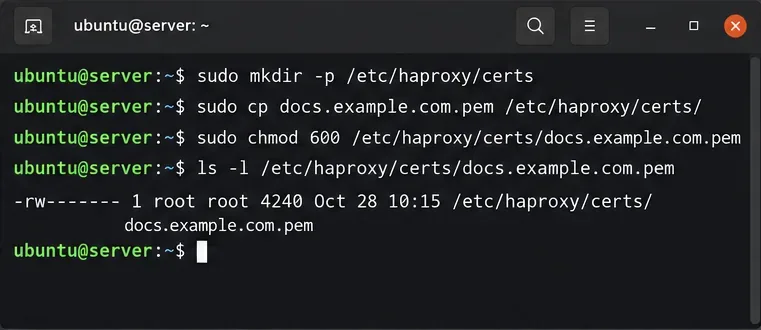
Configure HAProxy HTTPS, forwarding headers, WebSocket timeouts, and health checks for ONLYOFFICE Docs, then verify editing and saves.
Give an embedded ONLYOFFICE Docs editor your company logo and interface colors with a custom theme file and editor configuration. See edition limits and deployment checks.