Bluetooth Adapter Missing on Pardus 23? Start with These Checks

Find out whether Pardus 23 is blocking Bluetooth, missing BlueZ, or failing to detect adapter firmware, then confirm the controller works.
Disk Clean up Win 11 is the built-in utility that removes temporary files, cached data, and other clutter from your Windows 11 PC. Running it regularly helps recover gigabytes of storage and can reduce slowdowns caused by low disk space. This guide walks through the precise steps to use the tool correctly.
Windows 11 stores many temporary items that accumulate over time. These include downloaded program files, temporary internet files, delivery optimization files, and recycle bin contents. The tool also lets you clean system files such as previous Windows installations and update cache when you select the advanced option. Before starting, make sure you have a current backup of important data, though the cleanup process itself does not delete personal documents.
You can access Disk Clean up Win 11 either through the Start menu search or via Storage Sense settings. Both methods open the same utility, but the classic tool offers more granular file-type choices.
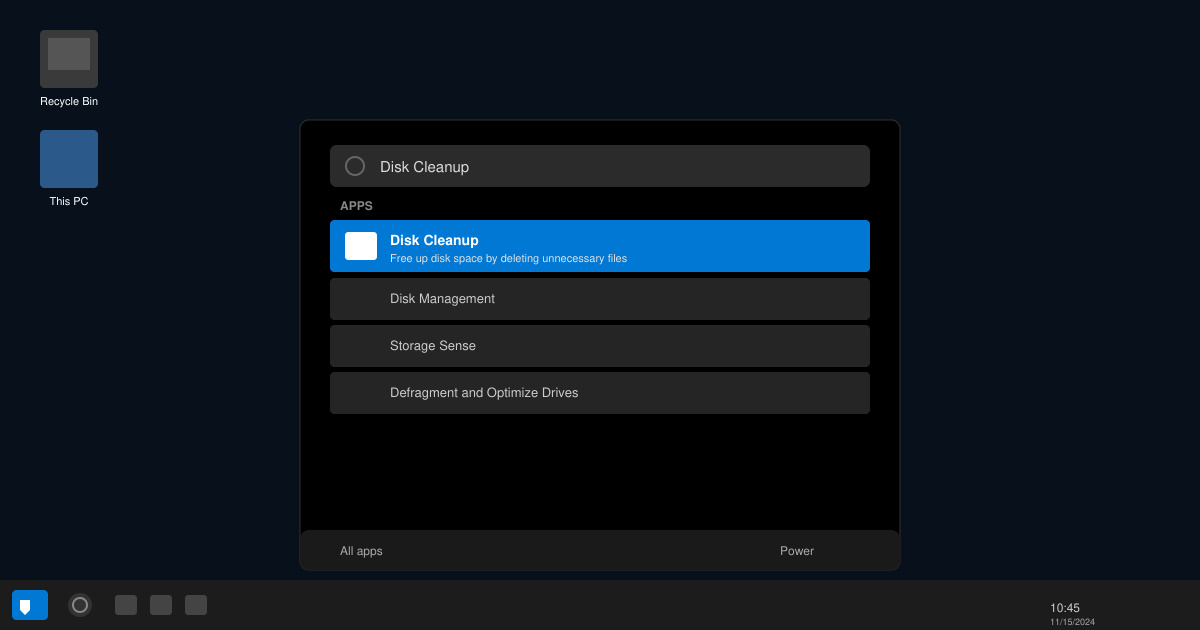
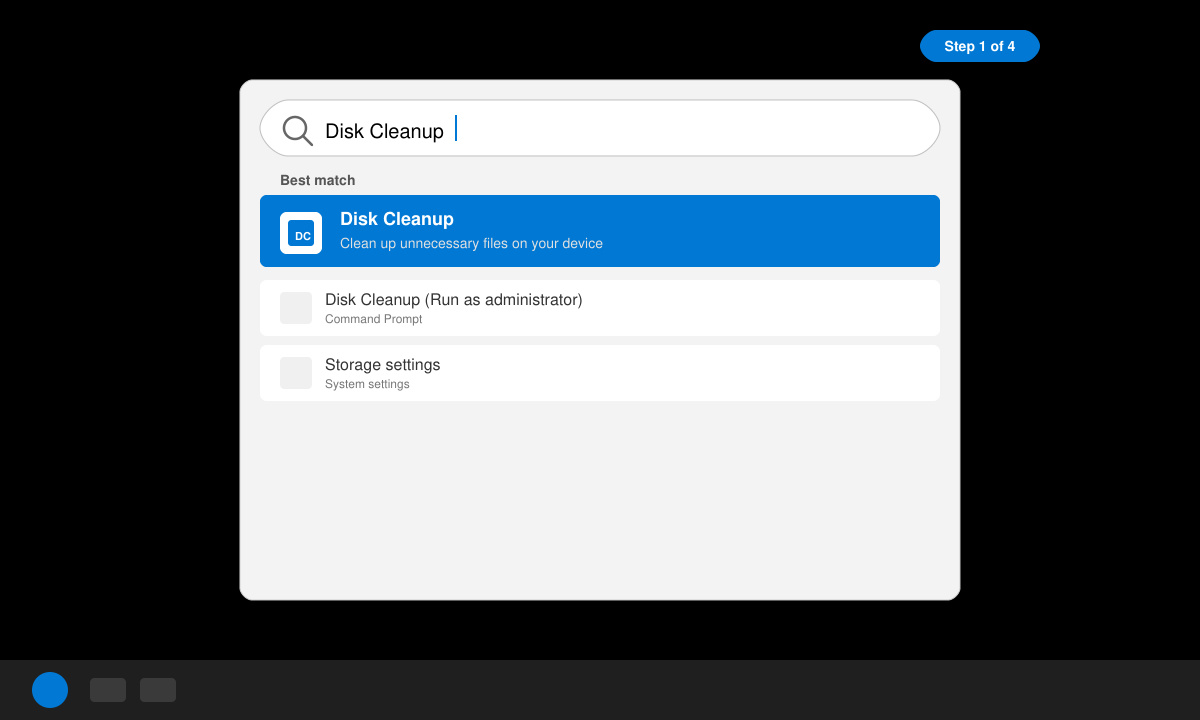
Click the Start button and type “Disk Cleanup”. Select the app that appears in the results. If prompted by User Account Control, click Yes to allow the program to make changes.
In the Drive Selection window, select the system drive (usually C:) from the drop-down list and click OK. The tool will calculate how much space can be freed.
Review the list of file types and their sizes. Check the boxes next to Temporary Internet Files, Delivery Optimization Files, and Recycle Bin. Leave Windows Update Cleanup and Previous Windows Installation(s) unchecked unless you no longer need rollback options.
If you want to remove older system files, click the “Clean up system files” button. Windows will re-scan and show additional categories such as Windows Update Cleanup. Select the desired items and click OK.
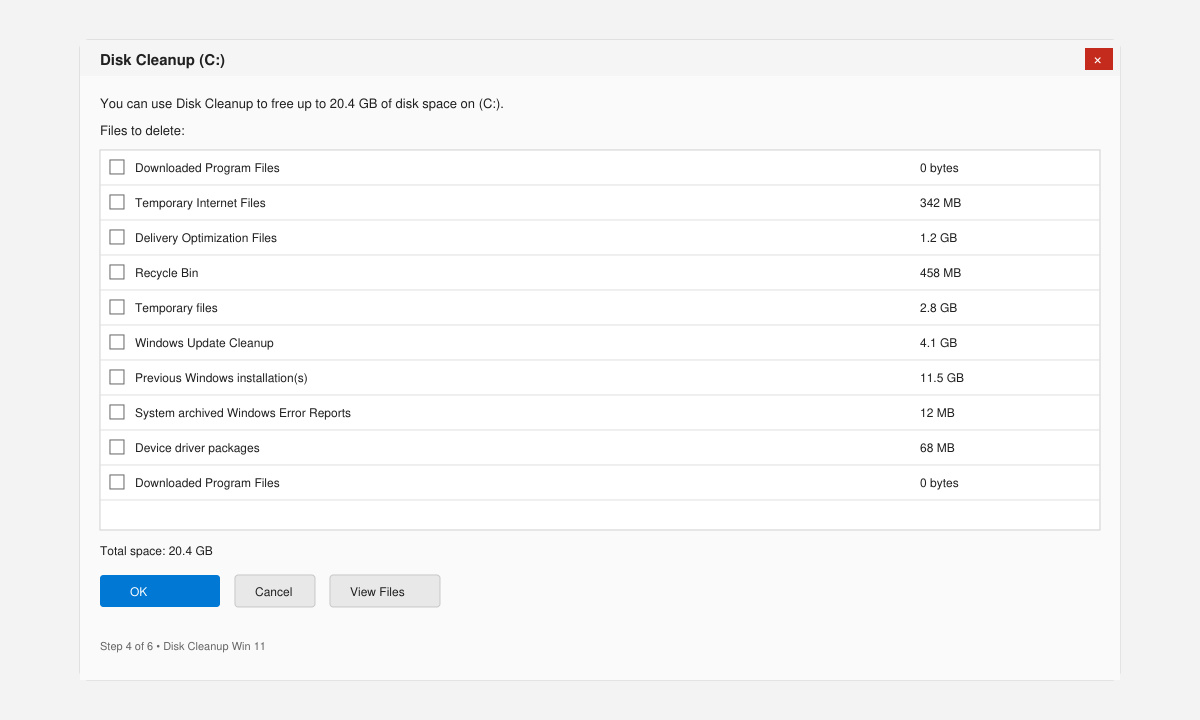
A confirmation dialog appears. Click Delete Files. The process runs for several minutes depending on the volume of data. When finished, close the window and restart your PC to apply all changes.
cleanmgr /sageset:1 followed by cleanmgr /sagerun:1.Yes. The utility only removes files marked as safe to delete by Microsoft. It never touches your personal documents, photos, or installed programs.
Once every two to four weeks is sufficient for most users. If you install and uninstall many programs or download large files regularly, run it monthly.
The tool works on any NTFS-formatted drive connected to the PC. Simply select the external drive letter in the initial Drive Selection window.
Using Disk Clean up Win 11 regularly keeps your storage tidy and your system responsive without installing third-party software.
Find out whether Pardus 23 is blocking Bluetooth, missing BlueZ, or failing to detect adapter firmware, then confirm the controller works.
Learn how Gooroom separates trusted and untrusted browsing, what users can change, and how an administrator can safely update site policies.
Diagnose rotated, offset, or inconsistent touch input on a Harmonica OS tablet and choose a Linux calibration method that fits its session and driver.
Switch Gooroom’s desktop session to English, verify the locale, and identify when untranslated Korean labels need an app update instead.
Arrange Pardus XFCE as a familiar bottom taskbar with an app menu, pinned launchers, open-window buttons, and a system tray.
Check your Gooroom release and administrator rules, then follow the official Debian-based setup path for Flatpak or Snap without bypassing system controls.
Learn what Pardus Image Writer can do, how to prepare installation USB safely, and which tools fit custom live images or repeatable fleet deployments.
Install Pardus alongside Windows 11 by shrinking the Windows volume, using unallocated space, and preserving the existing EFI System Partition.
Identify the RTL8821CE, install Pardus-supported Realtek firmware, and verify the driver, Wi-Fi scan, and next troubleshooting step.
Use Pardus’s hardware-aware installer to enable the right NVIDIA driver, reboot safely, and verify the active kernel module.