Deploy Shared Pardus Wallpapers and Policies with Lider Ahenk

Distribute a custom wallpaper to Pardus clients, configure Xfce or GNOME desktops, and apply Lider Ahenk user policies with safe pilot checks.
Adobe Digital Editions is the free desktop application you need to open and manage eBooks protected by Adobe DRM. If you want to borrow library books or purchase titles from retailers like Google Play Books or Kobo, you must Download Adobe Digital Edition on your computer first. This article walks through the official download and installation process for both Windows and macOS.
Adobe Digital Editions runs on Windows 10 or later and macOS 10.15 or newer. You need at least 200 MB of free disk space and an active internet connection for the initial download and for authorizing your computer with an Adobe ID. Older operating systems are no longer supported, so update your machine before starting the installation.
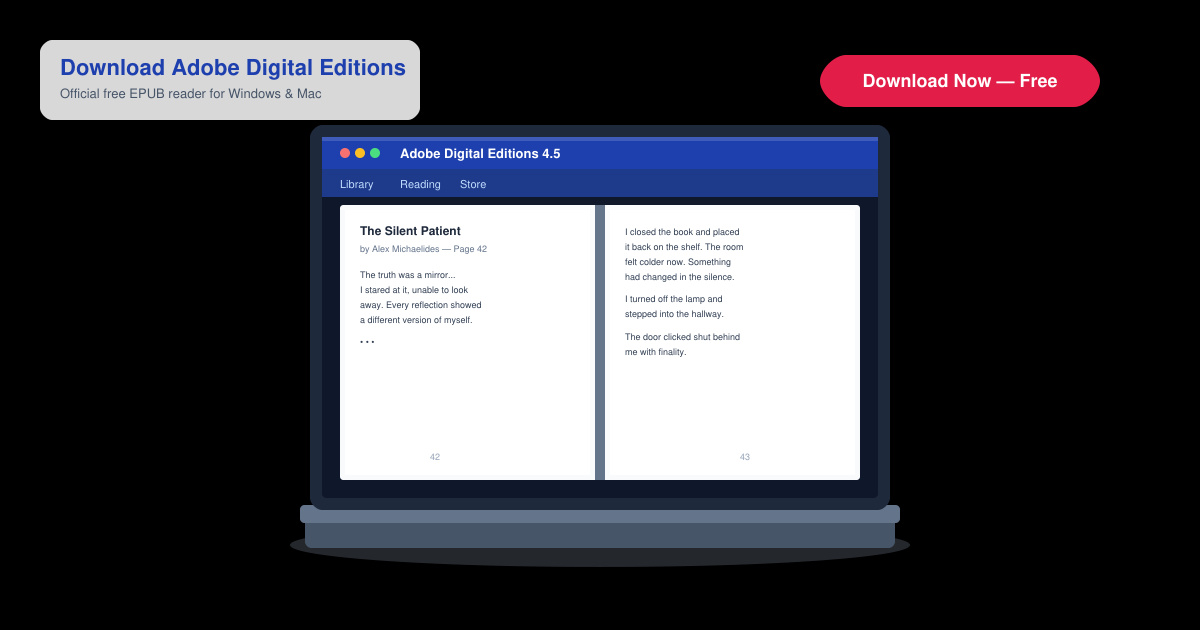
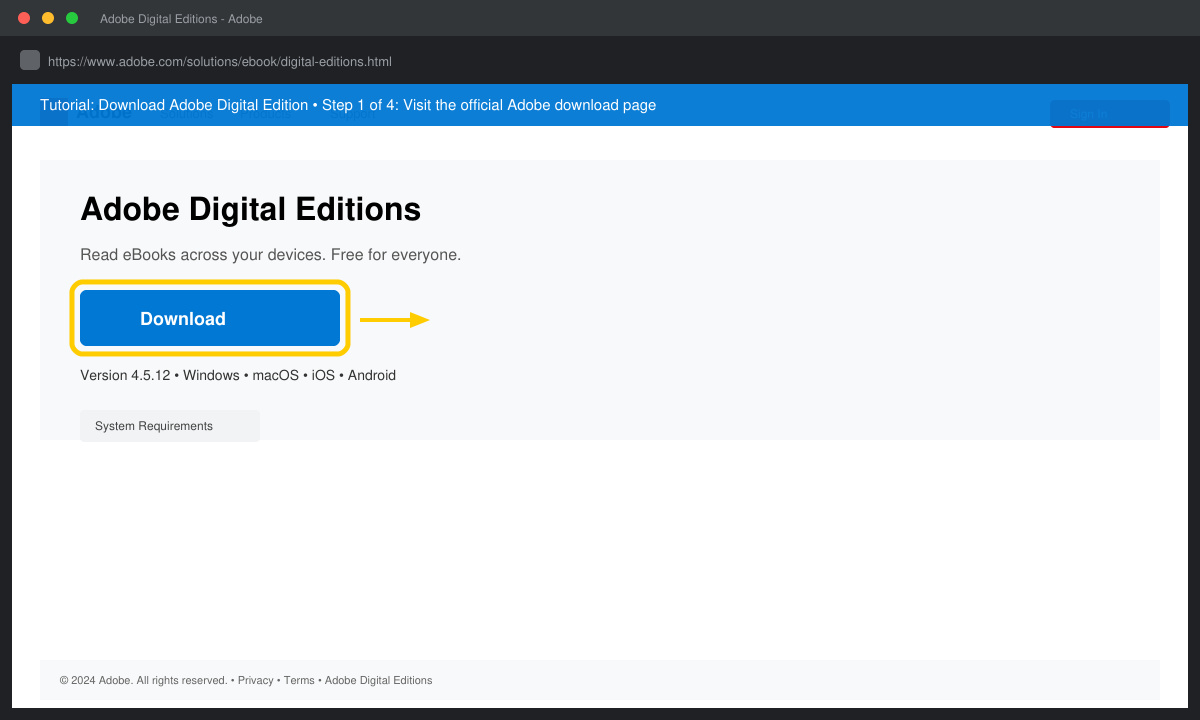
Open your browser and go directly to the Adobe Digital Editions page at adobe.com/solutions/ebook/digital-editions/download.html. Avoid third-party download sites to prevent malware. Click the blue “Download” button for your operating system.
Locate the downloaded file named DigitalEditions.exe on Windows or Digital Editions.dmg on macOS. Double-click it and follow the on-screen prompts. On Windows, choose the default installation folder unless you need a custom location.
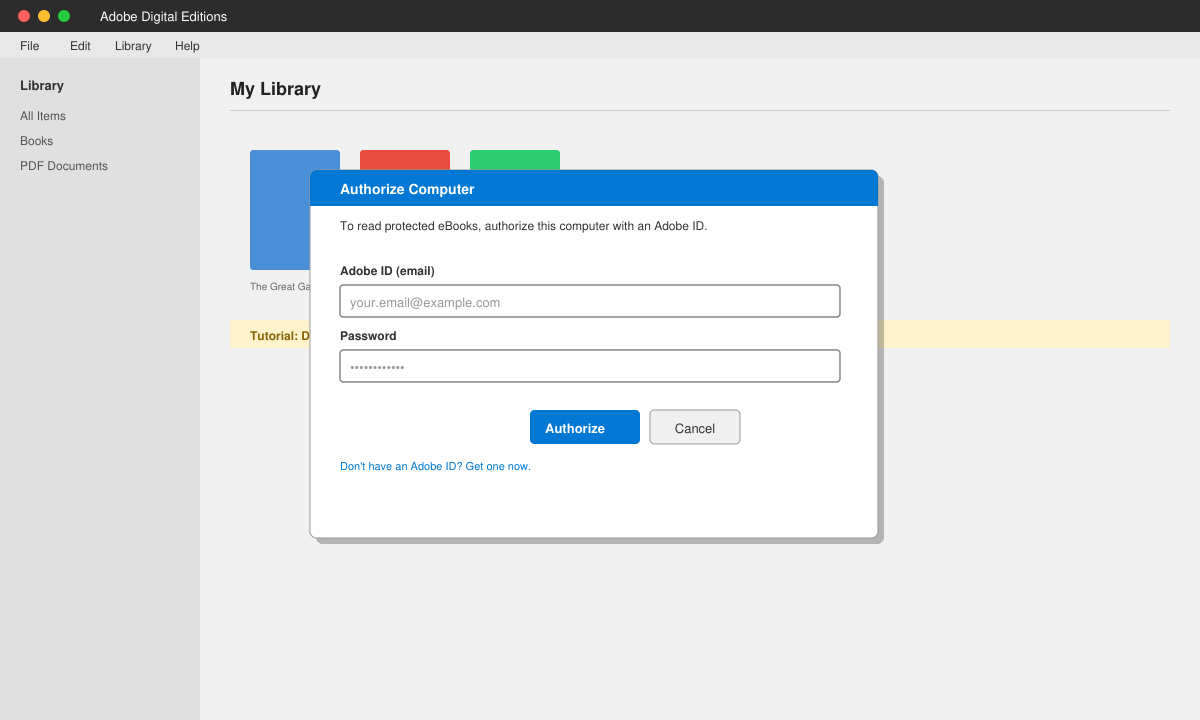
Open Adobe Digital Editions from the Start menu or Applications folder. When prompted, sign in with your Adobe ID. If you do not have one, create it on the same screen. Authorizing your computer links your device to your Adobe account so you can read DRM-protected books.
Once authorized, go to File > Add to Library and select an EPUB or PDF file. The book will appear in your library shelf. You can now read it offline and adjust fonts, brightness, and page layout.
If the installer fails to start, temporarily disable antivirus software and try again. On macOS, you may need to right-click the DMG file and choose Open to bypass Gatekeeper. Users on corporate networks sometimes see an authorization error; in that case, contact your IT department to allow Adobe activation servers. After installation, always keep the app updated through Help > Check for Updates to avoid compatibility problems with newer eBooks.
Yes, the core application is completely free. You only pay for the eBooks you purchase or borrow from libraries.
You can authorize up to six computers with the same Adobe ID. Each computer must complete the authorization step after you Download Adobe Digital Edition.
No. The app is available only for Windows and macOS desktops. For mobile devices, use the Bluefire Reader or OverDrive apps instead.
Following the steps above lets you Download Adobe Digital Edition quickly and start reading protected eBooks without issues.
Distribute a custom wallpaper to Pardus clients, configure Xfce or GNOME desktops, and apply Lider Ahenk user policies with safe pilot checks.
Fix a 1024 × 768 ceiling by checking SPICE, virtual video, the guest channel, and spice-vdagent—with safe checks when Pardus lacks a package candidate.
Set up the Lider server, configure its installer safely, register Ahenk endpoints, and verify a pilot before expanding central management.
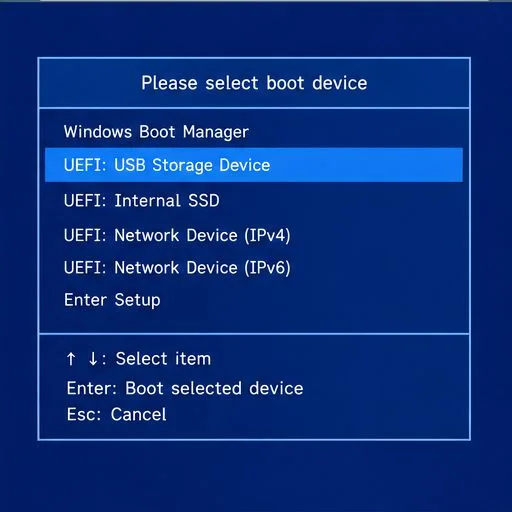
Download the official Pardus 23 desktop ISO, write it safely with Rufus, and boot a Windows PC into a temporary Live session.
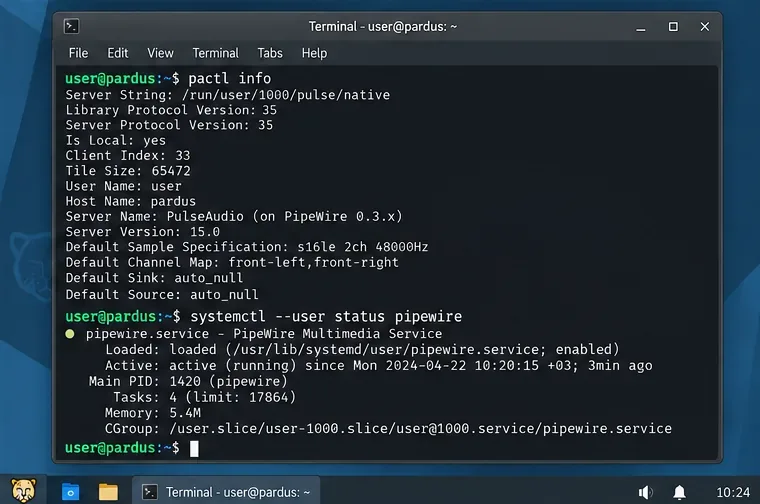
Find out why Pardus 23 cannot detect your sound card, then use targeted ALSA, firmware, and PipeWire or PulseAudio checks to restore playback.
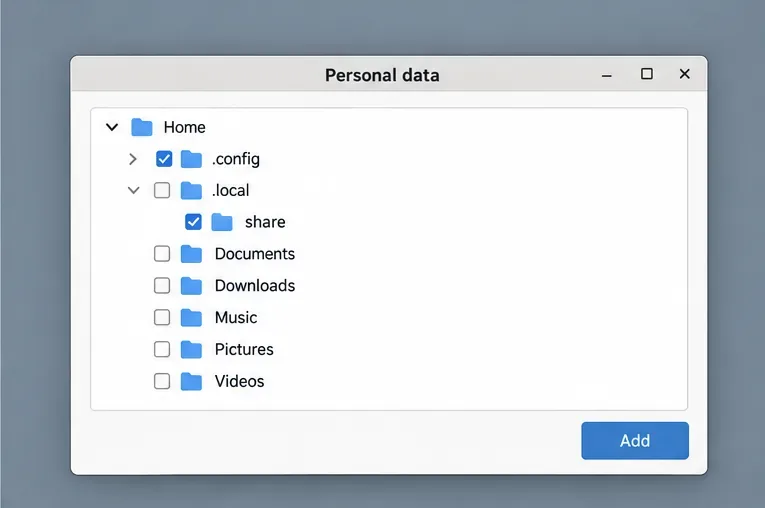
Save HamoniKR preferences to external storage, include hidden home folders, and choose a safe restore mode when moving to a fresh installation.
Install and configure xrdp on Pardus, choose the right Xfce session, restrict network access, and verify that remote login works.
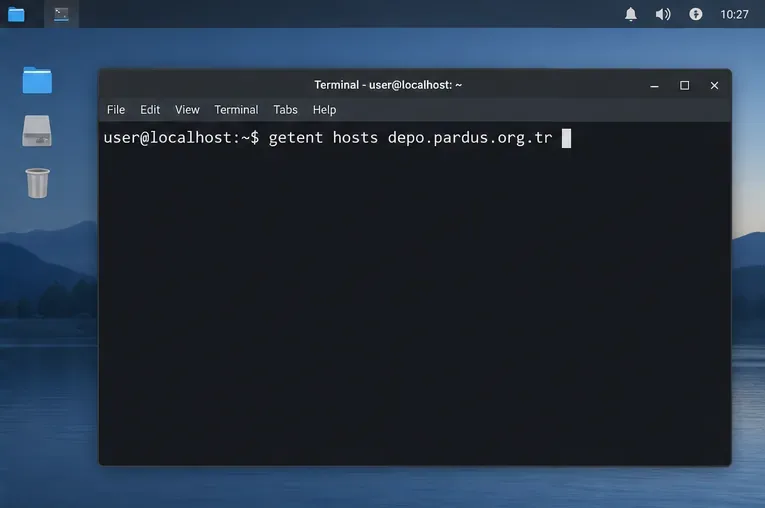
Diagnose Pardus 23 APT connection failures, confirm the official yirmiuc sources, and restore apt update without bypassing package signature checks.
Configure printers on Harmonica OS using CUPS, compare driverless IPP with legacy drivers, and verify USB or network printing with a test page.
Use a recovery shell to set a new Harmonica OS root password, with checks for encrypted disks, read-only filesystems, and accounts that use sudo.