Sometimes we might have experienced being unable to visit certain websites or links with our web browser. We might have seen the error “ERR_SSL_VERSION_OR_CIPHER_MISMATCH”. We encounter the error when we try to visit a specific page. This error will prevent us from accessing and, therefore, using the website or web page. The error usually presents itself on Google chrome or internet explorer, but we might see it on other browsers as well.
The error code is most likely to appear on a website that requires sensitive information from its users like credit card details or login information. Our browser checks the SSL certificate whenever we try to connect toa website. SSL certificates are a way of proving that a website is authentic, and it has implemented proper protocols to make the connection secure. ERR_SSL_VERSION_OR_CIPHER_MISMATCH occurs when the protocols configured on the website server are not secure.
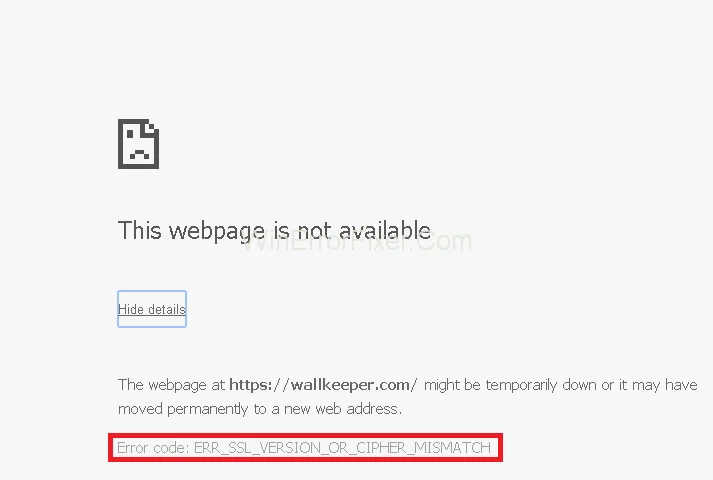
ERR_SSL_VERSION_OR_CIPHER_MISMATCH error is our browser’s way of stopping us from accessing websites with insecure protocols and certificates. The websites might also be using an outdated or old protocol version that our browser does not categorise as safe. It is why the websites that require you to enter sensitive information are most likely to show this error.
Contents
How to Fix ERR_SSL_VERSION_OR_CIPHER_MISMATCH Error in Google Chrome
There is not anything that we can do to prevent this because the choice of protocols that the websites use is not under our security. But, there are a few workarounds that involve disabling the checks for the SSL. These are mentioned below:
Solution 1: Change Google Chrome Settings
You can configure your browser to ignore the warnings for any outdated SSL and TLS versions. It will solve your problem if the targeted website is running an old version of the said protocol. However, this will only work on Google chrome.
This method will not work for the latest Google chrome versions. The flag that we need to set to a different value is not available in the latest versions of Google chrome. This option is removed in Google Chrome v45 and above.
Solution 2: Turn Off SSL Scan
If you have antivirus software or any other kind of security program installed on the computer, then the problem might be the SSL scan. This security programs perform an SSL scan. You can turn it off from the settings. Turning the SSL scan will help to get rid of the error on the website.
This step will vary from software to software, but there should be an option in SSL scan in your anti-virus disable it.
We will give the step of how to turn off SSL scan on Bit Defender
Step 1: Double-click on Bits Defender icon from the icon tray.
Step 2: Go to modules.
Step 3: Select web protection.
Step 4: Toggle off the scan SSL option.
Solution 3: Try Older Versions
Your browser is giving ERR_SSL_VERSION_OR_CIPHER_MISMATCH error because it is updated to the latest standards and designed to deny any outdated protocols of certificates. So, using an old version of the browser might work for you.
Using an old version of google chrome will also work for you if you could not follow the method 1 because of the latest Google Chrome update. You can download an older version of google chrome, probably v40 to change the settings mentioned in the method 1.
Related Guides:
Conclusion
So here are the methods for the error ERR_SSL_VERSION_OR_CIPHER_MISMATCH. The user can opt for any of the 3 methods mentioned above.









