Adding your own images or finding new ones directly inside Canva makes every design look more personal and professional. This article explains exactly how to add pictures to Canva whether you are working on a social post, presentation, or poster. Follow the steps below to get your images into the editor quickly.
Before You Start Adding Pictures to Canva
Make sure you are logged into a free or paid Canva account and have opened or created the design you want to edit. You will need either photos saved on your computer or a clear idea of the type of images you want to search for inside Canva.
Canva supports JPG, PNG, and SVG files. Keep file sizes under 25 MB for fastest uploads.
How to Add Pictures to Canva from Your Computer
-
Open the Uploads section
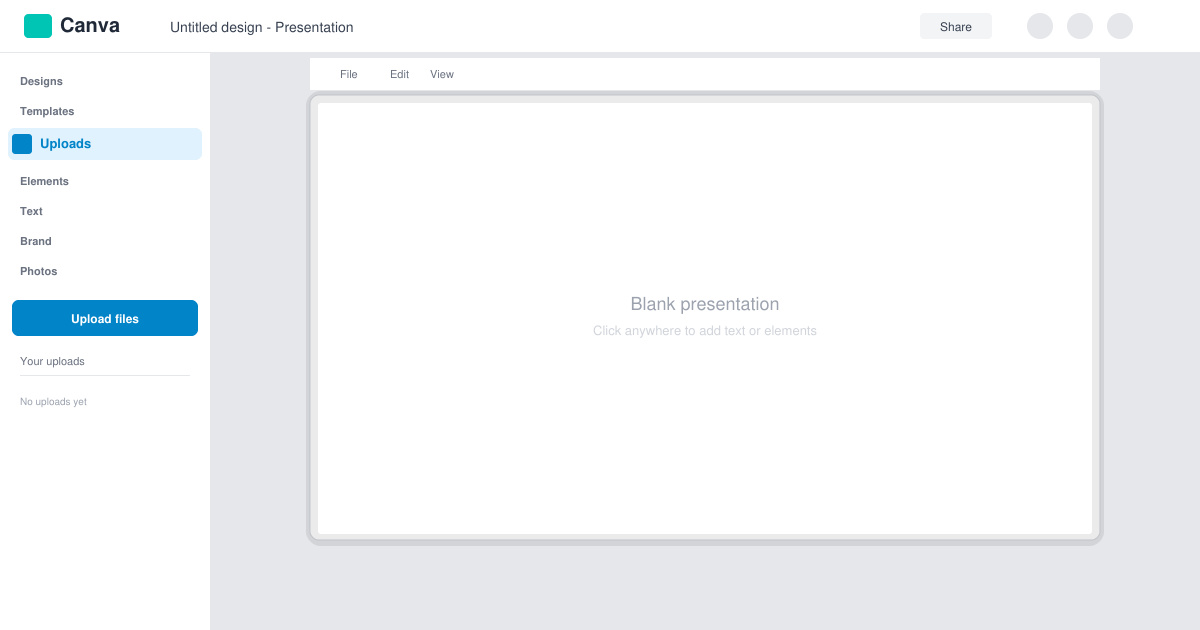
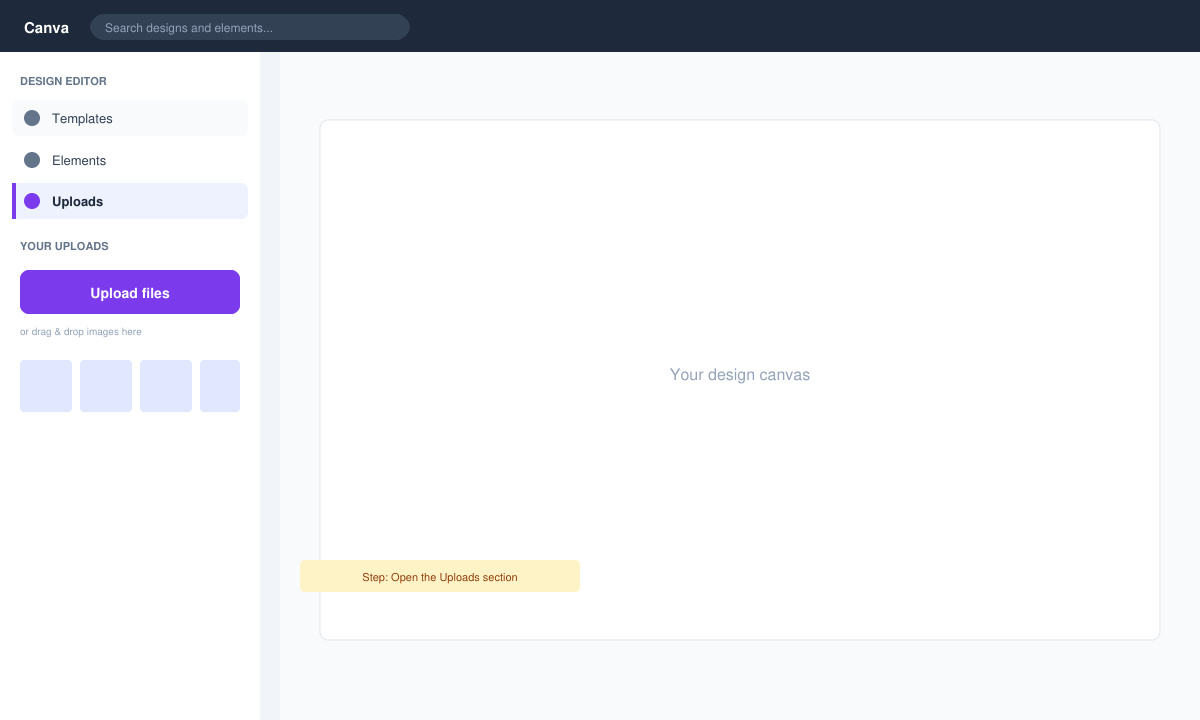
In the left sidebar of the Canva editor, click the Uploads tab located below Elements. This opens your personal media library.
-
Upload the image file
Click the purple Upload files button, then select one or more photos from your computer folders. You can also drag files directly from your desktop into the Uploads panel.
-
Place the picture on your design
Once the upload finishes, drag the new image from the Uploads panel onto your canvas. Resize and reposition it using the corner handles.
How to Add Pictures to Canva Using the Built-in Library
-
Search inside the Elements panel
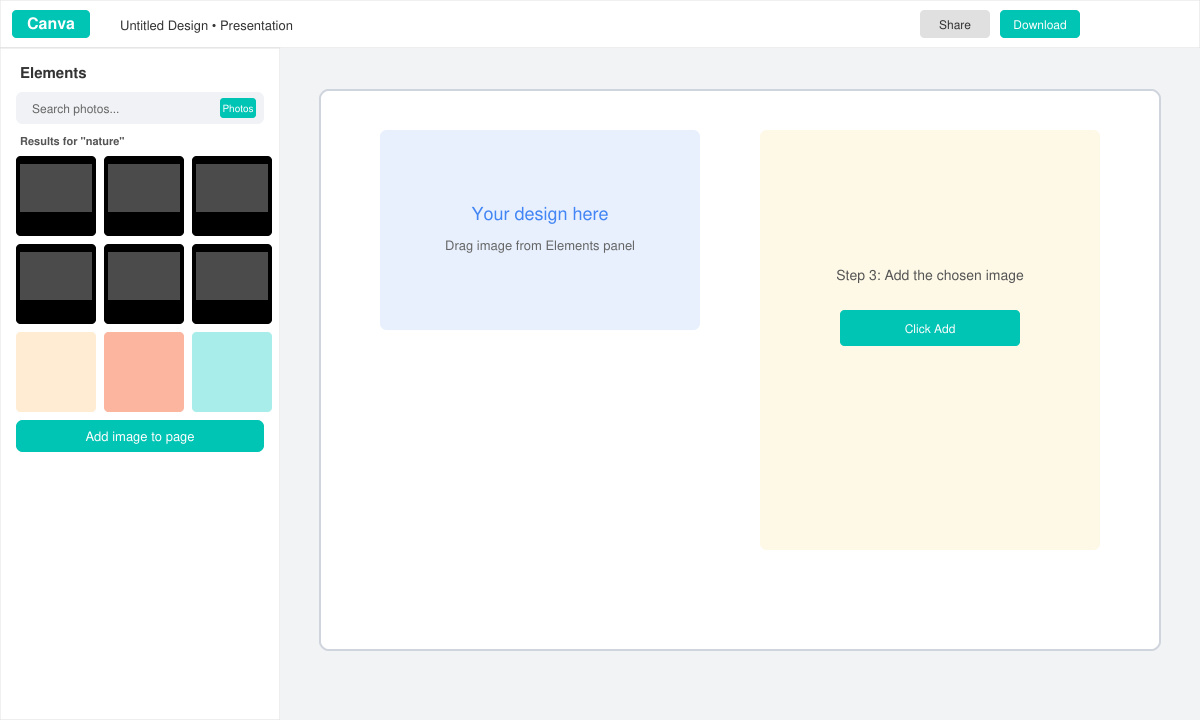
Click Elements in the left sidebar and type a keyword such as "beach" or "office" into the search bar at the top.
-
Filter for photos only
Above the results, click the Photos filter so Canva shows only photographic images instead of illustrations or icons.
-
Add the chosen image
Click any photo to add it straight to your design, then adjust size, crop, or apply filters from the top toolbar.
Common Issues When Adding Pictures to Canva
- If an uploaded image looks blurry, replace it with a higher-resolution file and avoid stretching it too large on the canvas.
- Images sometimes fail to upload because of an unstable internet connection. Try uploading one file at a time or use a wired connection.
- Canva may reject certain file types. Convert HEIC or WebP files to JPG or PNG before uploading.
Frequently Asked Questions
Can I add pictures to Canva from my phone?
Yes. Open the Canva mobile app, tap the plus icon inside your design, choose Uploads, then select photos from your camera roll.
Is there a limit to how many pictures I can add?
Free accounts can upload a large number of images, but very large batches may need to be split across multiple sessions for best performance.
Can I add pictures to Canva that are stored in Google Drive?
Connect your Google Drive account through the More tab in the left sidebar, then browse and insert files without downloading them first.
Conclusion
Mastering how to add pictures to Canva lets you create polished designs faster and with images that match your exact needs.









