Want to watch Netflix on your TV without extra cables? Casting Netflix to Chromecast lets you stream directly from your phone, tablet, or computer to the big screen using your existing Wi-Fi connection. This article gives precise instructions for both mobile and desktop methods so you can start watching right away.
Requirements Before You Cast Netflix to Chromecast
Make sure your Chromecast device is plugged into your TV's HDMI port and connected to the same Wi-Fi network as your casting device. Update the Netflix app to the latest version on your phone or open Netflix in a supported browser on your computer. You also need an active Netflix subscription and a Google Chromecast, Chromecast with Google TV, or a TV with built-in Chromecast support.
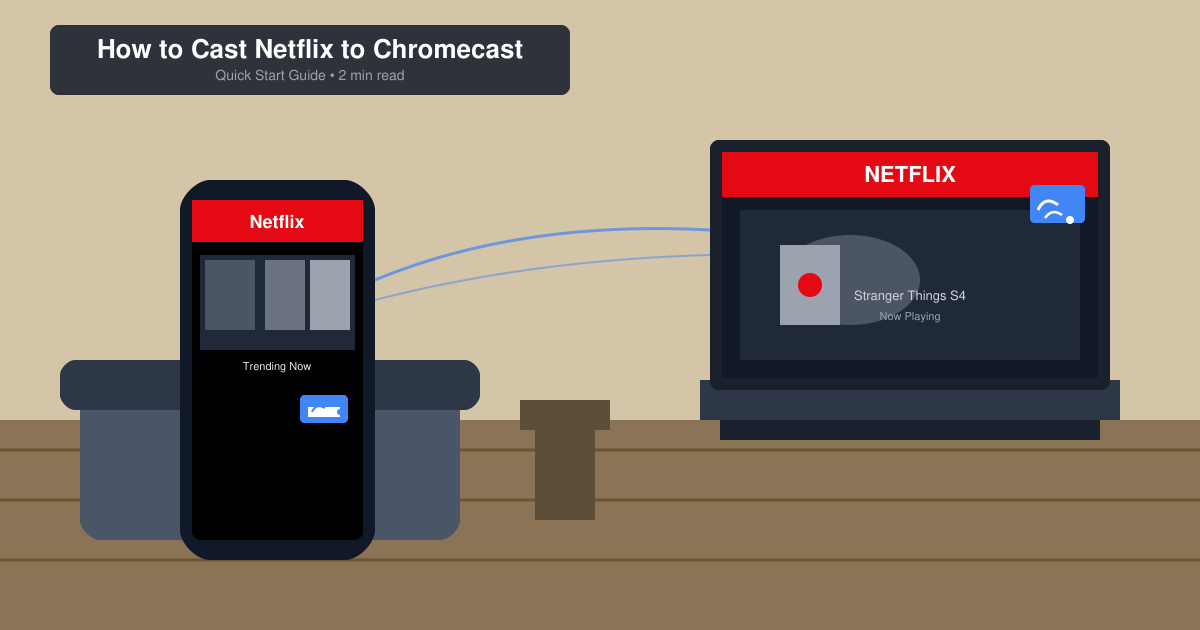
How to Cast Netflix to Chromecast from an Android or iOS Device
-
Connect your device to the same Wi-Fi network
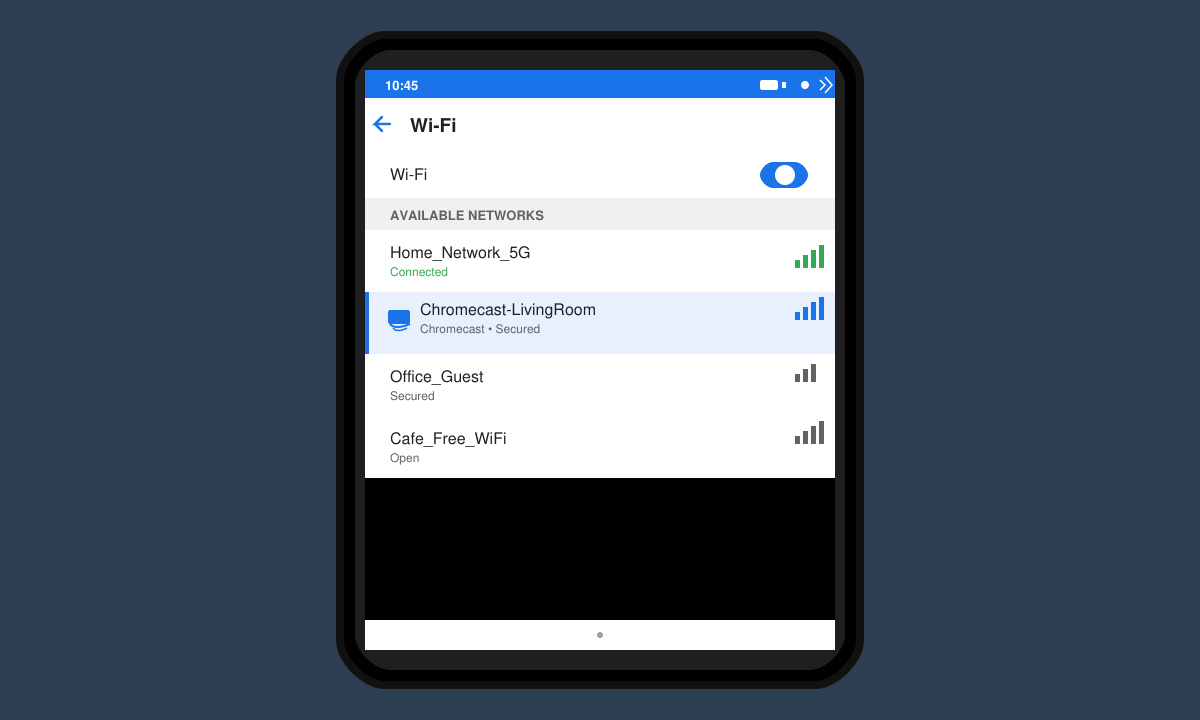
Open the Settings app on your phone, tap Wi-Fi, and confirm both your phone and Chromecast are connected to the identical network. If they are on different networks, casting will fail.
-
Open the Netflix app and sign in
Launch the Netflix app, enter your account details if prompted, and browse to the title you want to watch. Do not start playback yet.
-
Tap the Cast icon inside the Netflix app
Look for the Cast icon in the top right corner of the Netflix app (it looks like a TV screen with a Wi-Fi symbol). Tap it, then select your Chromecast device from the list that appears.
-
Choose your content and begin playback
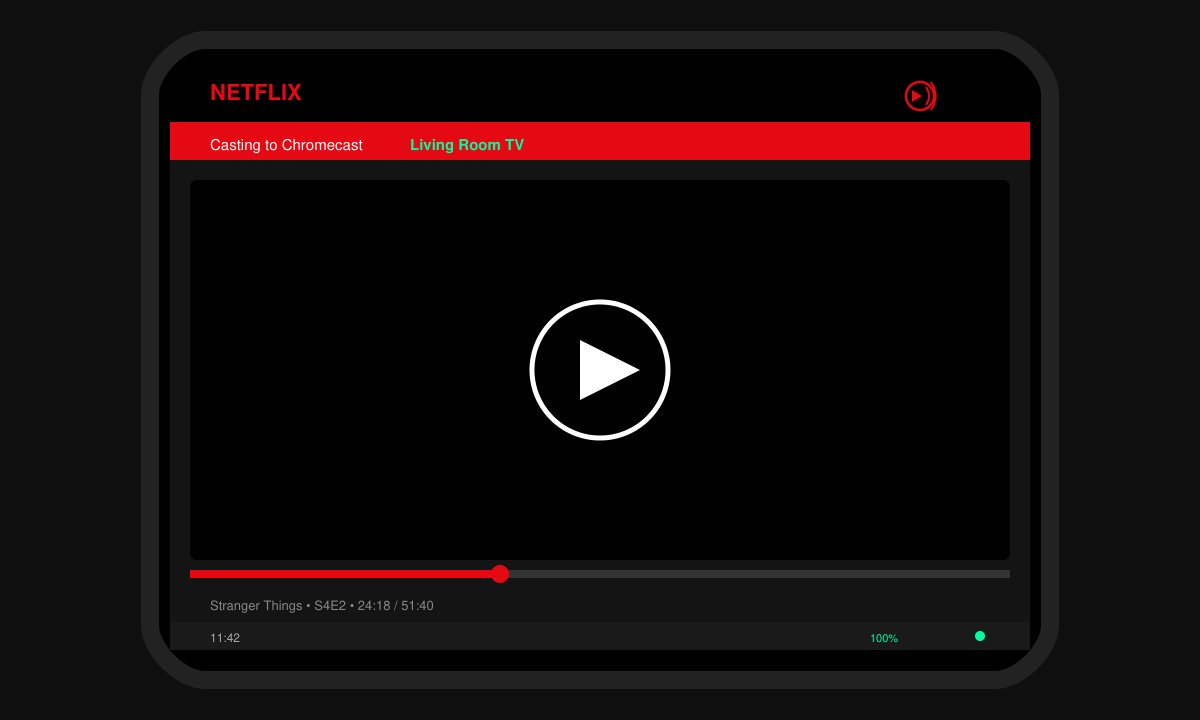
Once connected, the app shows a casting confirmation. Select a movie or series, tap Play, and the video will appear on your TV while your phone acts as a remote.
How to Cast Netflix to Chromecast from a Computer
Open Chrome on your Windows or Mac computer and go to netflix.com. Sign in, then click the three-dot menu in the top right, choose Cast, and select your Chromecast. Start playing any title and it will stream to the TV. Note that some browser extensions can interfere, so disable them if casting does not appear.
Fix Common Casting Problems with Netflix and Chromecast
- If the Cast icon is missing, restart both your phone and Chromecast, then reopen the Netflix app.
- Audio out of sync? Pause playback on the TV, wait five seconds, then resume to resync the stream.
- Only getting sound but no picture? Check that your TV input is set to the correct HDMI port where the Chromecast is plugged in.
- Low video quality? Move your phone closer to the router or switch to a 5 GHz Wi-Fi band for better bandwidth.
Frequently Asked Questions
Can I cast Netflix to Chromecast without the Netflix app?
You can cast from a computer browser, but mobile casting requires the official Netflix app. Screen mirroring works as a backup but drains battery faster and may show notifications on the TV.
Does casting Netflix use mobile data?
Casting uses your home Wi-Fi network for both the phone and Chromecast. No mobile data is consumed unless your phone is not connected to Wi-Fi.
Why does my Chromecast disconnect during Netflix playback?
This usually happens when another device takes over the Chromecast or when the phone goes to sleep. Keep the Netflix app open and prevent your phone screen from turning off during long viewing sessions.
Conclusion
Once you follow the steps above, casting Netflix to Chromecast becomes a reliable way to enjoy content on your television. Keep your apps and device firmware updated to avoid future connection issues.









