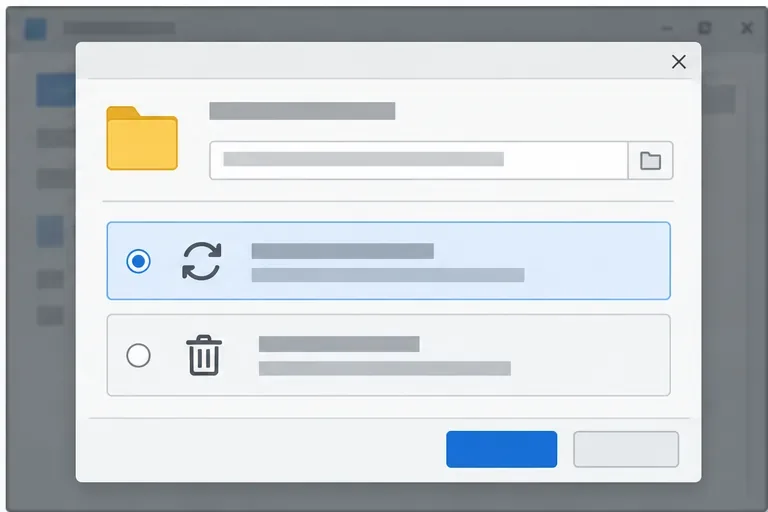
LibreOffice Document Locked by Unknown User: A Safe Fix
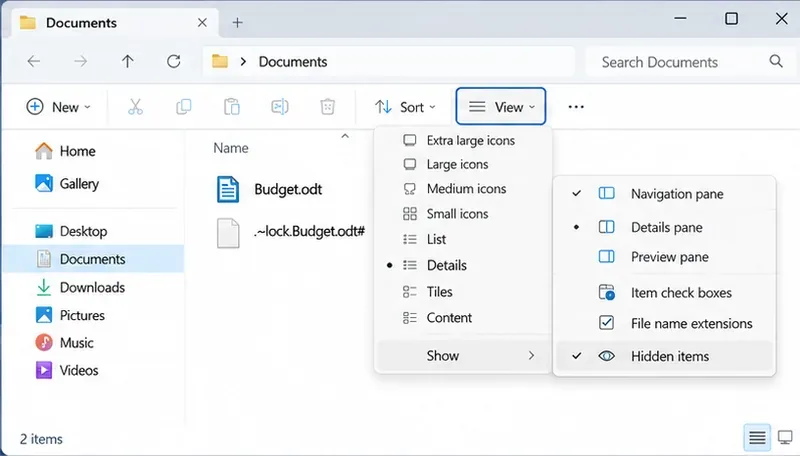
Find the cause of a LibreOffice document lock, safely clear a stale lock file, and confirm that you can edit and save without losing changes.
If you want every search typed into the Chrome address bar to go through Google, you need to know how to change your search engine to Google Chrome. This adjustment takes under a minute and ensures you receive the most relevant results without extra clicks. The instructions below cover the current Chrome interface on desktop and mobile.
Chrome lets users pick any search provider, yet many devices or previous installs leave Bing, Yahoo, or another engine active. Switching back to Google restores direct access to its index, autocomplete, and image results. No extensions or third-party tools are required.
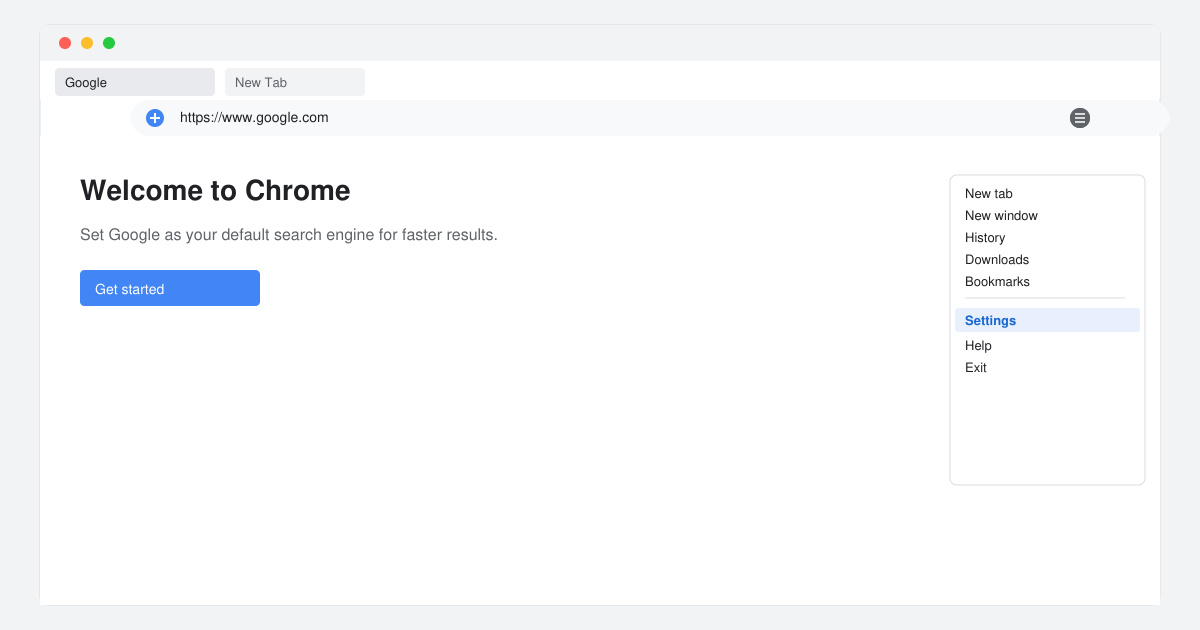
Launch Google Chrome on your computer. Click the three vertical dots in the top-right corner of the window, then select Settings from the menu that appears.
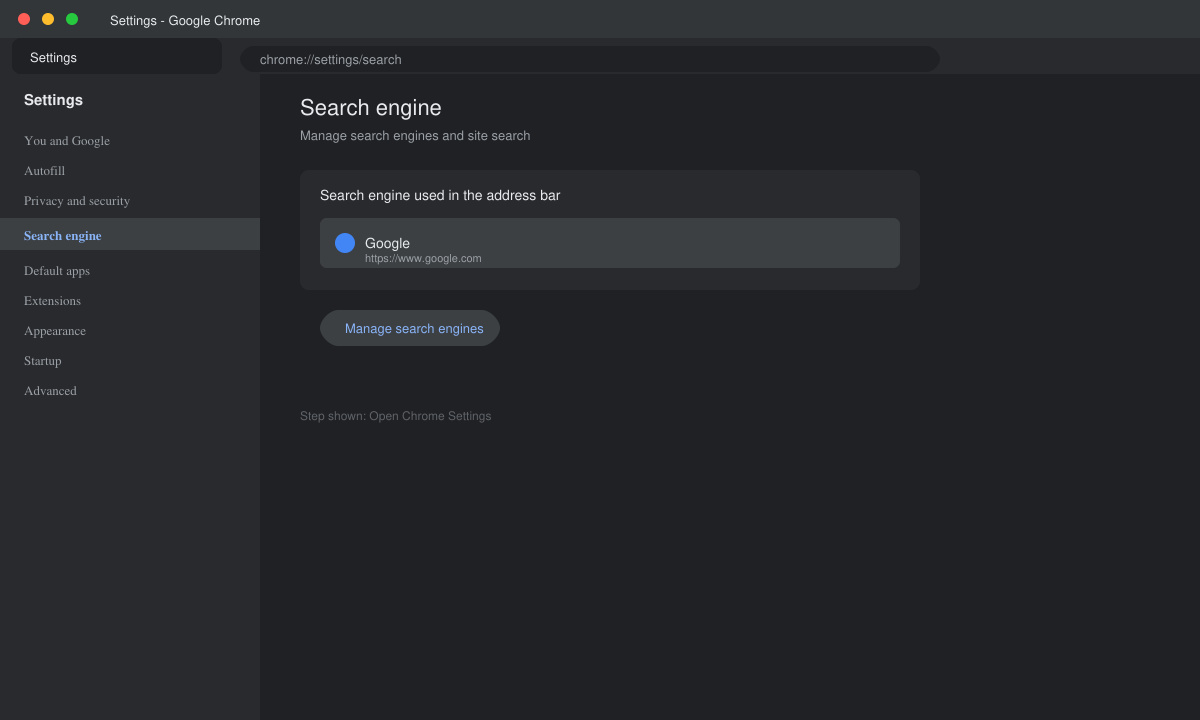
In the left sidebar, click Search engine. Under the heading Search engine used in the address bar, open the dropdown menu and choose Google.
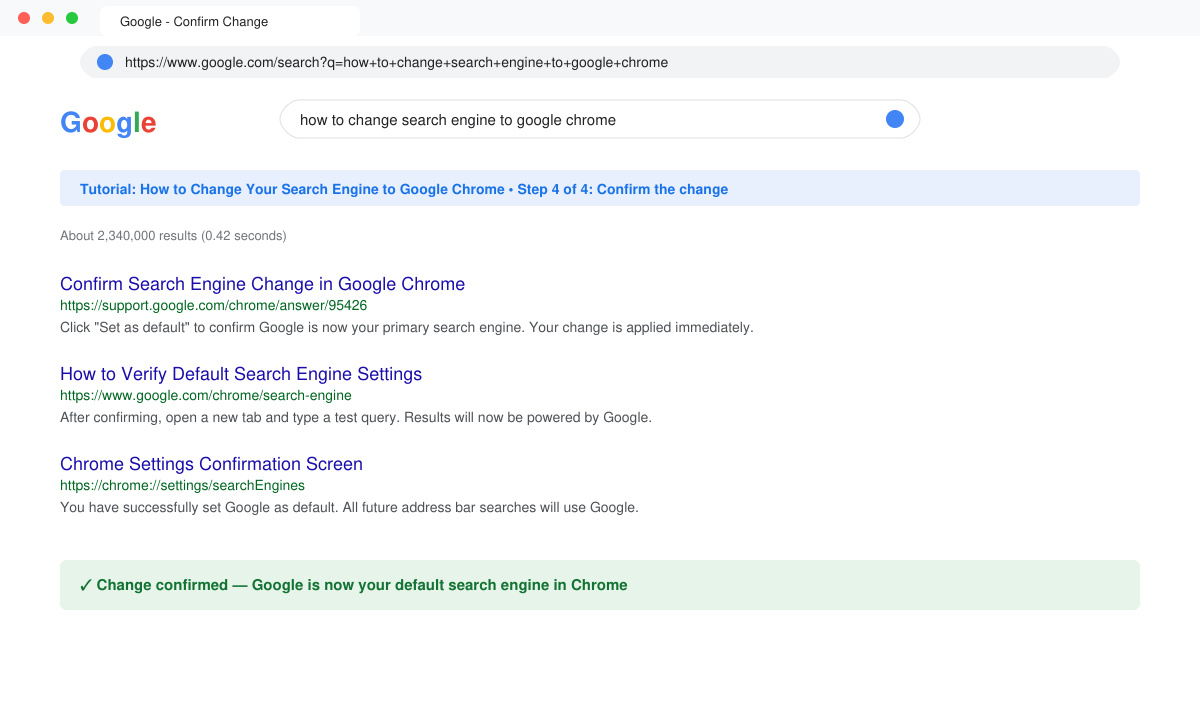
Close the Settings tab. Click the address bar, type any term, and press Enter. The results page should now load from Google. If the change does not appear immediately, restart Chrome once.
Yes. After setting Google as the default, you can still type the name of another engine followed by a space and your query to use it temporarily.
No. Visiting google.com directly always uses Google regardless of the address-bar setting.
Changing the search engine has no impact on bookmarks, history, or saved passwords.
Following the steps above completes the process of how to change your search engine to Google Chrome and restores Google results in the address bar.
Find the cause of a LibreOffice document lock, safely clear a stale lock file, and confirm that you can edit and save without losing changes.
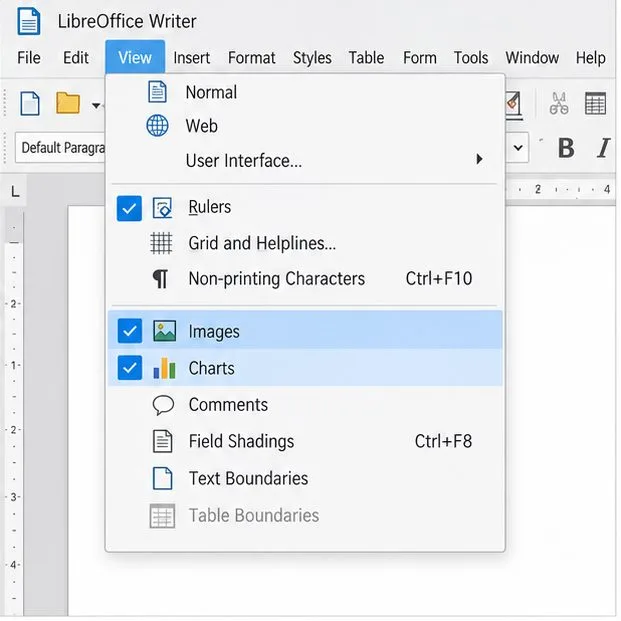
Make image-heavy Writer files easier to edit: test a reversible display setting, compress oversized pictures in a copy, and verify the saved layout.
Find out whether a slow launch comes from extensions, profile settings, or the system, then test the safest fix without losing LibreOffice data.
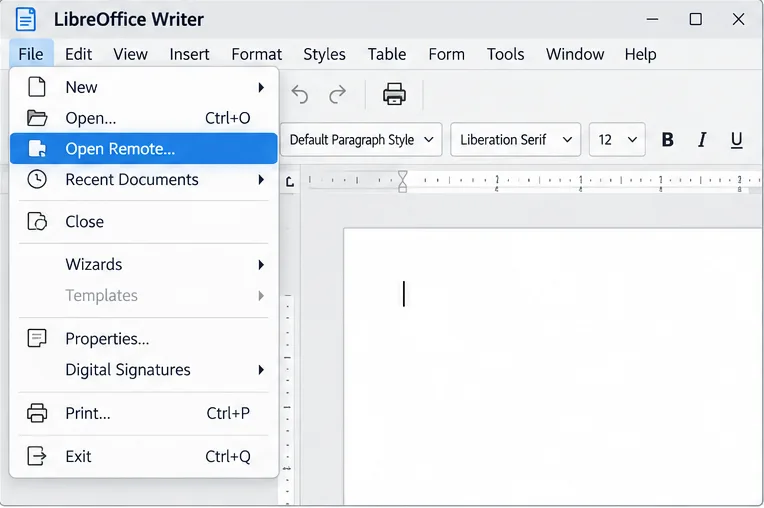
Connect LibreOffice to Nextcloud over WebDAV, save the server copy with Ctrl+S, and understand how AutoRecovery differs from cloud syncing.
Find out whether Pardus 23 is blocking Bluetooth, missing BlueZ, or failing to detect adapter firmware, then confirm the controller works.
Learn how Gooroom separates trusted and untrusted browsing, what users can change, and how an administrator can safely update site policies.
Diagnose rotated, offset, or inconsistent touch input on a Harmonica OS tablet and choose a Linux calibration method that fits its session and driver.
Switch Gooroom’s desktop session to English, verify the locale, and identify when untranslated Korean labels need an app update instead.
Arrange Pardus XFCE as a familiar bottom taskbar with an app menu, pinned launchers, open-window buttons, and a system tray.
Check your Gooroom release and administrator rules, then follow the official Debian-based setup path for Flatpak or Snap without bypassing system controls.