Learning how to Chrome Cast Netflix lets you enjoy shows and movies on the big screen without extra cables. The process works smoothly once your device and Chromecast are on the same Wi-Fi network. This guide gives exact steps for both mobile and desktop users.
Prerequisites Before You Chrome Cast Netflix
Make sure you have a working Chromecast device plugged into your TV and powered on. Your phone, tablet, or computer must run the latest version of the Netflix app or browser. Both the casting device and the Chromecast need to connect to the same Wi-Fi network for the feature to appear.
Sign in to your Netflix account on the device you plan to cast from. If you use a VPN, turn it off temporarily because some VPNs block casting. Update your phone’s operating system and the Google Home app if you have not done so recently.
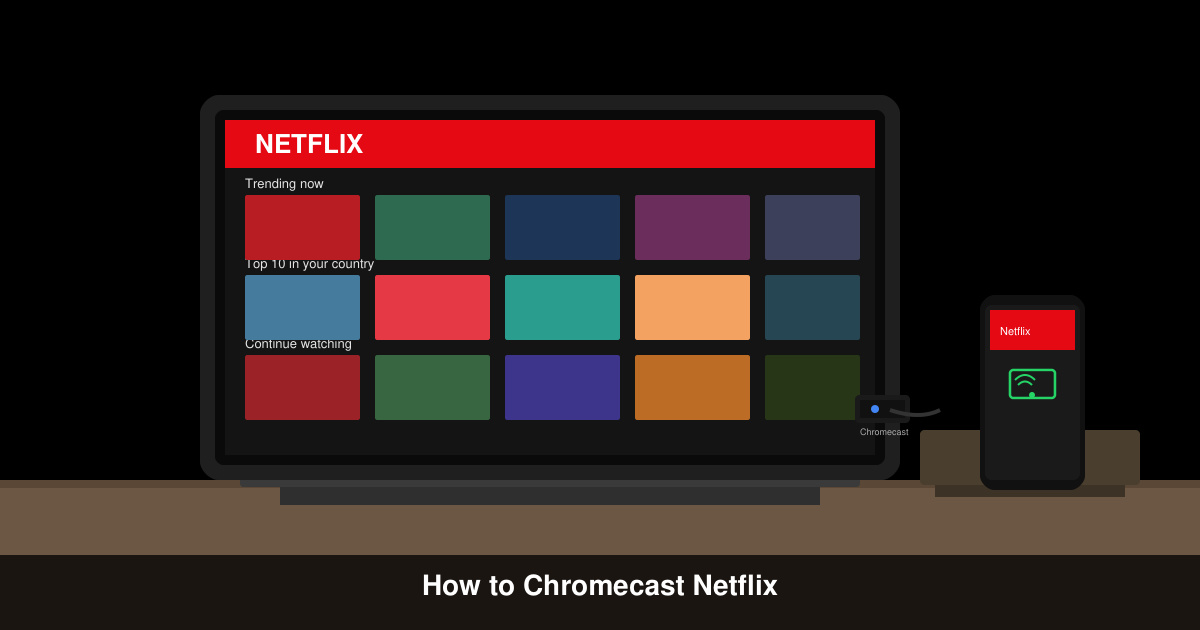
How to Chrome Cast Netflix Using the Mobile App
-
Install or update the Netflix app
Open the Google Play Store on Android or the App Store on iOS. Search for Netflix, then tap Update if a newer version exists. Open the app and sign in with your account details.
-
Connect to the correct Wi-Fi network
Go to your phone’s Wi-Fi settings and select the same network your Chromecast uses. Open the Google Home app to confirm the Chromecast appears in the device list.
-
Start casting from within Netflix
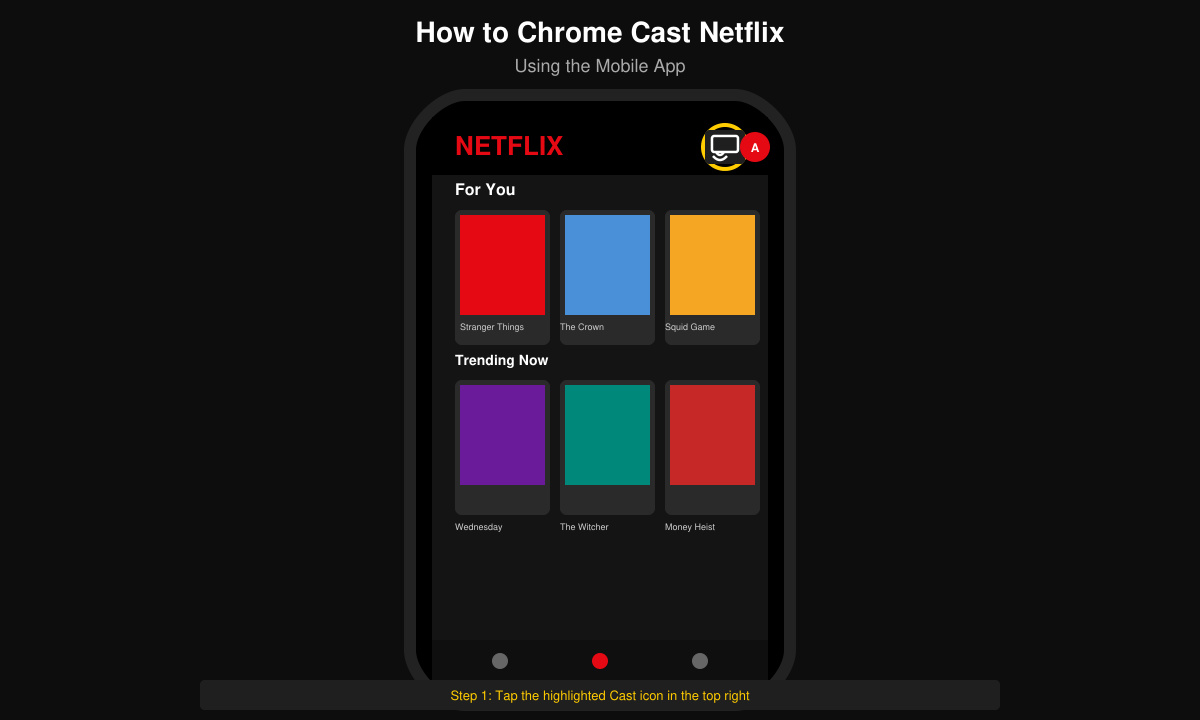
Play any title in the Netflix app. Tap the cast icon in the upper right corner of the video player. Select your Chromecast device from the list that appears. The TV screen will switch to the Netflix content within seconds.
-
Control playback on the TV
Use the phone as a remote to pause, fast-forward, or adjust volume. To stop casting, tap the cast icon again and choose Disconnect.
How to Chrome Cast Netflix from a Computer
-
Open Netflix in Chrome browser
Launch Google Chrome on your Windows or Mac computer. Go to netflix.com and sign in. Make sure the browser is up to date.
-
Cast the browser tab
Click the three-dot menu in the top right of Chrome. Choose Cast, then select your Chromecast device. Pick the option to cast the tab instead of the entire desktop.
-
Play content and manage the stream
Start a Netflix title. The video appears on the TV. Keep the computer tab open; closing it ends the cast session.
Common Problems and Quick Fixes
If the cast icon does not appear, restart both your phone and the Chromecast by unplugging it for 30 seconds. Confirm the Netflix app has permission to access your local network in phone settings. Audio out of sync usually resolves after pausing and resuming the video once. When the picture stays black, try casting a different title first to test the connection.
- Lower video quality in Netflix settings if buffering occurs on slower Wi-Fi.
- Disable any VPN or proxy running on the casting device.
- Reboot your router if the Chromecast keeps disappearing from the device list.
Frequently Asked Questions
Can I Chrome Cast Netflix without the Google Home app?
The Google Home app is required for the initial setup of Chromecast, but daily casting works directly from the Netflix app once the device is configured.
Does casting use extra data on my phone plan?
Yes. All video data streams through your phone to the Chromecast, so use Wi-Fi to avoid mobile data charges.
Why does the cast option disappear after a few minutes?
This usually happens when the phone switches Wi-Fi networks or loses connection. Reconnect to the correct network and reopen the Netflix app.
Conclusion
Following these steps makes how to Chrome Cast Netflix a reliable way to watch on your television. Keep your apps updated and stay on the same Wi-Fi network for the best results every time.









