Sent a show to the big screen yet? How to Chromecast Netflix on TV works smoothly once your devices share the same Wi-Fi network and you have a compatible Chromecast plugged into your television. This guide walks through the exact process so you can start streaming without delays or extra apps.
Requirements Before You Chromecast Netflix on TV
Confirm your Chromecast is set up and connected to the HDMI port on your TV. Both your casting device (phone, tablet, or computer) and the Chromecast must use the same Wi-Fi network. Update the Netflix app to the latest version on your phone or open Netflix in a supported browser on your computer. No additional hardware is required beyond a standard Chromecast or Chromecast with Google TV.
Steps to Chromecast Netflix on TV
-
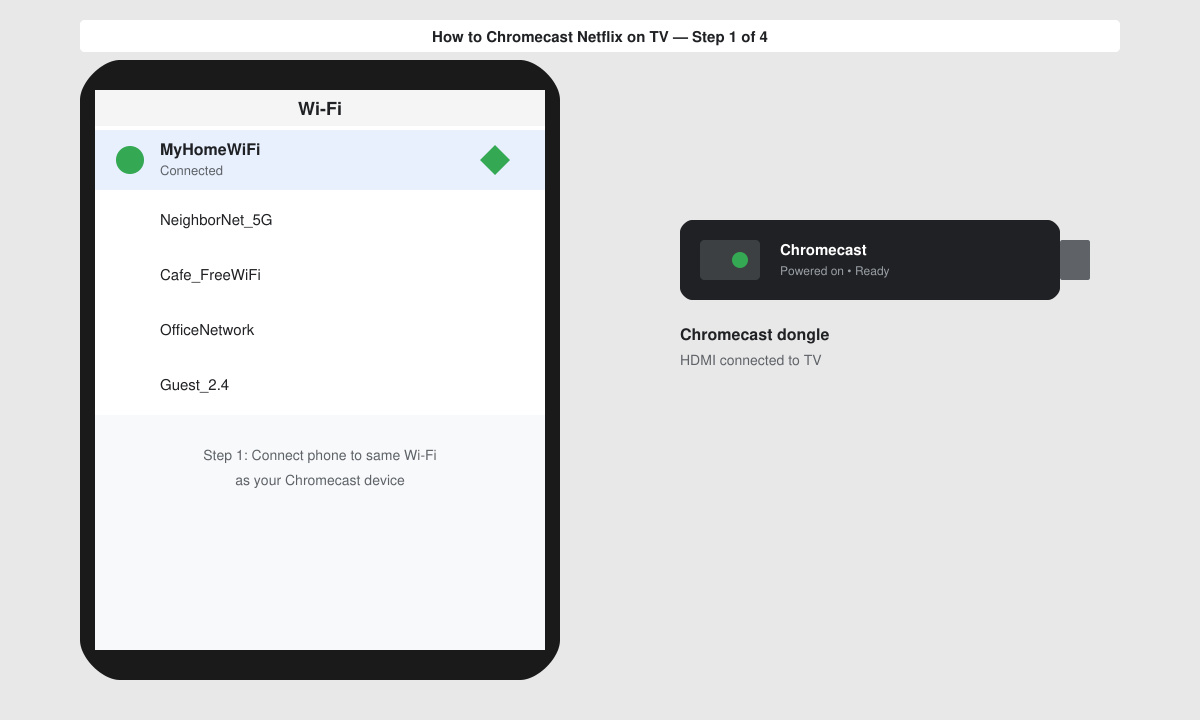
Connect your phone or computer to the same Wi-Fi as the Chromecast
Open the Wi-Fi settings on your device and select the network name that matches the one used during Chromecast setup. Verify the connection by loading any website or app.
-
Open the Netflix app and sign in
Launch Netflix on your phone or tablet. If using a computer, go to netflix.com in Chrome or Edge and sign in with your account. Browse to the title you want to watch.
-
Tap or click the Cast icon inside Netflix
Look for the Cast icon (a rectangle with Wi-Fi waves) in the top right corner of the Netflix app or player. Tap it and select your Chromecast device from the list that appears.
-
Choose the content and press play
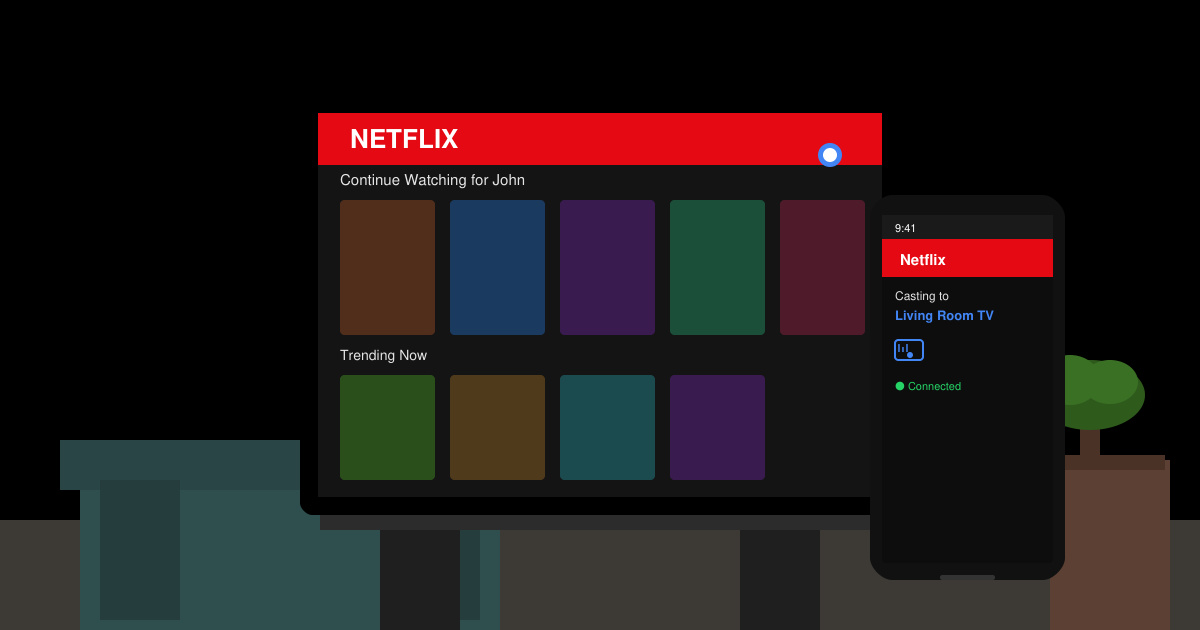
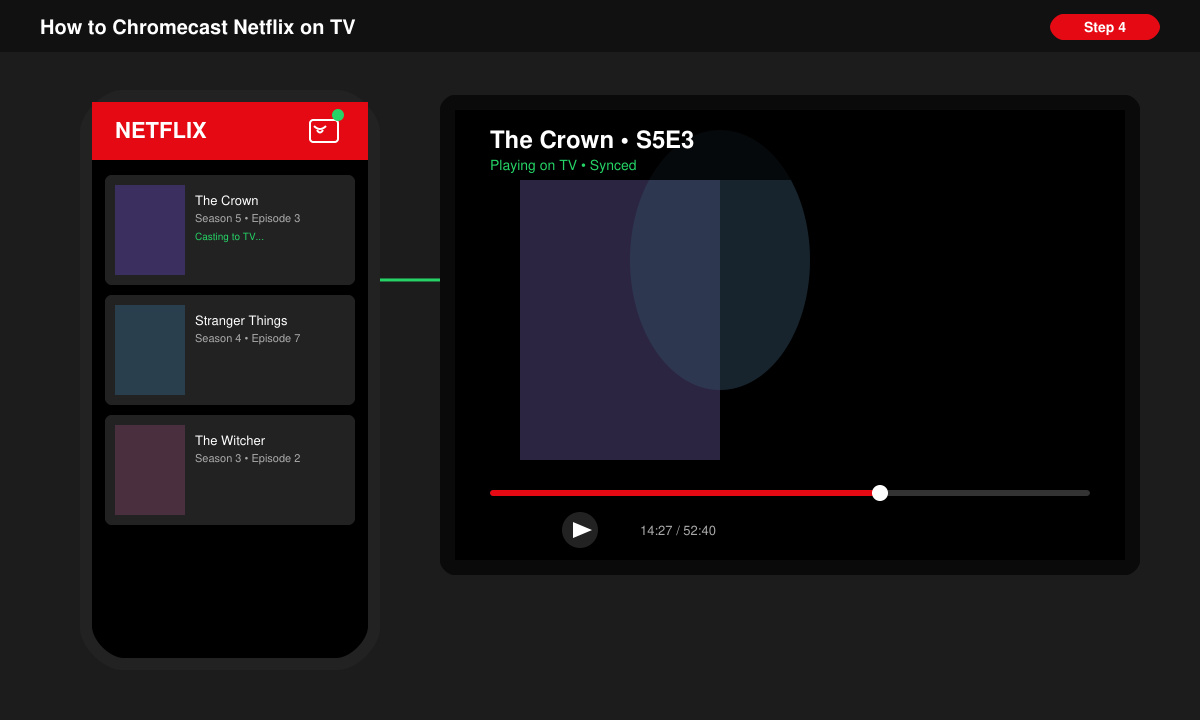
Once connected, the TV screen will show the Netflix home screen. Select a movie or series on your device and tap Play. The video begins on the TV while your phone acts as the remote.
-
Control playback and end the session
Use the playback controls on your phone to pause, skip, or adjust volume. When finished, tap the Cast icon again and choose Disconnect to stop streaming.
Fixing Problems When You Chromecast Netflix on TV
If the Cast icon does not appear, restart both your phone and the Chromecast by unplugging it for 30 seconds. Make sure Netflix is not already casting to another device. Update the Google Home app on your phone to manage Chromecast settings. Black screen issues are usually fixed by lowering the video quality in Netflix settings under Account > Playback. Audio sync problems can be resolved by restarting your router.
Frequently Asked Questions
Can I Chromecast Netflix on TV from an iPhone?
Yes. The Netflix iOS app includes a built-in Cast button that works with Chromecast once both devices are on the same Wi-Fi.
Does Chromecast Netflix on TV use mobile data?
No. Streaming stays on your home Wi-Fi network. Only the initial connection check may briefly use mobile data if Wi-Fi is off.
Can multiple people control the same Netflix stream?
Only one device can cast at a time. Others can join the same Netflix account on the TV itself using the remote, but casting control stays with the original device.
Conclusion
Once you complete the steps above, How to Chromecast Netflix on TV becomes a quick daily habit that turns any compatible television into a full streaming display.









