Many users want to clear search history in Google to maintain privacy or remove old queries from their account. Whether you use Google Search daily or occasionally, managing this data prevents personalized results from becoming too narrow. This article explains the precise steps to clear search history in Google on both desktop and mobile devices.
Understanding Google Search History
Google stores your search activity through the My Activity tool, which logs queries, visited pages, and interactions across Search, YouTube, Maps, and other services. Before you begin, sign in to the Google account whose history you want to manage. You will need an active internet connection and a web browser or the Google app. No additional software is required.
Clearing data here affects future search suggestions and personalized ads but does not delete saved bookmarks or passwords.
How to Clear Search History in Google on the Web
-
Access My Activity
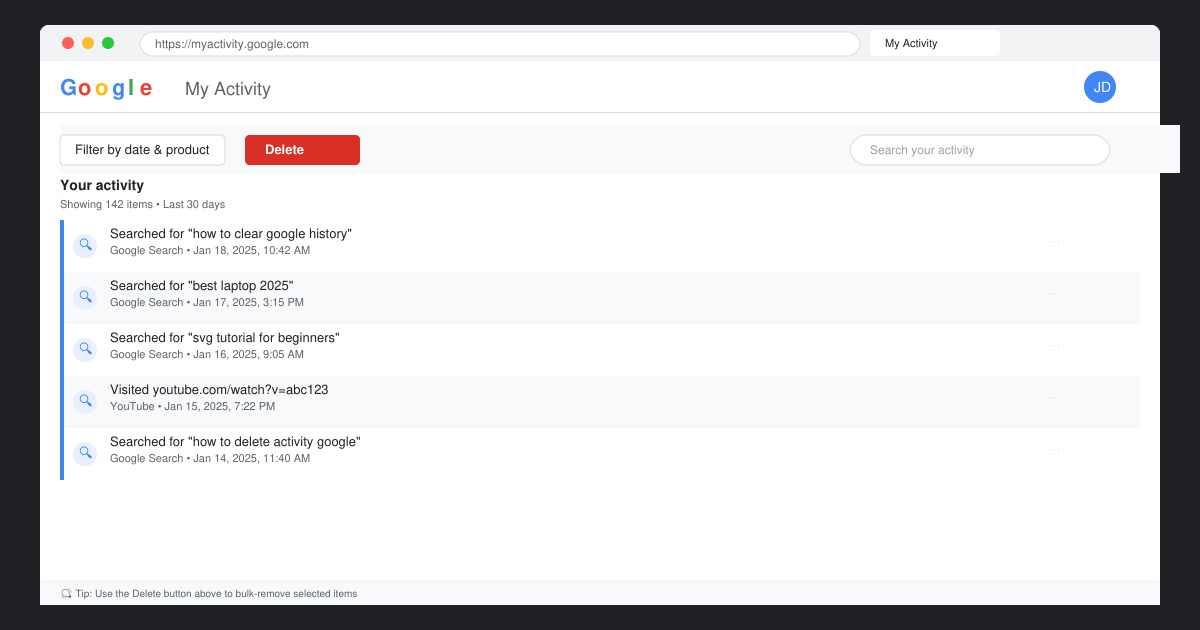
Open your browser and go directly to myactivity.google.com. Sign in with the correct Google account if prompted. You will see a timeline of recent searches and other activity.
-
Filter for search activity only
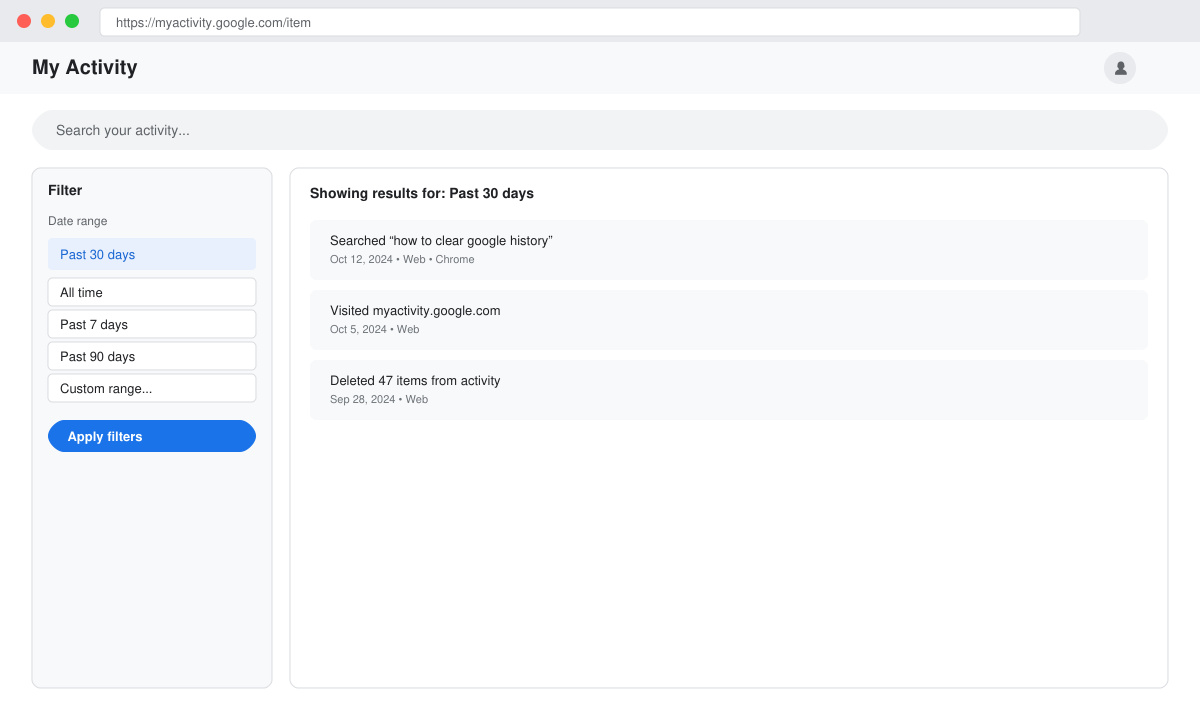
Click the Filter icon on the left sidebar. Select "Search" from the Product list and set a date range if you do not want to delete everything. Click Apply to narrow the results.
-
Delete individual items or bulk entries
For single entries, click the three-dot menu next to each search and choose Delete. For bulk removal, click the three-dot menu at the top and select Delete results or Delete activity by.
-
Confirm and verify deletion
Google will ask for confirmation. Click Delete to finish. Refresh the page to confirm the selected searches no longer appear in the list.
How to Clear Search History in Google on Mobile
-
Open the Google app and navigate to settings
Launch the Google app on your phone. Tap your profile picture in the top right, then tap Manage your Google Account. Scroll to Data & privacy and select My Activity.
-
Apply filters and delete
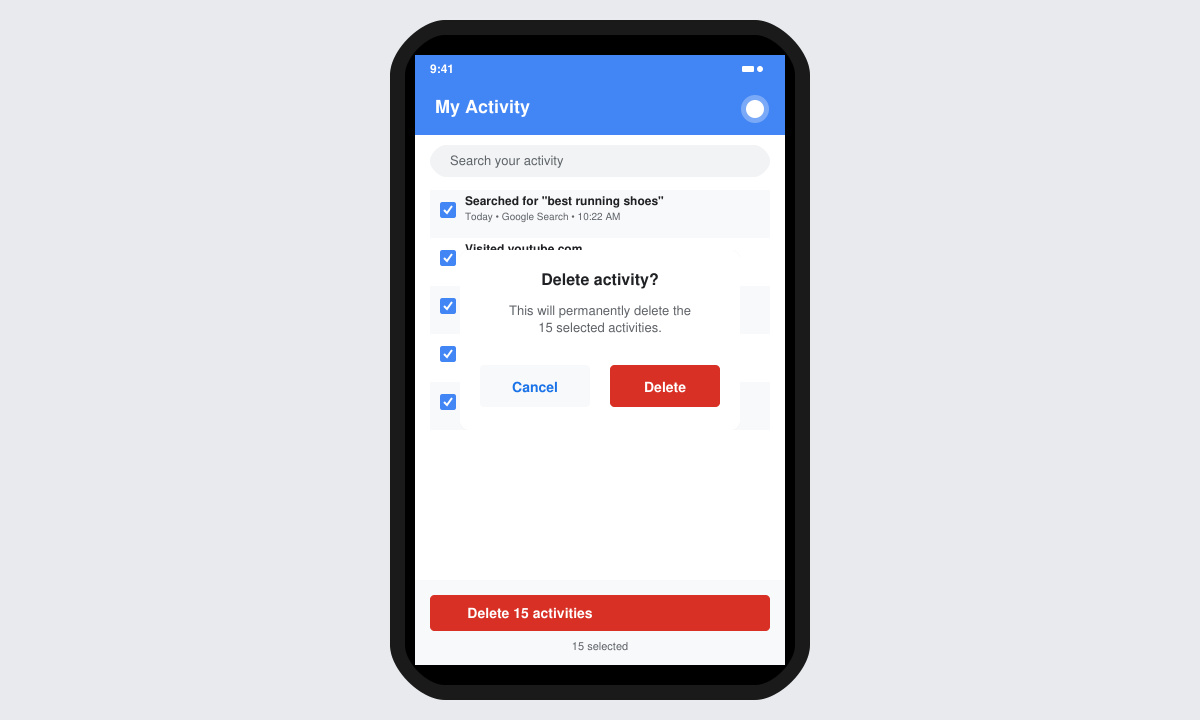
Tap the three-line menu, choose Filter by date & product, select Search, and apply. Use the trash icon or three-dot menu to delete individual or multiple items at once.
-
Turn off future activity if desired
Return to Data & privacy, tap Web & App Activity, and toggle the setting off to stop Google from saving new searches.
Tips and Common Issues
- If you cannot see the Delete button, ensure you are signed into the correct account and that the activity is not older than Google's retention policies allow.
- Deleting from one device removes the data across all devices linked to the same Google account.
- Voice searches made through Google Assistant also appear here; filter by product to remove them separately.
- After deletion, wait a few minutes for changes to fully sync before checking search suggestions again.
- For recurring cleanups, set a reminder to visit My Activity every few weeks instead of relying on automatic deletion.
FAQ
Does clearing search history in Google affect my saved passwords?
No. Passwords are stored separately in Google Password Manager and remain untouched when you delete search activity.
Can I recover deleted search history?
Once you confirm deletion in My Activity, the data is permanently removed and cannot be restored through standard Google tools.
Will this stop personalized ads completely?
Clearing history reduces personalization, but ad settings must be adjusted separately in the Ads section of your Google Account for full control.
Conclusion
Following these steps lets you clear search history in Google efficiently while keeping full control over your account data.









