Adding a functional QR code to marketing materials, social graphics, or presentations takes just a few clicks inside Canva. How to create a QR code in Canva requires no external tools or coding. This guide walks through the precise menu paths so you can generate, style, and export a working code directly in your project.
Why Add a QR Code in Canva Designs
QR codes let viewers instantly open a website, form, or file by scanning with their phone camera. Canva’s built-in element places a live, trackable code inside any template without leaving the editor. You can link it to any URL and change colors to match your brand before exporting.
Before starting, make sure you have a Canva account (free or Pro) and know the exact destination URL the code should open. No extra apps or plugins are needed.
How to Create a QR Code in Canva
-
Open or create your design and search for the QR element
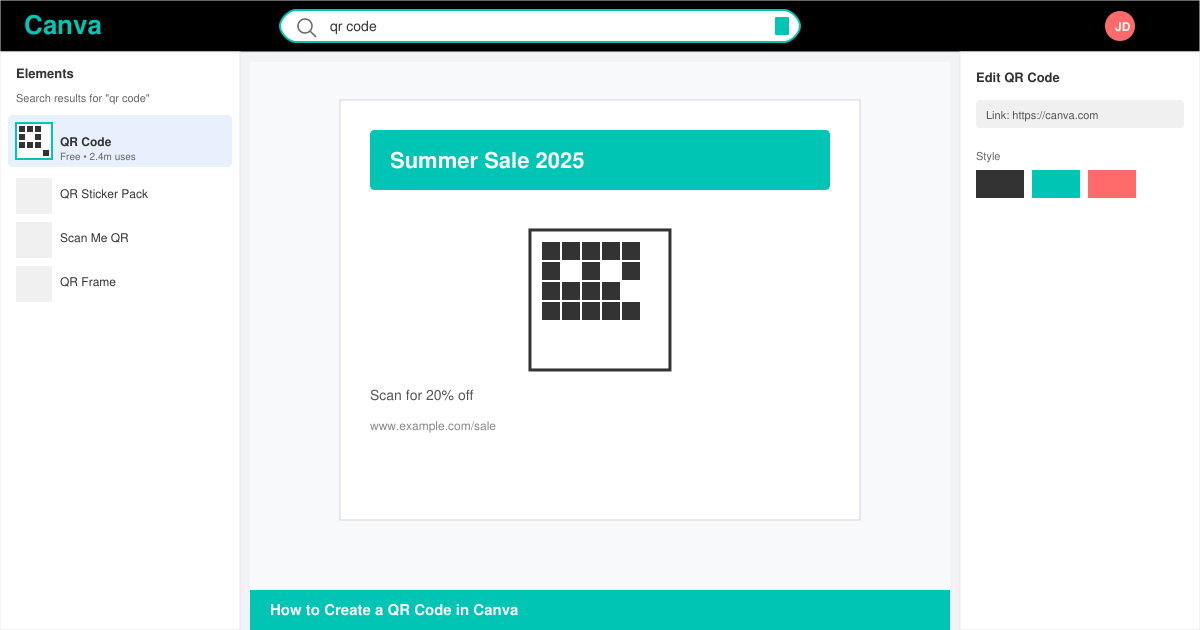
Log into Canva and either open an existing design or click Create a design to start a new one. In the left sidebar, type “QR code” into the search bar under Elements. Click the official QR code result that appears at the top of the list.
-
Place the QR code and enter your URL
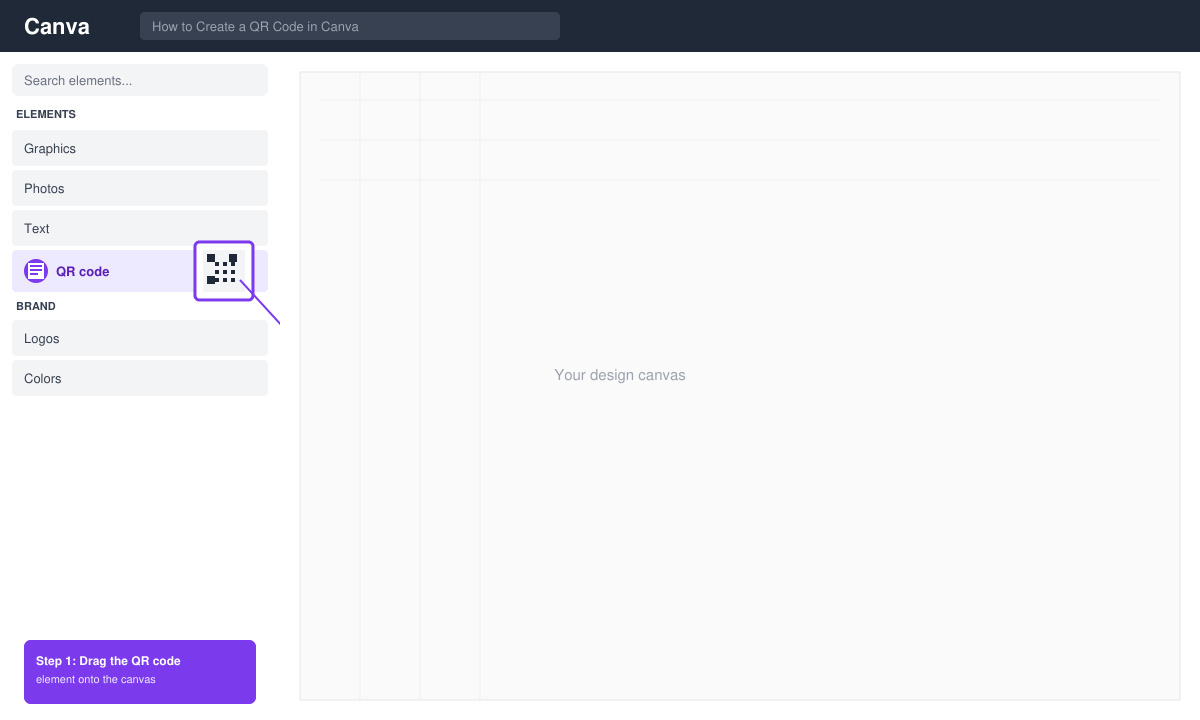
Drag the QR code element onto your canvas. A small panel opens on the right; paste your full destination URL into the field labeled “Link” and press Enter. Canva instantly generates the scannable pattern.
-
Customize colors and style
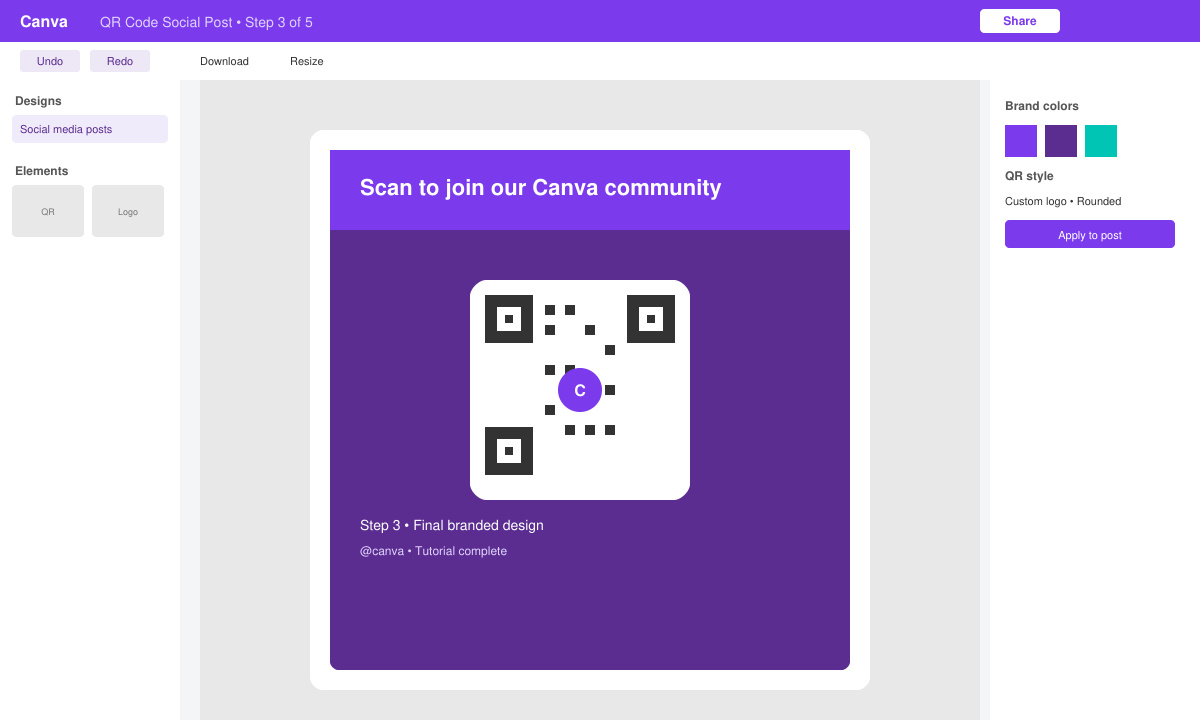
Select the QR code, then use the color picker in the top toolbar to change the foreground squares to your brand color. You can also adjust corner radius or add a subtle background shape from the same panel if needed.
-
Download or share the finished design
Click the Share button in the top right, then choose Download. Select PNG or PDF Print for best quality. The QR code remains fully functional in the exported file.
Common Mistakes and Quick Fixes
- If the QR code does not scan, double-check that the URL includes “https://” and contains no typos.
- Colors that are too light or low-contrast often fail on printed materials; always test the exported file with a phone camera before sending to print.
- Free Canva accounts can generate QR codes; however, only Pro users can upload their own brand fonts or remove the Canva watermark on certain templates.
- Never stretch the QR code after placing it; keep proportions locked so the pattern stays readable.
FAQ
Can I track scans from a QR code made in Canva?
Canva itself does not provide scan analytics. Use a URL shortener with tracking (such as Bitly) before pasting the link into the QR element.
Does the QR code work after I download the design?
Yes. The code stays active as long as the destination URL remains live. Test it on multiple devices before final use.
Can I create a QR code in Canva that links to a file instead of a webpage?
Upload the file to Google Drive or Dropbox first, set sharing to “Anyone with the link,” then paste that share URL into Canva’s QR field.
Conclusion
Once you know the exact steps, how to create a QR code in Canva becomes a fast addition to any project. Follow the process above and your designs will include working, on-brand QR codes every time.









