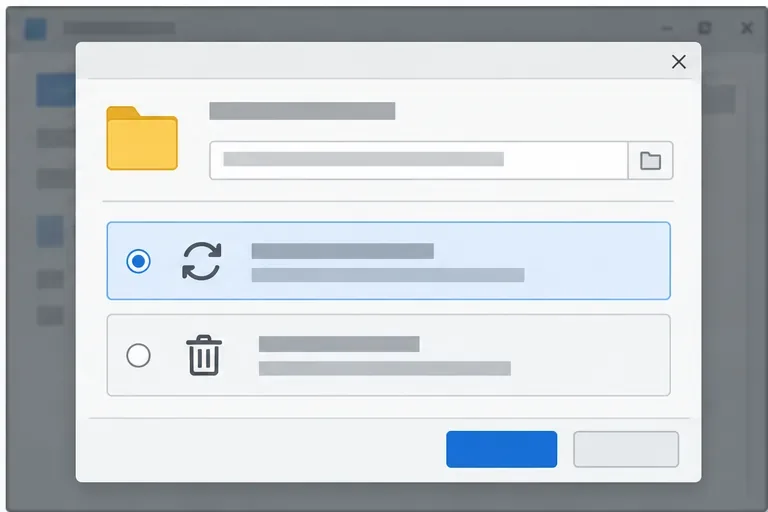
LibreOffice Document Locked by Unknown User: A Safe Fix
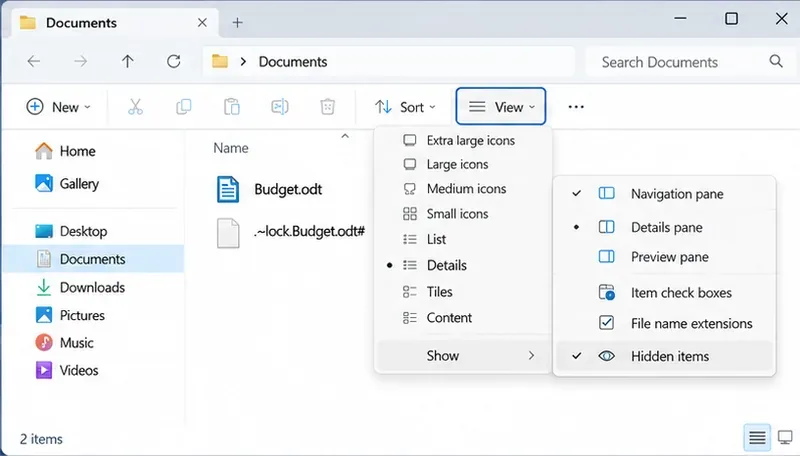
Find the cause of a LibreOffice document lock, safely clear a stale lock file, and confirm that you can edit and save without losing changes.
Sent an email to the wrong person or spotted a typo right after hitting Send? Outlook lets you recall a sent email — but only if both you and the recipient use Microsoft Exchange or Microsoft 365, and the message hasn't been read yet. Here's how to do it in under two minutes.
Google Chrome saves your visited sites, search terms, cookies, and cached images to speed up future visits and personalize results. This data lives both locally on your device and in your Google account when sync is enabled. Knowing where the information sits helps you choose exactly what to remove without losing important passwords or settings.
Before starting, decide whether you want to clear only local files or also delete activity stored in your Google Account. The process takes less than five minutes once you know the exact menus.
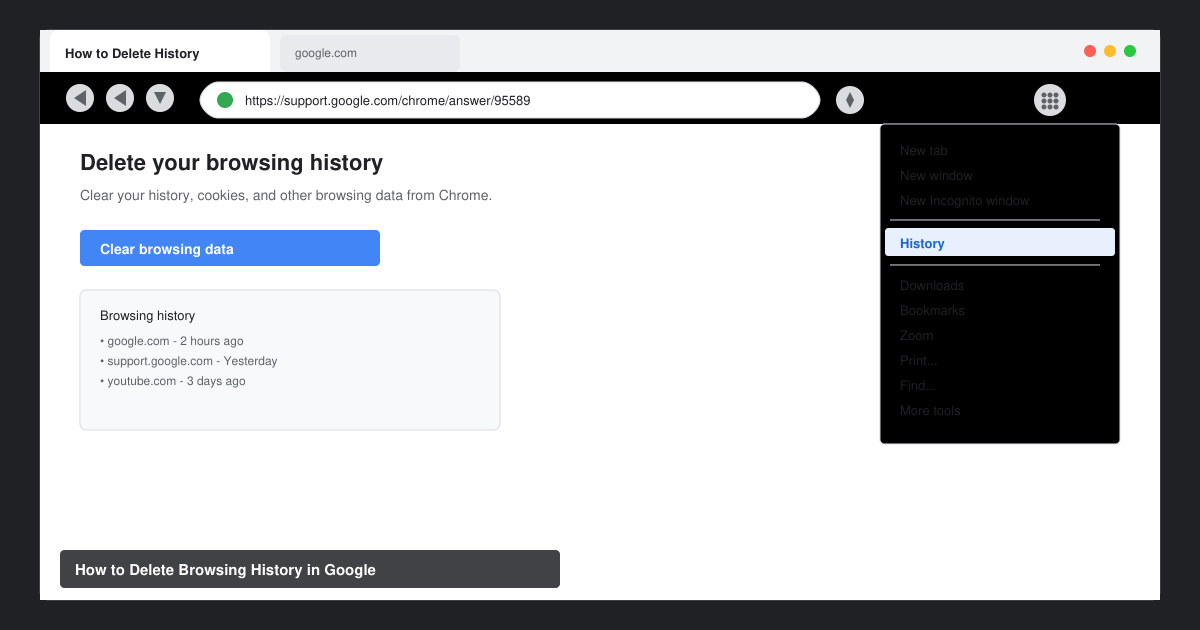
Launch Google Chrome on your computer or Android device. Click the three-dot menu in the top right corner, hover over More tools, then select Clear browsing data. On Android, tap the three-dot menu, choose History, then tap Clear browsing data at the bottom.
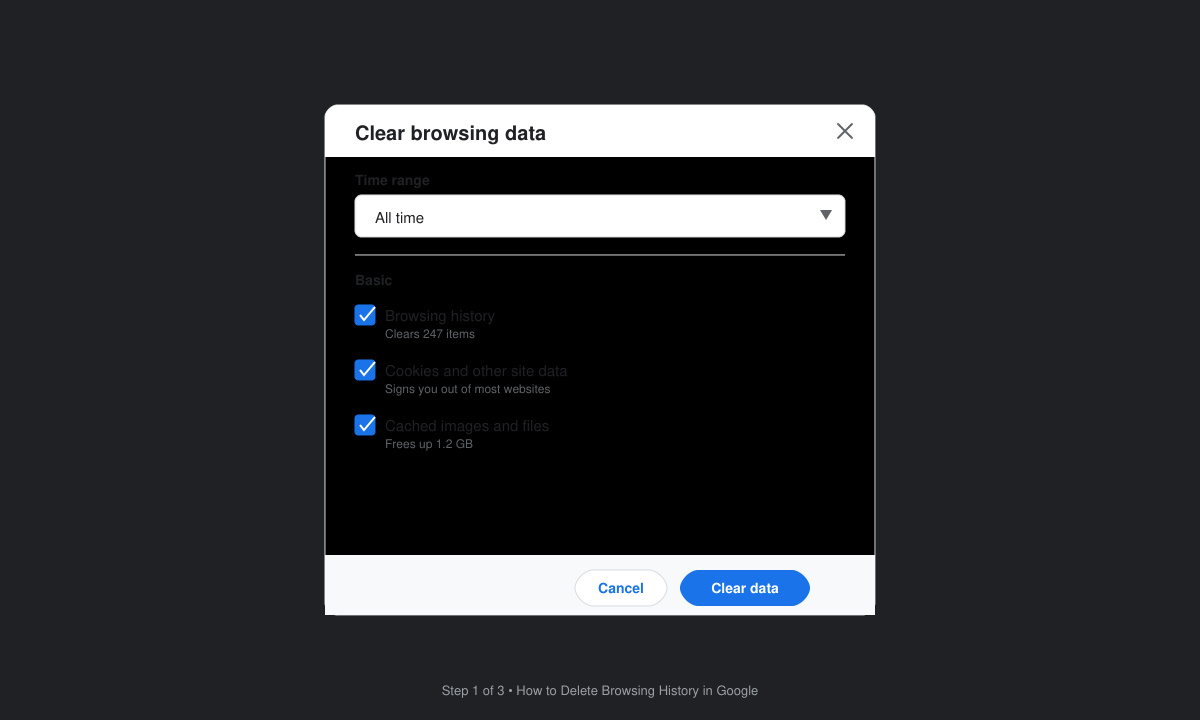
In the dialog that appears, set the Time range to All time if you want a full cleanup. Check the boxes for Browsing history, Cookies and other site data, and Cached images and files. Leave passwords and autofill data unchecked if you want to keep those.
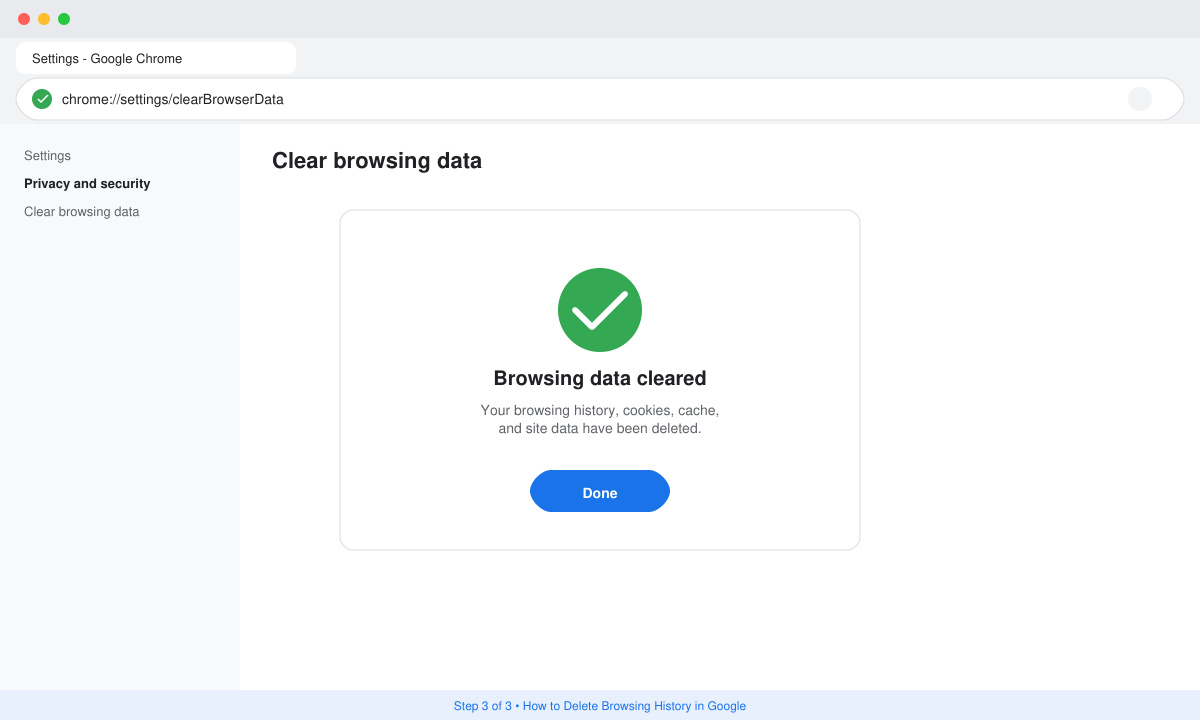
Click the Clear data button. Chrome immediately removes the selected items. You will see a brief confirmation message when the process finishes. On mobile, tap Clear data and confirm with your fingerprint or PIN if prompted.
If you want to stop Google from saving new history to your account, go to chrome://settings/sync and turn off Sync everything or individually disable Browsing history. This keeps future visits private even if you stay signed in.
No. Passwords stay saved unless you specifically check the Passwords and other sign-in data box in the Clear browsing data menu.
Yes. Visit myactivity.google.com in any browser, sign in, and use the Delete activity by option to remove searches and visits stored in the cloud.
Many sites will log you out and treat you as a new visitor until you sign in again. Bookmarks and extensions remain unaffected.
Regularly clearing your data in Google Chrome keeps your activity private and frees up disk space. Combine local clearing with occasional checks at myactivity.google.com for complete control.
Find the cause of a LibreOffice document lock, safely clear a stale lock file, and confirm that you can edit and save without losing changes.
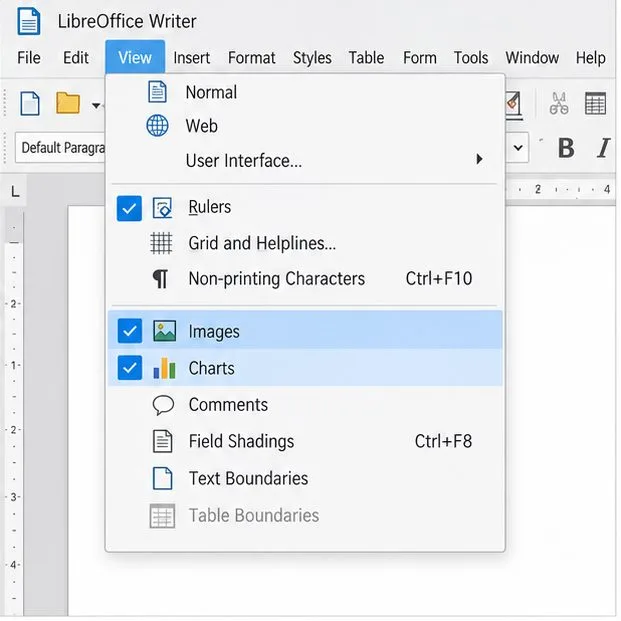
Make image-heavy Writer files easier to edit: test a reversible display setting, compress oversized pictures in a copy, and verify the saved layout.
Find out whether a slow launch comes from extensions, profile settings, or the system, then test the safest fix without losing LibreOffice data.
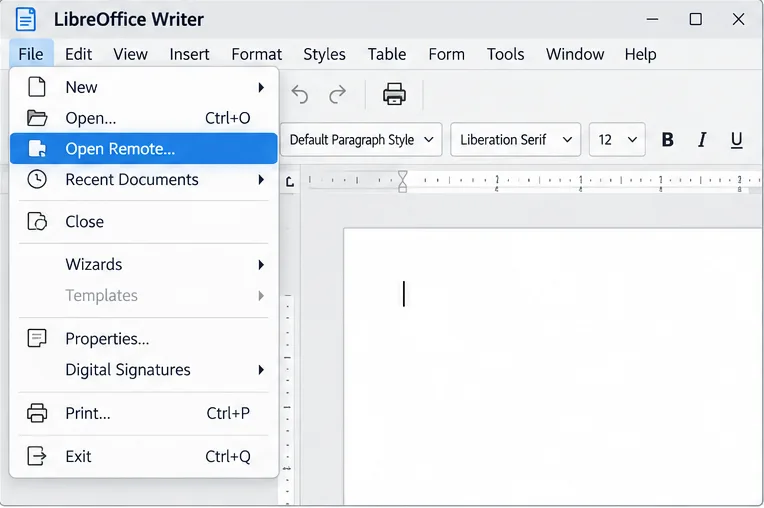
Connect LibreOffice to Nextcloud over WebDAV, save the server copy with Ctrl+S, and understand how AutoRecovery differs from cloud syncing.
Find out whether Pardus 23 is blocking Bluetooth, missing BlueZ, or failing to detect adapter firmware, then confirm the controller works.
Learn how Gooroom separates trusted and untrusted browsing, what users can change, and how an administrator can safely update site policies.
Diagnose rotated, offset, or inconsistent touch input on a Harmonica OS tablet and choose a Linux calibration method that fits its session and driver.
Switch Gooroom’s desktop session to English, verify the locale, and identify when untranslated Korean labels need an app update instead.
Arrange Pardus XFCE as a familiar bottom taskbar with an app menu, pinned launchers, open-window buttons, and a system tray.
Check your Gooroom release and administrator rules, then follow the official Debian-based setup path for Flatpak or Snap without bypassing system controls.