How to Find BitLocker Recovery Key in Windows 10

BitLocker is a full-disk encryption tool available to Windows 10 Pro, Enterprise, and Education users. You can use it to lock the contents of your hard drive away from prying eyes , keeping it safe with virtually unbreakable mathematical security.

BitLocker secures your drives with a strong, unique password that acts as an encryption key. But what happens if you lose your BitLocker password? Will you lose your data forever?

Luckily, you can use a Bitlocker Recovery Key to unlock your drive again. Here's how to find your BitLocker recovery key on Windows 10 and your Microsoft account.

What is BitLocker Recovery Key?

BitLocker Recovery Key, also known as Microsoft recovery key or Windows recovery key, is a special key that is automatically generated when setting up BitLocker encryption on a specific drive.

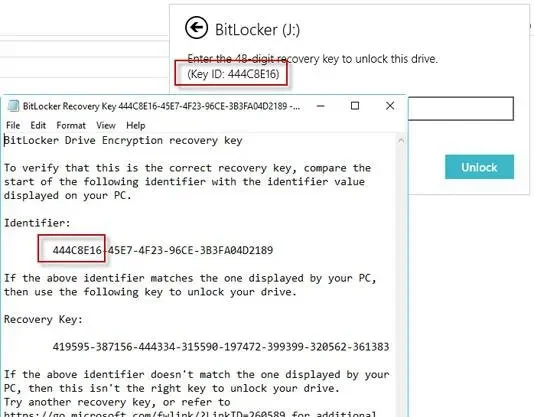
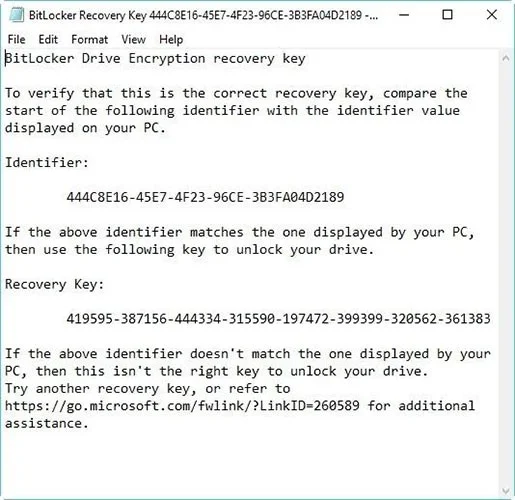
BitLocker Recovery Key is stored in a .BEK file named BitLocker Recovery Key 444C8E16-45E7-4F23-96CE-3B3FA04D2189.BEK as shown below:

How to Find BitLocker Recovery Key in Windows 10
BitLocker Recovery Key

BitLocker recovery key format: 419595-387156-44334-315590-197472-399399-320562-361383.

BitLocker recovery key is used to unlock BitLocker encrypted drive when you forget BitLocker password or BitLocker password is not working.

Where and how to find BitLocker Recovery Key?

Microsoft's BitLocker drive encryption process always forces you to save your BitLocker recovery key when you set it up. You may have stored it online with your Microsoft account, saved it to a USB drive, saved it to a file, or printed it out, etc. So there are a few different ways you can find your recovery key.

How to find BitLocker recovery key? Refer to the following 6 ways:

Option 1: In your Microsoft account

To retrieve the recovery key stored online with your Microsoft account, visit: https://account.microsoft.com/devices/recoverykey ( Previously http://windows.microsoft.com/recoverykey ).

Sign in with your Microsoft account and then you will see the recovery key.

Option 2: Find the BitLocker recovery key on a USB

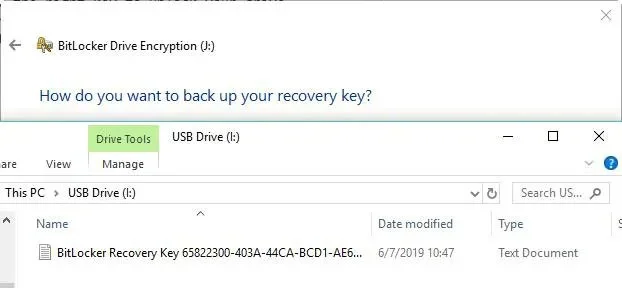
To find the BitLocker recovery key, plug that USB into your computer and view it.

How to Find BitLocker Recovery Key in Windows 10
Find BitLocker recovery key on USB

Option 3: Find BitLocker recovery key in txt file

The BitLocker Recovery Key may be saved as a txt file on your computer. If you haven't deleted it, search your computer for BitLocker Recovery Key.txt .

Find BitLocker recovery key in txt file

If you have deleted that BitLocker Recovery Key.txt file, download free data recovery software iBoysoft Data Recovery to scan your computer now to recover it.

Option 4: Find the BitLocker recovery key in the documentation

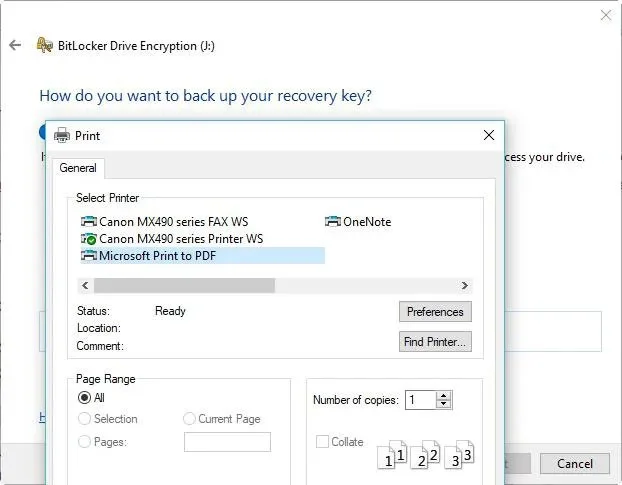
If you printed your BitLocker recovery key using "Microsoft Print to PDF", search for the pdf file on your computer.

How to Find BitLocker Recovery Key in Windows 10
Find the BitLocker recovery key in the document

If you can't find that pdf file by Windows search function, download free data recovery software iBoysoft Data Recovery to scan your computer now to get back lost pdf file.

Option 5: Find the BitLocker recovery key in Active Directory

If you are a domain user, the BitLocker recovery key may be saved in Active Directory (AD) , contact your admin to get it.

BitLocker Recovery Password Viewer can locate and view BitLocker recovery keys stored in Active Directory (AD).

Instructions for viewing BitLocker recovery keys in Active Directory:

  • In Active Directory Users and Computers , locate and then click the container that contains the computer. For example, click the Computers container.
  • Right-click the computer object, and then select Properties.
  • In the ComputerName Properties dialog box , click the BitLocker Recovery tab to view the BitLocker recovery keys associated with the specific computer.

Option 6: In your Azure Active Directory account

For a PC at work that you sign in to with an Azure Active Directory account, view the device information for your Microsoft Azure account and get a recovery key.

How to verify if the BitLocker recovery key is correct

To verify that the BitLocker recovery key is correct, compare the beginning of the full BitLocker recovery key identifier with the recovery key ID value. See the example below:

How to Find BitLocker Recovery Key in Windows 10
Compare keys

BitLocker Recovery Key ID is a code that identifies the BitLocker recovery key. If the BitLocker Recovery Key ID matches the ID displayed on your drive, you can unlock the drive.

If the BitLocker Recovery Key ID does not match the ID displayed on your drive, then the BitLocker recovery key does not match the drive and cannot unlock it. In that case, you need to find the correct BitLocker recovery key.

How to find the BitLocker Recovery Key ID value?

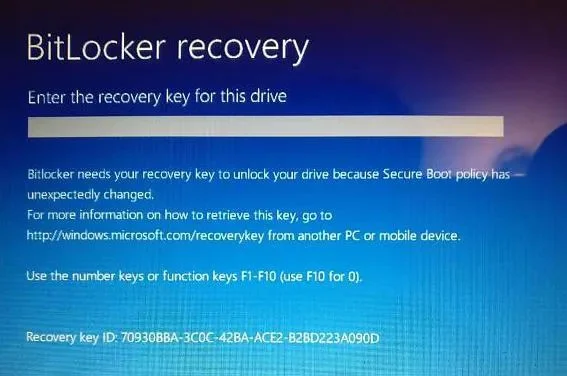
For BitLocker-encrypted operating system volumes, the BitLocker Recovery Key ID is displayed on the BitLocker recovery screen.

How to Find BitLocker Recovery Key in Windows 10
Find the BitLocker Recovery Key ID value

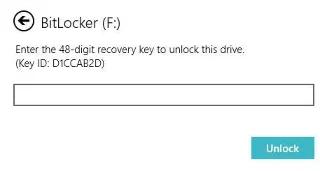
For BitLocker encrypted data drives, the BitLocker Recovery Key ID is displayed when the user clicks "More options" , then enters the recovery key in the wizard to unlock the BitLocker encrypted drive.

How to Find BitLocker Recovery Key in Windows 10
Enter recovery key

How to use BitLocker Recovery Key ID to unlock the drive

BitLocker Recovery Key ID is just a BitLocker recovery key identifier, it cannot unlock BitLocker encrypted drive. In this case, you still need to find BitLocker recovery key by key ID.

How to get BitLocker Recovery Key with key ID

If you can find the BitLocker recovery key txt file or have saved the BitLocker recovery key in your Microsoft, AD, or Azure AD account, you can find the correct BitLocker recovery key by key ID. Otherwise, there is no way to get the BitLocker recovery key.
Sign up and earn $1000 a day ⋙

Leave a Comment

Fix Windows Error Code 0xc0000098: Backup ACPI.sys to Prevent Boot Failure

Fix Windows Error Code 0xc0000098: Backup ACPI.sys to Prevent Boot Failure

Error code 0xc0000098 in Windows causes a blue screen error on startup. The ACPI.sys driver is often to blame, especially on unsupported versions of Windows 11 like 23H2 or 22H2 or Windows 10.

Quickly fix Windows 10/8/7 computer error that freezes and cannot exit Safe Mode

Quickly fix Windows 10/8/7 computer error that freezes and cannot exit Safe Mode

In some cases, sometimes you start your computer in Safe Mode and the computer freezes. So how to fix the error in this case, please refer to the article below of WebTech360.

How to fix Snipping Tool keeps showing error

How to fix Snipping Tool keeps showing error

Snipping Tool is a powerful photo and video capture tool on Windows. However, this tool sometimes has some errors, such as constantly displaying on the screen.

How to get the fastest internet connection from your router

How to get the fastest internet connection from your router

Every network has a router to access the Internet, but not everyone knows how to make the router work better. In this article, we will introduce some router tips to help speed up the wireless connection in the network.

Common Mistakes When Performing Internet Speed ​​Tests

Common Mistakes When Performing Internet Speed ​​Tests

If the results seem slower than expected, don't be too quick to blame your ISP - mistakes when performing the test can skew your numbers.

What is QoS? How to use QoS for faster Internet speeds when you need it most

What is QoS? How to use QoS for faster Internet speeds when you need it most

In the article below, we will introduce and guide you to learn about the concept of QoS - Quality of Service on router devices.

Why cant this built-in Credential Manager feature in Windows replace a password manager?

Why cant this built-in Credential Manager feature in Windows replace a password manager?

Windows has a built-in Credential Manager, but it's not what you think it is—and certainly not a replacement for a password manager.

How to install free HEVC codecs on Windows 10 (for H.265 video)

How to install free HEVC codecs on Windows 10 (for H.265 video)

Microsoft charges for its official codecs and doesn't include them in Windows 10. However, you can get them for free without pulling out your credit card and spending $0.99.

Instructions to fix Access Denied error when accessing files or folders on Windows

Instructions to fix Access Denied error when accessing files or folders on Windows

While having trouble accessing files and folders can be frustrating, don't panic—with a few simple tweaks, you can regain access to your system.

How to check if USB Boot has been created successfully?

How to check if USB Boot has been created successfully?

After creating a USB boot to install Windows, users should check the USB boot's performance to see if it was created successfully or not.

4 Types of Windows Data That Are Growing in Size: How to Control Them?

4 Types of Windows Data That Are Growing in Size: How to Control Them?

Although Windows Storage Sense efficiently deletes temporary files, some types of data are permanent and continue to accumulate.

How to turn off background apps in Windows 11, reduce RAM consumption on Win 11

How to turn off background apps in Windows 11, reduce RAM consumption on Win 11

You can turn off Windows 11 background apps to optimize performance, save battery and reduce RAM consumption.

Instructions to fix the error “Network path was not found” in Windows

Instructions to fix the error “Network path was not found” in Windows

When a computer, mobile device, or printer tries to connect to a Microsoft Windows computer over a network, for example, the error message network path was not found — Error 0x80070035 may appear.

How to block Internet connection of Windows 10 software and applications

How to block Internet connection of Windows 10 software and applications

We can block Internet access for any application or software on the computer, while other programs can still access the network. The following article will guide readers on how to disable Internet access for software and applications on Windows.

How to Stay Safe on Windows 10 Until 2030

How to Stay Safe on Windows 10 Until 2030

Instead of paying $30 for a year of security updates, keep Windows 10 safe until 2030 with this simple solution.