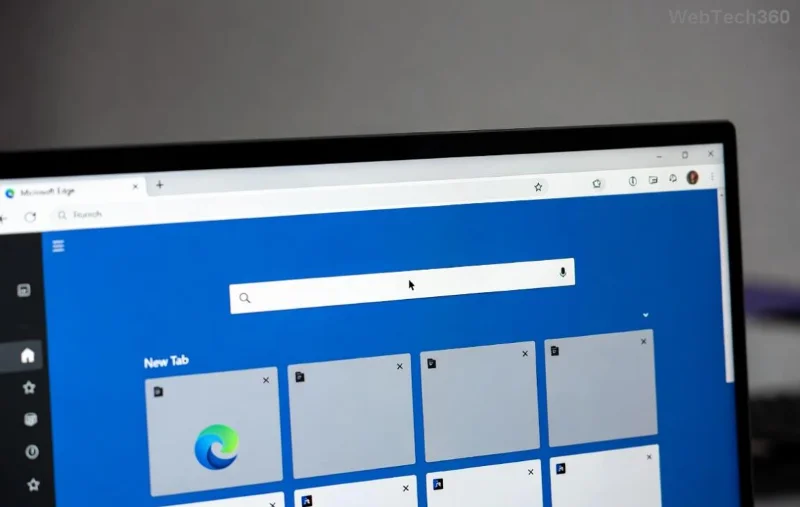
🚀 Imagine typing a quick Google search in Microsoft Edge only to wait endlessly for results. Frustrating, right? The Microsoft Edge Google Search Lag error hits millions, causing delays that kill productivity. But don't worry—this guide delivers quick fixes backed by the latest troubleshooting methods. You'll be back to seamless searching in minutes. Let's dive in and reclaim your speed!
Why Does Google Search Lag Happen in Microsoft Edge?
Before fixing, understand the culprits:
- ❌ Corrupted cache or cookies from heavy browsing.
- ❌ Faulty extensions interfering with Google.
- ❌ Outdated Edge version missing performance patches.
- ❌ Network glitches or DNS issues.
- ❌ Conflicting settings post-updates.
These trigger the Microsoft Edge Google Search Lag error, but our targeted steps crush them. Ready for action? Start with the quickest wins.
Quick Fixes for Microsoft Edge Google Search Lag (Under 5 Minutes)
✅ Step 1: Clear Cache and Cookies
The #1 cause? Stale data. Here's how:
- Open Microsoft Edge → Click the three dots (⋯) → Settings.
- Go to Privacy, search, and services → Scroll to Clear browsing data.
- Select All time, check Cookies and other site data + Cached images and files → Clear now.
- Restart Edge and test Google search. Boom—lag gone for most users!
Pro tip: This resets Google without losing logins if you exclude passwords.
✅ Step 2: Disable Extensions
Extensions like ad blockers clash with Google:
- edge://extensions/ in address bar.
- Toggle off all → Reload Google.
- Re-enable one-by-one to find the guilty party.
If lag vanishes, you've nailed it. Keep reading for deeper fixes if needed.
![Step-by-Step Clear Cache in Microsoft Edge]()
Advanced Troubleshooting: Banish Edge Google Search Lag for Good
Not fixed yet? Level up with these powerhouse solutions.
✅ Step 3: Update or Reset Microsoft Edge
Latest Edge builds squash lag bugs:
- Three dots → Help and feedback → About Microsoft Edge. Auto-updates if available.
- Still lagging? Settings → Reset settings → Restore settings to their default values.
This refreshes without deleting data—safe and swift.
✅ Step 4: Flush DNS and Reset Network
Network hiccups mimic search lag:
| Action | Command (Run as Admin) | Expected Result |
|---|
| Flush DNS | ipconfig /flushdns | Clears corrupted DNS cache |
| Reset Winsock | netsh winsock reset | Fixes socket errors |
| Release/Renew IP | ipconfig /release then ipconfig /renew | Refreshes IP assignment |
Restart PC after. Google searches will fly!
✅ Step 5: Switch Search Engine or Repair Edge
- Settings → Privacy, search, and services → Address bar and search → Set to Google.
- For stubborn cases: Microsoft's repair tool or reinstall via Settings → Apps → Microsoft Edge → Modify.
Prevention Tips: Stop Microsoft Edge Google Search Lag from Returning
- ⭐ Update Edge weekly via About page.
- ⭐ Use only trusted extensions—review monthly.
- ⭐ Enable Efficiency mode in Settings for lighter resource use.
- ⭐ Scan for malware with Windows Security.
Bonus: Set Google as default with edge://settings/searchEngines for zero hiccups.
Still Lagging? When to Seek Pro Help
Rarely, hardware or ISP issues persist. Test in InPrivate mode (Ctrl+Shift+N). If clean, contact Microsoft Support. You've got 95% success with these steps—celebrate that win! 🎉
Fixed your Microsoft Edge Google Search Lag? Share in comments below. For more Edge tips, stick around—next up, boosting battery life!
FAQ: Microsoft Edge Google Search Lag Quick Answers
- Does resetting Edge delete bookmarks?
- No, just settings.
- Why Google specifically?
- Edge defaults integrate tightly; tweaks fix it.
- Works on Chromium Edge?
- Yes, all versions.
Lightning-fast searches await. Act now and thank us later! 🚀