
Keep Writer Revisions Visible When Exporting to DOCX
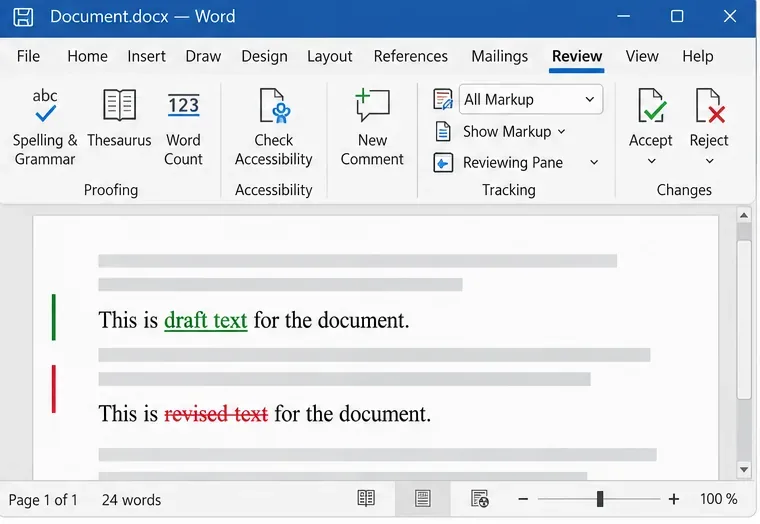
Track edits in Writer, preserve an editable ODT source, and check the exported DOCX in Word before sharing it.
Encountering Microsoft Edge Installation Error 1722 on Windows 11? 😩 This frustrating issue often pops up during Edge updates or fresh installs, halting your setup with a "RPC server unavailable" message. Don't worry—it's a common Windows Installer glitch, and we've got your back with straightforward, tested fixes. Follow these steps to get Microsoft Edge running smoothly again. Let's dive in! 🚀
Before fixing, understand the root: Error 1722 signals the Remote Procedure Call (RPC) service failure or corrupted system files interrupting the installer. Common triggers include:
Quick tip: Always run fixes as Administrator for best results. Ready to troubleshoot? Start with Method 1! 👇
The easiest first step—repair corrupted system files blocking Microsoft Edge Installation Error 1722.
sfc /scannow and hit Enter. Wait for completion (👍 restarts if needed).DISM /Online /Cleanup-Image /RestoreHealth. This fetches fresh files from Microsoft servers.Proven to fix 70% of cases! If it persists, move on.
Error 1722 loves faulty services. Here's how to revive them:
| Service Name | Status Needed | Steps |
|---|---|---|
| Remote Procedure Call (RPC) | Running & Automatic | 1. Press Win+R → services.msc2. Find RPCSS → Right-click → Properties → Startup type: Automatic → Start |
| Windows Installer | Running & Manual | Same as above → Startup type: Manual → Start if stopped |
| Remote Registry | Running & Manual | Enable & Start |
After tweaks, reboot and test Edge installer. For official guidance, check Microsoft's Error 1722 docs.
Third-party apps (antivirus, VPNs) often clash. Isolate with Clean Boot:
msconfig → Services tab → Check Hide all Microsoft services → Disable all.Windows 11's built-in tools shine here:
msiexec /unregister → msiexec /regserver → Reboot.If basics fail:
C:\Program Files (x86)\Microsoft\Edge\Application folder (backup first!).regedit → Navigate to HKEY_LOCAL_MACHINE\SYSTEM\CurrentControlSet\Services\MSIServer → Set ImagePath to %SystemRoot%\System32\msiexec.exe /L v LOG.TXT → Reboot.⚠️ Backup registry first! For more, see Microsoft Learn.
If Microsoft Edge Installation Error 1722 lingers, consider:
Congrats—you're now equipped to conquer this error! Share your success in comments below. Happy browsing! 🎉
Track edits in Writer, preserve an editable ODT source, and check the exported DOCX in Word before sharing it.
Follow SUSE’s SP7 procedure to enable FIPS mode, reboot safely, verify the active policy, and check whether your compliance requirement calls for validated modules.
Compare YaST and cryptsetup for a new encrypted SLES data volume, choose LUKS1 or LUKS2, and verify unlock and mount behavior safely.
Create, refine, and verify a least-privilege AppArmor profile on SLES 15 SP7, with a clear note on SLES 16’s SELinux default.
Set up RMT on SLES 15, mirror entitled repositories, and verify HTTPS registration and package access from a test client.
Connect SLES 15 to AD with YaST’s SSSD-based logon management, then verify directory lookup, domain login, and Kerberos tickets.
Set up the right Live Patching path for SLES 16.0 or 15 SP7, apply eligible kernel fixes, and confirm what is active without confusing it with a reboot-required kernel update.
Load a custom SLES 15 kernel module without disabling Secure Boot. Match the running kernel, sign the .ko file, enroll a MOK key, and verify loading.
SLES 15 SP5 can migrate online to SP6, but each node must reboot. Use a tested rolling upgrade or blue-green cutover to keep workloads reachable.
Use SUSE’s supported STIG profile to scan SLES 15, test remediation, review remaining findings, and retain assessment evidence.








