How to fix network adapter not found error on Windows 10

It is frustrating when the Internet stops working. Many people experience this problem because the network adapter disappears from the Device Manager or they receive a message that the network adapter is missing.
There are many reasons for this problem such as recently installed software having problems, malware infecting the computer, etc.

This article will guide you how to fix the problem of missing network adapter driver on Windows 10.

How to fix lost network adapter error

1. Restart your computer

If there's one magic cure in the world of technology, it's rebooting your device. Restarting your computer can fix a lot of common problems. Try rebooting your Windows 10 device to see if your adapter is back.

2. Put your laptop in sleep mode

Some users reported that putting the laptop in sleep mode by closing the lid for a while can also solve the problem of not seeing the network adapter.

How to fix network adapter not found error on Windows 10

3. Remove the power cable

Another solution is to leave the power source unplugged for a while. To do this, turn off the computer and unplug the power cable, wait at least 10 seconds, then plug in the power cable and turn the computer on.

4. Remove the battery

Removing the battery may force the laptop's motherboard to perform a soft reset of its settings, thus solving any problems. If your computer supports a removable battery, turn it off, then remove the battery cover and leave the battery out for a few seconds. Put it back in and power on the laptop. Hopefully the network adapter will come back on.

5. Network Troubleshooting

Windows 10 provides a troubleshooter that can fix many problems. Follow the steps below to fix network adapter problems.

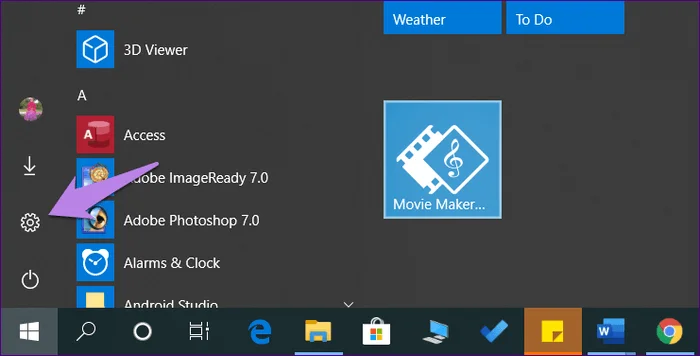
Step 1 . Open Settings from the Start menu or press Win+ I.

How to fix network adapter not found error on Windows 10

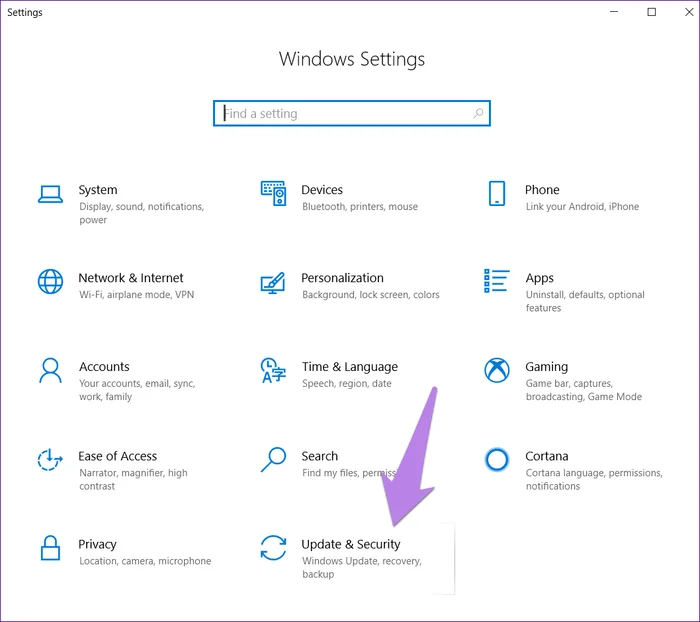
Step 2. Click on Update & Security .

How to fix network adapter not found error on Windows 10

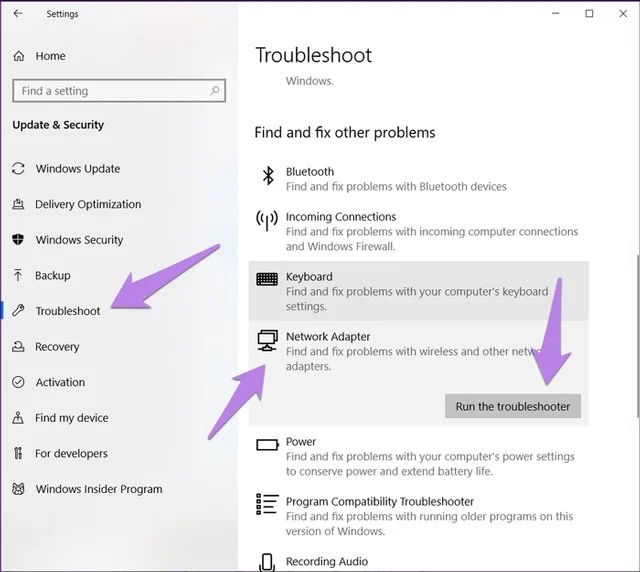
Step 3 . Select Troubleshoot from the left sidebar. Scroll down and click Network Adapter > Run the troubleshooter on the right. Follow the on-screen instructions to start the troubleshooting process.

How to fix network adapter not found error on Windows 10

Tip: Type troubleshoot in Windows search to directly open the Troubleshoot screen.

6. Update network driver

If your network adapter is showing up in Device Manager, you can try updating it. Sometimes this is a problem caused by a bug in the driver version installed on your system. Therefore, updating may fix the problem of missing network adapter.

To upgrade, follow these steps:

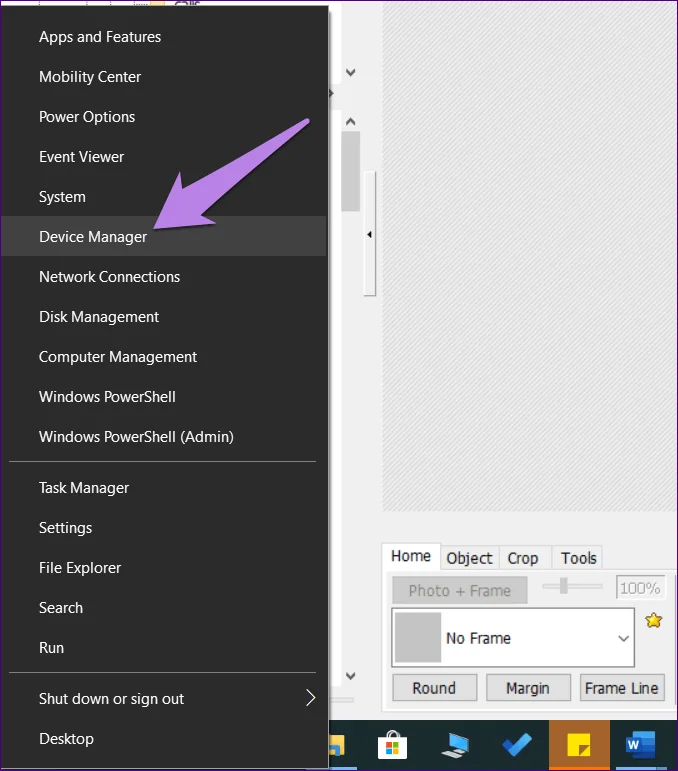
Step 1 . Right-click the Start menu icon and select Device Manager . Alternatively, you can press Win+ R, type devmgmt.msc and press Enter .

How to fix network adapter not found error on Windows 10

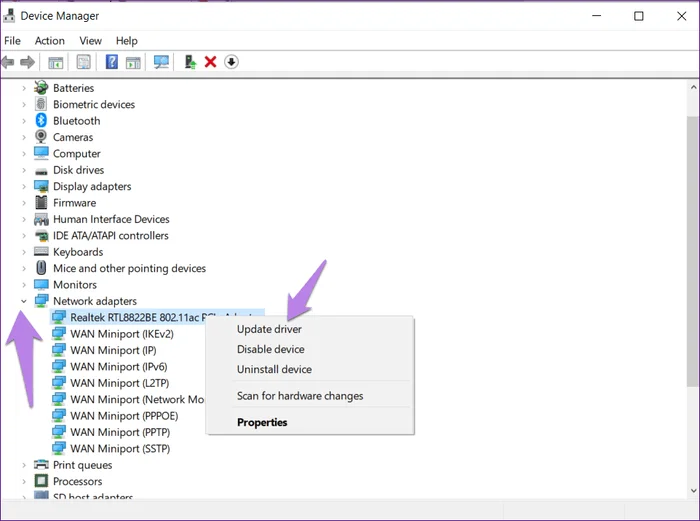
Step 2. Click on the small down arrow next to Network adapters . Right-click on your network adapter. It is usually Realtek/Broadcom or has the word wireless next to it. Select Update driver . Complete the process and restart your computer.

How to fix network adapter not found error on Windows 10

7. Uninstall or revert to the previous version of the network adapter driver

If updating the driver does not resolve the issue, revert to the previous version or uninstall it. If uninstalled, the system will automatically install the driver after restarting.

To uninstall, follow the steps to update the driver. However, after right-clicking on the driver, select Uninstall device .

How to fix network adapter not found error on Windows 10

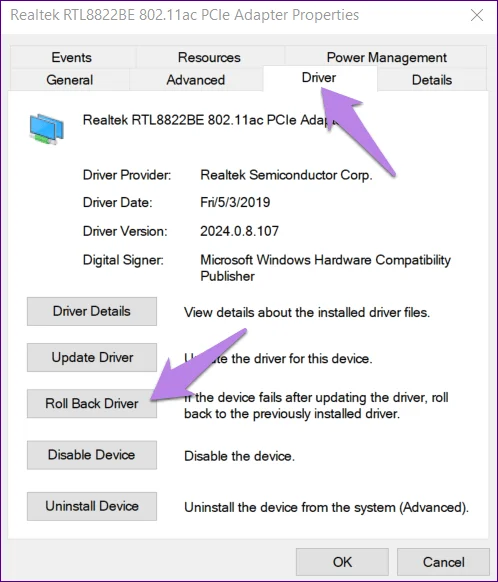
To roll back to a previous driver version, click Properties after right-clicking the driver. In Properties , go to the Driver tab and click Roll Back Driver , then restart the system.

How to fix network adapter not found error on Windows 10

8. Enable driver

Sometimes the driver gets disabled and that is why you cannot connect to the Internet. To fix this problem just enable the driver.

Open Device Manager , then right-click on the network driver in Network adapters and select Enable driver .

9. Install driver

In case you don't see the driver in Network adapters, you need to find it in Other devices or Unknown devices . It will have a yellow icon next to it. Right-click on the driver and select Update driver , then restart the device.

10. Show hidden drivers in Device Manager

If the network adapter does not appear after trying the above methods, it may be hidden.

To make it visible, follow the steps below.

Step 1. Open Device Manager by right-clicking on the Start Menu icon.

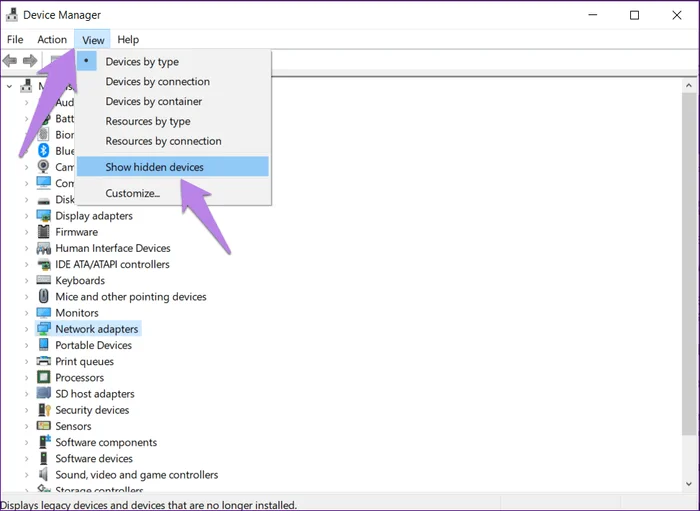
Step 2. In Device Manager, click on the View option in the toolbar at the top and select Show hidden devices .

How to fix network adapter not found error on Windows 10

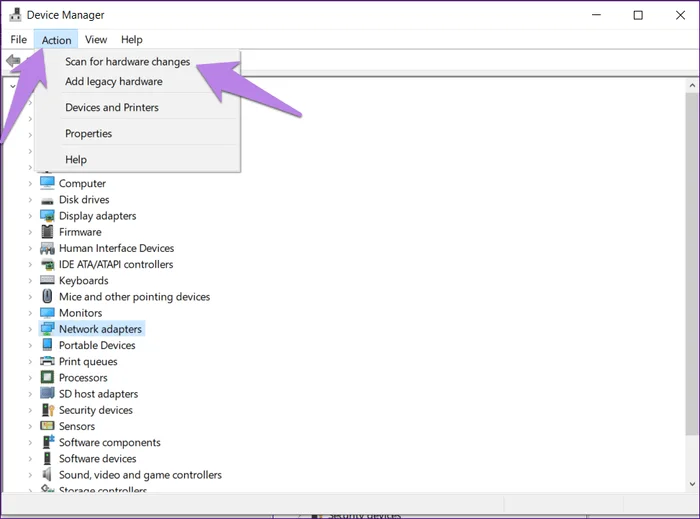
Step 3. Click on the Action option and select Scan for hardware changes .

How to fix network adapter not found error on Windows 10

Step 4. If the adapter appears in the list under Unknown devices update it.

11. Check physical network node

Make sure to turn off airplane mode on your system. You should also check the physical button for Wifi, which is used to turn on Wifi.

12. Disable VPN and antivirus software

If you use a VPN on your computer, try disabling or uninstalling it for a period of time, then restarting your computer.

Similarly, disable your antivirus software or check for updates. Then restart your computer if prompted.

13. Reset network settings

Finally, if none of the above work, reset network settings. This will restore all network settings to their default values.

To reset the network, follow these steps:

Step 1. Open Settings on your computer.

Tip: Use the Win+ shortcut Ito open Settings.

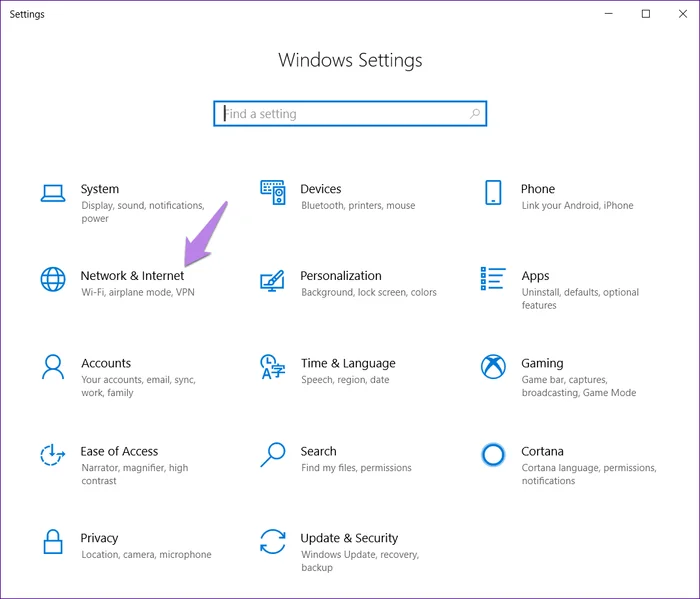
Step 2. Click on Network and Internet .

How to fix network adapter not found error on Windows 10

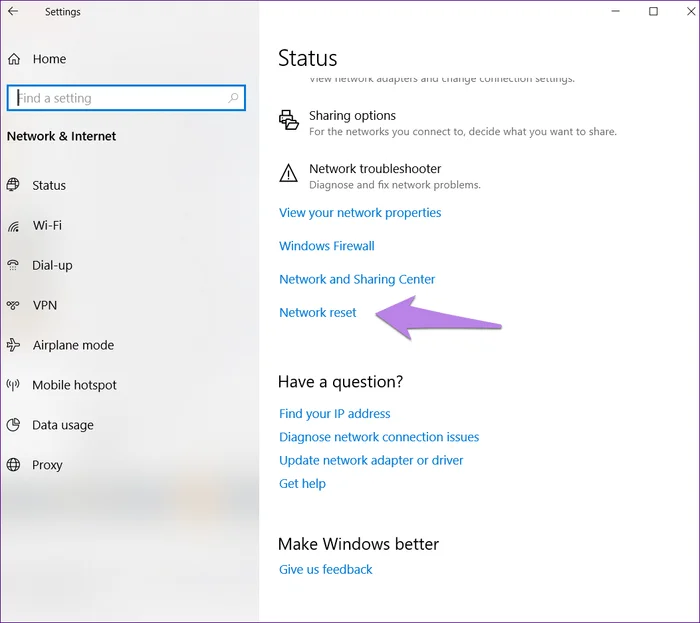
Step 3 . Scroll down on the Status screen and click on Network reset .

How to fix network adapter not found error on Windows 10

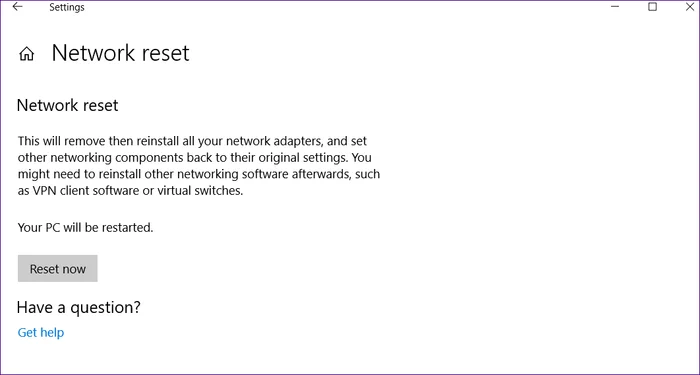
Step 4. Confirm your decision by clicking Reset now .

How to fix network adapter not found error on Windows 10

14. Check Power Management settings

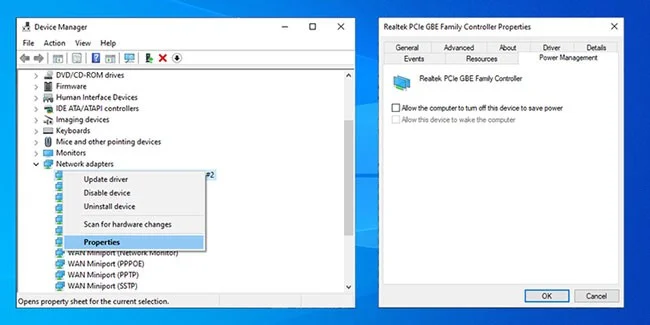
If you're using a laptop, Windows 10 turns off some features when your battery is low or when battery saver mode is turned on. Follow these steps to check your Power Management settings :

Step 1 : Right-click Start > Device Manager .

Step 2 : Expand the Network adapters list.

Step 3 : Right-click on your network adapter and select Properties.

Step 4 : Open the Power Management tab.

Step 5 : Uncheck Allow the computer to turn off this device to save power .

Step 6 : Click Apply > OK to save the changes.

How to fix network adapter not found error on Windows 10
Check Power Management settings

15. Reset Winsock settings

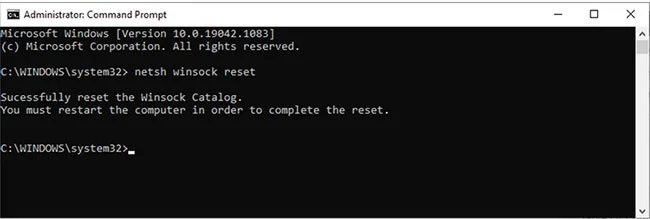
Winsock is a programming interface and a support program that defines how Windows networking software uses its network services. If there is a problem with the Winsocks files, it can lead to network adapters disappearing from Windows 10. Here is how to reset the Winsock data:

Step 1 : In the Start menu search bar , search for command prompt and select Run as administrator to open CMD with admin rights .

Step 2 : In the Command Prompt window , type the following command, then press Enter :

netsh winsock reset

Step 3 : Restart your PC or laptop to save the changes.

How to fix network adapter not found error on Windows 10
Reset Winsock settings

16. Clean up network devices

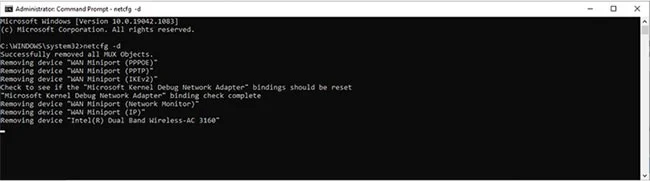
If the previous method doesn't work, you can follow these steps to clean up network devices using Command Prompt:

Step 1 : Press Win + R to open the Run window .

Step 2 : In the Run window , type cmd and press Ctrl + Shift + Enter to run Command Prompt with admin rights.

Step 3 : In Command Prompt, type:

netcfg -d

Step 4 : Restart your device and check if you see the network adapter.

How to fix network adapter not found error on Windows 10
Clean up network devices

17. Check Windows 10 background services

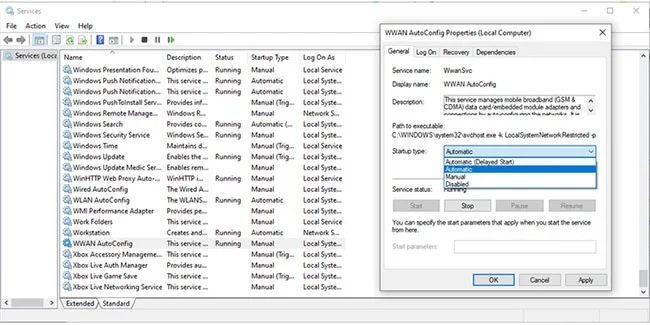
Network drivers may be missing because a service running in the background has stopped working properly. Follow these steps to manage it manually:

Step 1 : In the Start menu search bar , search for services and select the best match.

Step 2 : In the Services menu , locate and open WWAN AutoConfig.

Step 3 : Check if the service status is running. If not, click Start to start running it.

Step 4 : Set Startup type to Automatic.

Step 5 : Click Apply > OK to save the changes.

Step 6 : Restart your device and check if the missing driver is now available.

How to fix network adapter not found error on Windows 10
Check Windows 10 background services

Hopefully, the above solutions will bring back the network adapter on your PC. In case the network adapter is still not visible, you should check for Windows updates. Sometimes the network adapter is not compatible with the current version of Windows. To check for available updates go to Settings > Update and Security .

Good luck!

Tags: #System
Sign up and earn $1000 a day ⋙

Leave a Comment

Fix Windows Error Code 0xc0000098: Backup ACPI.sys to Prevent Boot Failure

Fix Windows Error Code 0xc0000098: Backup ACPI.sys to Prevent Boot Failure

Error code 0xc0000098 in Windows causes a blue screen error on startup. The ACPI.sys driver is often to blame, especially on unsupported versions of Windows 11 like 23H2 or 22H2 or Windows 10.

Quickly fix Windows 10/8/7 computer error that freezes and cannot exit Safe Mode

Quickly fix Windows 10/8/7 computer error that freezes and cannot exit Safe Mode

In some cases, sometimes you start your computer in Safe Mode and the computer freezes. So how to fix the error in this case, please refer to the article below of WebTech360.

How to fix Snipping Tool keeps showing error

How to fix Snipping Tool keeps showing error

Snipping Tool is a powerful photo and video capture tool on Windows. However, this tool sometimes has some errors, such as constantly displaying on the screen.

How to get the fastest internet connection from your router

How to get the fastest internet connection from your router

Every network has a router to access the Internet, but not everyone knows how to make the router work better. In this article, we will introduce some router tips to help speed up the wireless connection in the network.

Common Mistakes When Performing Internet Speed ​​Tests

Common Mistakes When Performing Internet Speed ​​Tests

If the results seem slower than expected, don't be too quick to blame your ISP - mistakes when performing the test can skew your numbers.

What is QoS? How to use QoS for faster Internet speeds when you need it most

What is QoS? How to use QoS for faster Internet speeds when you need it most

In the article below, we will introduce and guide you to learn about the concept of QoS - Quality of Service on router devices.

Why cant this built-in Credential Manager feature in Windows replace a password manager?

Why cant this built-in Credential Manager feature in Windows replace a password manager?

Windows has a built-in Credential Manager, but it's not what you think it is—and certainly not a replacement for a password manager.

How to install free HEVC codecs on Windows 10 (for H.265 video)

How to install free HEVC codecs on Windows 10 (for H.265 video)

Microsoft charges for its official codecs and doesn't include them in Windows 10. However, you can get them for free without pulling out your credit card and spending $0.99.

Instructions to fix Access Denied error when accessing files or folders on Windows

Instructions to fix Access Denied error when accessing files or folders on Windows

While having trouble accessing files and folders can be frustrating, don't panic—with a few simple tweaks, you can regain access to your system.

How to check if USB Boot has been created successfully?

How to check if USB Boot has been created successfully?

After creating a USB boot to install Windows, users should check the USB boot's performance to see if it was created successfully or not.

4 Types of Windows Data That Are Growing in Size: How to Control Them?

4 Types of Windows Data That Are Growing in Size: How to Control Them?

Although Windows Storage Sense efficiently deletes temporary files, some types of data are permanent and continue to accumulate.

How to turn off background apps in Windows 11, reduce RAM consumption on Win 11

How to turn off background apps in Windows 11, reduce RAM consumption on Win 11

You can turn off Windows 11 background apps to optimize performance, save battery and reduce RAM consumption.

Instructions to fix the error “Network path was not found” in Windows

Instructions to fix the error “Network path was not found” in Windows

When a computer, mobile device, or printer tries to connect to a Microsoft Windows computer over a network, for example, the error message network path was not found — Error 0x80070035 may appear.

How to block Internet connection of Windows 10 software and applications

How to block Internet connection of Windows 10 software and applications

We can block Internet access for any application or software on the computer, while other programs can still access the network. The following article will guide readers on how to disable Internet access for software and applications on Windows.

How to Stay Safe on Windows 10 Until 2030

How to Stay Safe on Windows 10 Until 2030

Instead of paying $30 for a year of security updates, keep Windows 10 safe until 2030 with this simple solution.

Fix Windows Error Code 0xc0000098: Backup ACPI.sys to Prevent Boot Failure

Fix Windows Error Code 0xc0000098: Backup ACPI.sys to Prevent Boot Failure

Error code 0xc0000098 in Windows causes a blue screen error on startup. The ACPI.sys driver is often to blame, especially on unsupported versions of Windows 11 like 23H2 or 22H2 or Windows 10.

Quickly fix Windows 10/8/7 computer error that freezes and cannot exit Safe Mode

Quickly fix Windows 10/8/7 computer error that freezes and cannot exit Safe Mode

In some cases, sometimes you start your computer in Safe Mode and the computer freezes. So how to fix the error in this case, please refer to the article below of WebTech360.

How to fix Snipping Tool keeps showing error

How to fix Snipping Tool keeps showing error

Snipping Tool is a powerful photo and video capture tool on Windows. However, this tool sometimes has some errors, such as constantly displaying on the screen.

How to get the fastest internet connection from your router

How to get the fastest internet connection from your router

Every network has a router to access the Internet, but not everyone knows how to make the router work better. In this article, we will introduce some router tips to help speed up the wireless connection in the network.

Common Mistakes When Performing Internet Speed ​​Tests

Common Mistakes When Performing Internet Speed ​​Tests

If the results seem slower than expected, don't be too quick to blame your ISP - mistakes when performing the test can skew your numbers.

What is QoS? How to use QoS for faster Internet speeds when you need it most

What is QoS? How to use QoS for faster Internet speeds when you need it most

In the article below, we will introduce and guide you to learn about the concept of QoS - Quality of Service on router devices.

Why cant this built-in Credential Manager feature in Windows replace a password manager?

Why cant this built-in Credential Manager feature in Windows replace a password manager?

Windows has a built-in Credential Manager, but it's not what you think it is—and certainly not a replacement for a password manager.

How to install free HEVC codecs on Windows 10 (for H.265 video)

How to install free HEVC codecs on Windows 10 (for H.265 video)

Microsoft charges for its official codecs and doesn't include them in Windows 10. However, you can get them for free without pulling out your credit card and spending $0.99.

Instructions to fix Access Denied error when accessing files or folders on Windows

Instructions to fix Access Denied error when accessing files or folders on Windows

While having trouble accessing files and folders can be frustrating, don't panic—with a few simple tweaks, you can regain access to your system.

How to check if USB Boot has been created successfully?

How to check if USB Boot has been created successfully?

After creating a USB boot to install Windows, users should check the USB boot's performance to see if it was created successfully or not.

4 Types of Windows Data That Are Growing in Size: How to Control Them?

4 Types of Windows Data That Are Growing in Size: How to Control Them?

Although Windows Storage Sense efficiently deletes temporary files, some types of data are permanent and continue to accumulate.

How to turn off background apps in Windows 11, reduce RAM consumption on Win 11

How to turn off background apps in Windows 11, reduce RAM consumption on Win 11

You can turn off Windows 11 background apps to optimize performance, save battery and reduce RAM consumption.

Instructions to fix the error “Network path was not found” in Windows

Instructions to fix the error “Network path was not found” in Windows

When a computer, mobile device, or printer tries to connect to a Microsoft Windows computer over a network, for example, the error message network path was not found — Error 0x80070035 may appear.

How to block Internet connection of Windows 10 software and applications

How to block Internet connection of Windows 10 software and applications

We can block Internet access for any application or software on the computer, while other programs can still access the network. The following article will guide readers on how to disable Internet access for software and applications on Windows.

How to Stay Safe on Windows 10 Until 2030

How to Stay Safe on Windows 10 Until 2030

Instead of paying $30 for a year of security updates, keep Windows 10 safe until 2030 with this simple solution.