LibreOffice Document Locked by Unknown User: A Safe Fix
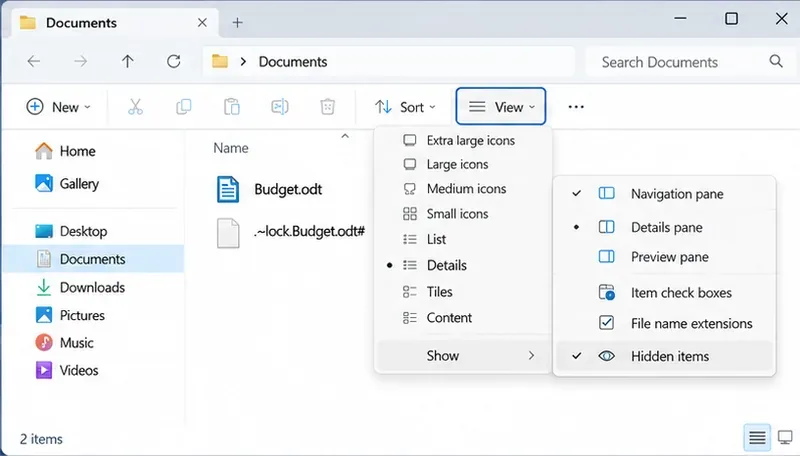
Find the cause of a LibreOffice document lock, safely clear a stale lock file, and confirm that you can edit and save without losing changes.
Encountering the frustrating Windows 11 "DirectX 12 Unsupported" error can halt your gaming sessions or app launches in their tracks. Whether you're a casual player or a hardcore gamer, this issue often stems from outdated drivers, corrupted files, or compatibility glitches. Don't worry—I've got your back! This concise guide walks you through reliable, up-to-date solutions to resolve the DirectX 12 error on Windows 11 quickly and painlessly. By the end, you'll be back to seamless performance. Let's dive in and reclaim your setup! 😊
Understanding the root of the problem empowers you to fix it faster. The DirectX 12 unsupported error typically arises because DirectX 12 is Microsoft's graphics API essential for modern games and applications. On Windows 11, it's built-in, but errors occur due to:
Spotting these triggers early can prevent bigger headaches. If you're seeing messages like "Your GPU doesn't support DirectX 12" or crashes in games like Fortnite or Cyberpunk 2077, it's time to act. Stick with me—the fixes below are tested and effective for the latest Windows builds.
We'll start with the simplest methods and escalate to advanced ones. Follow these in order for the best results. Pro tip: Create a system restore point before starting to safeguard your setup. Ready? Let's troubleshoot! 👆
The most common culprit is outdated drivers. Updating them often resolves the DirectX 12 unsupported issue instantly.
Why this works: Fresh drivers include DirectX 12 optimizations. Many users report 90% success with this alone. If it doesn't cut it, keep going! 🌟

Windows 11 comes with DirectX 12, but reinstalling ensures all components are intact.
In dxdiag, check the Display tab for "DirectX 12" under Feature Levels. If it's listed, you're golden! This method is lightweight and safe for all Windows 11 editions.
Corrupted files can sabotage DirectX. Use built-in tools to scan and fix them.
sfc /scannow and wait for it to complete.DISM /Online /Cleanup-Image /CheckHealthDISM /Online /Cleanup-Image /ScanHealthDISM /Online /Cleanup-Image /RestoreHealthThese commands restore Windows integrity, often fixing DirectX 12 errors tied to system glitches. It's like a health check for your OS—quick and effective! 👍
Sometimes, DirectX features get disabled. Re-enable them to support DirectX 12 on Windows 11.
This ensures full DirectX compatibility, especially for older games. If you're on an older GPU, consider if hardware upgrade is needed—DirectX 12 requires at least a DirectX 11-compatible card, but Ultimate needs more.
If basics fail, try these:
| Fix | Steps | Why It Helps |
|---|---|---|
| Reset GPU Software | Open NVIDIA/AMD control panel > Manage 3D Settings > Restore defaults. For Intel, use Graphics Command Center. | Clears conflicting settings blocking DirectX 12. |
| Update Windows 11 | Go to Settings > Windows Update > Check for updates. Install any available patches. | Latest builds include DirectX enhancements for better support. |
| Clean Boot | Search "msconfig" > Services > Hide Microsoft > Disable all > Restart. Test app. | Isolates third-party software conflicts. |
These targeted tweaks address stubborn cases. For example, a recent Windows update improved DirectX 12 stability on integrated graphics.
After applying fixes, test with dxdiag or launch your problematic app. If the DirectX 12 unsupported error is gone, celebrate! 🎉 To avoid recurrence:
If nothing works, it might be hardware limitations. Check your specs against Microsoft's requirements or consult a pro. You've made it this far—your PC should be purring now. Got questions? Drop a comment below; happy gaming! 🚀
Find the cause of a LibreOffice document lock, safely clear a stale lock file, and confirm that you can edit and save without losing changes.
Make image-heavy Writer files easier to edit: test a reversible display setting, compress oversized pictures in a copy, and verify the saved layout.
Find out whether a slow launch comes from extensions, profile settings, or the system, then test the safest fix without losing LibreOffice data.
Connect LibreOffice to Nextcloud over WebDAV, save the server copy with Ctrl+S, and understand how AutoRecovery differs from cloud syncing.
Find out whether Pardus 23 is blocking Bluetooth, missing BlueZ, or failing to detect adapter firmware, then confirm the controller works.
Learn how Gooroom separates trusted and untrusted browsing, what users can change, and how an administrator can safely update site policies.
Diagnose rotated, offset, or inconsistent touch input on a Harmonica OS tablet and choose a Linux calibration method that fits its session and driver.
Switch Gooroom’s desktop session to English, verify the locale, and identify when untranslated Korean labels need an app update instead.
Arrange Pardus XFCE as a familiar bottom taskbar with an app menu, pinned launchers, open-window buttons, and a system tray.
Check your Gooroom release and administrator rules, then follow the official Debian-based setup path for Flatpak or Snap without bypassing system controls.