Speed Up Writer by Hiding and Compressing Document Images
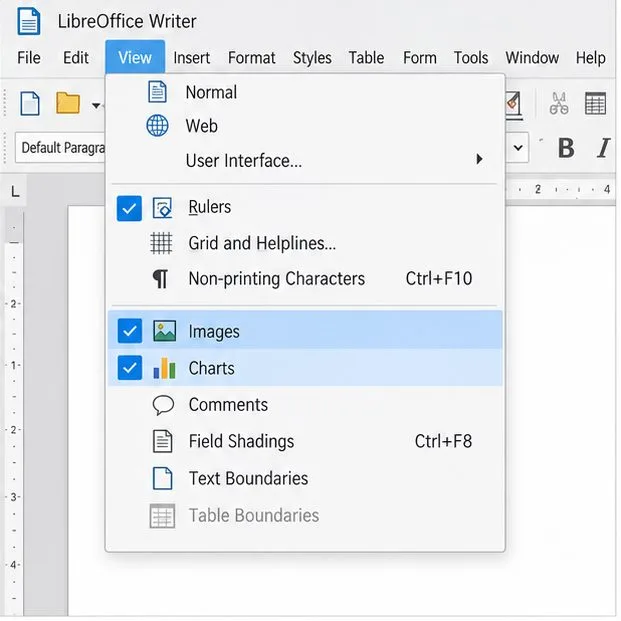
Make image-heavy Writer files easier to edit: test a reversible display setting, compress oversized pictures in a copy, and verify the saved layout.
Imagine diving into your favorite game, only to be yanked out of the immersion by frustrating micro stuttering—those tiny, jarring pauses that ruin the flow. If you're on Windows 11, you're not alone. This common issue stems from system optimizations, driver conflicts, or background processes, but the good news is it's fixable. In this guide, we'll tackle how to fix Windows 11 micro stuttering in games with straightforward, effective steps. By the end, you'll have a smoother gaming setup that feels rewarding and frustration-free. Let's get your gameplay back on track! 😊
Before we jump into fixes, understanding the root causes empowers you to troubleshoot smarter. Micro stuttering happens when your frame times spike inconsistently, often due to:
Recognizing these helps you target the problem directly. Now, let's roll up our sleeves and fix it step by step. Follow along, and you'll notice improvements quickly.

The most common culprit for Windows 11 micro stuttering in games is outdated GPU drivers. NVIDIA, AMD, and Intel release frequent updates to iron out bugs and boost efficiency. Skipping this step? You're leaving performance on the table.
Pro tip: Use tools like GeForce Experience or AMD Software for automatic updates—they scan for issues and optimize settings tailored to Windows 11 gaming. Users report up to 30% smoother frame delivery post-update. If stuttering persists, move to the next step.
Windows 11 prioritizes a polished interface, but features like visual effects and notifications can cause micro stuttering during gameplay. Tweaking these frees up CPU and GPU cycles for your games.
| Setting | How to Adjust | Benefit |
|---|---|---|
| Disable Game Mode (if causing issues) | Go to Settings > Gaming > Game Mode > Toggle off. | Prevents resource allocation glitches in some setups. |
| Turn Off Visual Effects | Search for "Performance Options" in Start > Adjust for best performance > Apply. | Reduces CPU load from animations, smoothing frame times. |
| Disable Hardware-Accelerated GPU Scheduling | Settings > System > Display > Graphics settings > Toggle off. | Fixes stuttering in DirectX 12 games; test both on/off. |
| Power Plan Optimization | Settings > System > Power & battery > Power mode > Best performance. | Ensures full hardware throttle during sessions. |
These changes are reversible, so experiment confidently. Many gamers find fixing micro stuttering in games by dialing back these options transforms choppy sessions into fluid adventures. Ready for more? Keep reading to monitor your system's health.
Overheating is a silent killer for performance. When your GPU or CPU throttles to cool down, it manifests as micro stuttering. Ensure good airflow and monitor temps.
If you're on a laptop, elevate it for better ventilation. These tweaks not only fix stutters but extend hardware life, giving you peace of mind. Feeling the progress? Let's dive into software-side solutions next.
Sometimes, the fix lies in fine-tuning. Windows 11 micro stuttering often eases with targeted adjustments.
For DirectX issues, run the DirectX Diagnostic Tool (dxdiag in Run prompt) to verify installations. These steps are quick wins—implement them, and you'll likely see immediate relief in titles like Cyberpunk 2077 or Valorant.
If basic steps don't cut it, go deeper. For reduce stuttering Windows 11, consider:
Persistent problems? Test with a clean boot (msconfig > Services > Hide Microsoft > Disable all) to isolate conflicts. As a last resort, a Windows reset keeps files intact while refreshing the OS.
Congratulations—you've now armed yourself with the tools to conquer Windows 11 micro stuttering in games. Start with drivers and settings tweaks for quick gains, then layer in hardware checks for lasting results. Gaming should be exhilarating, not exasperating, and these steps pave the way. If one fix sparks joy in your next session, that's a win! Share your success in the comments below—what game will you conquer first? For more optimization tips, stick around our site. Happy gaming! 🎮
Make image-heavy Writer files easier to edit: test a reversible display setting, compress oversized pictures in a copy, and verify the saved layout.
Find out whether a slow launch comes from extensions, profile settings, or the system, then test the safest fix without losing LibreOffice data.
Connect LibreOffice to Nextcloud over WebDAV, save the server copy with Ctrl+S, and understand how AutoRecovery differs from cloud syncing.
Find out whether Pardus 23 is blocking Bluetooth, missing BlueZ, or failing to detect adapter firmware, then confirm the controller works.
Learn how Gooroom separates trusted and untrusted browsing, what users can change, and how an administrator can safely update site policies.
Diagnose rotated, offset, or inconsistent touch input on a Harmonica OS tablet and choose a Linux calibration method that fits its session and driver.
Switch Gooroom’s desktop session to English, verify the locale, and identify when untranslated Korean labels need an app update instead.
Arrange Pardus XFCE as a familiar bottom taskbar with an app menu, pinned launchers, open-window buttons, and a system tray.
Check your Gooroom release and administrator rules, then follow the official Debian-based setup path for Flatpak or Snap without bypassing system controls.
Learn what Pardus Image Writer can do, how to prepare installation USB safely, and which tools fit custom live images or repeatable fleet deployments.