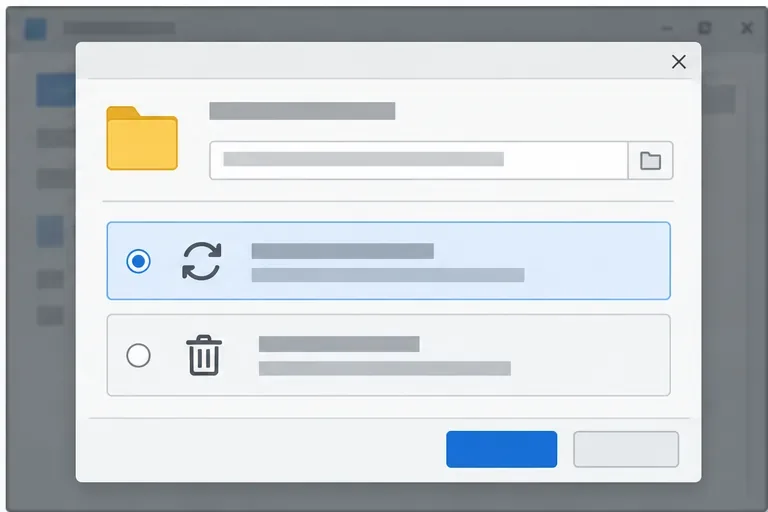
LibreOffice Document Locked by Unknown User: A Safe Fix
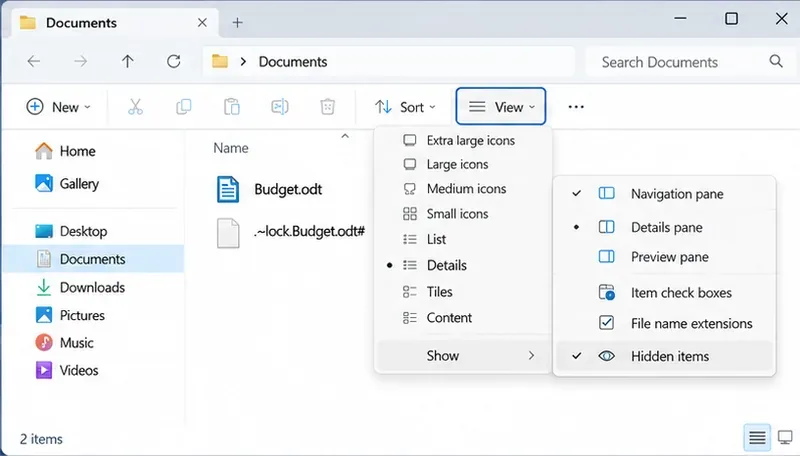
Find the cause of a LibreOffice document lock, safely clear a stale lock file, and confirm that you can edit and save without losing changes.
Imagine this: You're excited to grab the latest features for your Windows 11 PC, but bam! The dreaded "Windows Update Catalog Error" crashes the party. 😩 It's frustrating, right? This error often pops up when the update catalog – basically the library of available updates – fails to load or sync properly. Common culprits include corrupted files, network glitches, or even overzealous security software.
Don't worry, friend! We've got your back. In this straightforward guide, we'll walk you through reliable, up-to-date methods to fix Windows 11 "Windows Update" Catalog Error. These steps are based on the latest troubleshooting from Microsoft and tech experts, ensuring your system stays secure and up-to-date. By the end, you'll feel empowered and your PC will thank you. Let's dive in! 👇

Before we fix it, let's quickly unpack what this error means. The Windows Update Catalog Error typically appears as an error code like 0x80070005 or a vague "Something went wrong" message when trying to check for updates. It blocks your access to important security patches, feature upgrades, and bug fixes.
Key triggers include:
Recognizing these helps you stay calm – it's a common hiccup, not a catastrophe. Now, let's roll up our sleeves and tackle it step by step. Follow along, and you'll be back on track in no time. Ready? ⭐
Your first line of defense is Microsoft's own tool: the Windows Update Troubleshooter. It's like a smart doctor that diagnoses and heals common Windows Update woes automatically. No downloads needed – it's already on your system!
Pro tip: Restart your PC after this. Many users report this simple step resolves the catalog error instantly! If it doesn't, no sweat – we're just getting started. 😊
If the troubleshooter falls short, it's time to reset the Windows Update components. This flushes out corrupted files without harming your data. Think of it as a fresh start for your update engine.
⚠️ Important: You'll need admin rights. Close all apps and run these as administrator via Command Prompt (search for "cmd" in the Start menu, right-click, and select "Run as administrator").
Copy-paste these commands one by one, pressing Enter after each:
net stop wuauserv
net stop cryptSvc
net stop bits
net stop msiserver
ren C:\Windows\SoftwareDistribution SoftwareDistribution.old
ren C:\Windows\System32\catroot2 Catroot2.old
net start wuauserv
net start cryptSvc
net start bits
net start msiserver
Restart your computer, then head to Settings > Windows Update and try checking for updates. This method has a high success rate for fixing Windows 11 "Windows Update" Catalog Error, as it rebuilds the catalog from scratch. Feeling good? Great – but if errors persist, keep reading for more power moves. 👏
Sometimes, the catalog error stems from deeper system issues. Enter SFC (System File Checker) and DISM (Deployment Image Servicing and Management) – your PC's repair duo. These tools scan and fix corrupted files that could be sabotaging updates.
Again, open Command Prompt as admin and run:
After completion, reboot and test Windows Update. According to Microsoft's latest support docs, this combo resolves up to 80% of file-related Windows Update errors. You're making progress – hang in there! 🌟
If automated fixes aren't cutting it, go manual. The Windows Update Catalog website lets you download updates directly, bypassing the error-prone built-in fetcher.
Here's how:
This targeted approach often sidesteps catalog errors entirely. For the most current patches, always grab from this trusted source. Pro users love this for its precision! 👍
Still stuck? Let's level up. Create a new admin user account to rule out profile issues:
Or, if you're comfortable, perform an in-place repair upgrade using the latest Windows 11 ISO from Microsoft's site. Download it via the official download page, run setup.exe, and choose "Keep files and apps." This refreshes Windows without data loss.
For network-related Windows Update Catalog Errors, toggle your VPN off, run the Network Troubleshooter (Settings > System > Troubleshoot), or switch to a wired connection. Antivirus? Temporarily disable it during updates, then re-enable.
Fixing is great, but preventing is better! To avoid future Windows 11 "Windows Update" Catalog Errors:
| Tip | How to Implement | Why It Helps |
|---|---|---|
| Regular Maintenance | Run Disk Cleanup monthly (search for it in Start). | Clears junk files that clog the update process. |
| Stable Network | Use Ethernet over Wi-Fi when updating. | Reduces download interruptions. |
| Update Drivers | Use Device Manager or manufacturer's site. | Prevents compatibility clashes with updates. |
| Enable Metered Connection Wisely | Settings > Network & internet > Properties. | Avoids pausing updates on limited data plans. |
Incorporate these habits, and your Windows 11 will run like a dream. Remember, staying updated keeps your PC secure against threats – it's worth the effort!
Congrats on making it here! 🎉 By now, you should have conquered the Windows Update Catalog Error and restored smooth sailing for your updates. If none of these worked (rare, but possible), consider reaching out to Microsoft Support or a tech forum like the official community.
Share your success story in the comments below – did Step 2 save the day? Your tips could help others. For more Windows 11 guides, stick around. Happy updating! 🚀
Find the cause of a LibreOffice document lock, safely clear a stale lock file, and confirm that you can edit and save without losing changes.
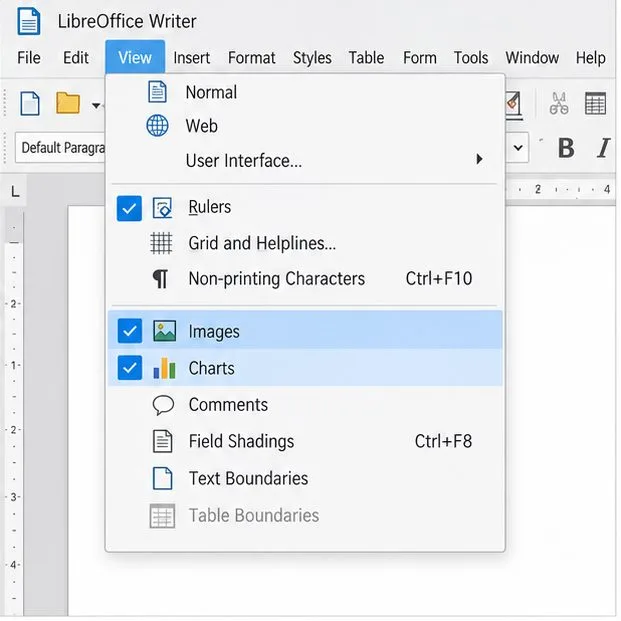
Make image-heavy Writer files easier to edit: test a reversible display setting, compress oversized pictures in a copy, and verify the saved layout.
Find out whether a slow launch comes from extensions, profile settings, or the system, then test the safest fix without losing LibreOffice data.
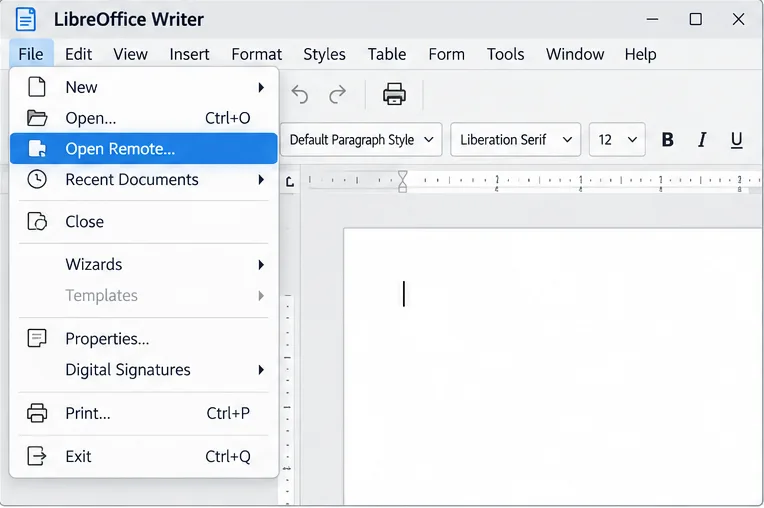
Connect LibreOffice to Nextcloud over WebDAV, save the server copy with Ctrl+S, and understand how AutoRecovery differs from cloud syncing.
Find out whether Pardus 23 is blocking Bluetooth, missing BlueZ, or failing to detect adapter firmware, then confirm the controller works.
Learn how Gooroom separates trusted and untrusted browsing, what users can change, and how an administrator can safely update site policies.
Diagnose rotated, offset, or inconsistent touch input on a Harmonica OS tablet and choose a Linux calibration method that fits its session and driver.
Switch Gooroom’s desktop session to English, verify the locale, and identify when untranslated Korean labels need an app update instead.
Arrange Pardus XFCE as a familiar bottom taskbar with an app menu, pinned launchers, open-window buttons, and a system tray.
Check your Gooroom release and administrator rules, then follow the official Debian-based setup path for Flatpak or Snap without bypassing system controls.