Sent an email to the wrong person or spotted a typo right after hitting Send? Outlook lets you recall a sent email — but only if both you and the recipient use Microsoft Exchange or Microsoft 365, and the message hasn't been read yet. Here's how to do it in under two minutes.
Why Set Google as Your Homepage on Chrome
Many users want quick access to Google search every time they open a new window or click the home icon. Changing this setting in Chrome takes only a few clicks and does not affect your bookmarks or search engine choice. The change applies immediately across all open profiles on the same device.
Before starting, make sure you are using the latest version of Chrome. Go to chrome://settings/help to check for updates if needed. You will need to be signed into a Google account only if you want the setting to sync across devices.
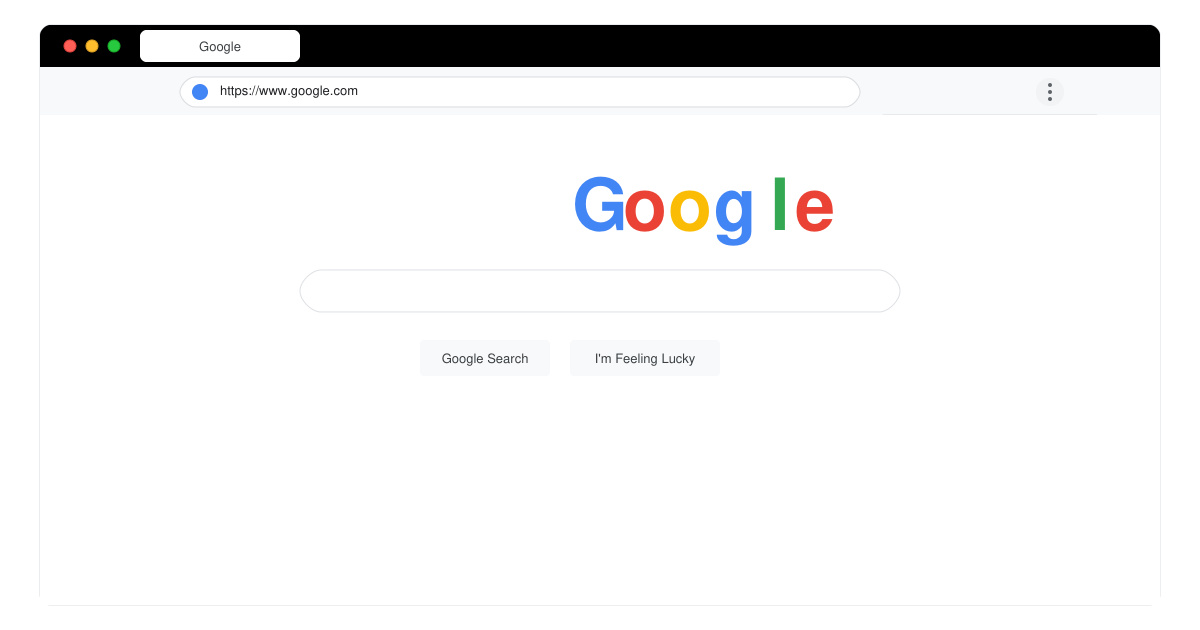
How to Set Google as Your Homepage on Chrome Step by Step
-
Open Chrome Settings
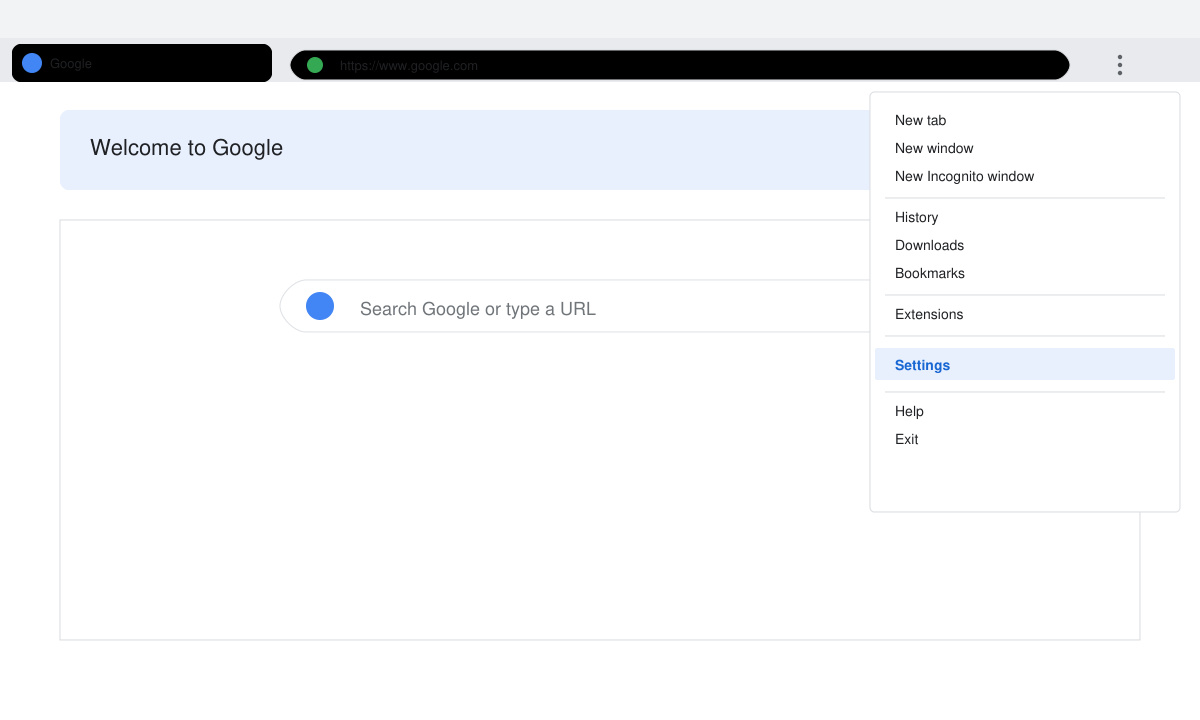
Launch Google Chrome on your computer. Click the three vertical dots in the top-right corner of the browser window. Select Settings from the dropdown menu. This opens the main settings page at chrome://settings.
-
Navigate to the Appearance section
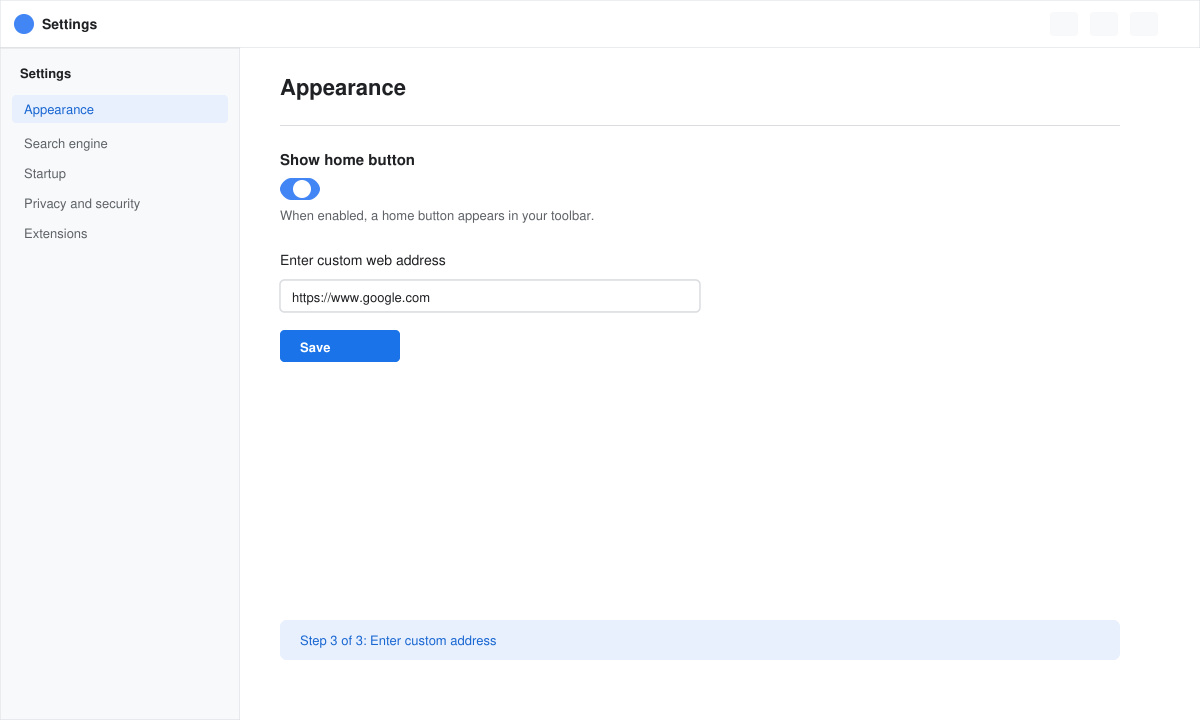
In the left sidebar of Settings, click Appearance. Scroll down until you see the Show home button toggle. If the toggle is off, turn it on first.
-
Enter Google as the homepage URL
Below the toggle, select the Enter custom web address option. In the text field that appears, type https://www.google.com and press Enter. Chrome saves the change automatically.
-
Test the new homepage setting
Click the small house icon that now appears to the left of the address bar. The browser should load google.com immediately. If it does not, restart Chrome and test again.
Common Issues When Changing the Chrome Homepage
- If the home button is missing after the change, return to Appearance settings and confirm the toggle is still enabled.
- Some extensions can override homepage settings. Disable any homepage-related extensions at chrome://extensions and test again.
- On managed or work accounts, an administrator policy may lock the homepage. Contact your IT department if the option stays grayed out.
- The setting only controls the home button. To change what opens on startup, go to the On startup section in Settings instead.
Frequently Asked Questions
Does this change affect new tab pages?
No. Setting Google as your homepage on Chrome only changes the page that loads when you click the home button. New tabs still open the default new tab page unless you install a separate extension.
Can I set Google as the homepage on Chrome for Android?
The home button feature does not exist in the Android version of Chrome. You can add a Google search widget to your phone's home screen instead.
Will this setting sync to other devices?
Yes, if you are signed into the same Google account and have sync enabled for settings. The homepage change will appear on other signed-in computers within a few minutes.
Conclusion
Once complete, clicking the home button in Chrome will always take you straight to Google search. The process requires no restarts or additional software.









