Deploy Shared Pardus Wallpapers and Policies with Lider Ahenk

Distribute a custom wallpaper to Pardus clients, configure Xfce or GNOME desktops, and apply Lider Ahenk user policies with safe pilot checks.
Need to pull back an email right after sending it in Outlook? The recall feature lets you unsend messages when both you and the recipient use the same Microsoft Exchange or Microsoft 365 server. This article explains exactly how to unsend on Outlook with clear steps that work in the desktop app.
Before attempting to recall any message, confirm you meet the technical conditions. The feature only works inside an Exchange or Microsoft 365 environment. It fails if the recipient has already read the email or if either mailbox sits on a different mail system such as Gmail or a POP account. Open Outlook and check your account type in File > Info > Account Settings to verify you are connected to the correct server.
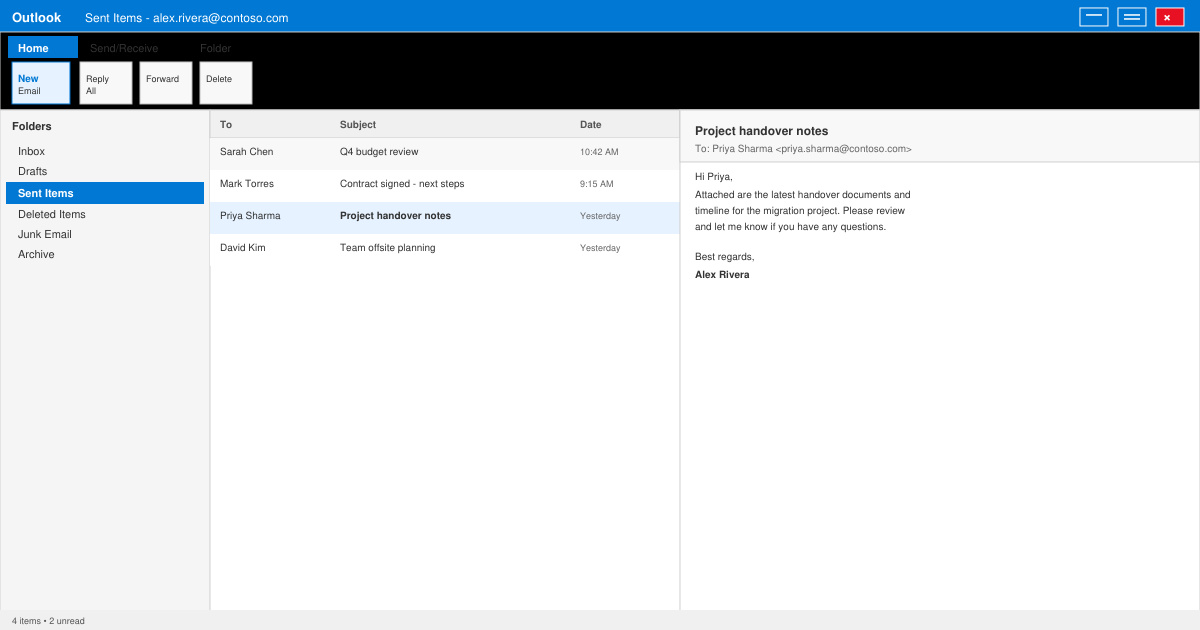
Launch the Outlook desktop application on Windows. In the left navigation pane click Sent Items. Locate the message you want to retract and double-click it so it opens in its own window instead of the reading pane.
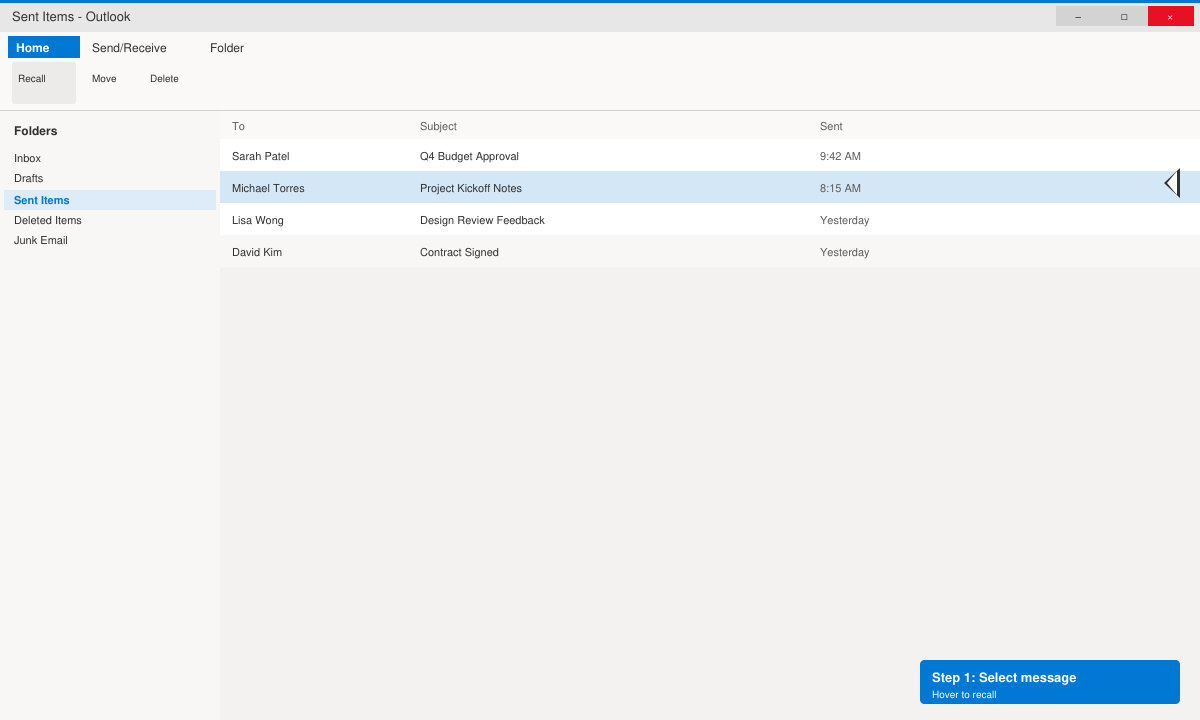
With the message window active, click the Message tab on the ribbon. In the Move group select Actions, then choose Recall This Message from the dropdown list. If you do not see the option, the account does not support recall.
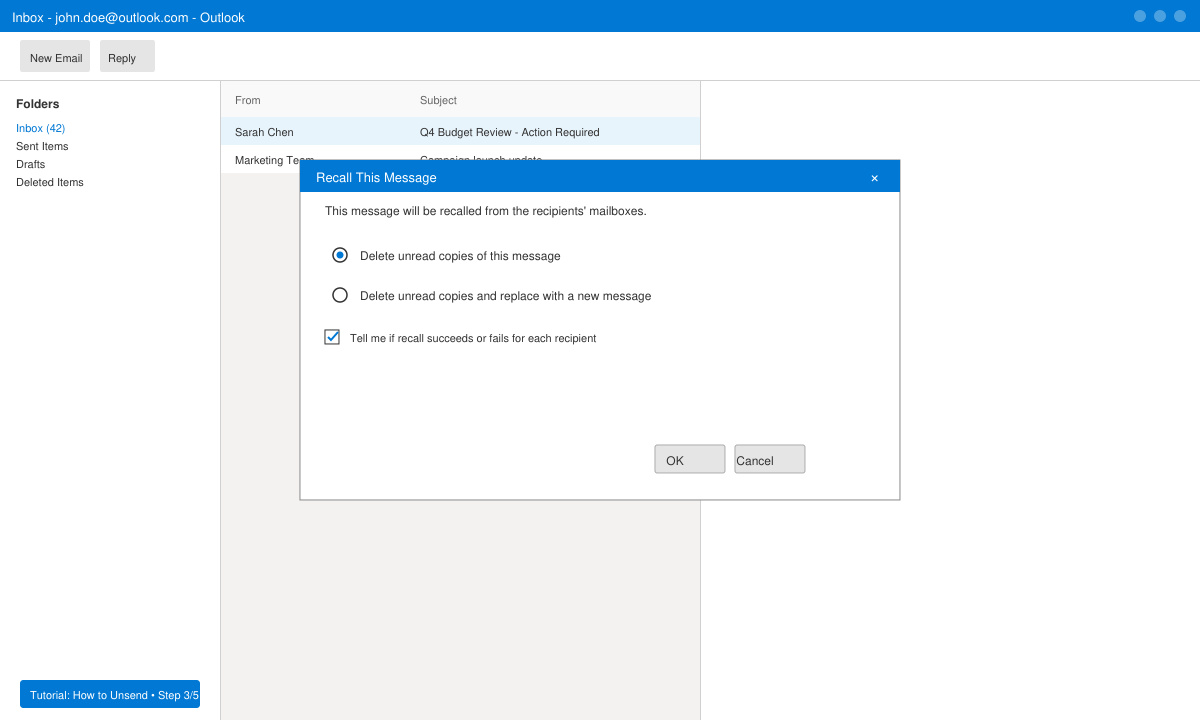
In the dialog box that appears, select Delete unread copies of this message. Optionally check the box labeled Tell me if recall succeeds or fails for each recipient. Click OK to send the recall request.
Outlook sends a recall notification to recipients. Check your Inbox for any success or failure reports if you selected that option. The original message remains in your Sent Items folder even after a successful recall.
No. The recall feature exists only in the classic Outlook desktop application for Windows. Outlook on the web offers an Undo Send delay instead, adjustable up to 10 seconds under Settings > Mail > Compose and reply.
Only when both organizations use the same Exchange or Microsoft 365 tenant with proper cross-forest trust. Most external recipients will simply receive your recall request as a normal email.
The original message stays in the recipient mailbox. You receive a failure report if you requested one, and you can then send a corrected follow-up email explaining the situation.
Mastering how to unsend on Outlook prevents small mistakes from becoming larger problems when the technical requirements are met. Use the steps above the next time you need to retract a sent message.
Distribute a custom wallpaper to Pardus clients, configure Xfce or GNOME desktops, and apply Lider Ahenk user policies with safe pilot checks.
Fix a 1024 × 768 ceiling by checking SPICE, virtual video, the guest channel, and spice-vdagent—with safe checks when Pardus lacks a package candidate.
Set up the Lider server, configure its installer safely, register Ahenk endpoints, and verify a pilot before expanding central management.
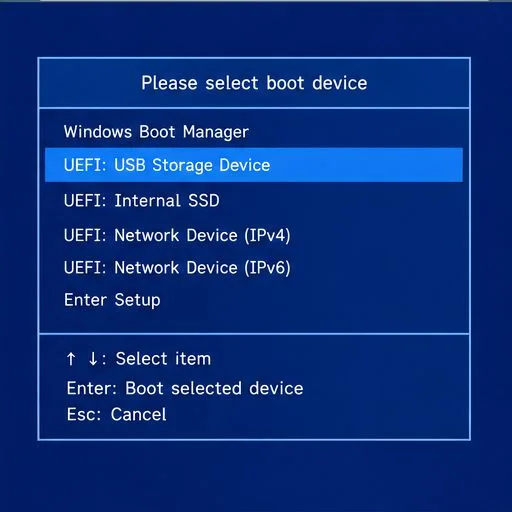
Download the official Pardus 23 desktop ISO, write it safely with Rufus, and boot a Windows PC into a temporary Live session.
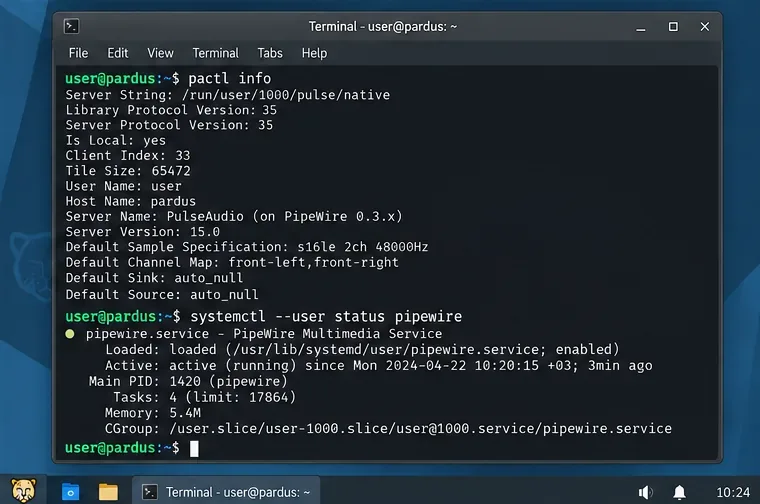
Find out why Pardus 23 cannot detect your sound card, then use targeted ALSA, firmware, and PipeWire or PulseAudio checks to restore playback.
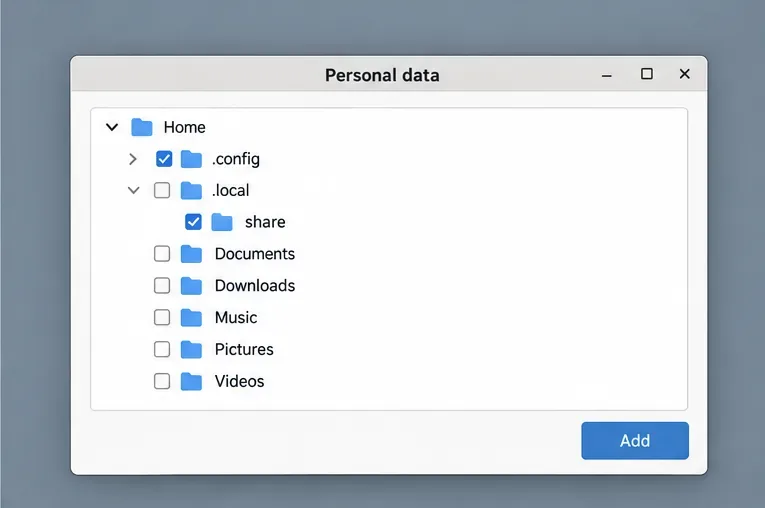
Save HamoniKR preferences to external storage, include hidden home folders, and choose a safe restore mode when moving to a fresh installation.
Install and configure xrdp on Pardus, choose the right Xfce session, restrict network access, and verify that remote login works.
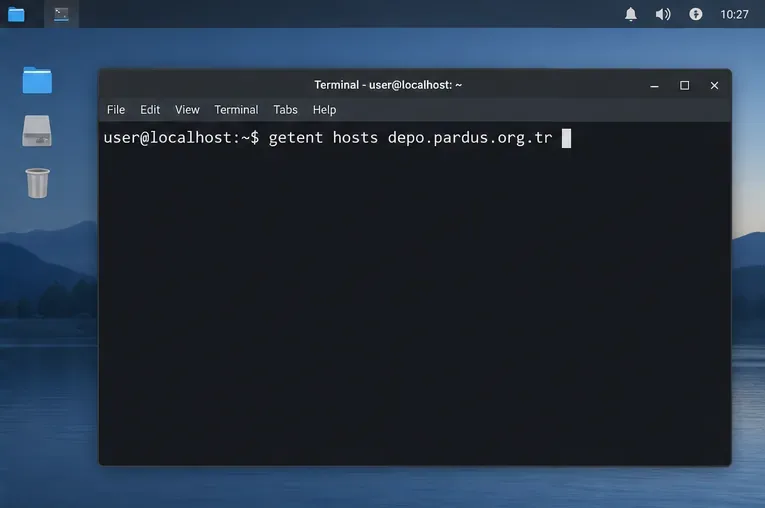
Diagnose Pardus 23 APT connection failures, confirm the official yirmiuc sources, and restore apt update without bypassing package signature checks.
Configure printers on Harmonica OS using CUPS, compare driverless IPP with legacy drivers, and verify USB or network printing with a test page.
Use a recovery shell to set a new Harmonica OS root password, with checks for encrypted disks, read-only filesystems, and accounts that use sudo.