Get RTL8821CE Wi-Fi Working on Pardus with the Right Firmware

Identify the RTL8821CE, install Pardus-supported Realtek firmware, and verify the driver, Wi-Fi scan, and next troubleshooting step.
If your screen suddenly appears magnified and you cannot see the full desktop or webpage, you need to know how to unzoom screen fast. This common problem usually stems from an accidental keyboard shortcut or accessibility setting. This guide walks through precise methods to unzoom screen on the most popular devices and apps.
Zoom features exist for accessibility but activate easily when users press Control or Command plus the plus key. Windows, macOS, Chrome, and mobile operating systems all store separate zoom levels that persist until manually reset. Knowing the exact reset path for each platform prevents repeated frustration.
Before starting, note your device type and whether the zoom affects the entire screen or only one browser window. This distinction determines which steps apply first.
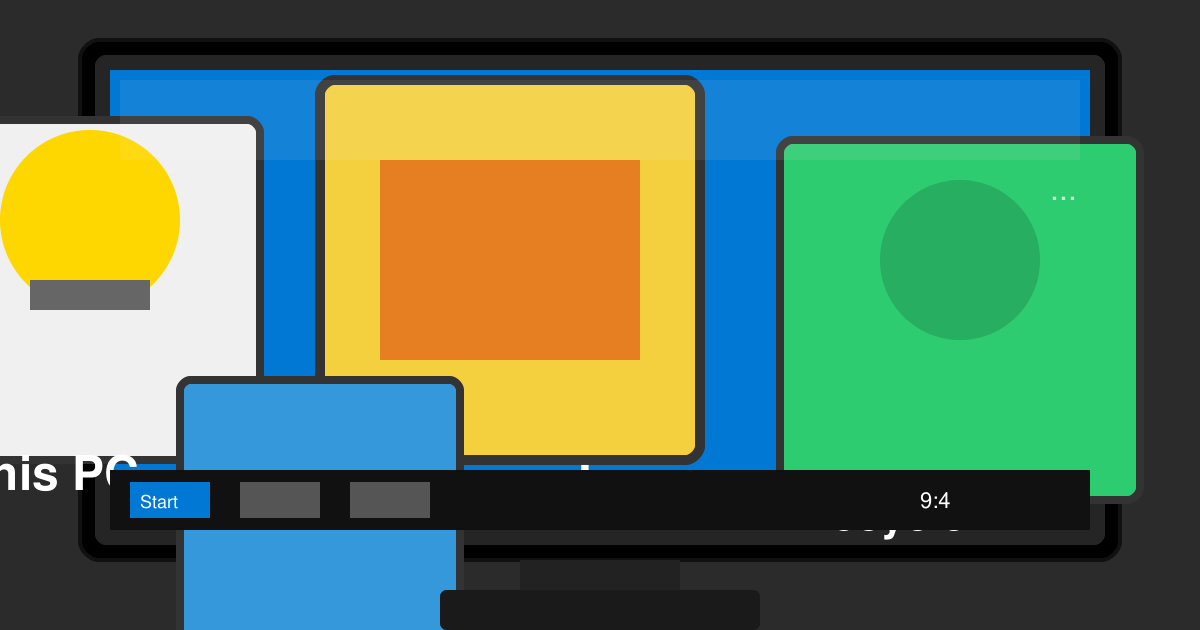
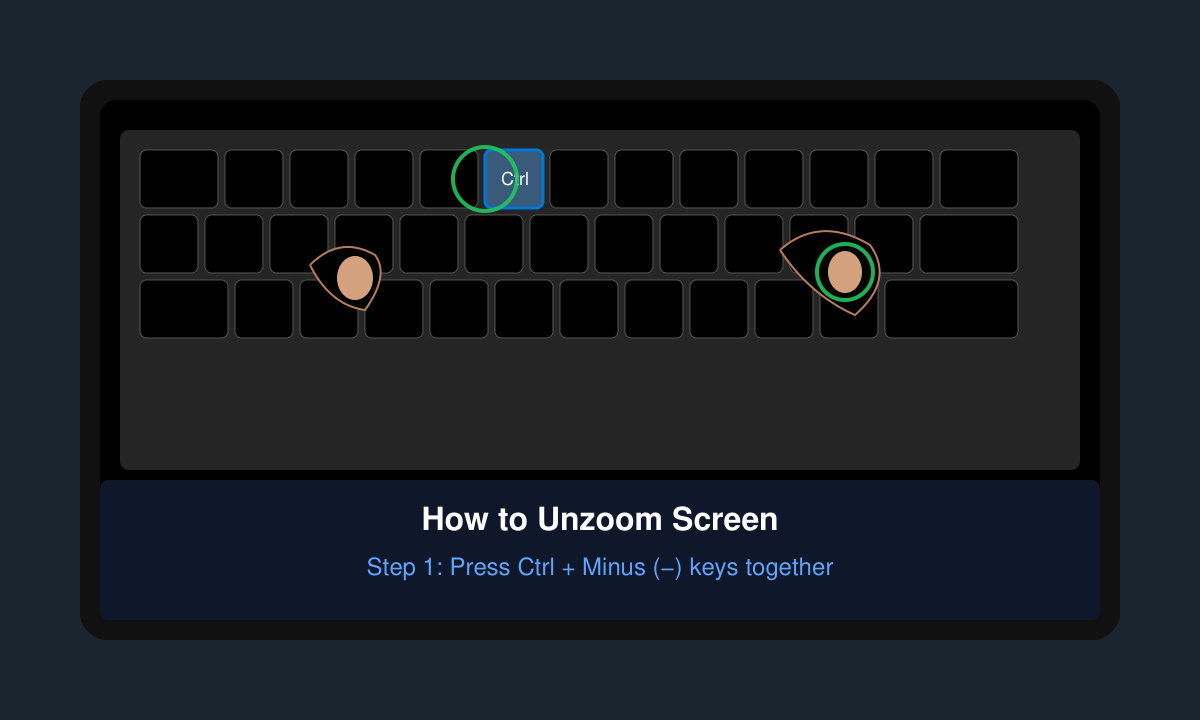
Hold the Control key (Windows) or Command key (Mac) and tap the minus key repeatedly until the view returns to 100 percent. On phones, use two fingers to pinch inward on the screen. This single action fixes most browser and app zoom problems immediately.
Right-click the desktop and choose Display settings. Scroll to Scale and layout, then set the dropdown to the recommended percentage, usually 100 percent or 125 percent. Click Apply and confirm the change.
Click the Apple menu, select System Settings, then Displays. Choose the Scaled option and pick the resolution that shows the full interface without magnification. Log out and back in if the change does not apply instantly.
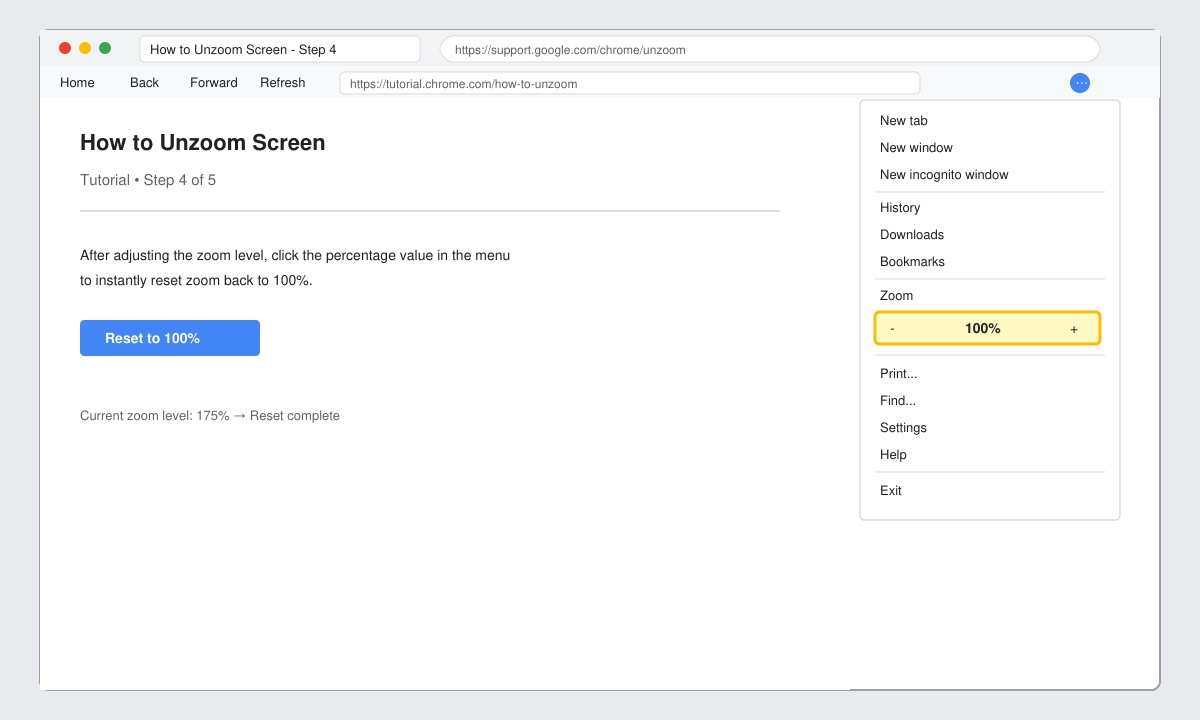
In Chrome or Edge, click the three-dot menu, hover over Zoom, and select the reset icon that returns the level to 100 percent. Repeat the process in any other open browser windows.
Go to Settings, search for Display or Accessibility, then turn off any Magnification or Zoom toggle. On iOS also check Settings > Accessibility > Zoom and toggle it off if enabled.
Yes for the main shortcut, but menu locations differ slightly. Firefox uses the same Control-minus combination while Safari relies on Command-minus.
No. Resetting zoom simply returns the interface to its native resolution without altering any image files or display hardware.
Check accessibility features such as Magnifier on Windows or VoiceOver zoom on Mac, as these can override normal shortcuts and require manual disablement in system settings.
Mastering how to unzoom screen takes only a few targeted clicks or keystrokes once you identify the affected device. Apply the steps above in order and your display will return to normal size immediately.
Identify the RTL8821CE, install Pardus-supported Realtek firmware, and verify the driver, Wi-Fi scan, and next troubleshooting step.
Use Pardus’s hardware-aware installer to enable the right NVIDIA driver, reboot safely, and verify the active kernel module.
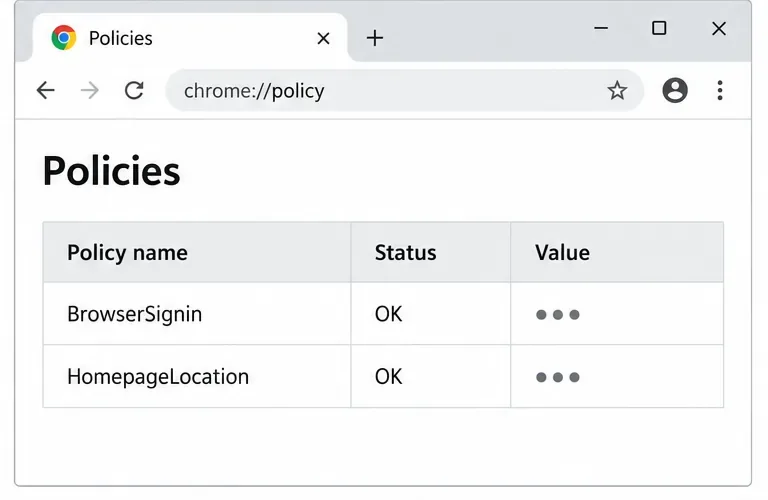
Install the official Chrome package safely on Gooroom OS, check compatibility, preserve device controls, and verify browser policies before use.
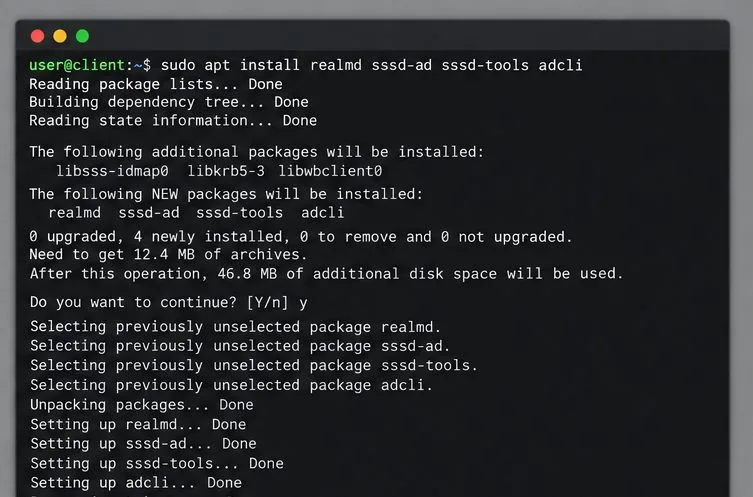
Prepare DNS and time, enroll Pardus with realmd and SSSD, and verify domain membership and user lookup before relying on AD sign-in.
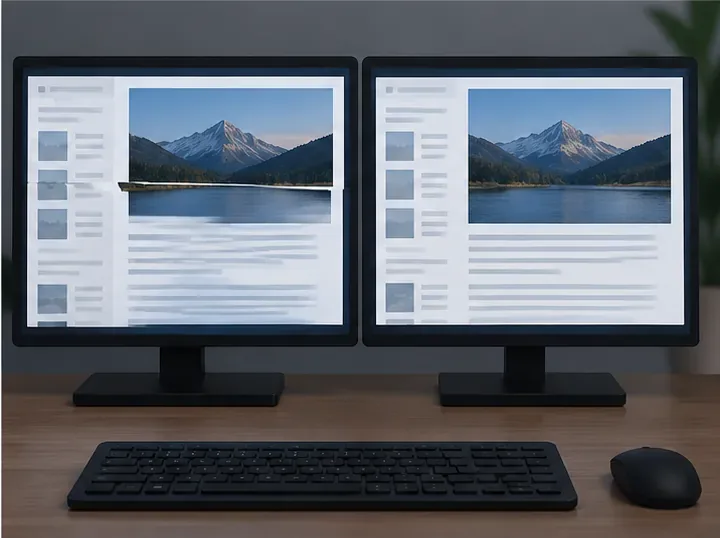
Reduce horizontal tearing in Pardus XFCE by checking your display session, enabling compositor synchronization, and applying Intel’s Xorg TearFree option only when the active driver supports it.
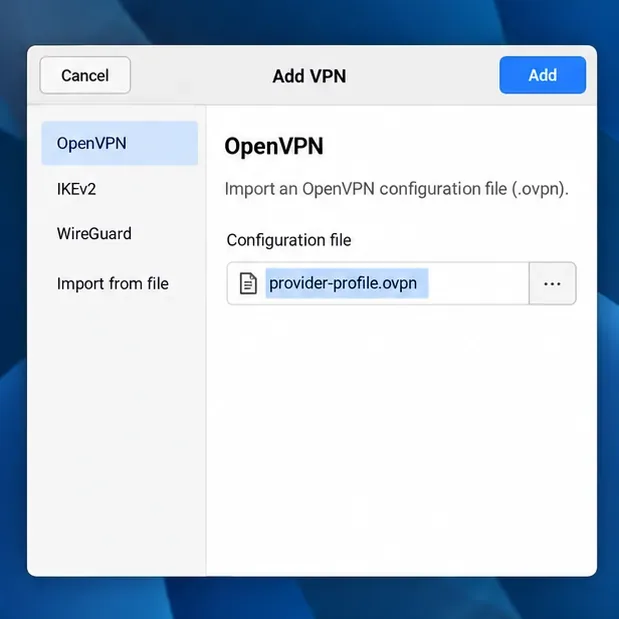
Add an OpenVPN profile to NetworkManager on Pardus, install the right plugin, protect credentials, and verify the VPN is active.
Prepare a bootable USB, check 64-bit hardware compatibility, and install Pardus 23 XFCE while protecting existing files and avoiding common legacy BIOS pitfalls.
Distribute a custom wallpaper to Pardus clients, configure Xfce or GNOME desktops, and apply Lider Ahenk user policies with safe pilot checks.
Fix a 1024 × 768 ceiling by checking SPICE, virtual video, the guest channel, and spice-vdagent—with safe checks when Pardus lacks a package candidate.
Set up the Lider server, configure its installer safely, register Ahenk endpoints, and verify a pilot before expanding central management.