Configure USB and Network Printers with CUPS on Harmonica OS

Configure printers on Harmonica OS using CUPS, compare driverless IPP with legacy drivers, and verify USB or network printing with a test page.
Keeping your PDF tools current protects against vulnerabilities and adds new editing capabilities. This article explains exactly how to update Adobe Acrobat across different platforms and installation methods. You will finish with the newest release installed correctly.
Adobe releases patches that fix security gaps and improve compatibility with new operating systems. Older versions often lack support for the latest PDF standards and can trigger errors when opening files created in newer software. Updating Adobe Acrobat also unlocks performance gains in rendering and form handling.
Before starting, close any open PDF documents and note your current version number from the Help menu. Administrator rights are required on both Windows and Mac.
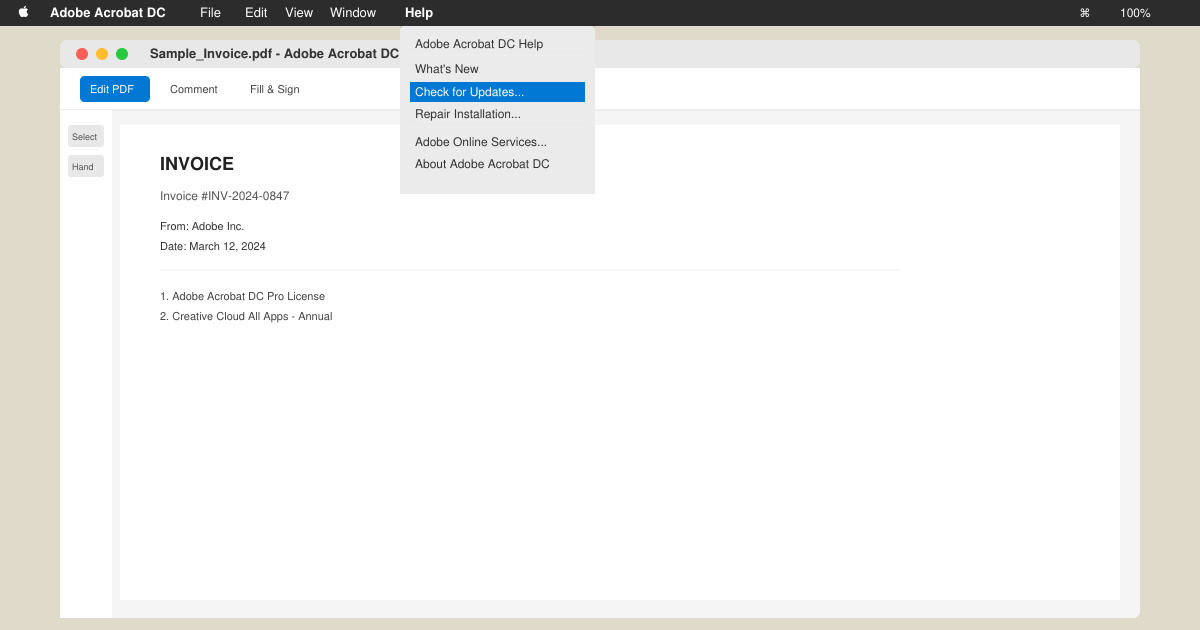
Launch Adobe Acrobat from your desktop or Start menu. Click Help in the top menu bar, then select Check for Updates. The program contacts Adobe servers and displays any available release.
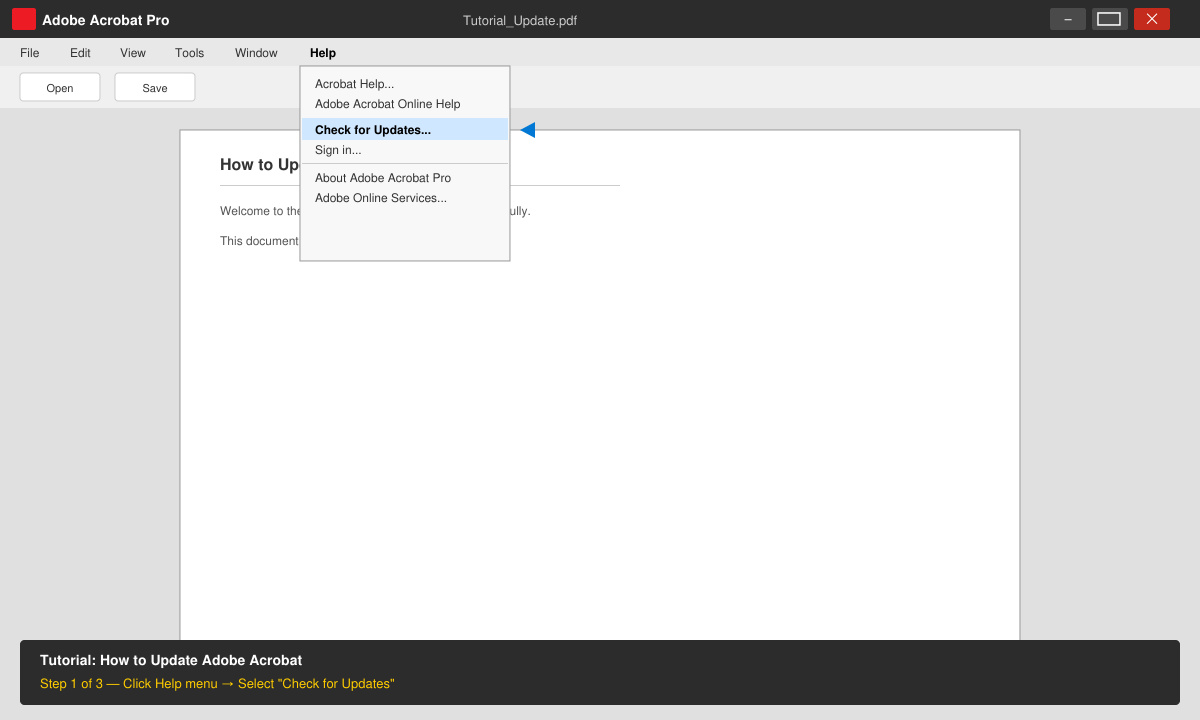
If an update appears, click Download and Install. Accept the license agreement and wait for the installer to finish. Restart Acrobat when prompted to complete the process.
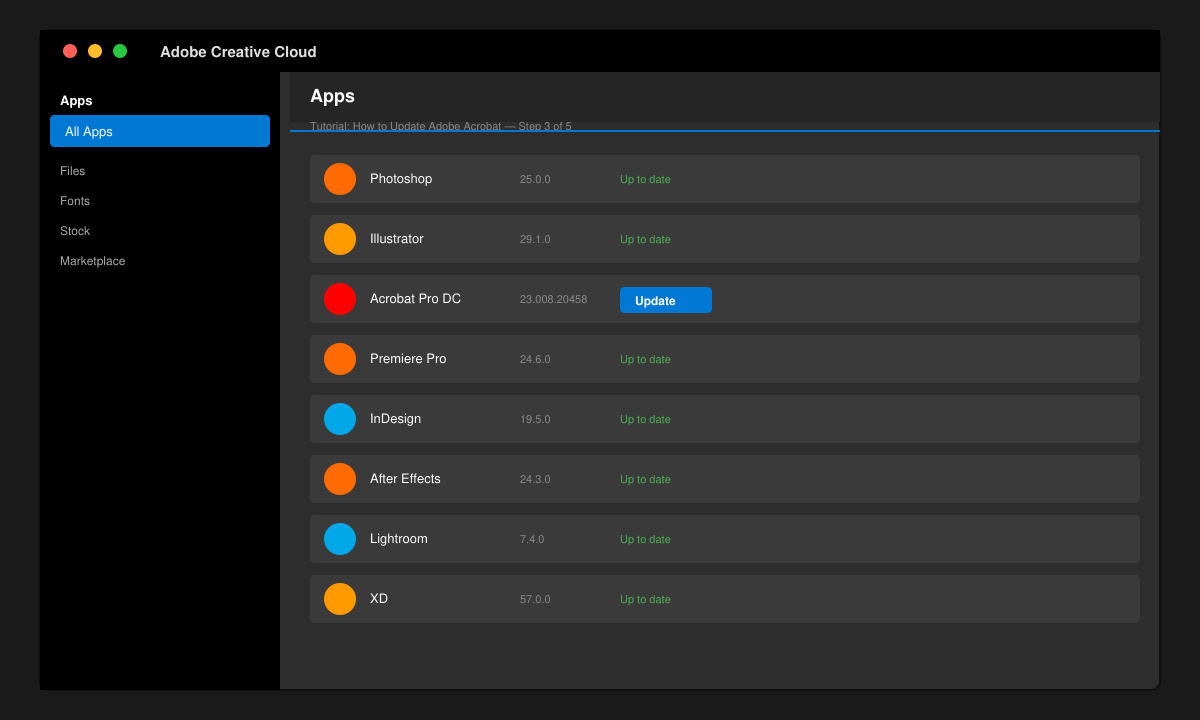
Open the Creative Cloud app from your taskbar or Applications folder. Locate Adobe Acrobat in the list of installed apps, then click the Update button next to it. The app handles downloading and installation automatically.
Return to Help > About Adobe Acrobat. Confirm the version number matches the latest release listed on Adobe’s site. Test by opening a sample PDF to ensure no launch errors occur.
Yes. Use the Check for Updates option inside the Acrobat Help menu or download the standalone installer directly from Adobe’s website.
No. Updates preserve all existing documents, preferences, and custom stamps. Always back up important files as a precaution.
Check monthly or enable automatic updates through Creative Cloud preferences to stay current with security fixes.
Following the steps above keeps Adobe Acrobat secure and fully functional. Perform the update process today to avoid compatibility problems with newer PDF files.
Configure printers on Harmonica OS using CUPS, compare driverless IPP with legacy drivers, and verify USB or network printing with a test page.
Use a recovery shell to set a new Harmonica OS root password, with checks for encrypted disks, read-only filesystems, and accounts that use sudo.
Trace whether clipping, ALSA format conversion, or HDA power saving is causing Ubuntu 24.04 audio distortion, then apply the matching reversible fix.
Switch Debian audio between named PipeWire outputs with a pactl script that updates the default sink and reroutes streams already playing.
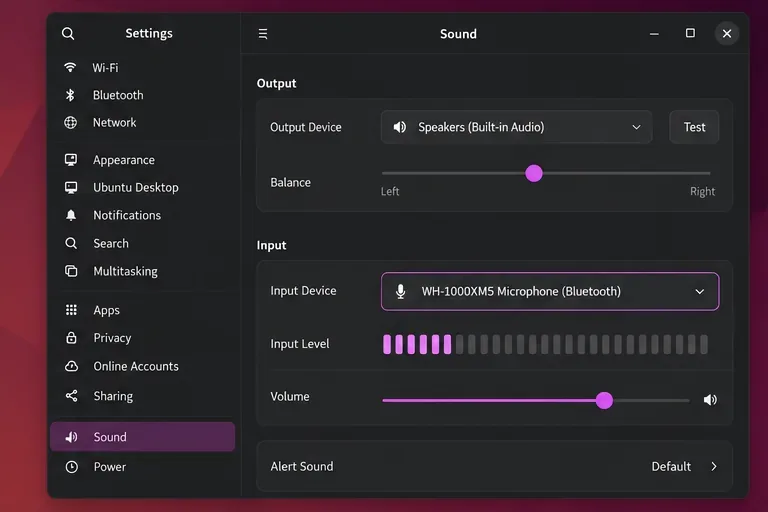
Get your Bluetooth headset mic working by selecting the right input, using a hands-free audio profile, and checking Ubuntu’s PipeWire route.
Learn why Flatpak apps may ignore Ubuntu 24.04 GTK themes and follow safe steps to check theme extensions, refresh Flatpak apps, and diagnose portal issues.
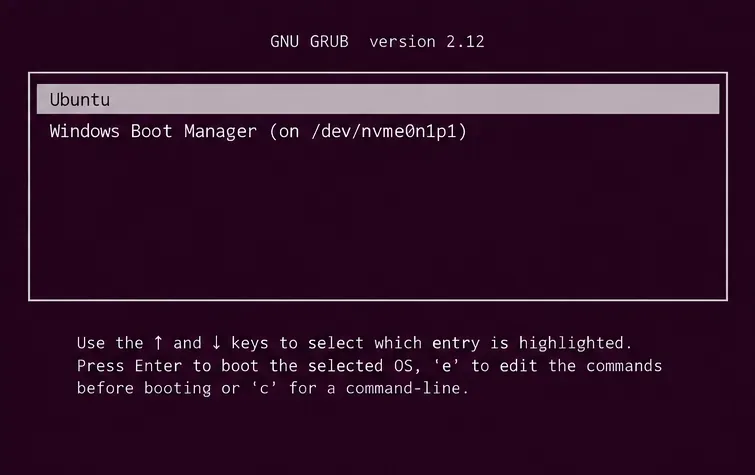
Install Ubuntu 24.04 alongside Windows 11 with BitLocker safely. Compare separate-drive and shared-drive paths, recovery keys, partitioning, and boot checks.
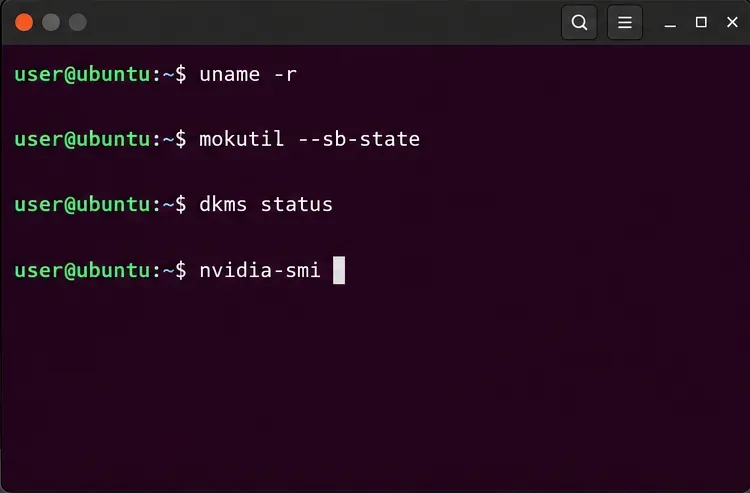
Diagnose NVIDIA driver failures after an Ubuntu kernel update. Check DKMS and Secure Boot, rebuild the matching module, enroll a MOK, and verify the fix.
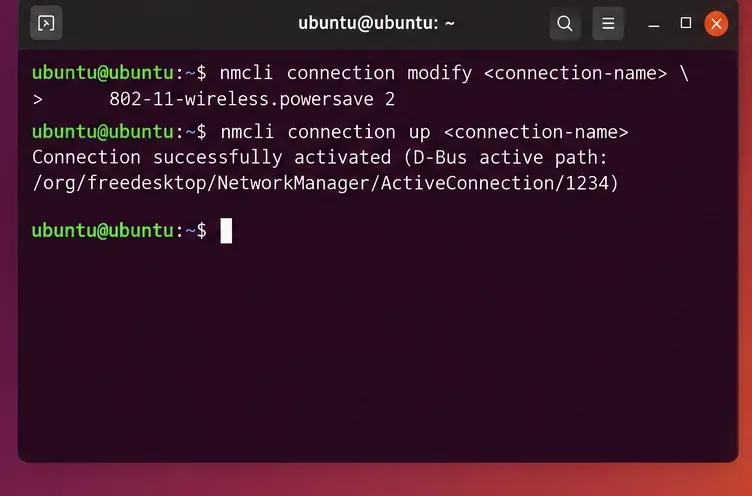
Fix Ubuntu 24.04 Wi-Fi drops after suspend with checks for NetworkManager, radio blocks, updates, power saving, and drivers—then verify each resume.
Learn why tracker-miner-fs-3 uses high CPU in Ubuntu GNOME and how to check indexing, exclude folders, update Ubuntu, or safely rebuild the search index.