Deploy Shared Pardus Wallpapers and Policies with Lider Ahenk

Distribute a custom wallpaper to Pardus clients, configure Xfce or GNOME desktops, and apply Lider Ahenk user policies with safe pilot checks.
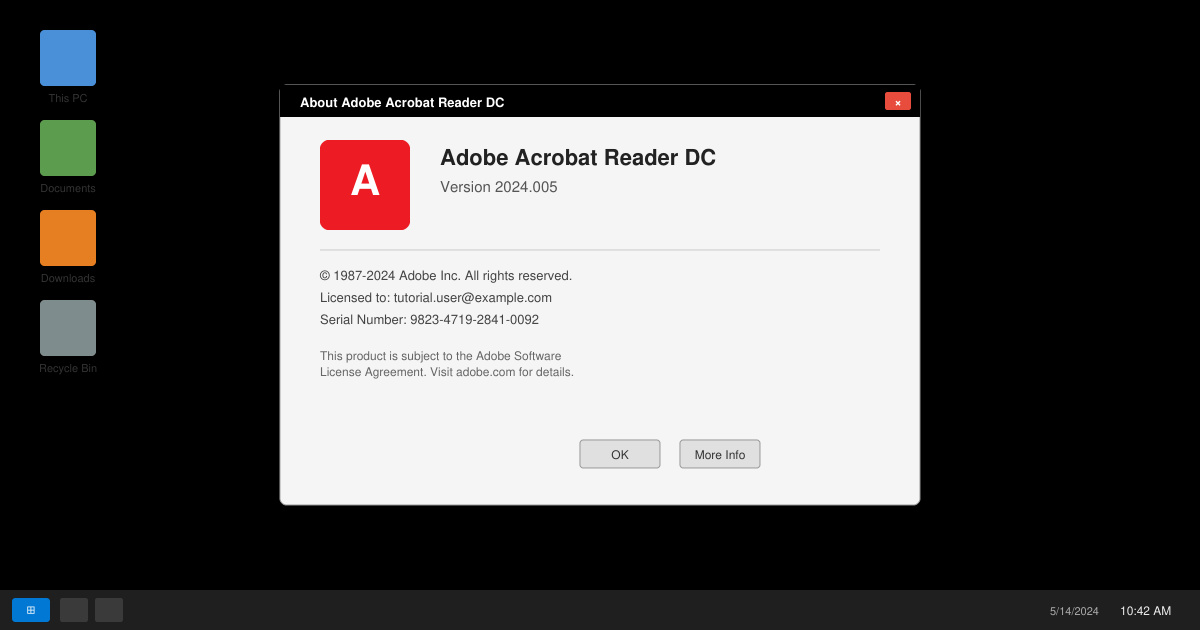
Open Adobe Acrobat Reader. Click Help in the top menu bar, then select About Adobe Acrobat Reader. Note the version number displayed in the window that appears.
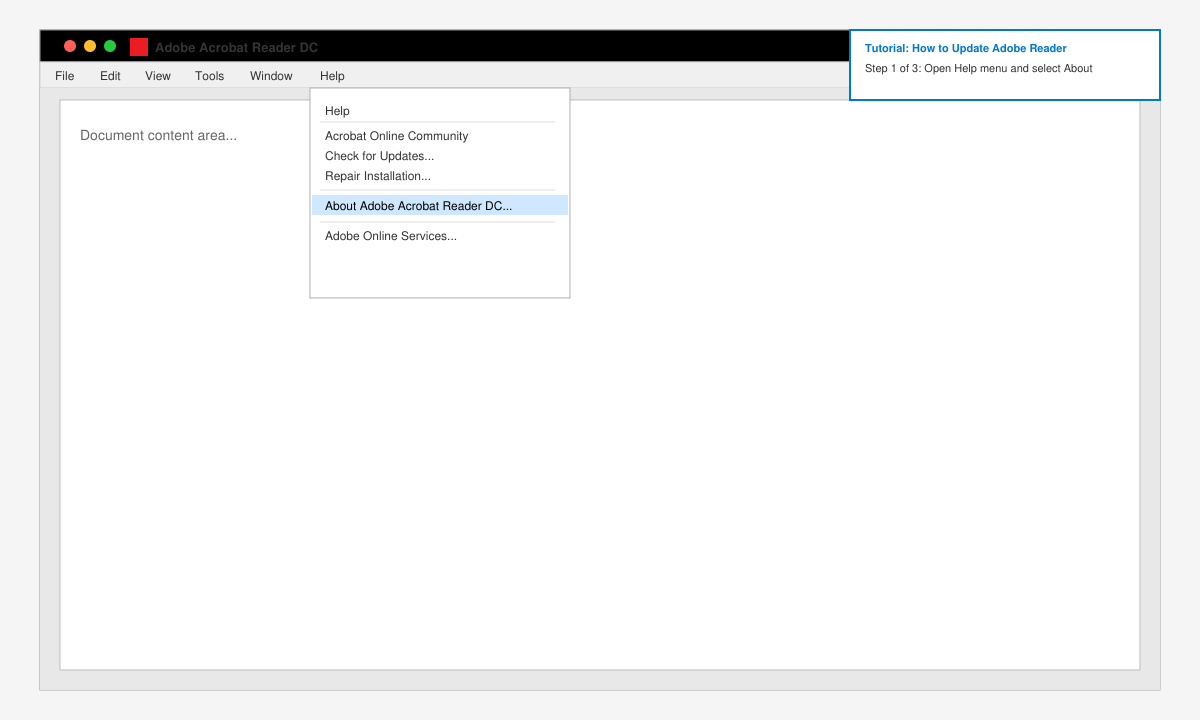
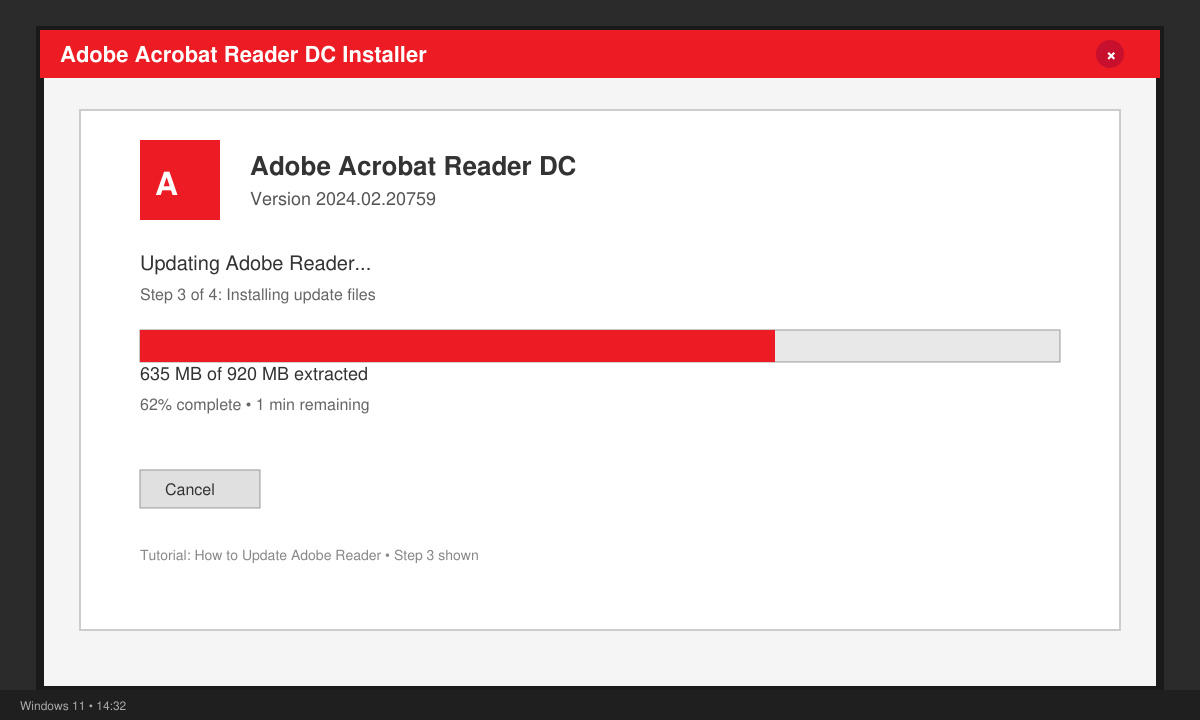
Return to the Help menu and choose Check for Updates. Adobe Reader will connect to Adobe servers and list any available updates. Click Download and install the update when prompted, then restart the application.
If the built-in check fails, visit the official Adobe Acrobat Reader download page and select your operating system. Run the downloaded file and follow the on-screen prompts to replace the older installation.
Reopen Adobe Acrobat Reader and return to Help > About Adobe Acrobat Reader. Confirm the version number has increased to the latest release.
On Android, open the Google Play Store, search for Adobe Acrobat Reader, and tap Update if available. On iOS, open the App Store, tap your profile icon, and scroll to see pending updates for Adobe Acrobat Reader. Enable automatic updates in your device settings to receive future releases without manual checks.
No. Updating replaces only the application files. All locally stored PDFs and custom settings remain untouched.
No. The updater and installer both require an active internet connection to download the new files from Adobe servers.
Yes. Adobe rebranded the free PDF viewer as Adobe Acrobat Reader DC, but the update process remains identical.
Distribute a custom wallpaper to Pardus clients, configure Xfce or GNOME desktops, and apply Lider Ahenk user policies with safe pilot checks.
Fix a 1024 × 768 ceiling by checking SPICE, virtual video, the guest channel, and spice-vdagent—with safe checks when Pardus lacks a package candidate.
Set up the Lider server, configure its installer safely, register Ahenk endpoints, and verify a pilot before expanding central management.
Download the official Pardus 23 desktop ISO, write it safely with Rufus, and boot a Windows PC into a temporary Live session.
Find out why Pardus 23 cannot detect your sound card, then use targeted ALSA, firmware, and PipeWire or PulseAudio checks to restore playback.
Save HamoniKR preferences to external storage, include hidden home folders, and choose a safe restore mode when moving to a fresh installation.
Install and configure xrdp on Pardus, choose the right Xfce session, restrict network access, and verify that remote login works.
Diagnose Pardus 23 APT connection failures, confirm the official yirmiuc sources, and restore apt update without bypassing package signature checks.
Configure printers on Harmonica OS using CUPS, compare driverless IPP with legacy drivers, and verify USB or network printing with a test page.
Use a recovery shell to set a new Harmonica OS root password, with checks for encrypted disks, read-only filesystems, and accounts that use sudo.