Bluetooth Adapter Missing on Pardus 23? Start with These Checks

Find out whether Pardus 23 is blocking Bluetooth, missing BlueZ, or failing to detect adapter firmware, then confirm the controller works.
Windows 11 requires specific BIOS features such as TPM 2.0 and Secure Boot for full compatibility. An outdated BIOS can cause boot errors, USB issues, or prevent certain CPU or RAM upgrades from working. Before starting any update, back up important files and ensure your PC is plugged into power with a stable internet connection.
Most motherboard makers provide a Windows-based utility that downloads and flashes the BIOS directly from within the operating system. Always download firmware only from the official support site for your exact motherboard model.
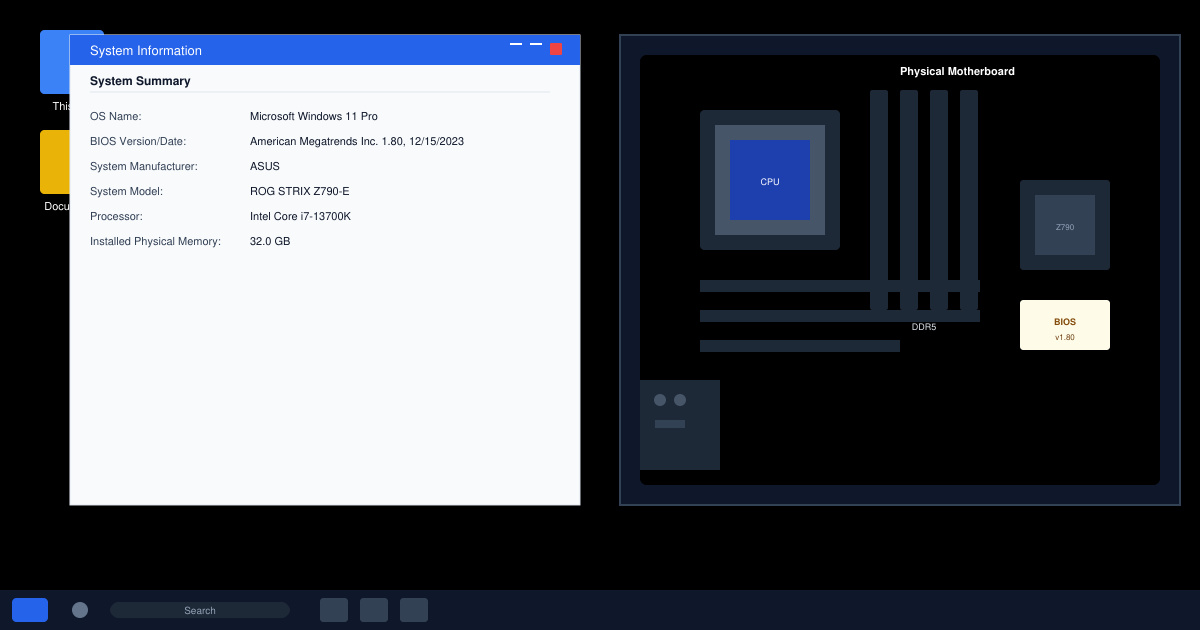
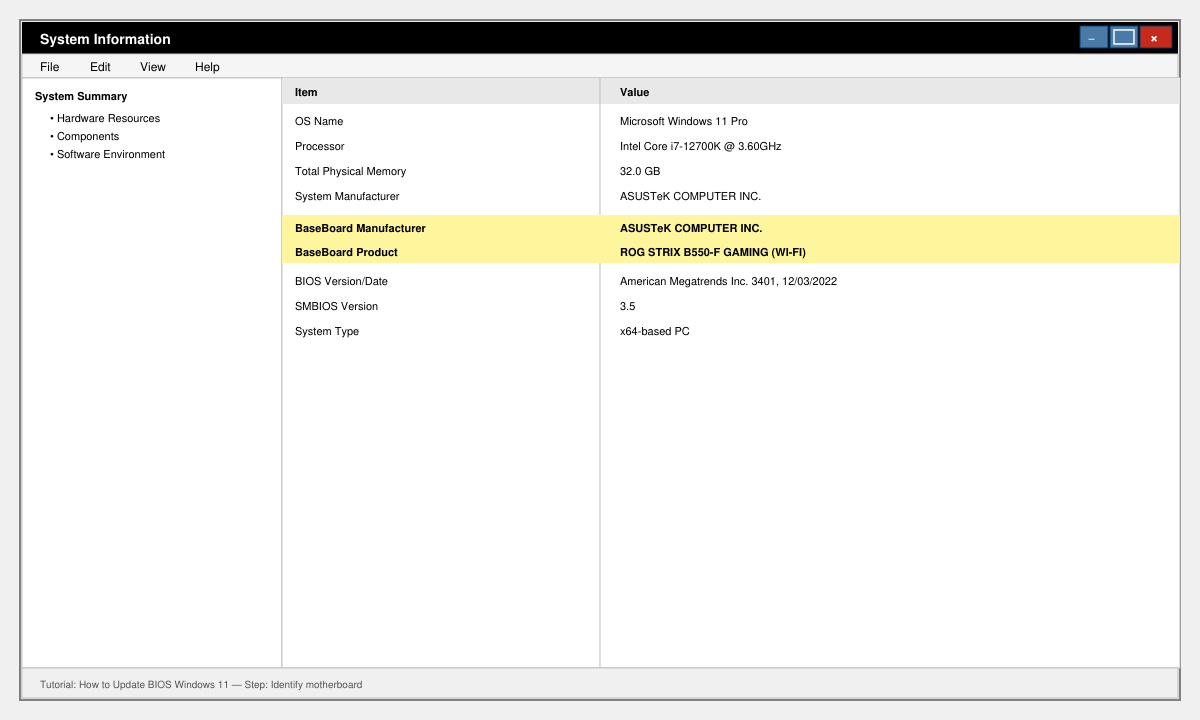
Open the Start menu, type msinfo32 and press Enter. In the System Information window, locate BaseBoard Manufacturer and BaseBoard Product. Note the exact model name and visit the manufacturer website such as support.asus.com, support.msi.com or dell.com/support.
On the support page, enter your motherboard model and navigate to the BIOS or Firmware section. Download the newest version listed for Windows 11. Save the file to your Downloads folder and extract it if it arrives as a ZIP archive.
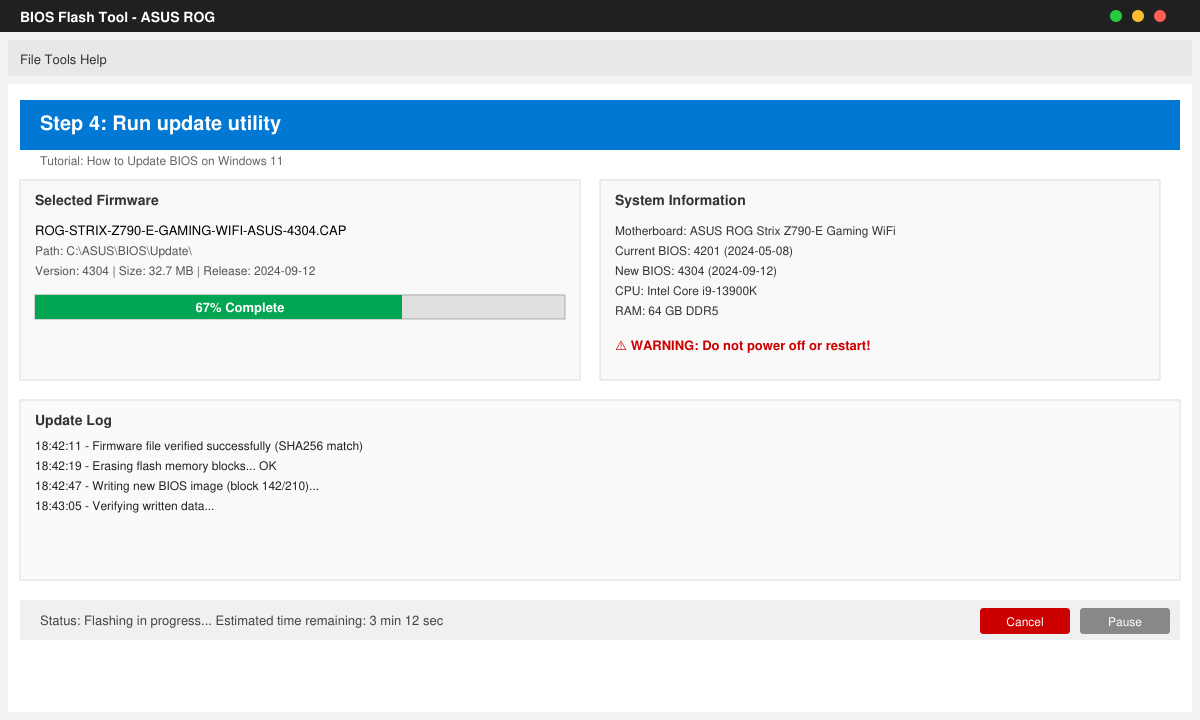
Many brands include an executable such as ASUS EZ Update or MSI Center. Double-click the downloaded utility, select the BIOS file you just obtained, and follow the on-screen prompts to begin the flash process. Do not turn off the computer during this step.
After the system restarts, reopen msinfo32 or enter BIOS setup by pressing Del or F2 during boot. Confirm the version number matches the one you installed. Test basic functions such as USB ports and boot order.
Microsoft rarely pushes full BIOS updates through Windows Update. Most updates still require the manufacturer tool or a manual flash from a USB drive created in the BIOS menu.
Update only when you experience specific hardware problems or need support for new components. Routine updates are unnecessary if the system runs stably.
Most modern motherboards include dual BIOS recovery that lets you retry the flash from a backup chip. In rare cases you may need to visit a service center with a programmer.
Following these exact steps lets you complete how to update bios windows 11 safely using the correct manufacturer software.
Find out whether Pardus 23 is blocking Bluetooth, missing BlueZ, or failing to detect adapter firmware, then confirm the controller works.
Learn how Gooroom separates trusted and untrusted browsing, what users can change, and how an administrator can safely update site policies.
Diagnose rotated, offset, or inconsistent touch input on a Harmonica OS tablet and choose a Linux calibration method that fits its session and driver.
Switch Gooroom’s desktop session to English, verify the locale, and identify when untranslated Korean labels need an app update instead.
Arrange Pardus XFCE as a familiar bottom taskbar with an app menu, pinned launchers, open-window buttons, and a system tray.
Check your Gooroom release and administrator rules, then follow the official Debian-based setup path for Flatpak or Snap without bypassing system controls.
Learn what Pardus Image Writer can do, how to prepare installation USB safely, and which tools fit custom live images or repeatable fleet deployments.
Install Pardus alongside Windows 11 by shrinking the Windows volume, using unallocated space, and preserving the existing EFI System Partition.
Identify the RTL8821CE, install Pardus-supported Realtek firmware, and verify the driver, Wi-Fi scan, and next troubleshooting step.
Use Pardus’s hardware-aware installer to enable the right NVIDIA driver, reboot safely, and verify the active kernel module.