Get RTL8821CE Wi-Fi Working on Pardus with the Right Firmware

Identify the RTL8821CE, install Pardus-supported Realtek firmware, and verify the driver, Wi-Fi scan, and next troubleshooting step.
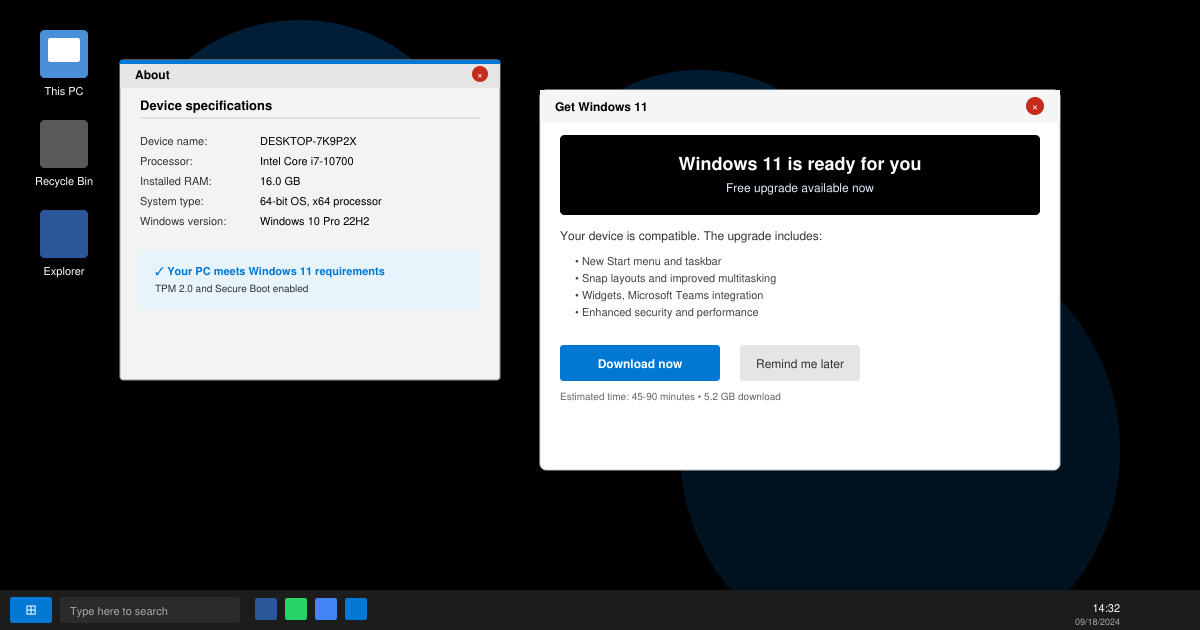
Before any upgrade attempt, confirm your PC supports Windows 11. Microsoft requires a compatible processor, at least 4 GB of RAM, 64 GB of storage, TPM version 2.0, and Secure Boot capability. Open the Settings app, navigate to System then About, and note your current Windows version and hardware details.
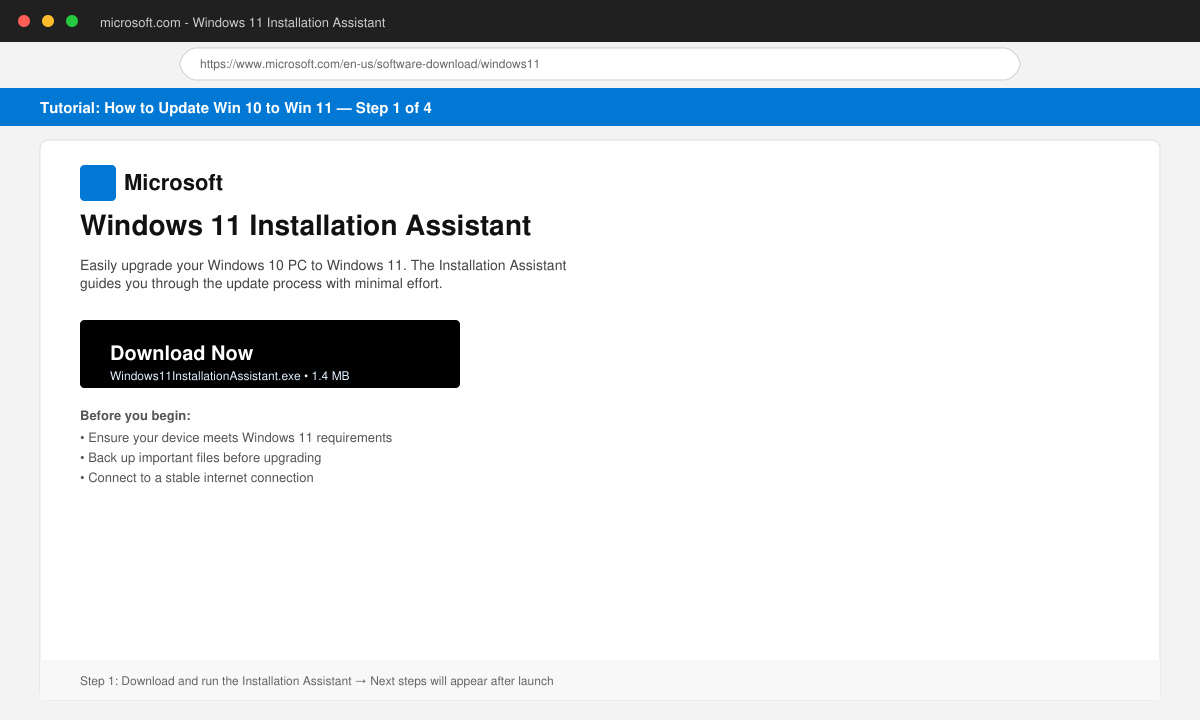
Open Microsoft Edge or another browser on your Windows 10 PC. Search for the official Windows 11 Installation Assistant on the Microsoft website, then click the Download button to save the executable file to your Downloads folder. Double-click the file to launch it.
The assistant scans your hardware automatically. If your PC passes, accept the license terms and choose to keep personal files and apps. Select the drive where Windows is currently installed, usually C:.
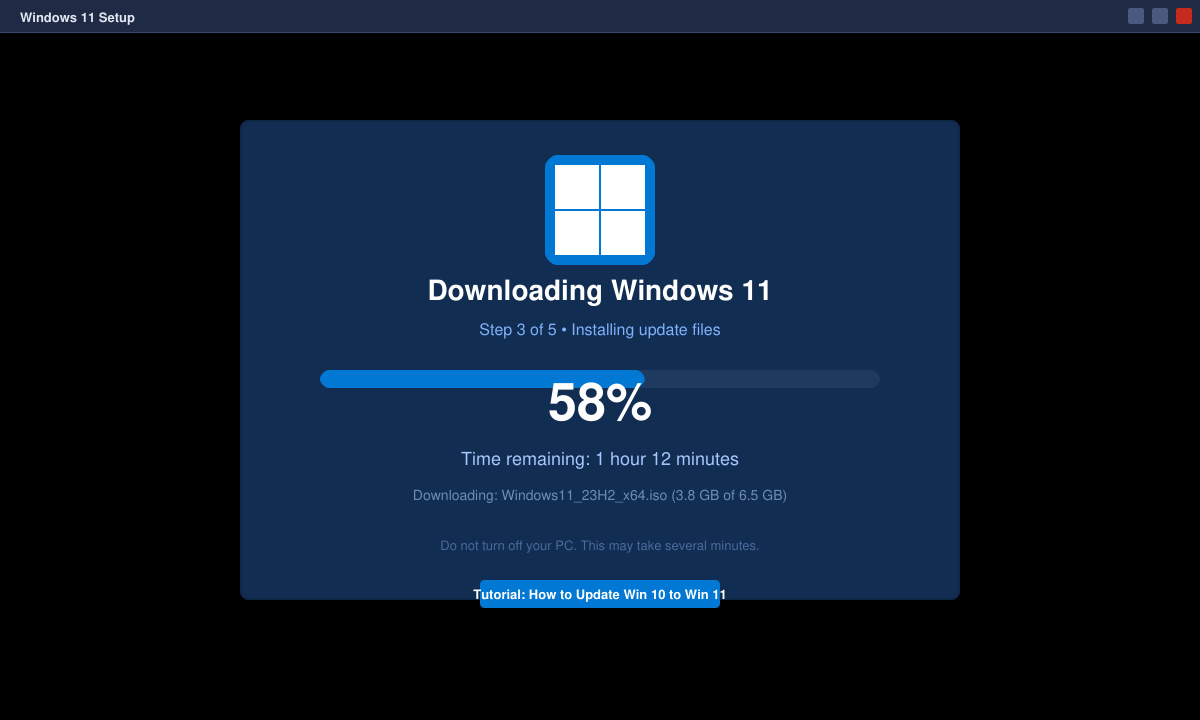
Click Install to start downloading the Windows 11 files. The process may take 30 to 90 minutes depending on your internet speed. Keep the PC plugged in and do not turn it off during this stage.
After the restart, follow the on-screen prompts to sign in with your Microsoft account, adjust privacy settings, and pin apps to the Start menu. Verify the new version by going to Settings then System then About.
Yes, you have 10 days after installation to roll back through Settings then System then Recovery.
No, the Installation Assistant keeps your personal files and installed programs by default when you select that option.
Yes, eligible Windows 10 devices receive the upgrade at no additional cost through the official assistant.
Identify the RTL8821CE, install Pardus-supported Realtek firmware, and verify the driver, Wi-Fi scan, and next troubleshooting step.
Use Pardus’s hardware-aware installer to enable the right NVIDIA driver, reboot safely, and verify the active kernel module.
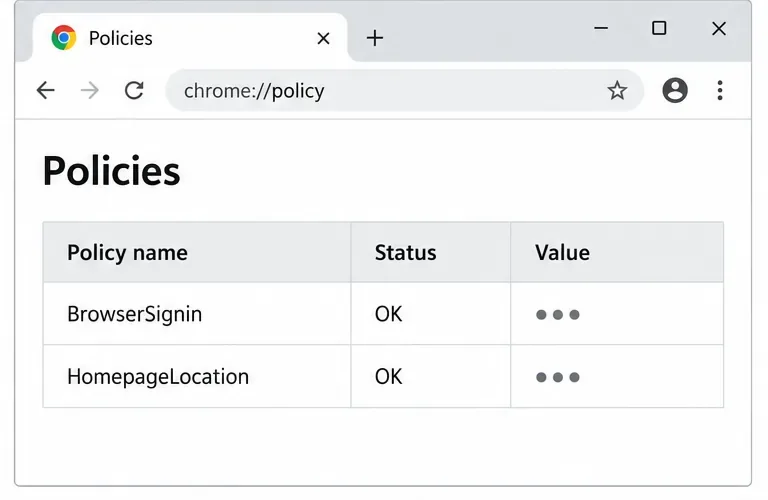
Install the official Chrome package safely on Gooroom OS, check compatibility, preserve device controls, and verify browser policies before use.
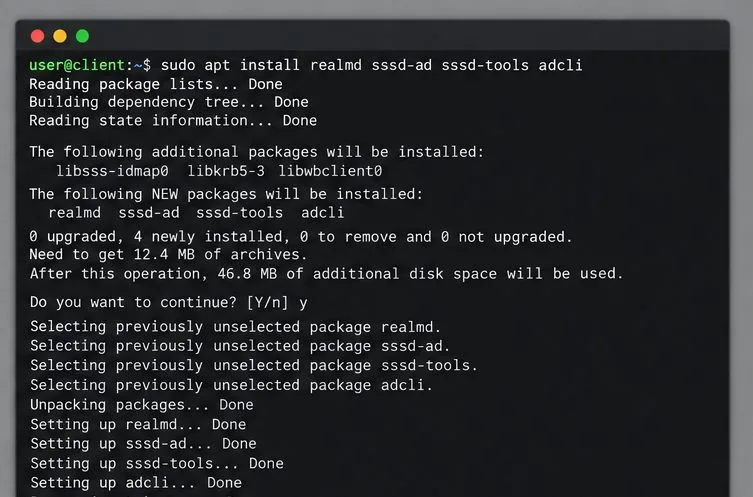
Prepare DNS and time, enroll Pardus with realmd and SSSD, and verify domain membership and user lookup before relying on AD sign-in.
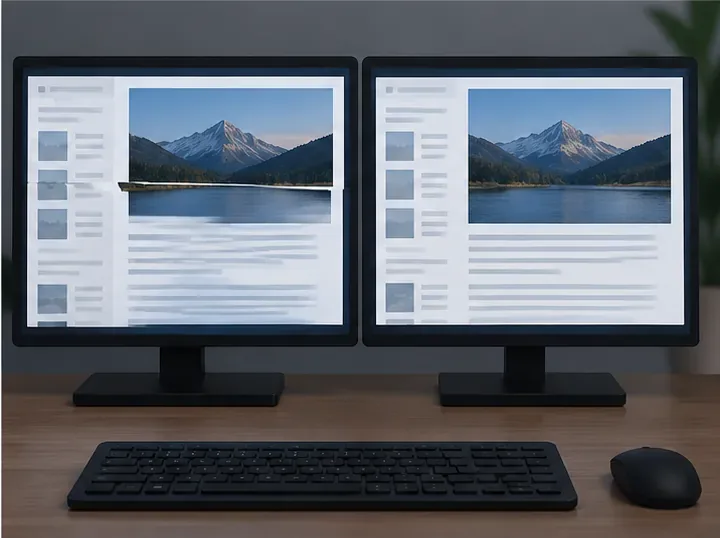
Reduce horizontal tearing in Pardus XFCE by checking your display session, enabling compositor synchronization, and applying Intel’s Xorg TearFree option only when the active driver supports it.
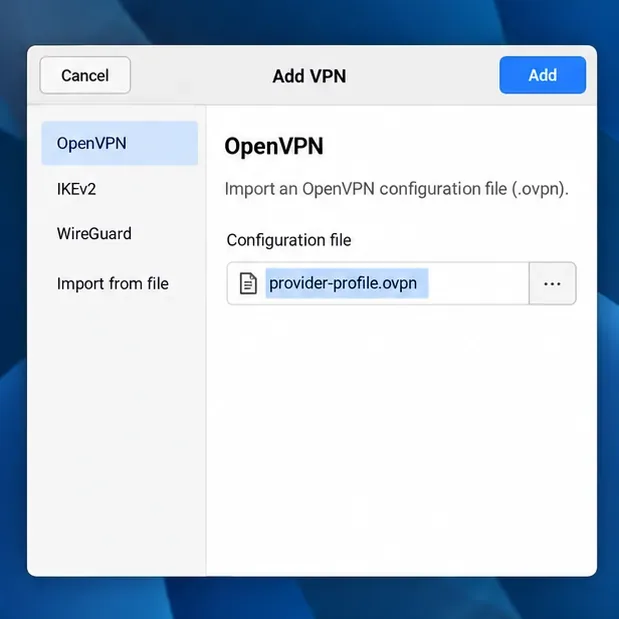
Add an OpenVPN profile to NetworkManager on Pardus, install the right plugin, protect credentials, and verify the VPN is active.
Prepare a bootable USB, check 64-bit hardware compatibility, and install Pardus 23 XFCE while protecting existing files and avoiding common legacy BIOS pitfalls.
Distribute a custom wallpaper to Pardus clients, configure Xfce or GNOME desktops, and apply Lider Ahenk user policies with safe pilot checks.
Fix a 1024 × 768 ceiling by checking SPICE, virtual video, the guest channel, and spice-vdagent—with safe checks when Pardus lacks a package candidate.
Set up the Lider server, configure its installer safely, register Ahenk endpoints, and verify a pilot before expanding central management.