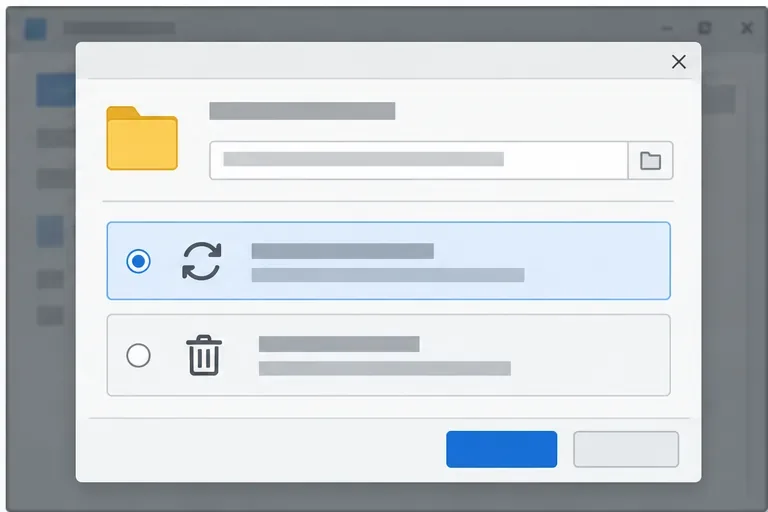
LibreOffice Document Locked by Unknown User: A Safe Fix
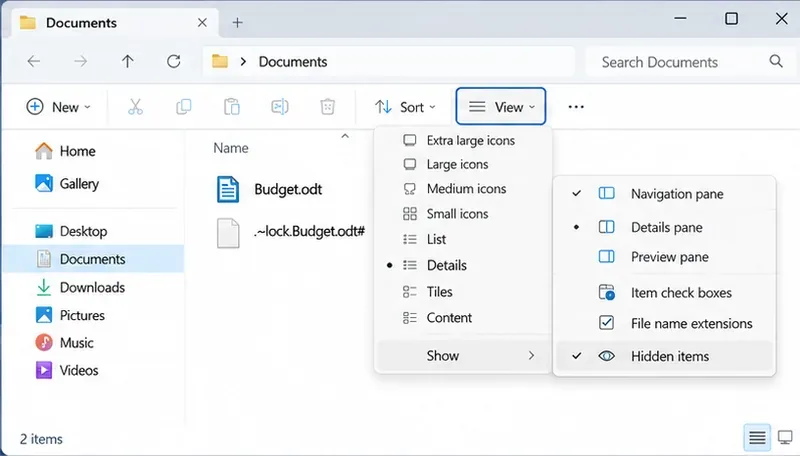
Find the cause of a LibreOffice document lock, safely clear a stale lock file, and confirm that you can edit and save without losing changes.
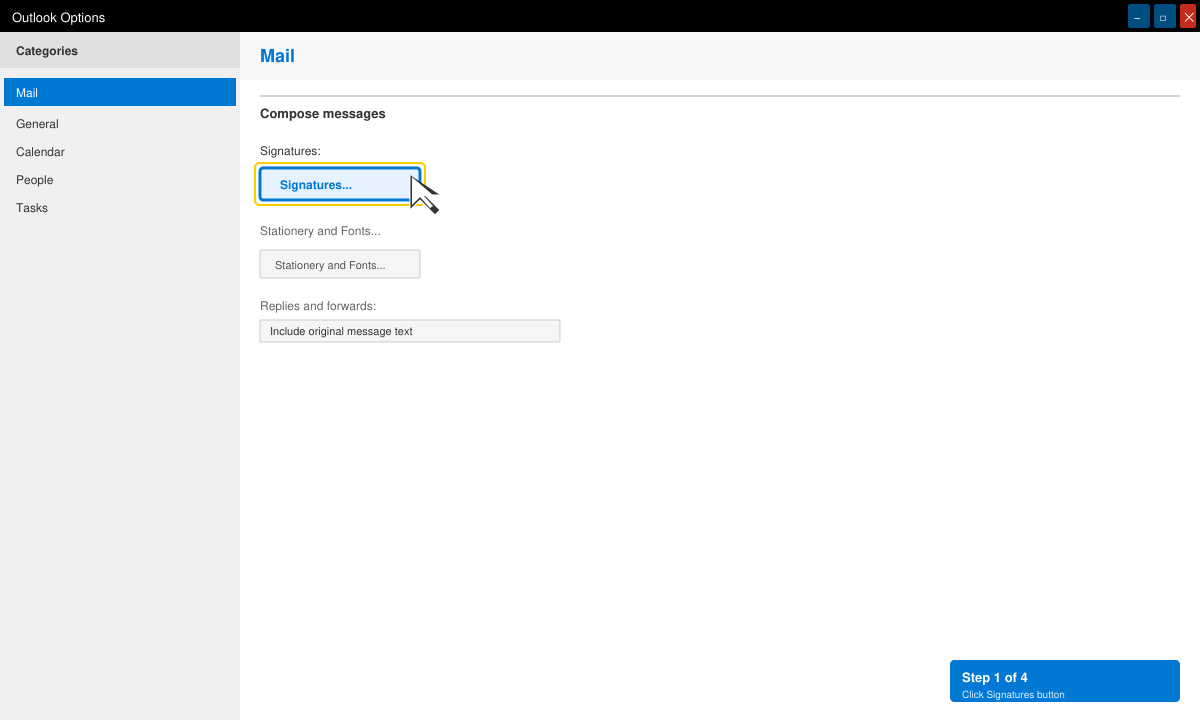
Sent emails with outdated job titles or missing phone numbers look unprofessional. How to Update Your Signature in Outlook covers the exact clicks needed in the desktop app, Outlook on the web, and the mobile apps so your signature stays current. The steps below take only a minute once you know the menus.
Outlook stores signatures differently depending on whether you use the full desktop program linked to Microsoft 365 or Exchange, the browser version, or the phone app. Desktop signatures live in a local settings file, while web and mobile signatures are stored in your Microsoft account. Confirm which version you open most often before you begin so you edit the correct one.
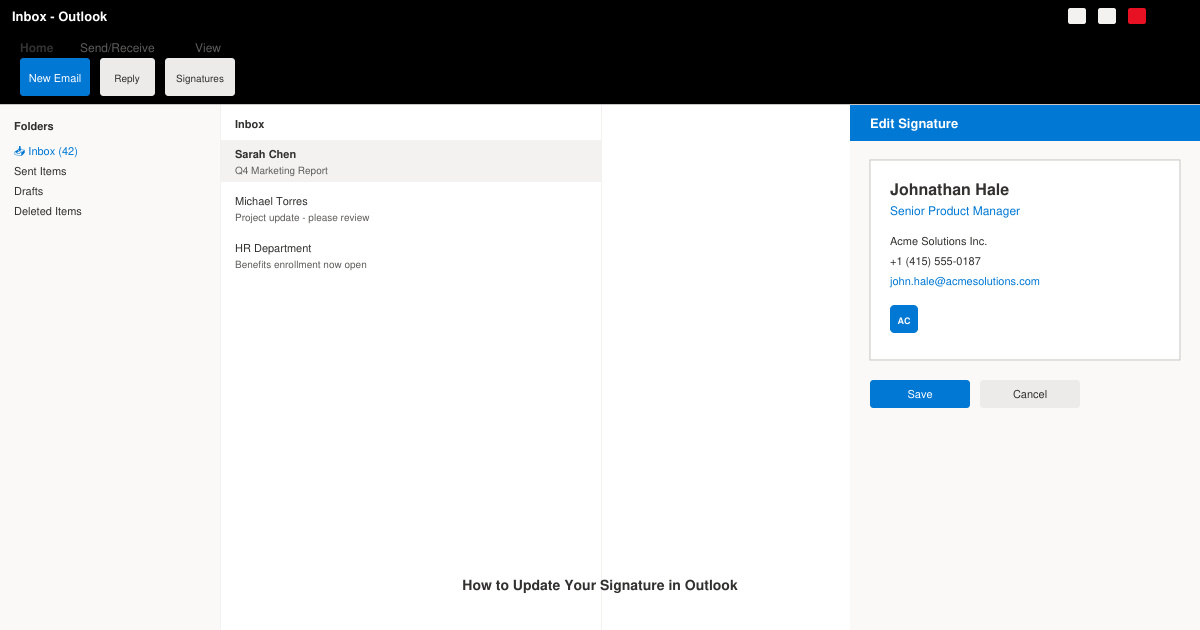
Launch the Outlook desktop application. Click File in the top-left corner, then Options at the bottom of the left sidebar. In the Outlook Options window select Mail from the left column, scroll to the Compose messages section, and click the Signatures button.
In the Signatures and Stationery window the top list shows all existing signatures. Click the one you want to change, or click New, type a name such as “Work 2026”, and press OK. The large editing box below now displays the current text and formatting.
Delete old text and type the new details. Use the formatting toolbar to match fonts, add a logo image via the picture icon, or insert a hyperlink. When finished, click Save to keep the changes.
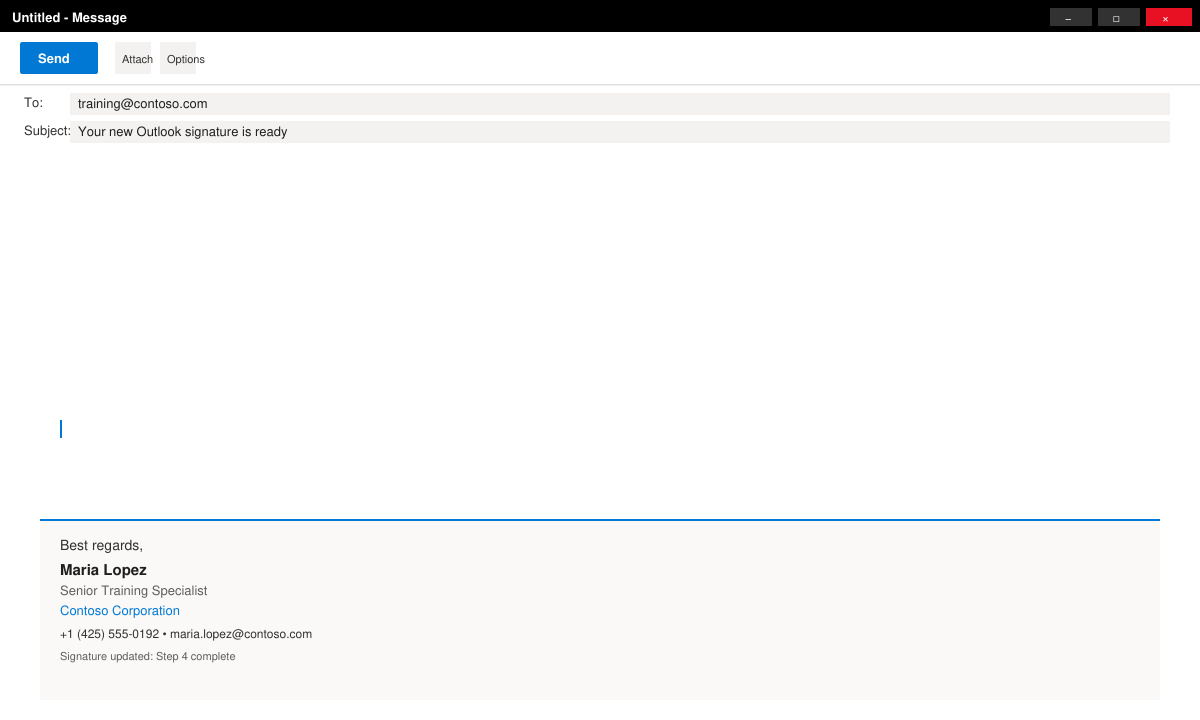
At the bottom of the same window use the two dropdown menus labeled “New messages” and “Replies/forwards” to select the updated signature. Click OK twice to close all windows. Create a test email to confirm the signature appears automatically.
Yes. Create as many as you need in the Signatures dialog and switch between them manually from the Insert > Signature menu while composing a message.
No. Only new messages and replies use the current signature. Previously sent messages keep the version that existed when they were sent.
Open the Outlook mobile app, tap your profile icon, choose Settings, tap Signature, then edit the text and save. The change applies only to emails sent from that device.
Keeping your Outlook signature current takes only a few clicks once you know the exact path in each version. Follow the steps above and your emails will always display accurate, professional contact information.
Find the cause of a LibreOffice document lock, safely clear a stale lock file, and confirm that you can edit and save without losing changes.
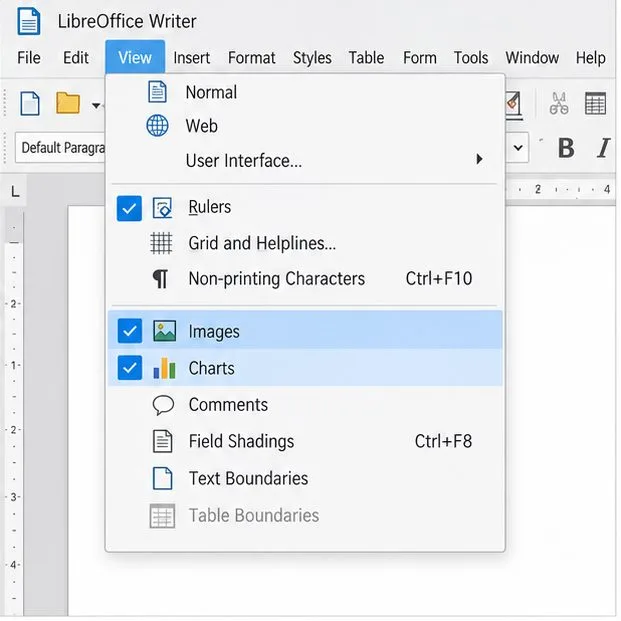
Make image-heavy Writer files easier to edit: test a reversible display setting, compress oversized pictures in a copy, and verify the saved layout.
Find out whether a slow launch comes from extensions, profile settings, or the system, then test the safest fix without losing LibreOffice data.
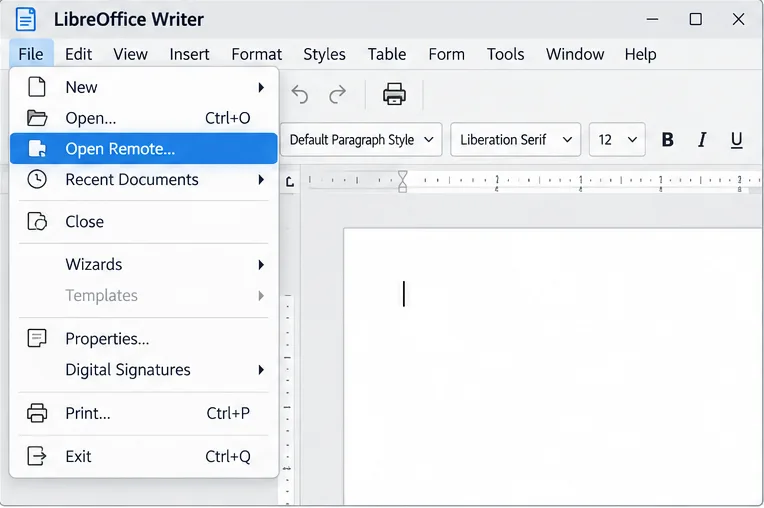
Connect LibreOffice to Nextcloud over WebDAV, save the server copy with Ctrl+S, and understand how AutoRecovery differs from cloud syncing.
Find out whether Pardus 23 is blocking Bluetooth, missing BlueZ, or failing to detect adapter firmware, then confirm the controller works.
Learn how Gooroom separates trusted and untrusted browsing, what users can change, and how an administrator can safely update site policies.
Diagnose rotated, offset, or inconsistent touch input on a Harmonica OS tablet and choose a Linux calibration method that fits its session and driver.
Switch Gooroom’s desktop session to English, verify the locale, and identify when untranslated Korean labels need an app update instead.
Arrange Pardus XFCE as a familiar bottom taskbar with an app menu, pinned launchers, open-window buttons, and a system tray.
Check your Gooroom release and administrator rules, then follow the official Debian-based setup path for Flatpak or Snap without bypassing system controls.