Deploy Shared Pardus Wallpapers and Policies with Lider Ahenk

Distribute a custom wallpaper to Pardus clients, configure Xfce or GNOME desktops, and apply Lider Ahenk user policies with safe pilot checks.
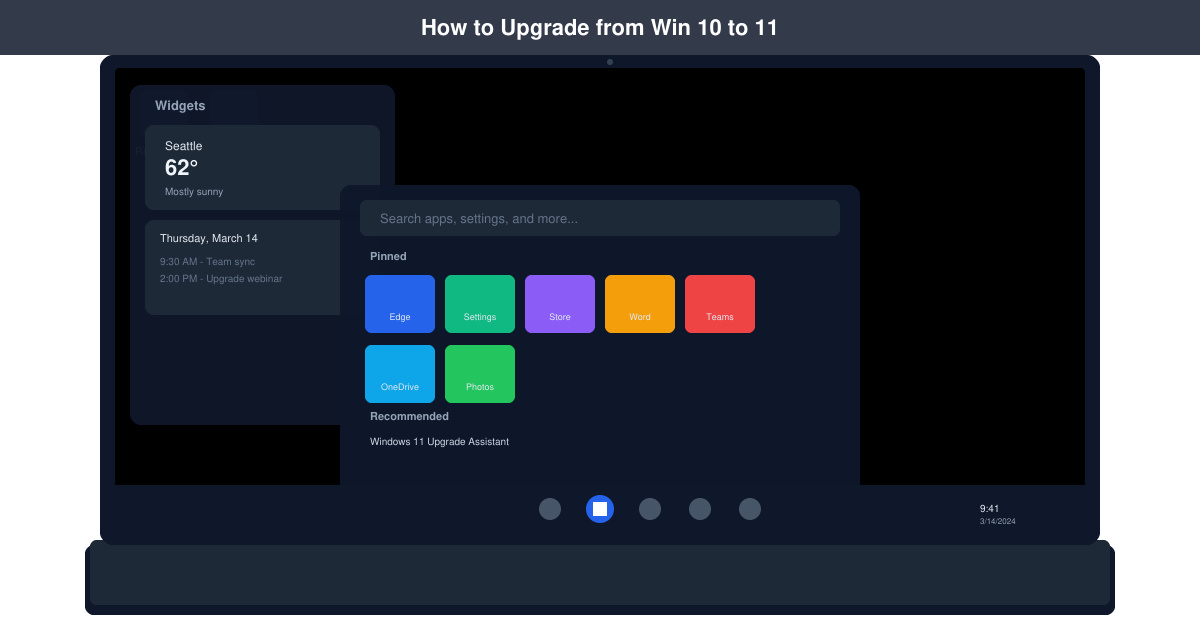
Wondering how to upgrade from Win 10 to 11? The process uses Microsoft's built-in tools to move your existing files and settings to the new operating system while keeping most of your data intact. This guide covers the exact steps needed for a successful upgrade on compatible hardware.
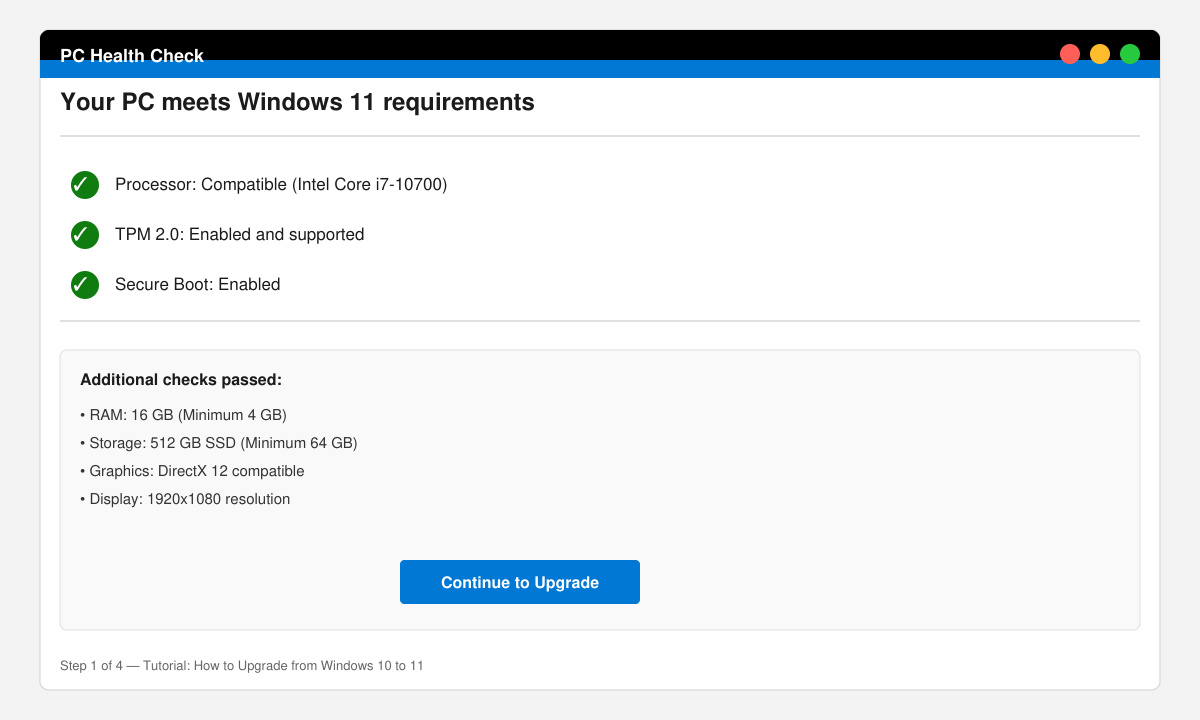
Windows 11 demands stricter hardware than Windows 10. Your processor must support TPM 2.0 and Secure Boot, and your device needs at least 4 GB of RAM plus 64 GB of storage. Run the official PC Health Check app from Microsoft to verify these details before starting.
Users who meet the requirements can proceed without reinstalling applications. If your PC falls short, consider hardware upgrades or staying on Windows 10 for now.
Download the PC Health Check tool directly from the Microsoft website. Open the app, click Check now, and review the results for TPM, Secure Boot, and processor support. Note any failing items listed in the report.
Open File Explorer and copy personal folders to an external drive or OneDrive. Use the built-in Windows Backup settings under Settings > Accounts > Windows Backup to save desktop, documents, and browser data before continuing.
Visit the official Microsoft Windows 11 download page and select the Installation Assistant option. Launch the downloaded file, accept the license terms, and let the tool download the required files while keeping your apps and files in place.
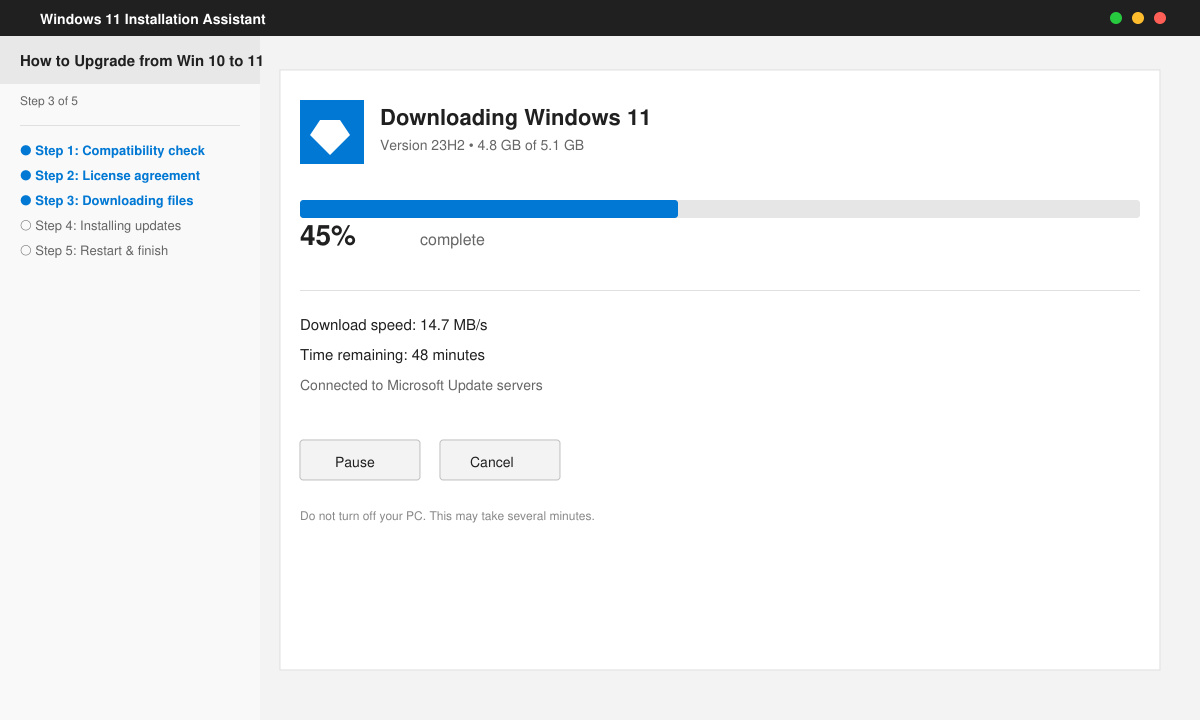
Follow the on-screen prompts to begin installation. The process takes 30 to 90 minutes depending on your hardware. Your PC will restart several times; do not interrupt it until you reach the Windows 11 login screen.
Yes, the Installation Assistant preserves most installed applications and all personal files when the hardware meets requirements.
Most users finish the download and installation within one hour, though slower internet or older hardware may extend this to two hours.
You can roll back within ten days using Settings > System > Recovery. After that period a clean Windows 10 reinstall becomes necessary.
Following these steps delivers a reliable way to move from Windows 10 to the newer platform while retaining your workflow and data.
Distribute a custom wallpaper to Pardus clients, configure Xfce or GNOME desktops, and apply Lider Ahenk user policies with safe pilot checks.
Fix a 1024 × 768 ceiling by checking SPICE, virtual video, the guest channel, and spice-vdagent—with safe checks when Pardus lacks a package candidate.
Set up the Lider server, configure its installer safely, register Ahenk endpoints, and verify a pilot before expanding central management.
Download the official Pardus 23 desktop ISO, write it safely with Rufus, and boot a Windows PC into a temporary Live session.
Find out why Pardus 23 cannot detect your sound card, then use targeted ALSA, firmware, and PipeWire or PulseAudio checks to restore playback.
Save HamoniKR preferences to external storage, include hidden home folders, and choose a safe restore mode when moving to a fresh installation.
Install and configure xrdp on Pardus, choose the right Xfce session, restrict network access, and verify that remote login works.
Diagnose Pardus 23 APT connection failures, confirm the official yirmiuc sources, and restore apt update without bypassing package signature checks.
Configure printers on Harmonica OS using CUPS, compare driverless IPP with legacy drivers, and verify USB or network printing with a test page.
Use a recovery shell to set a new Harmonica OS root password, with checks for encrypted disks, read-only filesystems, and accounts that use sudo.