LibreOffice Document Locked by Unknown User: A Safe Fix
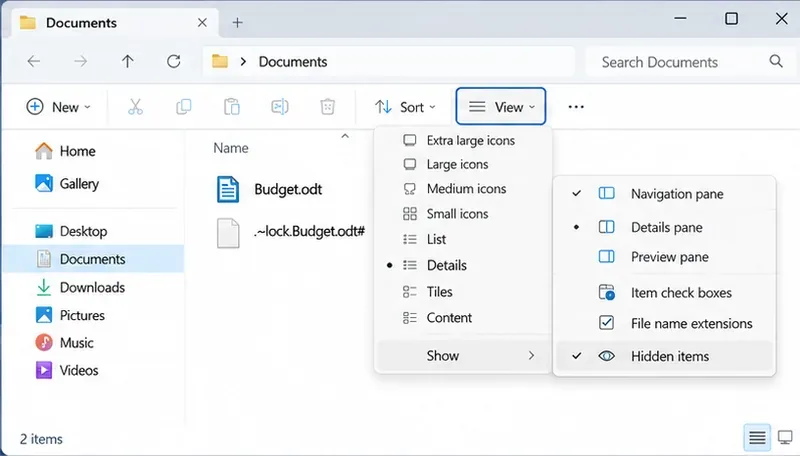
Find the cause of a LibreOffice document lock, safely clear a stale lock file, and confirm that you can edit and save without losing changes.
Imagine upgrading to the sleek, secure world of Windows 11 without spending a dime extra. If you already own a valid Windows 10 key, you're in luck! Microsoft allows many Windows 10 licenses to activate Windows 11 effortlessly, bridging the gap between these operating systems. This guide will walk you through the process, ensuring you get up and running quickly and confidently. Whether you're a tech newbie or a seasoned user, we'll keep it simple, focused, and empowering—let's turn that key into full access! 🚀
Microsoft's policy makes upgrading straightforward for most users. A genuine Windows 10 product key—whether from a retail purchase, OEM license, or volume activation—can often activate Windows 11 because both OS versions share compatible licensing frameworks. This is especially true for editions like Home and Pro.
However, not all keys qualify. Digital licenses tied to your Microsoft account (common after a free Windows 10 to 11 upgrade) transfer seamlessly. Retail keys are fully portable, while OEM keys (pre-installed on devices) are hardware-bound but still work for upgrades on the same PC.
Excitingly, as of the latest updates in 2026, Microsoft has expanded compatibility, ensuring more Windows 10 keys activate Windows 11 without issues. This saves you from buying a new license, potentially hundreds of dollars. Ready to dive in? Let's check if you're eligible first.
Before proceeding, verify your setup to avoid hiccups. Here's a quick checklist:
If your hardware isn't ready, consider a clean install later. For most, though, your Windows 10 key is a golden ticket to Windows 11 activation. Feeling optimistic? Great—now, the activation steps.

Activating Windows 11 with a Windows 10 key is straightforward, whether you're upgrading in-place or performing a fresh install. We'll cover both scenarios. Follow these steps carefully for success.
This is the easiest path if you're already on Windows 10. Your license should carry over automatically.
Pro tip: Back up your files first—upgrades are safe but precautions build peace of mind! 😊
For a fresh start, create bootable media and enter your key during setup.
If activation fails, use the troubleshooter: Settings > Update & Security > Activation > Troubleshoot. This method ensures a clutter-free Windows 11 experience.
Even smooth processes can hit snags. Don't worry—most are fixable. Here's a focused table of frequent problems and solutions:
| Issue | Solution | Tip |
|---|---|---|
| Invalid Key Error | Ensure the key is for the correct edition. Run slmgr /ato in Command Prompt (admin) to force activation. |
Double-check typing—no hyphens needed. |
| Activation Limit Reached | Contact Microsoft support or use phone activation: Settings > Activation > Troubleshoot > (Show me other options). | OEM keys are device-specific; retail ones allow 1-3 activations. |
| Hardware Change Detected | Sign in with your Microsoft account to reactivate the digital license. | Link early: Settings > Accounts > Add Microsoft account. |
| Windows 11 Not Recognizing Key | Update to the latest Windows 11 build via Windows Update, then retry. | Compatible keys work per Microsoft's 2026 policy updates. |
If issues persist, Microsoft's activation hotline is a lifesaver—dial from the troubleshooter for guided help. You've got this; persistence pays off! 👍
Beyond cost savings, activating Windows 11 unlocks a world of enhancements. Enjoy snap layouts for multitasking, enhanced security with Windows Hello, and AI-powered features like Copilot. Your PC runs smoother, with better battery life on laptops and seamless integration with Microsoft 365.
Plus, full activation means automatic updates, avoiding watermarks or feature locks. It's not just an upgrade—it's a productivity boost that feels rewarding. Imagine ditching Windows 10's familiarity for Windows 11's modern edge, all with your existing key. Exciting, right?
Using a Windows 10 key to activate Windows 11 is a smart, hassle-free move that maximizes your investment. By following these steps, you've empowered yourself to enjoy the latest OS without unnecessary expenses. If your key doesn't work, explore Microsoft's free upgrade paths or support options.
Stick around for more guides on optimizing Windows 11—next up, tips for customizing your new interface. Questions? Drop them in the comments. Happy upgrading! 🎉
Find the cause of a LibreOffice document lock, safely clear a stale lock file, and confirm that you can edit and save without losing changes.
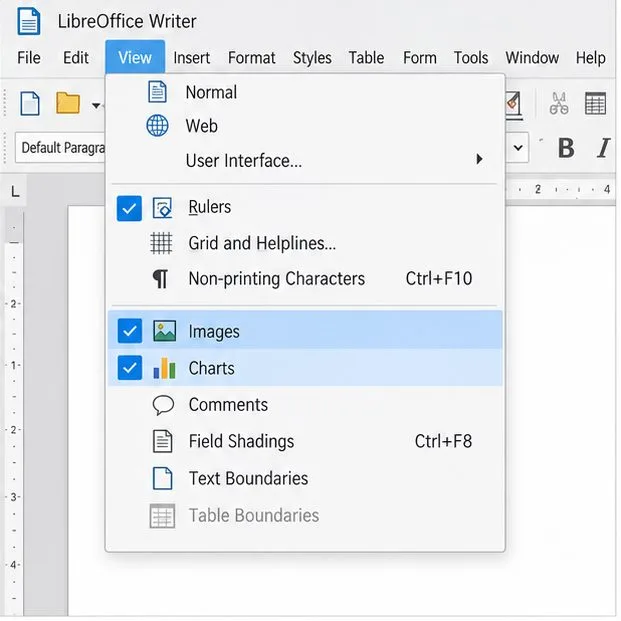
Make image-heavy Writer files easier to edit: test a reversible display setting, compress oversized pictures in a copy, and verify the saved layout.
Find out whether a slow launch comes from extensions, profile settings, or the system, then test the safest fix without losing LibreOffice data.
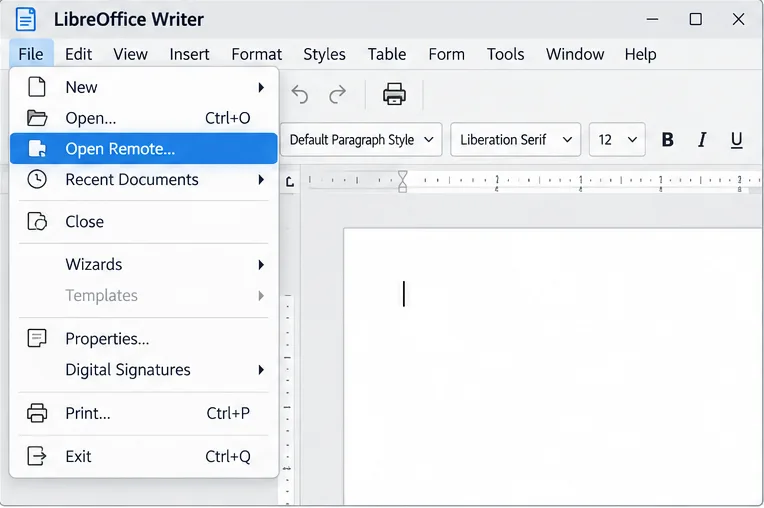
Connect LibreOffice to Nextcloud over WebDAV, save the server copy with Ctrl+S, and understand how AutoRecovery differs from cloud syncing.
Find out whether Pardus 23 is blocking Bluetooth, missing BlueZ, or failing to detect adapter firmware, then confirm the controller works.
Learn how Gooroom separates trusted and untrusted browsing, what users can change, and how an administrator can safely update site policies.
Diagnose rotated, offset, or inconsistent touch input on a Harmonica OS tablet and choose a Linux calibration method that fits its session and driver.
Switch Gooroom’s desktop session to English, verify the locale, and identify when untranslated Korean labels need an app update instead.
Arrange Pardus XFCE as a familiar bottom taskbar with an app menu, pinned launchers, open-window buttons, and a system tray.
Check your Gooroom release and administrator rules, then follow the official Debian-based setup path for Flatpak or Snap without bypassing system controls.